
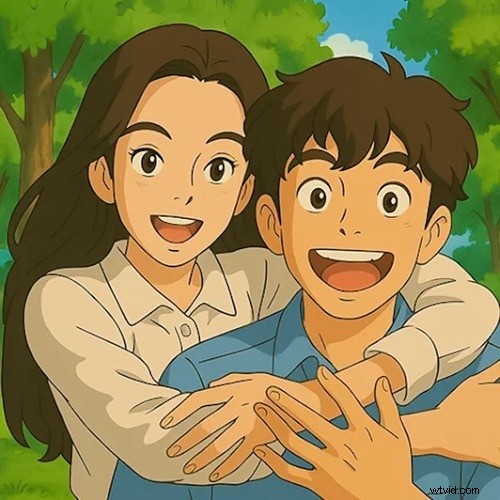
Ever wondered how you’d look as a comic hero or a fantasy avatar? ToonApp lets you turn any selfie into a charming cartoon with just one tap. From classic Disney styles to edgy zombie looks, the app delivers a wide range of transformations.
Before you hit download, let’s walk through its key features, the most popular filters, and how it works. We’ll also suggest a robust alternative for those who want animated video clips created from photos.
1. What is ToonApp and Why It’s Gaining Popularity
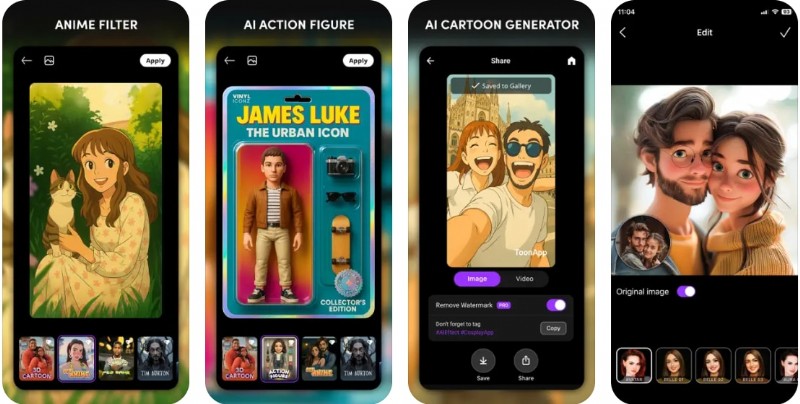
ToonApp is a mobile photo‑editing tool that uses AI to convert selfies into fun, animated portraits. It’s available on Android and iOS, and its simple interface makes it ideal for anyone who wants a creative twist without advanced editing skills.
With a few taps, you can transform your image into a 2D or 3D cartoon, complete with vibrant effects and themed backgrounds.
Instant Cartoonization
Upload a photo and let AI do the heavy lifting. No manual adjustments are needed—your selfie becomes a cartoon in seconds.
One‑Tap Sharing
Export the finished image in high quality and share it directly to Instagram, TikTok, or WhatsApp with a single click.
Creative Filters
The app offers a variety of styles inspired by movies, games, and current trends. You can also swap backgrounds, add effects, and switch illustration styles on the fly.
One‑Tap Backgrounds and Effects
Pre‑set backgrounds match each filter’s vibe, making it effortless to enhance your cartoon.
Pricing
ToonApp is free to download and provides basic cartoon filters at no cost. Premium filters, pop‑culture themes, and advanced features require a subscription starting at $4.99. Free users see a watermark on edited photos.
2. Exploring ToonApp’s Cartoon Filters & Effects
The variety of filters is a major draw. Here’s an overview:
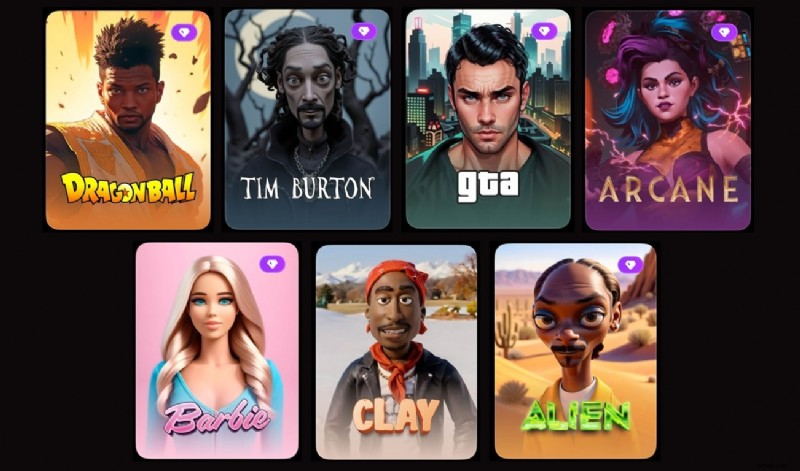
Pop‑Culture & Themed Filters
- Dragon Ball
- Tim Burton
- Arcane
- GTA
- Barbie
- Clay
- Alien
Basic styles include:
- 3D Cartoon: Gives a Pixar‑like depth with realistic shadows.
- 2D Cartoon: A flat, hand‑drawn comic book look.
- Animal Toon: Adds animal features like cat ears or bear noses.
- Full Photo Cartoon: Applies the effect to the entire image, including background.
- Funny Caricatures: Exaggerates facial features for comedic effect.
- ProfilePic: Designed for polished profile photos.

Additional styles are continually updated:
- Anime
- Old Portrait
- Disney
- Comic
- Simpson
- Zombie
3. How ToonApp Works & Its Limitations
Using ToonApp is straightforward, even for beginners:
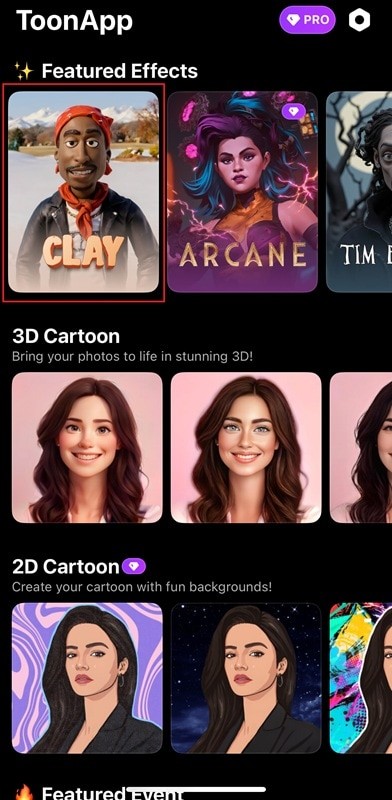
Step 1 – Choose a Filter
Open the app, swipe through categories, and select a style that matches your mood.
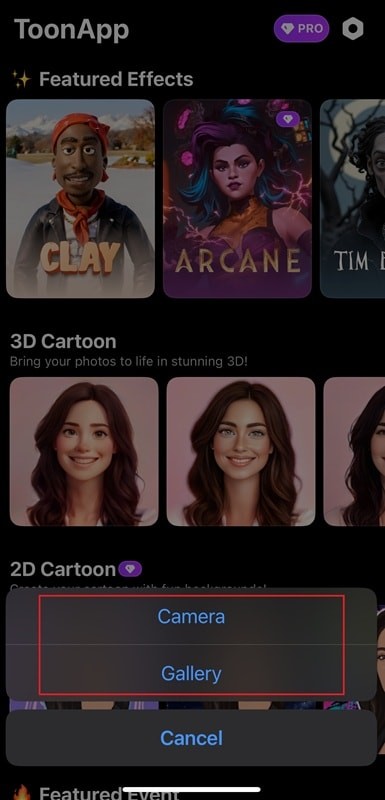
Step 2 – Upload or Capture a Photo
Take a new selfie with the in‑app camera or import one from your gallery. A clear, well‑lit image yields the best results.
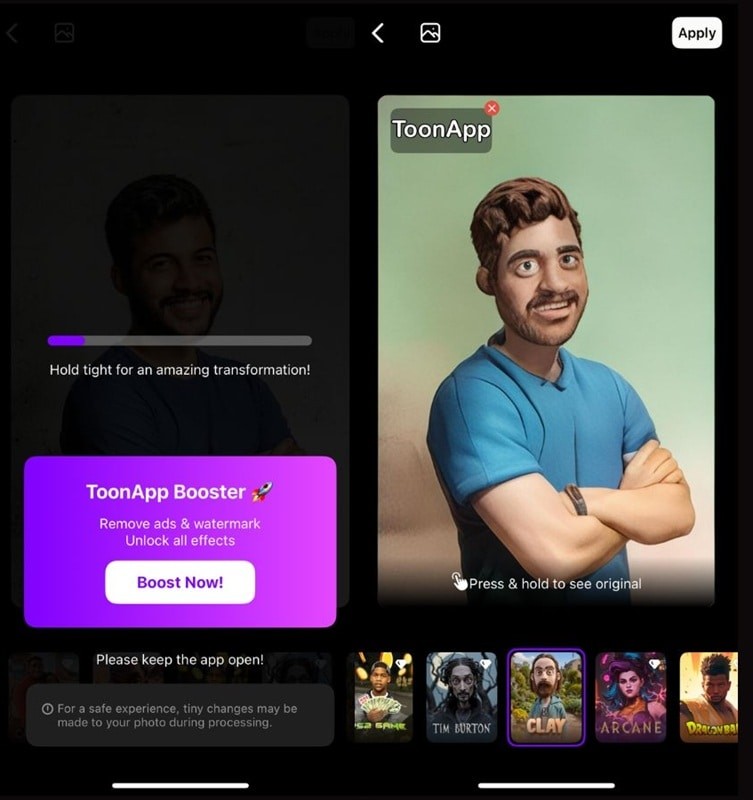
Step 3 – Let AI Process
The software detects facial features, applies textures, adjusts colors, and enhances the chosen style.
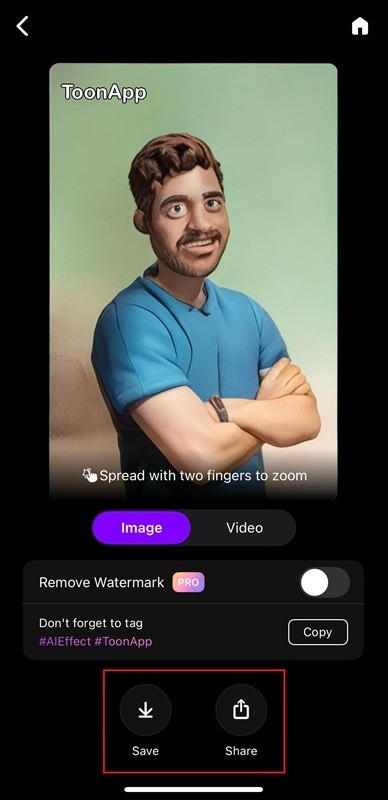
Step 4 – Save or Share
Tap the download icon to save or use the built‑in share button to post directly to social media.
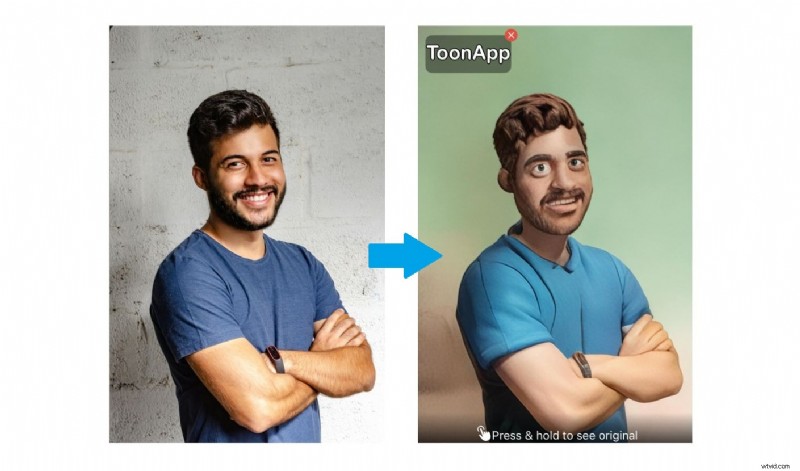
Hands‑On Review
The app delivers quick, high‑quality results—filters apply in under five seconds, and 3D effects render skin tones and shadows with impressive detail. While the free version includes a watermark and limits premium filters, it’s enough to gauge the tool’s potential.
4. Filmora AI – A Powerful Video Cartoonizer Alternative
ToonApp excels at still images, but if you want dynamic, animated content, Filmora’s mobile app offers an AI Image‑to‑Video feature. It turns a single photo into a short animated clip with motion, transitions, and pre‑built effects.
Pros of ToonApp
- Beginner‑friendly interface
- Extensive filter library, including pop‑culture themes
- Rapid AI processing (seconds)
- Optimized for direct social sharing
- Regular updates with new trends
Cons of ToonApp
- Watermark on free exports
- Premium filters locked behind subscription
- No manual fine‑tuning of features or colors
5. Turning Photos into Animated Cartoons with Filmora Mobile
Filmora’s AI Image‑to‑Video lets you add motion to stills, making them suitable for Reels, TikTok, or Shorts.

Featured Filmora FX:
- SkyHero FX: Dynamic upward zoom with glowing backdrop.
- Night Glide: Smooth gliding motion with moody lighting.
- Icing Queen: Sparkling snow and cool blue tones for a magical vibe.
- Sharkman: Underwater splashes, bubbles, and fluid camera motion.
- Pixel Girl: Retro 8‑bit style with glitchy zooms and neon blocks.
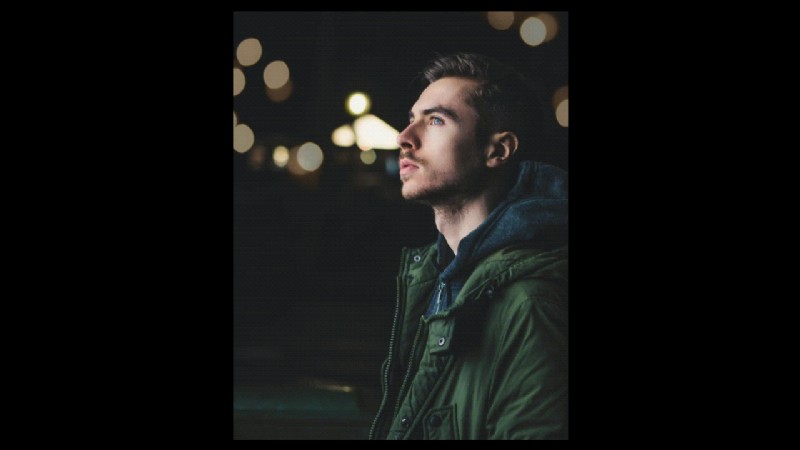
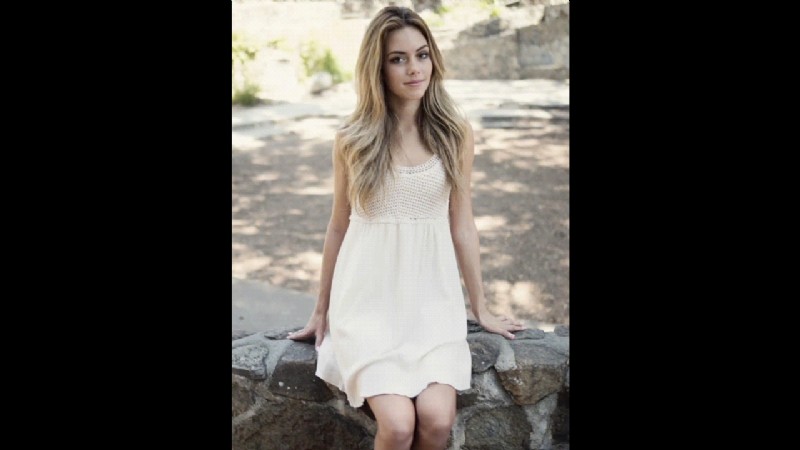
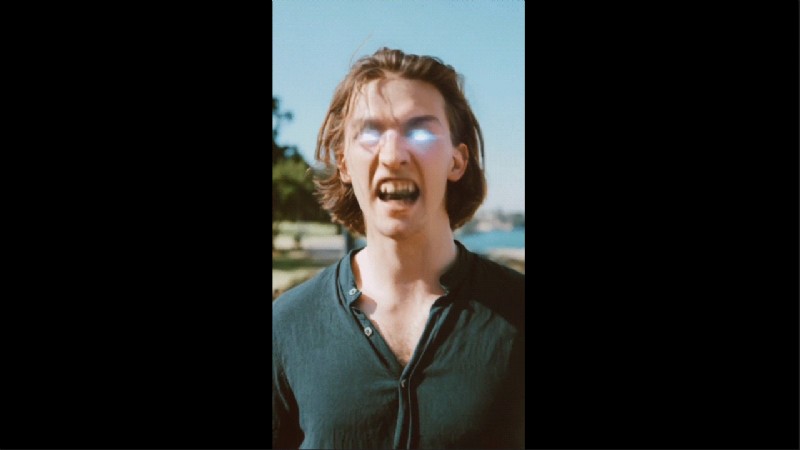
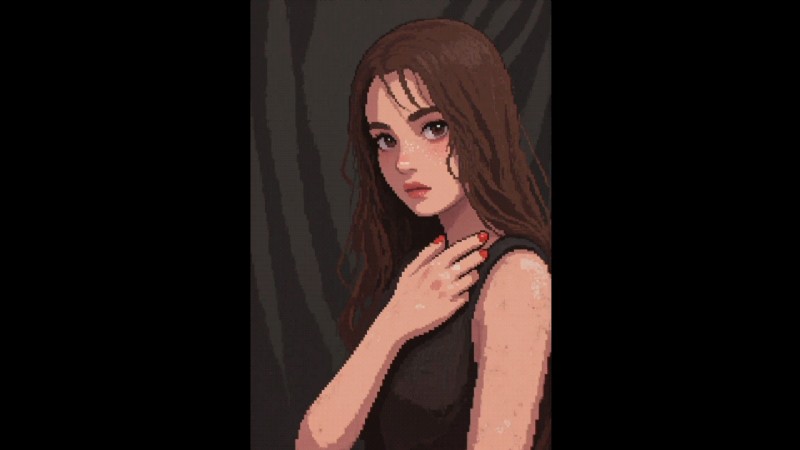
More Filmora AI Styles
- AI Dance – rhythmic motion to match music.
- Transformation – cinematic zooms and dramatic reveals.
- Pixel Game – retro arcade vibe with neon overlays.
- Festival – confetti bursts and upbeat movement.
- …and many others.
Step‑by‑Step: Create an AI Animated Video
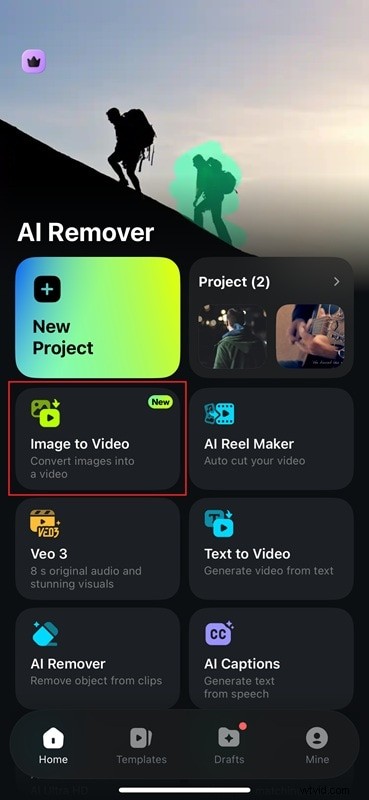
Step 1 – Open Filmora & Image to Video
Tap the feature on the home screen to start editing.
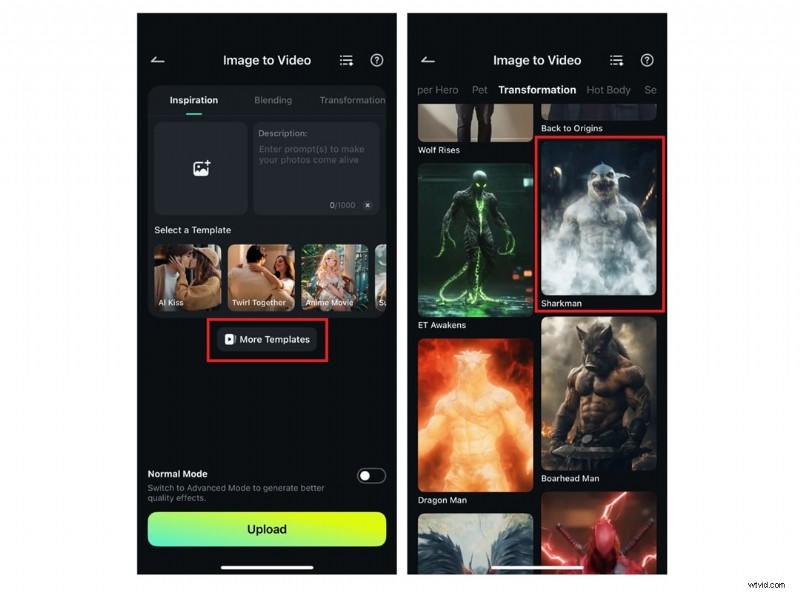
Step 2 – Choose a Template
Select “More Templates” and pick an FX such as Sharkman.
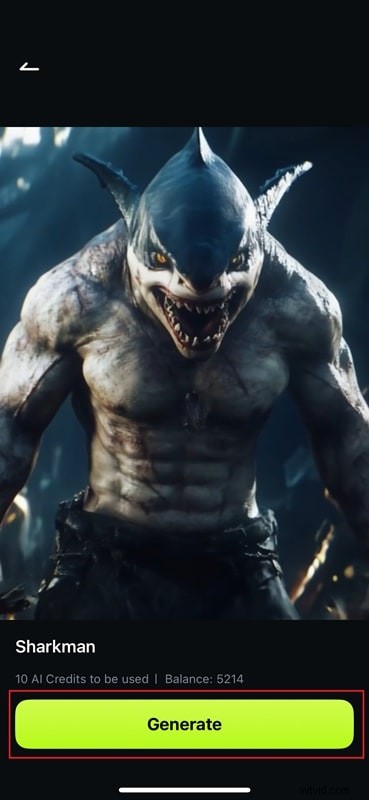
Step 3 – Generate
Upload your photo and let the AI create the animated clip.
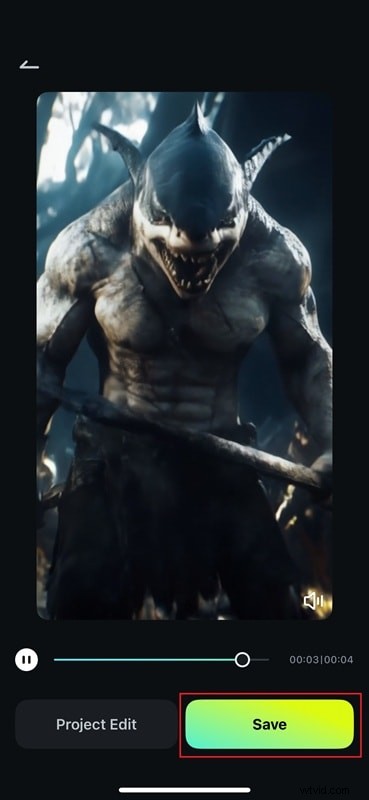
Step 4 – Export
Fine‑tune or export in high quality, ready for TikTok, Reels, or Shorts.
Conclusion
ToonApp offers an easy, entertaining way to turn selfies into cartoon portraits, with a robust filter library inspired by pop culture and classic animation. If you want motion and extra flair, Filmora’s AI Image‑to‑Video feature brings photos to life with animated clips.
Both tools are accessible, fast, and designed to make creative editing a breeze for every user.

Filmora – AI Video Editing App & Software Best tool for making videos anywhere for all creators! Simplify all your steps in video editing, from pre‑processing to finalizing, Filmora AI stays tuned.