
AI avatars have become essential for creators, marketers, and educators in 2026. One standout platform is Hedra AI, a generative media startup revolutionizing AI lip sync with its advanced Character-3 model. Backed by over $44M in funding, it promises human-like expressions that challenge industry leaders. But is Hedra AI free, and how does it compare to professional video editors? This review explores its features, pricing, and the best Hedra AI alternatives.
Part 1: What is Hedra AI? (More Than Just a Talking Head)
Hedra AI is a multimodal generative media platform that generates expressive talking, singing and performance-style videos from text, audio and images with no footage or filming required.
Rather than just processing the text and voice inputs for avatar animation, Hedra AI aggregates them into a single AI workflow to render human-like facial expressions, synchronized lip motion and subtle gestures.
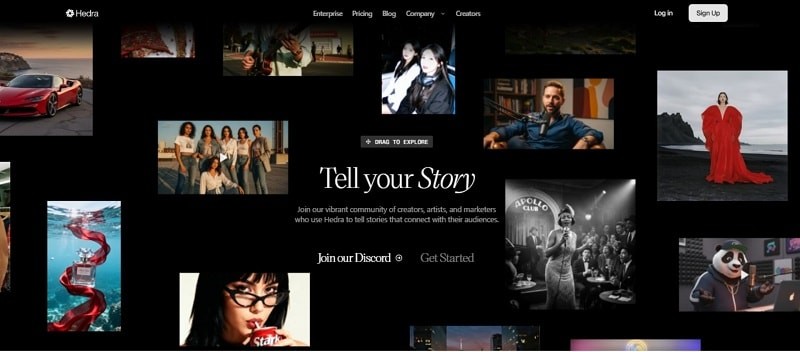
A Next-Gen Omnimodal Foundation Model
In 2025, Hedra introduced Character-3, its proprietary "omnimodal" model. It takes in text, image, and audio at once, and uses audio as the dominant signal for movement. More than just phoneme-accurate lip sync, the tool also reads and predicts small facial and head movements such as blinks, eyebrow raises or nods that eliminate the robotic look from many older methods of syncing lips.
Core Advantages: Realistic Expression and Natural Micro-Movements
Hedra AI differentiates itself through full-face performance modeling rather than simple lip animation.
- Phoneme-aligned lip sync: Mouth shapes correspond to actual speech sounds instead of looping generic mouth cycles.
- Facial micro-expressions: Subtle eyebrow raises, blinks, and gaze shifts that follow speech rhythm and tone.
- Gesture continuity: Consistent motion across frames to prevent jittering or unnatural transitions.
This "whole-face" performance modeling makes Hedra's output feel closer to real human communication than traditional talking-head generators. Because Hedra processes text, image, and audio together, its animations are more cohesive and expressive than systems that handle each input stream separately.
Part 2: Hedra AI Pricing 2026: Is There a Free Plan?
Hedra AI pricing is built on a credit system. A free tier is available for testing. Paid plans increase credits and unlock business rights.
What's Included in Hedra AI Free Plan?
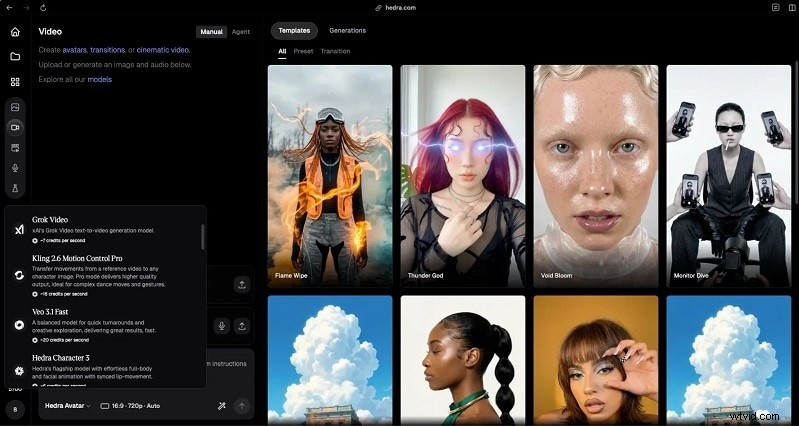
For the free plan, you get to try basic AI video generation models, such as:
- Veo 3.1 Fast
- Grok Imagine
- Hedra Omnia
- Hedra Avatar
- Kling O3 Pro & Standard
- Seedance 1.5 Pro
You will get 100 free credits upon registering. However, note that the free credits disappear quickly since models use anywhere from 3 to 70 credits per second, so expect just a few short test clips. It's also personal use only, and access can slow down during peak hours.
Hedra AI Pricing Comparison (2026)
| Plan | Price | Credits/Month | Key Features |
| Basic | $15/mo | 1,500 | Standard Intelligence Agent, up to 1,500 images per month, up to 62 videos, audio up to 2 hours |
| Creator | $30/mo | 5,400 | Unlimited access to Agents with Enhanced Intelligence when available, up to 5,400 images per month, up to 225 videos, up to 7 hours audio |
| Professional | $75/mo | 14,400 | Unlimited access to Agents with Deep Think when available, up to 14,400 images per month, up to 600 videos, up to 20 hours audio, fastest generation, priority access, team features |
| Team | From $75/mo | From 14,400 | Professional plans + shared team dashboard, shared credit pool, unified billing |
Cost-Effectiveness: How the Credit System Works
Credits are used per second of output. The cost varies depending on which model and resolution you choose:
- Hedra Avatar / Omnia: ~15 credits per second
- Kling O3 Standard: ~35 credits per second
- Kling O3 Pro: ~35 credits per second
- Veo 3.1 Fast: ~20 credits per second
- Veo 3.1: ~55 credits per second
- Sora 2 Pro: ~70 credits per second
- Seedance 1.5 Pro: ~20 credits per second
So a 60-second video using Hedra Avatar at standard quality would cost around 180–360 credits. That's very reasonable on the Creator or Professional plan. However, if you're jumping to premium models like Veo 3.1, those credits drain fast. A single 60-second clip could eat up more than 3,300 credits on its own.
Part 3: Key Features: Why Hedra Character-3 is a Game Changer
Hedra stands out in AI avatar video creation. It focuses on speed, accuracy, and cost control. Its omnimodal system processes images, text, and audio simultaneously. This enables strong lip-sync and natural facial motion in a single pass.
Hedra AI Lip Sync: Technical Advantages
Hedra AI lip sync works through phoneme analysis. The model studies speech sounds and matches mouth shapes to consonants and vowels with high precision. Independent reviews rate its accuracy around 9/10 for talking avatars.

Character-3 does more than move lips. It adds:
- Eye blinks
- Eyebrow motion
- Subtle facial shifts
- Controlled emotional tone
This creates expressive and stable performances. The system runs on advanced GPU clusters, enabling faster rendering and lower cost per second compared to many rivals.
Longer Video Generation: Limits and Smart Workflow
Earlier versions handled short clips only. Current builds support longer outputs, but limits still apply.
- Some plans cap videos at about 15 seconds per generation.
- Free users may need shorter segments for stability.
The platform works best for talking-head content at 720p resolution.
Multi-Language Support with ElevenLabs Integration
Hedra integrates with ElevenLabs and Cartesia for advanced voice output. You can create audio inside Hedra Studio or upload files from ElevenLabs. This supports emotional dialogue and fast speech while keeping lip movement aligned.
Part 4: Step-by-Step Tutorial: How to Use Hedra AI for Beginners
Here is a simple guide to using Hedra AI.
Step 1
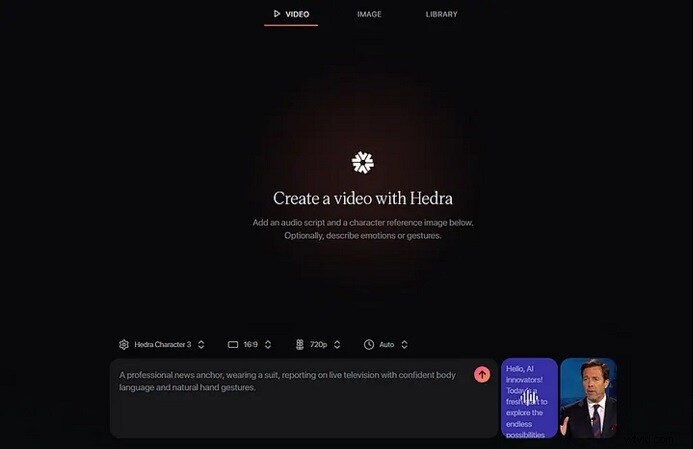
Open the Video Tool
Go to
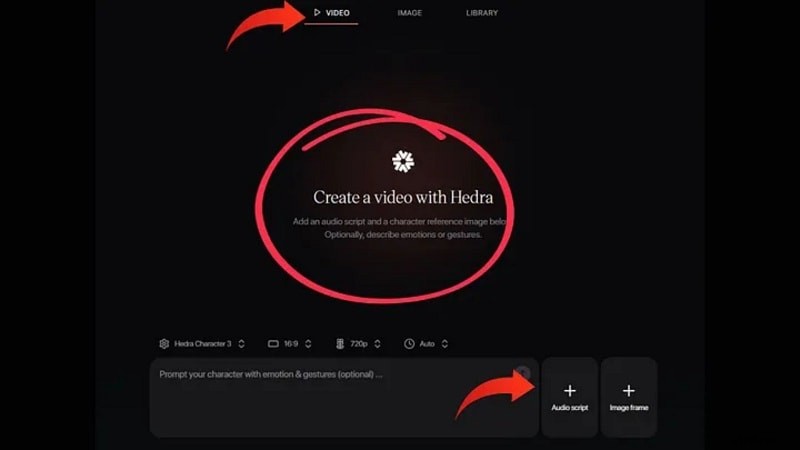
Hedra's official video page. Select Character-3 as your model. Choose your aspect ratio. 16:9 works best for YouTube. Set the resolution. 720p is a common choice. Write a clear prompt.
 Secure Download
Step 2
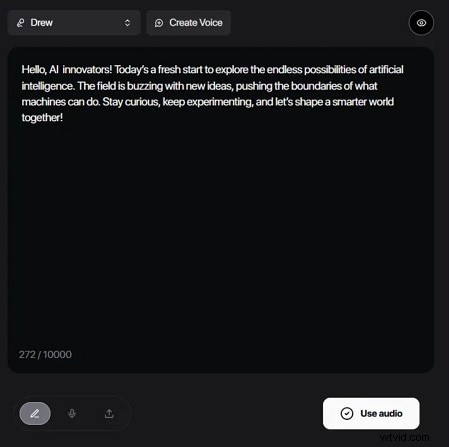
Add Script or Voice
You have two options:
- Upload a recorded voice file
- Type a script and let the AI create the voice
Keep sentences short. Clear speech improves lip sync.
Step 3
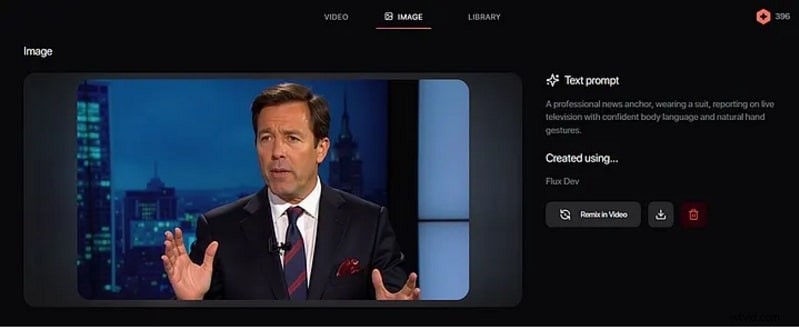
Upload a Character Image
Upload a reference image if you want a custom look. You can also describe mood and expression in text.
Step 4
Generate and Adjust
Click Generate. Preview the video. Edit tone, gesture, or speed if needed. Export when satisfied.
Pro Tip: How to Use Filmora to Upscale and Edit Your Generated Hedra Clips
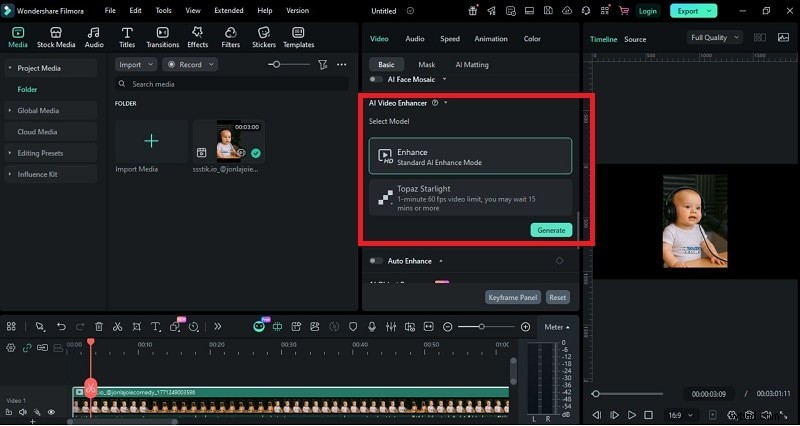
While Hedra AI excels at facial animation, professional content requires more than just a talking head. To achieve a cinematic look, you can edit Hedra AI videos with Wondershare Filmora. Use Filmora's AI Video Enhancer to upscale 720p Hedra clips to 4K resolution and apply AI motion tracking for a dynamic storytelling experience.
Secure Download
You can upscale resolution, smooth out motion, apply cinematic color grades, and export at up to 4K or even 8K without advanced editing skills. To edit your clip with Filmora, follow the steps below.
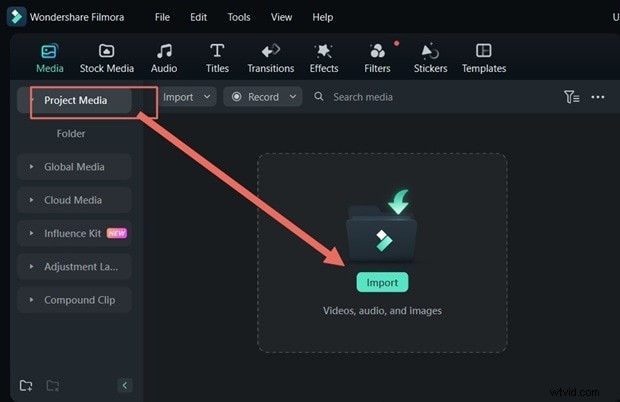
Export your Hedra video at the highest resolution available. Open Filmora and click New Project. Click Import and add your MP4 file. Drag the clip onto the timeline.
Step 2
Upscale and Improve Quality
Click the clip in the timeline. Go to Video > AI Tools. Enable AI Video Enhancer to sharpen and upscale.
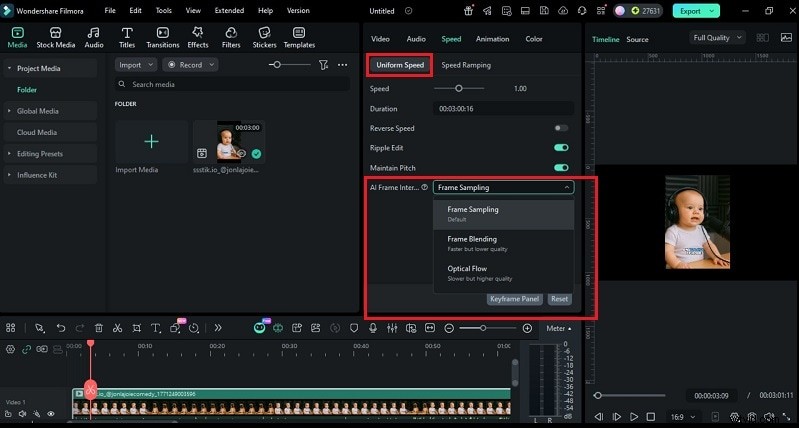
On the properties panel, go to Speed > Uniform Speed and turn on Optical Flow for smoother motion.
Step 3
Apply Cinematic Color Grading
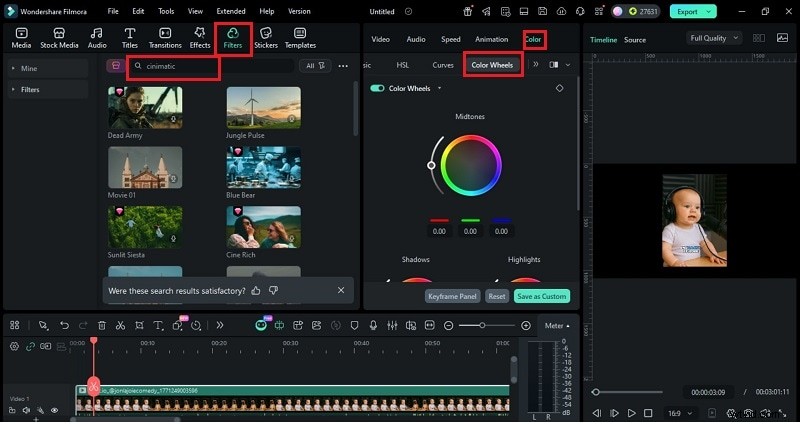
Open the Colors tab and fine-tune the look using HSL, Curves, or Color Wheels to adjust specific tones, contrast, and color balance until it feels just right. You can also browse and apply effects from the Effects library to give your video that extra layer of polish.
Part 5: Hedra AI vs. HeyGen vs. Synthesia: Choosing the Best AI Video Generator
Hedra AI is known for strong lip sync and expressive avatars powered by Character-3. It works best for creative, character-based videos. However, when compared to HeyGen, D-ID, and Synthesia, the right choice depends on your goal: creative storytelling, fast marketing content, or formal training.
Comparison Table
| Feature | Hedra AI | HeyGen | D-ID | Synthesia |
| Best For | Creative, character-driven videos | Marketing and fast content | Talking photos | Corporate training |
| Lip Sync | Excellent and expressive | Very high | Natural and stable | Very precise |
| Avatar Style | Stylized and artistic | Realistic and diverse | Photo-based realism | Professional and business-ready |
| Main Strength | Character-3 animation quality | Large template library | Photo-to-video effect | Enterprise-level polish |
1. Best for Social Media (TikTok, Reels, Shorts)
Winner: HeyGen and D-ID
HeyGen works well for fast marketing videos. It offers many templates and ready-made avatars. Meanwhile, D-ID is ideal for quick talking and photo clips.
2. Best for Corporate Training & eLearning
Winner: Synthesia
Synthesia leads in business training. It offers a large avatar library and a formal presentation style. HeyGen can support business use, but it focuses more on marketing than structured learning.
Part 6: Expert Tips: Creating High-Quality Hedra AI Video
Good results depend on three things: image quality, clean audio, and clear prompts. Each part must support the other.
Best Prompts for Hedra AI
- Strong Hedra AI video output starts with simple and realistic motion cues. Use subtle directions, such as "Speaks calmly with soft head movement" or "Confident tone with natural blinking."
- Add mood and lighting details, like "Soft golden light, cinematic close-up." or "Focused gaze, natural skin texture."
- Avoid complex body actions like walking or waving. Hedra works best for face-focused animation.
How to Write Effective Base Image Prompts
- Use this formula: Subject + Pose + Setting + Lighting + Style
- Be specific. Instead of "man," write "middle-aged man with sharp features and kind eyes."
- Add detail words, like "visible skin texture" "natural catchlight in eyes"
- Specify framing such as "close-up headshot." This improves lip accuracy.
- Use style guides like "photorealistic" or "cinematic lighting."
Lighting and Resolution Requirements
- Use soft, even lighting.
- Avoid harsh shadows.
- Upload high-resolution images (720p or higher).
- Center the face. Keep your eyes clear.
Do not upload blurry, filtered, or group photos.
Extra Quality Tips
- Generate 3–5 versions. Pick the most natural one.
- Use clean audio. Clear speech improves sync.
- Trim the first and last half-second in editing to remove glitches.
Conclusion
Hedra has shown that AI avatars can feel natural rather than robotic. Its Character-3 model delivers strong facial motion, accurate Hedra AI lip sync, and expressive talking-head results at a competitive credit cost. The pricing model is clear. The free tier allows testing, while Creator and Professional plans unlock real production power.
In summary, Hedra AI is a top-tier choice for AI lip sync in 2026. However, for a complete professional workflow, combining Hedra's expressions with Filmora's advanced editing tools is the ultimate strategy for modern creators.

Filmora
AI Video Editing App & Software
Best tool for making videos anywhere for all creators!
Simplify all your steps in video editing, from the pre-processing to finalizing, Filmora AI stays tuned.