
Adding an outline to your images and stickers is one of the easiest tricks to make your Canva designs really stand out. It's a simple effect, but it makes a huge difference when you want your visuals to pop against busy backgrounds or just look more polished overall.
Canva actually gives you a few different ways to do it, depending on what kind of image you're working with. Got a regular photo or shape? There's a method for that. Working with cut-out images or stickers? There's a different approach that works better.
We'll walk through the different methods of how to outline an image in Canva. By the time you're done reading, you'll know exactly how to make your designs look more eye-catching!
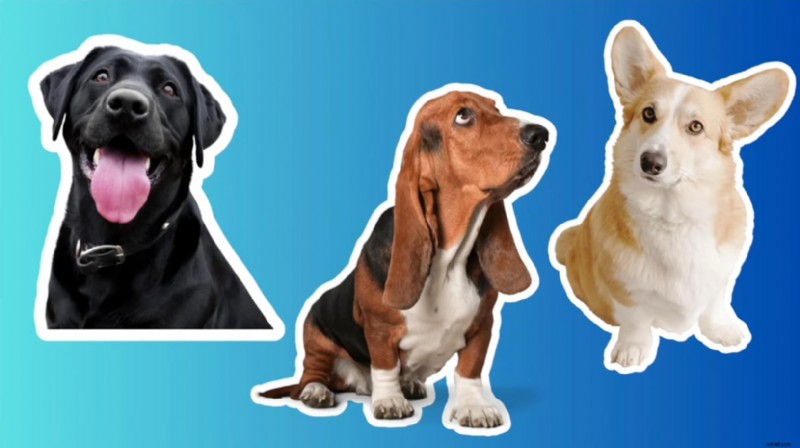
Canva gives you two main approaches for adding outlines, and picking the right one depends on what kind of image you're working with.
Method A: Basic Border or Stroke for Simple Shapes
This method works best when you're dealing with standard shapes like rectangles or squares. It's the most straightforward way of how to outline a photo in Canva, and you can adjust the border thickness and color to match your design.
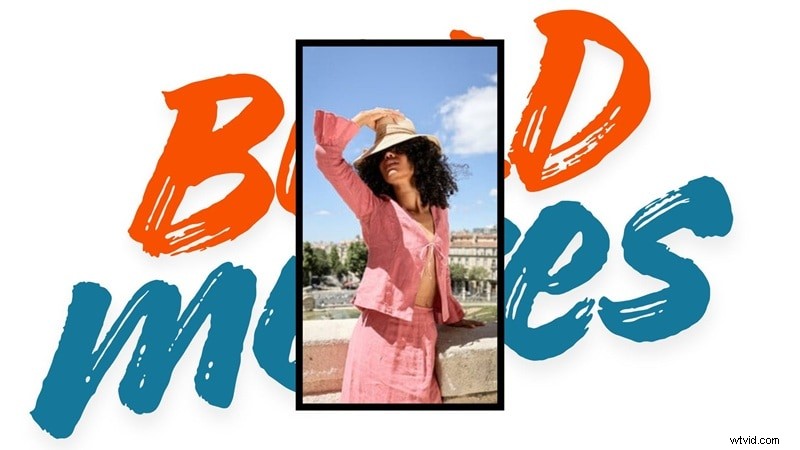
How to Add an Outline in Canva:
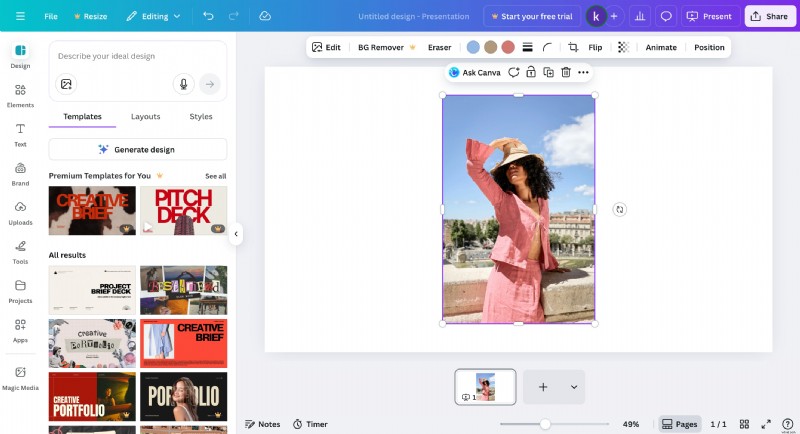
Click on the image you want to outline in your Canva design. Make sure it's highlighted with the selection handles around it.
Step 2
Customize your outline
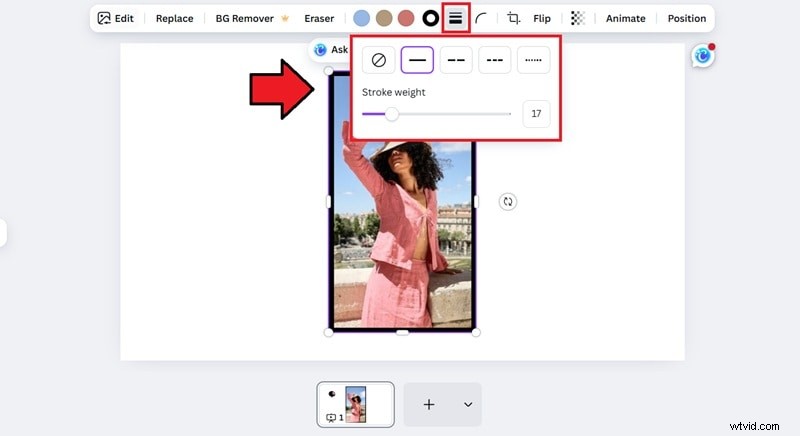
Choose “Stroke Style” and switch it to a straight line. Drag the weight slider to adjust the thickness, then hit the color box if you want to change the line color.
Limitation:
- Only works for images that already have regular shapes (square or rectangle).
- If you're working with irregular cut-out images or stickers with transparent backgrounds, the border will create a box around the entire element rather than following the shape's edges.
- The border actually sits inside the photo. When you increase the thickness, the line expands inward and takes up more space in the image.
If this method doesn't cut it, try the next option.
Method B: Shadow Outline for Cutout Images
When you need to outline irregular shapes, stickers, or images with transparent backgrounds, the shadow effect is your best friend. This technique creates an outline that follows the actual contours of your image, regardless of its complexity.
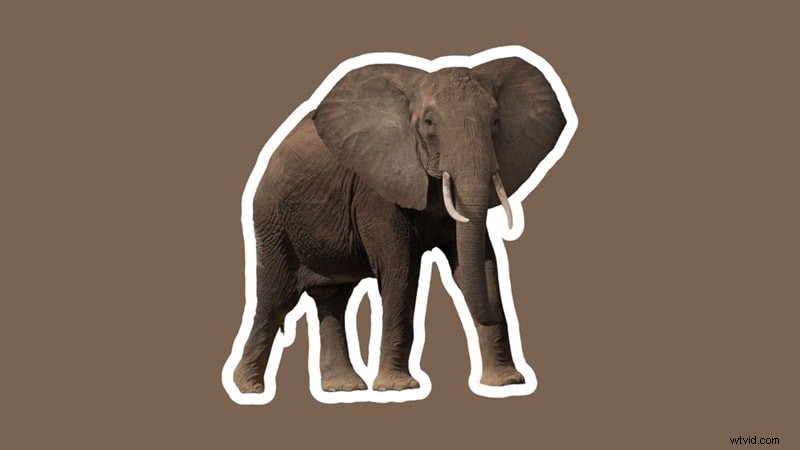
How to Make an Outline in Canva with a Shadow Effect:
Step 1
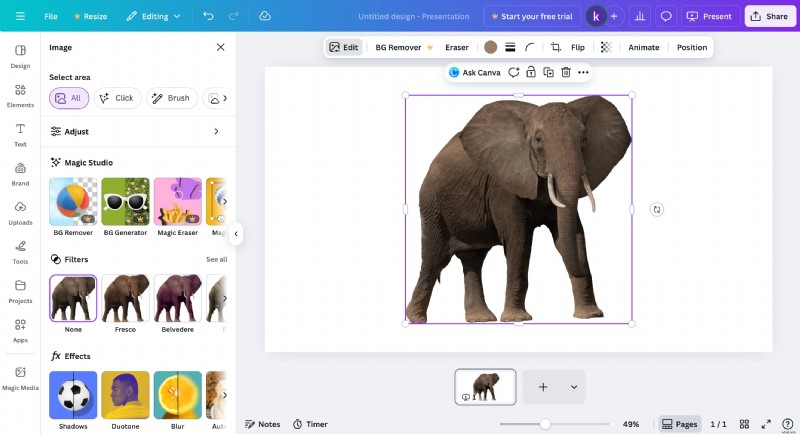
Select your image and open edit options
Click on your cut-out image or sticker, then click "Edit image" in the toolbar that appears at the top.
Step 2
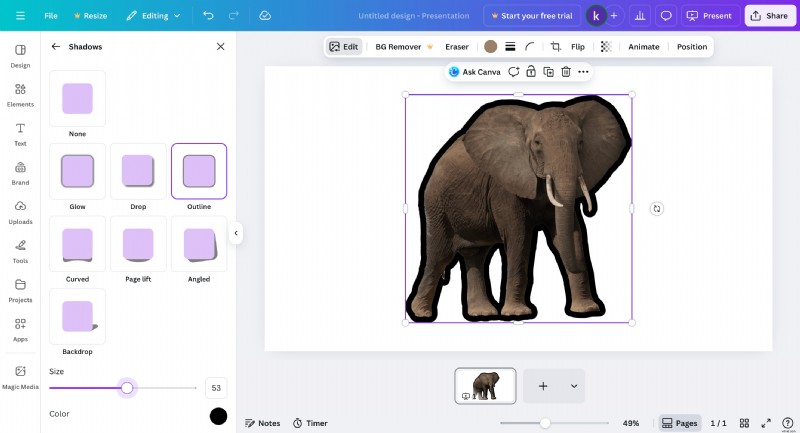
Apply the Outline shadow effect
Scroll down to find the "Shadows" section and click on it. Choose the "Outline" shadow effect from the options available.
Step 3
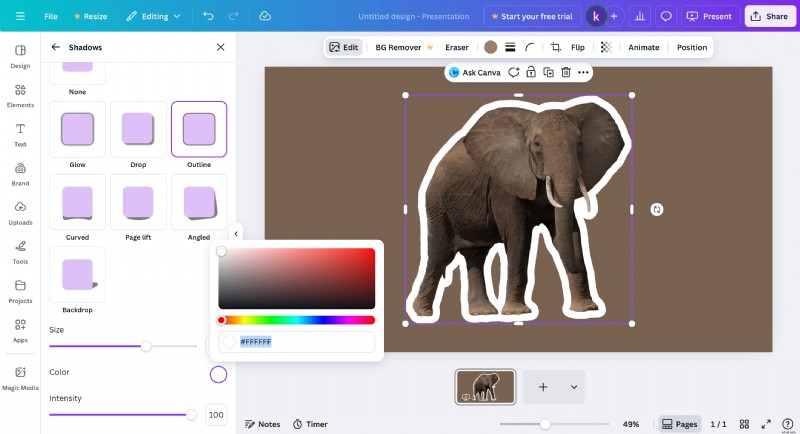
Adjust size and color
Use the size slider to make your outline thicker or thinner. Click on the shadow color box to change it to whatever color you need for your design.
Pro Tip: Creating a White Outline
Wonder how to add a white outline to an image in Canva? Simply follow Method B above, but when adjusting the color in Step 3, select white as your shadow color. This technique works great for any design where you need your subject to really pop off the background.
How to Outline an Image and Animate It for Dynamic Results
Static outlines work perfectly fine for most design projects, but they start to feel limiting once you move into video content. Movement naturally catches the eye, and a static border just sits there.
Canva doesn't really have tools for animating custom outlines. You can add some basic animations to elements, but you can't outline-draw itself on screen or pulse with your video's beat. For that kind of effect, you'll need Wondershare Filmora.
 Secure Download
Filmora gives you full control over how your outlines animate using the Pen Tool. You can create smooth draw-on effects that are useful for YouTube intros, product highlights, tutorials, or social media posts. The workflow is direct and beginner-friendly, and you don't need any extra plugins or complex setup to achieve the effect.
Why Upgrade from Canva to Filmora
Canva works very well for static outlines and simple visual layouts. However, when you need to draw a custom line path, or your design needs animation or needs to fit into a moving scene, Filmora becomes a more suitable choice.

Filmora is built for video editing from the start, so it handles timing, motion, and keyframes naturally. This allows your outlined images to move, highlight, and interact within your video instead of staying flat.
Key Advantages of Using Filmora for Animated Outlines
- Designed for video and motion: Filmora provides tools that understand how visuals should move. When you want your outline to appear, fade, trace, or pulse in sync with the scene, Filmora gives you the controls to do that smoothly.
- Precise animation control: Instead of relying on a few preset animations, you can control how your outline appears frame by frame. You can create quick highlight traces, slow draw-on reveals, or outlines that pulse with background music.
- No switching between programs: In Canva, you would outline the image, export it, and then switch to a video editor to animate it. If something needs adjusting, you go back and forth. Filmora lets you outline and animate directly in the same workspace, which saves time.
- Professional results, accessible to beginners: The animated outline effects created in Filmora match the style used in modern marketing videos and popular YouTube channels. You do not need advanced software or motion graphics experience to achieve this look.
How to Create Animated Outlines in Filmora
Filmora uses two features for this: the Pen Tool to trace your outline, and the Trim Path to animate it. It sounds technical at first, but the workflow is straightforward once you try it.
Step 1
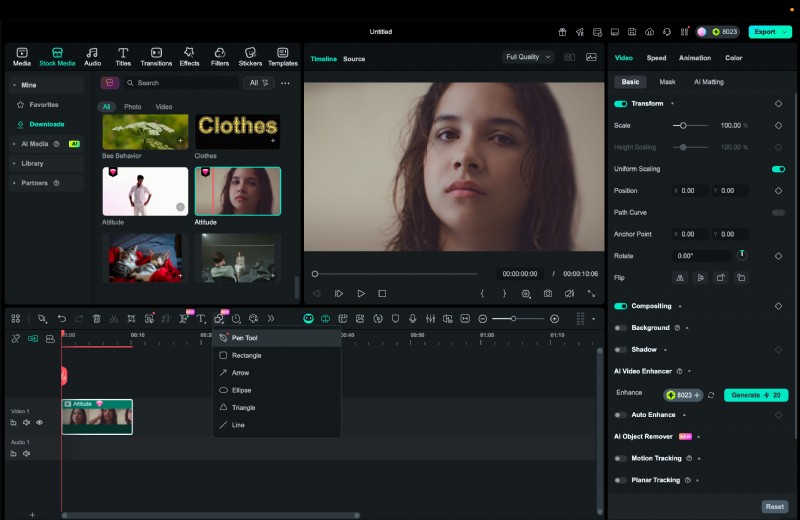
Select the Pen Tool
After placing the image or sticker into your Filmora timeline, open the Pen Tool from the editing toolbar. This tool lets you draw a custom path around your subject.
Secure Download
Step 2
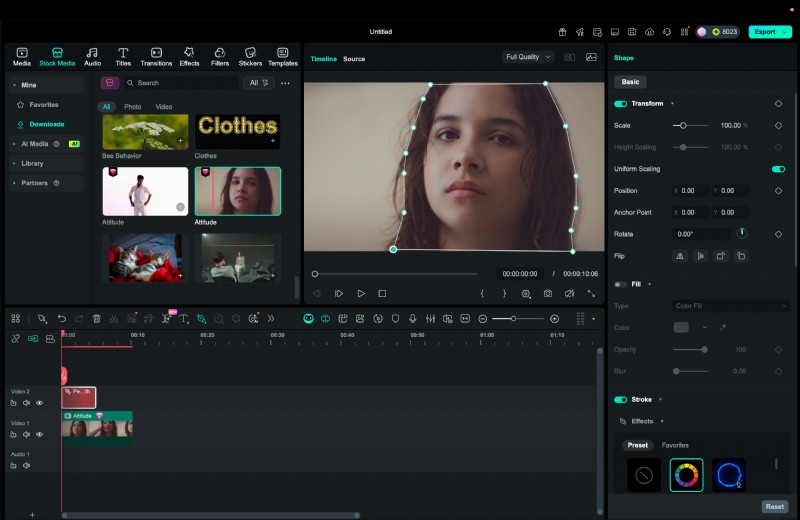
Trace around the subject
Click along the edges of your image to create anchor points. Filmora will connect these points into a path. Don't worry about being perfect here; you can always adjust the points later to refine the shape.
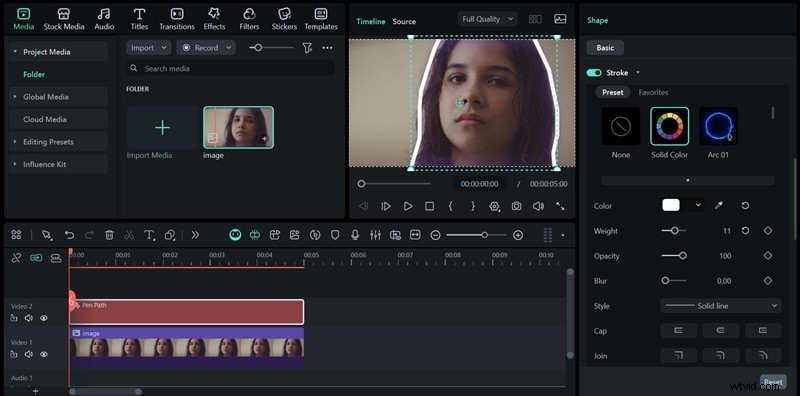
In the right panel, open the Basic section and make sure Stroke is turned on. Choose Solid Color to create a clean outline, then set your outline Color, Weight (thickness), Opacity, and more. If you want the outline to appear stronger or brighter, pick a neon preset from the stroke options.
Step 4
Apply the Trim Path effect
Find the Trim Path option and apply it to your outline layer. This will animate the outline so it appears gradually.
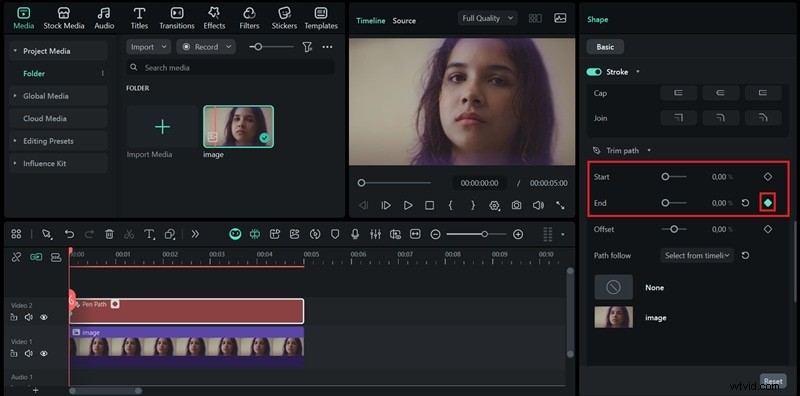
Move the playhead to the very beginning of your timeline. Set the Start and End values to 0 percent, then create a keyframe on the End setting to mark where the animation begins.
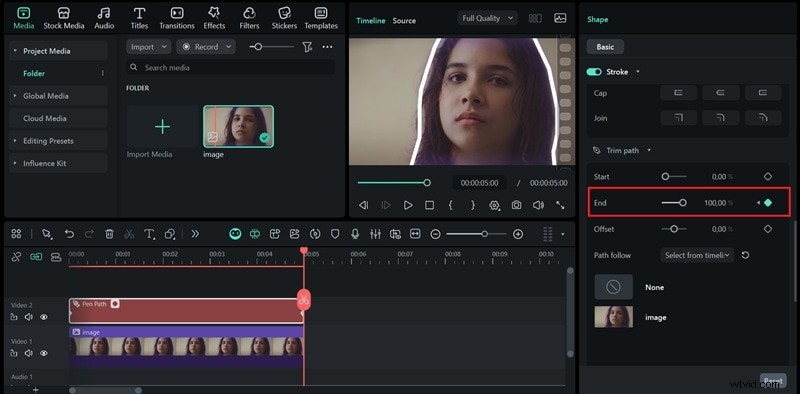
Next, drag the playhead to the point where you want the stroke animation to finish. Change the End value to 100 percent and place a second keyframe to complete the motion.
Comparison: Canva vs Filmora for Outline Effects
| Feature | Canva | Filmora |
| Best For | Static images, social media graphics, quick designs | Video content, animated effects, motion graphics |
| Outline Options | Basic borders, shadow-based outlines | Custom outline paths with the Trim Path effect animation |
| Animation Capabilities | Preset animations only (fade, slide, etc.) | Full keyframe control, custom timing, complex movements |
| Learning Curve | Straightforward and beginner-friendly | Beginner-friendly, with more control options |
| White Outline Creation | Yes (using shadow effect) | Yes (direct stroke color and thickness settings) |
| Shape Handling | Works best with regular shapes or cut-out PNGs | Works with any shape and can trace custom paths |
| Pricing | Free version available, Pro starts at $13/month | Free trial available; subscription and perpetual license options vary by region |
| Export Options | PNG, JPG, PDF, basic MP4 | High-quality video export, including 1080p and 4K |
How to choose:
- If your final output is a still image or you need something designed in under 5 minutes, stick with Canva.
- If you're making video content and want outlines that move, pulse, or draw themselves on screen, Filmora is worth learning.
Most content creators end up using both tools; they just use each one for what it's actually good at.
Conclusion
Learning how to outline a picture in Canva is a simple way to make your designs stand out. Canva gives you simple, effective tools to create clean sticker-style outlines for static graphics, social posts, and presentations.
When your project moves into video or you want the outline to animate and guide attention, Filmora offers the control and motion tools needed to make that happen smoothly. Use Canva for quick, polished still visuals. Switch to Filmora when your outline needs to move with your story. Both tools work well, depending on what you're creating.

Filmora
AI Video Editing App & Software
Best tool for making videos anywhere for all creators!
Your Perfect First Video Edit Starts Here - No Experience Needed