
Everyone knows Google, but not everyone knows they've launched their own video editor called Google Vids. If this is your first time hearing about it, you might be wondering if it can really compete with other video editors that keep getting better every year.
That curiosity is exactly why we put together this Google Vids review. We'll show you what's inside, and of course, how to use Google Vids so you can decide if it's worth adding to your creative toolkit.
Part 1. What Exactly is Google Vids?
The name says it all. Google Vids is literally Google's AI-powered video editor built right into Google Workspace. It started out as a small add-on tucked into the Workspace ecosystem, but now it's open for everyone to try. The idea behind it is simple: make video creation as easy as making a doc or a slide.
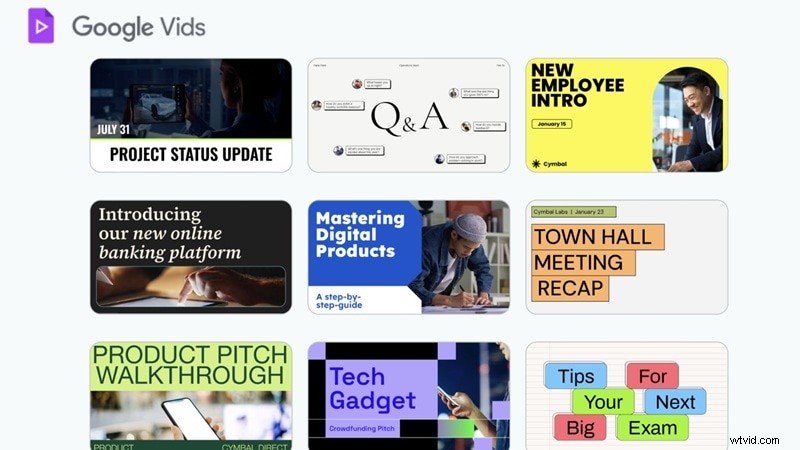
What's even better is that Google Vids AI taps into Gemini, Veo 3, and a set of built-in templates to build videos in minutes without needing advanced editing skills.
Google Vids Key Highlights & Core AI Features
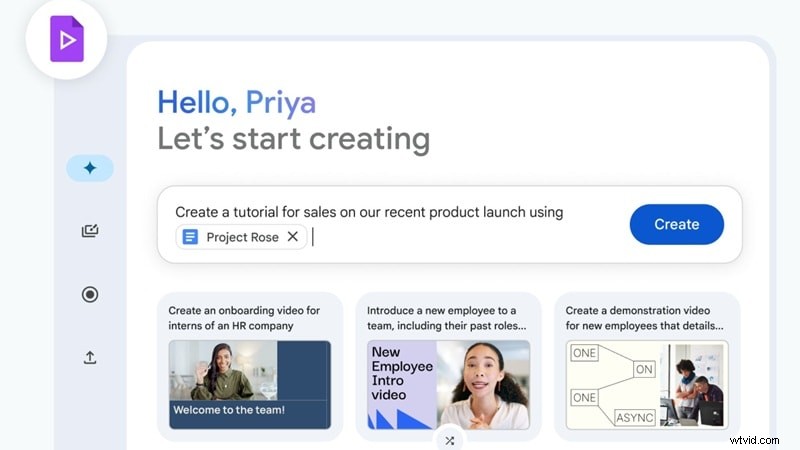
- AI Video Generation From Text Prompts: Google Vids AI can take a simple line of text and turn it into a complete storyboard. You can also bring in your own document as a reference so the editor builds a video that follows your content more closely.
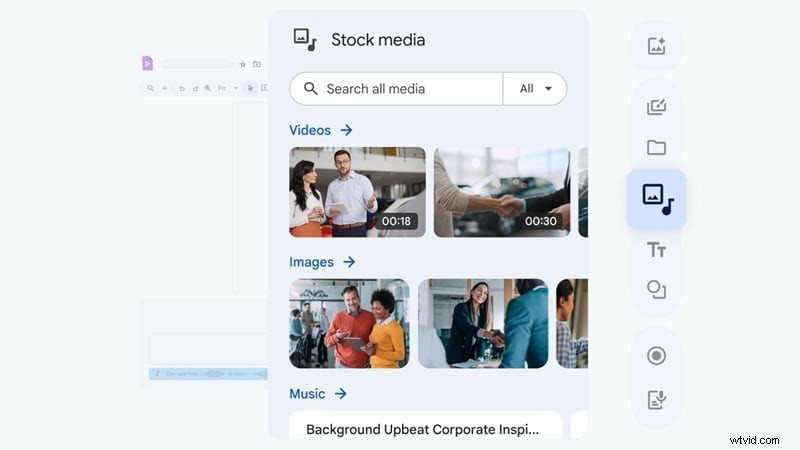
- Rich Media Library: The editor comes with a built-in stock library filled with clips, images, and audio tracks. It makes putting together a polished video much easier since you don't have to leave the workspace to hunt for assets.
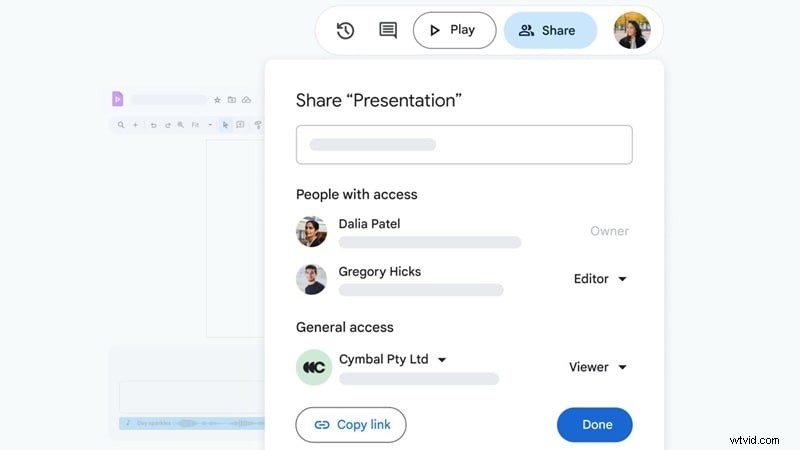
- Easy Sharing and Collaboration Like Google Docs: Just like Docs or Slides, Google Vids keeps teamwork simple. You can invite others to edit, comment, or view in real time, then export the finished video straight to Drive or MP4.
What's New in 2025
Google Vids has grown a lot this year, and the updates make it even more exciting to use. Here are some of the fresh changes that stand out:
The integration of Veo 3 is the most crucial update for 2025. While the free version gives everyone access, the true power of Veo 3, particularly its ability to generate high-quality video from a single prompt, is tightly locked within the Workspace premium tier. This is a clear move by Google to drive adoption for its paid ecosystem, positioning Vids as a tool for businesses rather than a free social media editor.
- Free Version For Everyone: Google Vids free access is now rolling out to all users, which makes it easier to try without paying upfront. This move opens the door for more creators to see what the AI editor can really do.
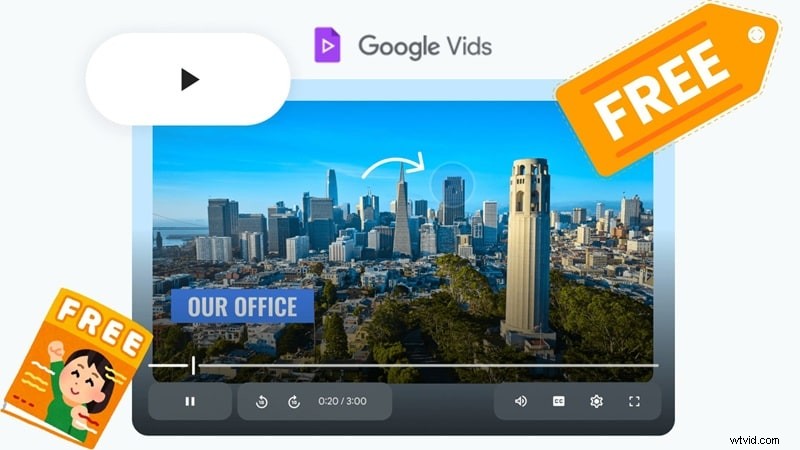
- Veo 3 Capabilities: The new Veo 3 feature can take your prompt or a single photo and bring it to life as a short video clip. It adds motion and depth that instantly make visuals more engaging.
Pricing
Like mentioned, Google Vids now has a free version you can use with a personal Google account. The free plan covers simple editing, while the AI tools are only available with a Google Workspace subscription. Check out the table below for a clear look at Google Vids pricing tiers.
| Plan | Price | Storage | Video Meetings | AI Features & Tools |
| Starter | $5.04/month | 30 GB | 100 participants | Gemini AI in Gmail, Google Vids AI editor |
| Standard | $11.76/month | 2 TB | 150 participants | Gemini AI in Gmail, Docs, Meet, NotebookLM |
| Plus | $26.40/month | 5 TB | 500 participants | All Standard AI tools |
| Enterprise Plus | $42/month | 5 TB+ | 1000 participants | AI Classification, Gemini AI full suite |
Compatibility
Google Vids is fully browser-based, so you don't need to install heavy software to get started. It runs smoothly on Windows, macOS, and Chromebooks, with the best performance when using Chrome.
Part 2. Editing With Google Vids: What It Feels Like to Use
The best way to learn is by trying it yourself, so this part walks you through how it feels to create a video, polish your clips, and bring everything together inside Google Vids.
Simple Editing with Google Vids
To start, simply upload your assets to Google Drive. The timeline-based interface allows you to drag and drop clips, trim segments, and layer audio tracks just like a simplified version of Google Slides.
Step 1
Explore the Free Plan Interface
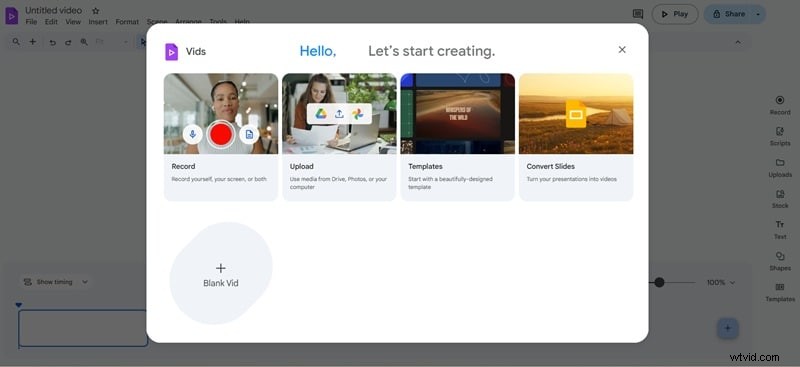
If you use the free version, this is the main interface once you log in with your Google account. The options are simple but enough for quick projects. You can record yourself, upload a clip from your device, pick from ready-made templates, or turn your PPT slides into videos. For this walkthrough, let's have some fun with the last option.
Step 2
Import Your PowerPoint File
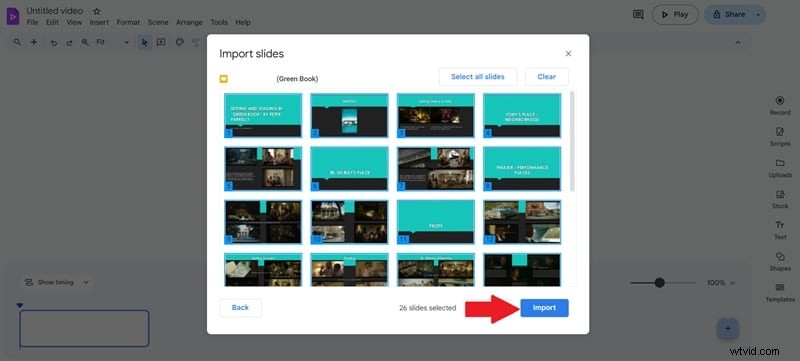
Find and upload the PPT file from your computer, then click "Import" and watch it drop right into the editor. From here, the slides are laid out like scenes, ready for you to shape.
Step 3
Edit and Add Narration
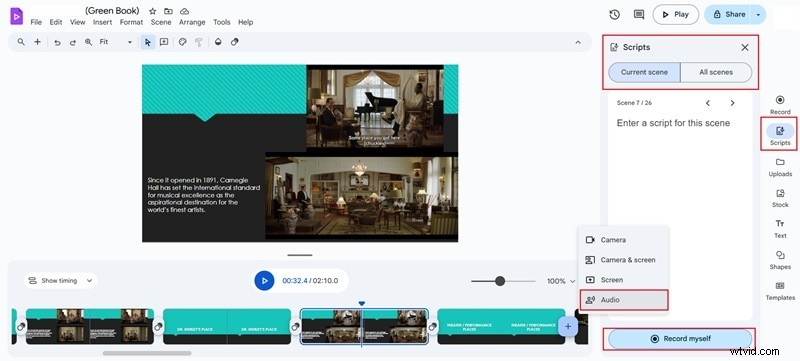
Inside the editor, you can trim down slides or rearrange them for better flow. To add a personal touch, open the "Script" option where you can type your narration or choose "Record Myself" with the "Audio" setting for instant voiceovers. You can apply this to one scene or across the whole video.
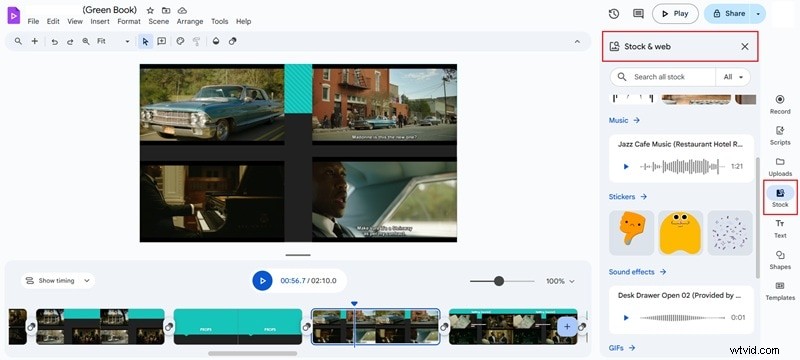
The "Stock" menu is where the creative extras live. Here, you can add background music, images, stickers, or sound effects to turn a plain slideshow into something lively.
Step 5
Preview and Export Your Video
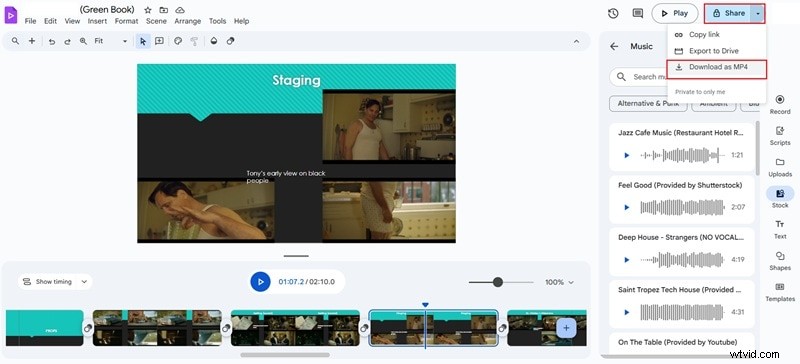
Once everything feels right, click the play icon to preview your creation. Hit "Share" and choose to export directly to Drive or download the finished video as an MP4 straight to your device.
Create AI Short Clips with Google Vids
Using the "Help me create" feature powered by Gemini, you can type a prompt like "Create a 30-second quarterly report summary." Google Vids will then generate a storyboard and suggest stock footage via Veo 3.
Step 1
Log in to the Premium Google Vids Interface
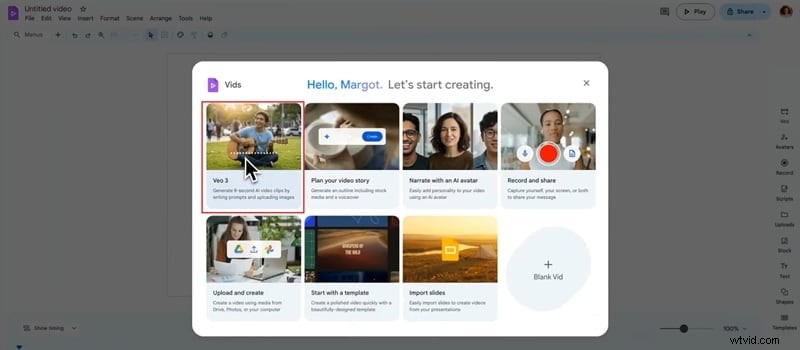
But if you upgrade to a premium plan, this is what the main Google Vids interface looks like once you log in. Here you can pick the "Veo3" option to generate short 8 second clips complete with audio.
Step 2
Access the Veo3 Feature
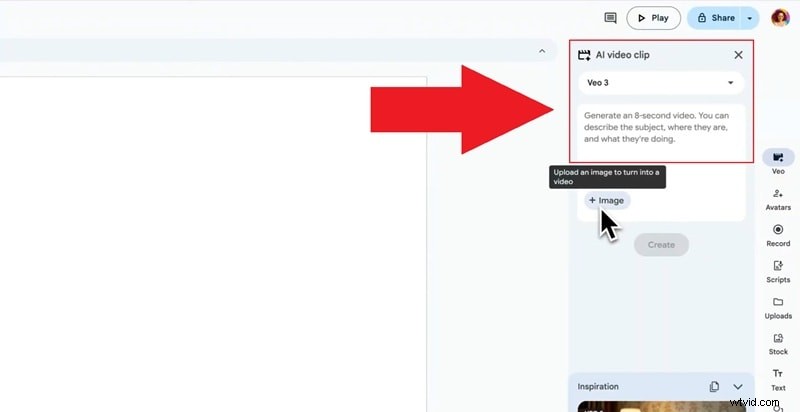
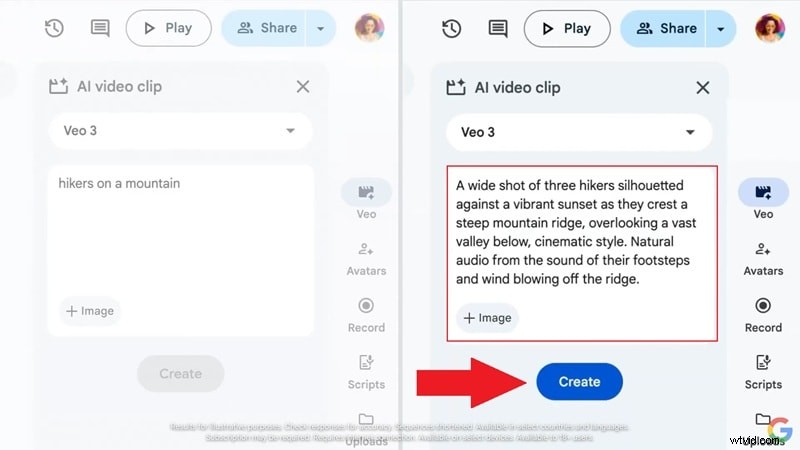
Inside the editor, look to the right and you'll see the Veo3 box where you can type prompts that instantly turn into video clips. You can also upload images as references and they will be transformed into animated visuals.
Step 3
Write Prompts and Generate Clips
Write your prompts with detail since the clarity of your description directly shapes the quality of the final clip. When you are satisfied, click "Create" and give Google a few minutes to process it.
Step 4
Edit and Export Your AI Video
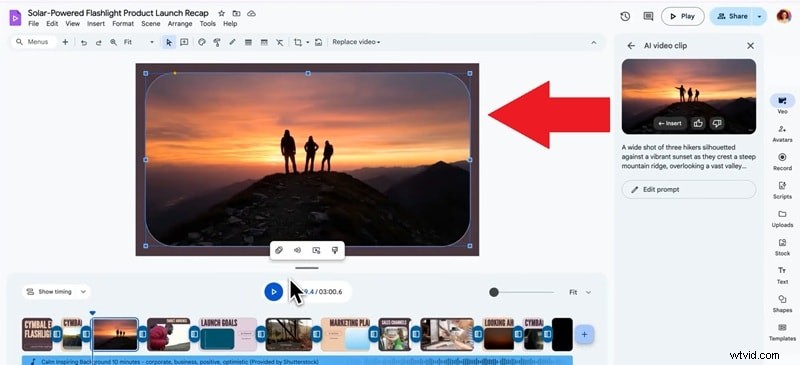
When the clip is ready, drag and drop it into the main editor. From here you can add stickers, background music, or sound effects, then export the finished video to your device just like before.
Part 3. The Pros and Cons of Using Google Vids
After spending time inside the editor, the strengths and limits of Google Vids become much clearer. Below, we'll break down the pros and cons based on our experience using Google Vids AI.
Pros
- Super Simple To Use: Google Vids feels easy from the start and you do not need any editing background to put a video together. The layout is clean and the tools are straightforward.
- The Media Library Is Actually Useful: The stock section gives you images, clips, and music that are ready to drop into your project. It saves time and keeps you from hunting around for assets.
- Tight Google Workspace Integration: Everything connects smoothly with Gmail, Drive, and Slides which makes collaboration simple. It feels natural if you already work inside the Workspace environment.
Cons
- Limited to Ten Minute Videos: Projects cannot go beyond ten minutes which makes it tricky for longer content. This is fine for quick explainers but not full-scale productions.
- No Advanced Effects or Filters: Editors who want cinematic looks or creative filters will find the tools basic. It is built more for simplicity than professional polish.
- AI Features Still Feel Basic: While Gemini helps with storyboards, there are no tools like AI cutout, AI color matching, or AI auto edits yet. This slows down creators who want speed and automation.
While Google Vids is excellent for corporate slide-style videos, it lacks the AI Auto Reframe and Smart Cutout tools found in Filmora. For creators looking to post on TikTok or YouTube, the 10-minute limit and lack of vertical 9:16 support in Google Vids are significant deal-breakers.
Part 4. Who Should Actually Use Google Vids?
After weighing the goods and the bads, it is easy to see that Google Vids is not built for everyone but it does shine for certain groups. With that in mind, here is who will benefit most and what Google Vids is truly best at.
- Small Businesses and Marketing Teams: Google Vids is a good fit for small brands that need simple product demos or short promo videos. Plus, for companies already deep in Workspace, Google Vids feels like a natural extension. It is perfect for internal updates, training clips, and lightweight marketing campaigns.
- Event Organizers and Community Leaders: From invites to recaps, Google Vids can help put together short videos that spread the word fast. The built-in templates keep everything simple and eye-catching.
- Content Creators on Social Media: Creators who need short reels, explainer snippets, or fun updates will enjoy the speed of the editor. It works well for quick edits that still look polished.
Part 5. Google Vids vs. Wondershare Filmora: A Head-to-Head 2025 Comparison
While Google Vids brings some exciting tools to the table, there are other editors that go further with features and flexibility. If you like the idea of AI video creation but want more advanced options, it is worth looking at alternatives.
One name that stands out and should not be missed is Wondershare Filmora, which combines AI tools with a full editing suite for both beginners and pros. Here is why Filmora offers more value compared to Google Vids:
 Secure Download
- No Video Length Limits: Unlike Google Vids, which is capped at ten minutes, Filmora lets you work on longer projects without restrictions. This makes it better for storytelling and professional work.
- Wider Instant Video Creation: Filmora goes beyond AI text to video and AI image to video with Veo 3 support. It also offers AI audio to video, AI script to video, and an AI storyboard generator. This makes it easy to turn any idea into a finished clip in minutes.
- Custom Element AI Features: Instead of relying only on stock libraries, Filmora lets you create your own elements. With tools like AI music generator, AI sticker generator, AI sound effect generator, and AI image tools, your projects feel more personal.
- More Control Over Advanced Editing: Filmora gives you access to features like green screen, motion tracking, and keyframing. These tools help you polish your video far beyond what Google Vids can do.
- Simpler Sharing and Exporting: Filmora makes it easy to publish your work directly to platforms like YouTube, TikTok, or Vimeo without leaving the app. This smooth workflow saves time and keeps everything in one place.
These points are just a glimpse of why Filmora stands stronger than Google Vids. To make it even clearer, we have laid out a side-by-side comparison in the table below so you can see the difference at a glance.
| Category | Filmora | Google Vids |
| AI Video Creation | Text to Video, Image to Video, Audio to Video, Script to Video, Storyboard Generator. | Text to Video, Image to Video. |
| AI Editing Features | AI Smart Cutout, AI Color Match, AI Music Generator, AI Sound Effect Generator, AI Auto Captions. | Basic script to narration, auto storyboard. |
| Audio Tools | Audio Denoise, AI Audio Stretch, Voice Changer, Auto Captions | Basic voiceover recording and AI narration. |
| Video Length Limit | Unlimited. | 10 minutes max. |
| Maximum Resolution | Up to 4K export. | Up to 1080p export. |
| Ease of Use | Beginner-friendly yet pro-ready. | Simple, designed for basic edits. |
| Export & Sharing | Direct export to YouTube, TikTok, Vimeo, local device. | Export to Drive or MP4 download only. |
When evaluating Google Vids against an industry leader like Filmora, the core difference is simple: Filmora is built for creators and professionals needing power and flexibility, while Google Vids serves the quick, simple needs of Workspace users. The table below proves that Filmora is the superior AI video editor for serious content creation.
Conclusion
Not long agom Google finally opened Google Vids for everyone, making the editor accessible to anyone with a Google account. So, our Google Vids review walked through its features, pricing plans, and what it feels like to create with Google Vids AI. We also shared how to use Google Vids, the pros and cons, and the types of users who will get the most out of it.
That being said, Google Vids is still limited beyond its Veo 3 feature since the overall editor feels too simple. Other editors bring far more to the table, and one standout is Filmora with its own Veo 3 capabilities and wider instant video creation tools. Start your free Filmora download today and experience the difference in professional AI editing power.

Filmora
AI Video Editing App & Software
Best tool for making videos anywhere for all creators!
Simplify all your steps in video editing, from the pre-processing to finalizing, Filmora AI stays tuned.
Frequently Asked Questions
-
Does Google Vids work on mobile?
No, Google Vids is built for desktop use only and runs inside your browser. It works best on Chrome across Windows, macOS, and Chromebook devices.
-
Can I export videos without watermarks?
Yes, standard projects export clean without any watermark, which is great for quick sharing. However, videos generated with the Veo 3 image-to-video tool will include a watermark.
-
Can I add subtitles automatically in Google Vids?
Yes, Google Vids AI includes an auto caption feature that generates subtitles for your scenes. This makes your videos more accessible without needing extra software.
-
Does Google Vids support 4K exports?
No, Google Vids only supports export up to 1080p. While this is fine for most casual projects, it is not ideal for creators who need higher resolution.
-
Does Google Vids support vertical video?
No, Google Vids does not allow vertical aspect ratios at the moment. It is mainly designed for standard widescreen formats used in presentations and workplace content.