
Recording high‑quality videos can be a frustrating experience if Bandicam starts to lag. Whether you’re capturing gameplay, webinars, or tutorials, performance hiccups can ruin your footage and reduce productivity. The following guide explains the most common causes of Bandicam lag and offers practical, expert‑backed solutions to keep your recordings smooth and reliable.
Why Does Bandicam Lag?
Lag typically arises when Bandicam’s demand for system resources exceeds what the hardware can deliver. Below is a concise overview of the primary factors that can trigger performance issues.
| Lag Factor | Explanation |
|---|---|
| Overloaded System | Running other applications consumes CPU, GPU, RAM, and disk bandwidth, leaving Bandicam with insufficient resources. |
| Low‑End GPU | A modest graphics card struggles to encode high‑resolution footage, causing stutters. |
| High Resolution / FPS | Capturing at 1080p+ or 60 fps demands more processing power, often exceeding modest setups. |
| Browser Limitations | Outdated or feature‑restricted browsers (e.g., Windows 10 Edge) can impose additional CPU load. |
| Compression / Codec Settings | Inadequate codec choice or aggressive compression can overload the CPU during real‑time encoding. |
| Software Rendering | When the GPU is not leveraged for rendering, the CPU bears the entire load. |
| Recording Mode | Choosing the wrong mode (Game vs. Screen) for a given setup may generate unnecessary overhead. |
| Hardware Limitations | Older CPUs, insufficient RAM, or slow drives inherently cap performance. |
| Outdated Drivers / Software | Unpatched graphics drivers or Bandicam versions can miss optimizations. |
| Misconfigured System Settings | Improper task‑manager priority or power‑saving settings can throttle Bandicam. |
10 Proven Fixes for Bandicam Lag
1. Reduce Video Resolution
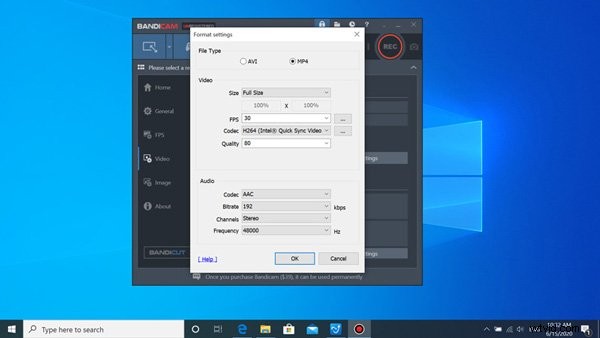
Lowering the resolution immediately lessens the load on both the GPU and CPU. For low‑end systems, 720p or 480p is often the sweet spot.
- Open Bandicam and go to the Video tab.
- Click Settings under the Format section.
- Change Video Size to Half Size or set it to 720p.
- Confirm with OK to apply.
2. Reset Bandicam to Optimal Defaults
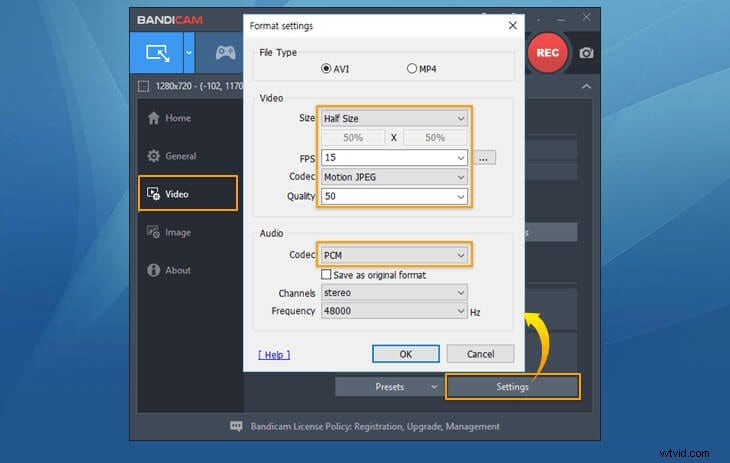
Reverting to a streamlined set of defaults can eliminate unnecessary strain. Use the following settings for low‑end hardware:
- Set FPS to 15 fps (or 30 fps if the system can handle it).
- Lower Video Quality to 15 %.
- Select H.264 for video codec and PCM for audio.
- Replace Motion JPEG‑1 with Motion JPEG and MPEG‑1 L2 with PCM for a smaller footprint.
3. Adjust In‑Game Graphics Settings
Many games offer presets ranging from Low to Ultra. Opt for a lower setting that maintains visual fidelity without overtaxing the GPU.
- Open your game’s settings menu.
- Choose a preset that keeps the frame rate stable.
4. Switch to a Fast Browser
Browsers like Chrome or Firefox are more efficient at rendering web content. If you’re recording a web‑based session, avoid Windows 10 Edge or legacy browsers.
5. Record Only the Primary Monitor
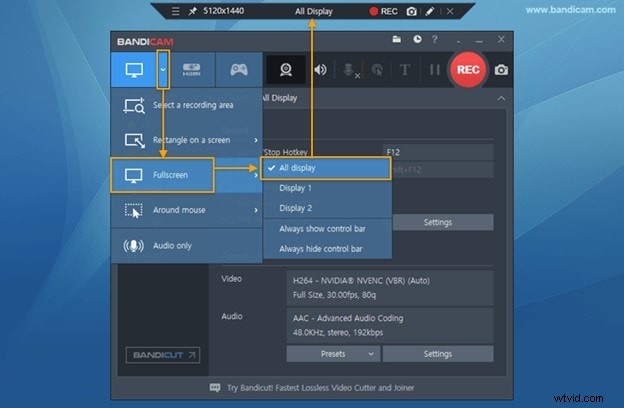
Multiple displays can double the rendering workload. Restrict Bandicam to the main screen to reduce GPU/CPU pressure.
- Open Bandicam’s Screen Recording mode.
- Select your primary monitor.
- Uncheck any secondary displays.
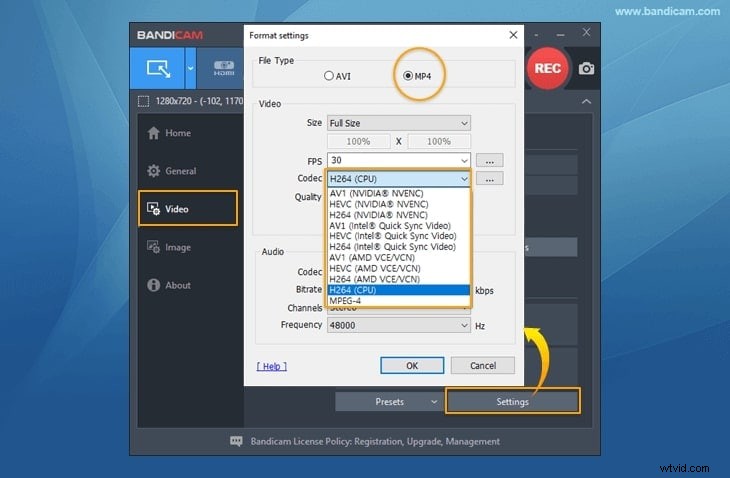
6. Enable Hardware‑Accelerated Encoding
Hardware encoders offload the heavy lifting to the GPU, preserving CPU bandwidth. Choose the encoder that matches your graphics card:
- NVIDIA NVENC H.264 Encoder
- AMD VCE H.264 Encoder
- Intel Quick Sync Video H.264 Encoder
- Open Bandicam and navigate to the Video tab.
- Click Settings under Format.
- Select the appropriate hardware‑accelerated encoder.
- Save with OK.
7. Optimize Graphics Performance Settings
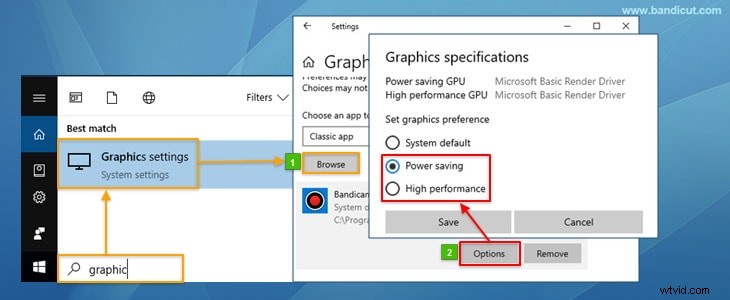
Ensuring Bandicam runs in high‑performance mode maximizes available resources.
- Search for Graphics Settings in Windows.
- Locate
C:\Program Files (x86)\Bandicam\bdcam.exein the application list. - Set the Preferred graphics processor to High Performance.
- Apply and restart Bandicam.
8. Prefer Maximum Performance on NVIDIA Cards
For NVIDIA GPUs, select “Prefer maximum performance” in the NVIDIA Control Panel to lock the GPU into its peak state during recording.
9. Switch Between Game and Screen Recording Modes
If one mode lags, the other may perform better. Try both to see which suits your workflow.
10. Keep Bandicam Updated
Regular updates include performance patches, new encoder support, and bug fixes that can eliminate lag.
Wondershare Filmora: A Lag‑Free Alternative
When Bandicam still struggles, consider Wondershare Filmora. It offers a built‑in recorder that supports 120 fps and integrates a robust editing suite.
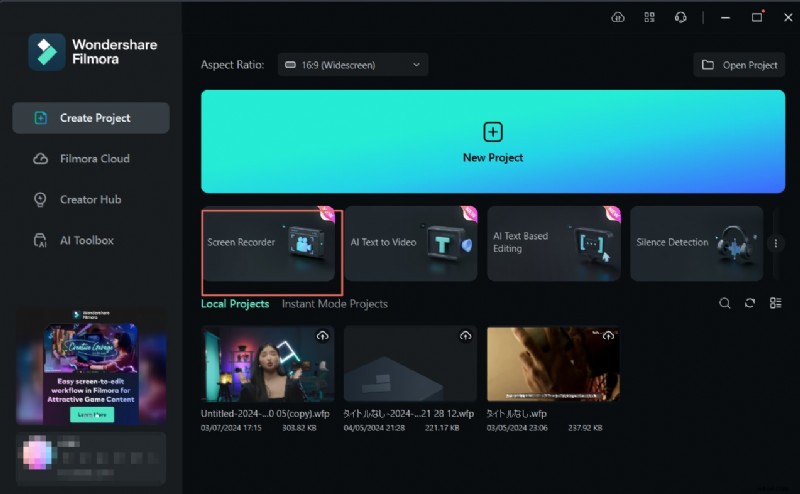
- Real‑time, lag‑free recording and editing.
- Game, screen, webcam, and audio capture in one interface.
- Direct upload to YouTube.
- Multiple export formats and codecs.
- AI‑powered editing tools for quick post‑production.
Conclusion
Bandicam lag often stems from resource contention or suboptimal settings. By following the steps above—adjusting resolution, employing hardware encoding, and fine‑tuning system preferences—you can achieve smooth recordings even on modest hardware. If Bandicam remains inadequate, Filmora offers a reliable, high‑performance alternative for all creators.
FAQs
- Why is Bandicam slow on my computer? Bandicam demands CPU, GPU, and RAM. Lowering resolution, frame rate, and quality, closing background apps, and updating drivers can help.
- How do I fix Bandicam audio? Verify the correct microphone and speaker selections in settings, ensure the device is active, and update audio drivers. Avoid audio conflicts with other apps.
- Can I fix a Bandicam black video file? Yes—check the recording mode, confirm window detection, update drivers, run as administrator, or try a different codec. Reinstall if the issue persists.
- Is Bandicam suitable for low‑end PCs? Absolutely. With reduced resolution, frame rate, and quality, Bandicam remains efficient on lower‑spec machines.
- Best Bandicam settings for low‑end PCs? 720p/480p, 30/60 fps, low quality preset, H.264 (CPU) or Xvid codec, minimal recording area, disable secondary sound devices, use a fast browser.