
Path animation is a powerful way to bring motion graphics to life—like animating logos, guiding arrows along a route, or making icons float naturally across the screen.
In After Effects, you can build these smooth curved movements using the Pen Tool, which lets you draw custom paths and attach objects to them.
In this guide, you'll learn how to animate along a path step-by-step, plus an alternative editor that delivers the same result with fewer steps. Let's get started..
Part 1. Before Making an Object Follow a Path in After Effects
When setting up an animation, you need to understand the workflow that makes an object to follow a path in After Effects. Begin by determining what type of content you want to create. Then, plan your path and the object that will move along it.
1. The Main Tool: Pen Tool
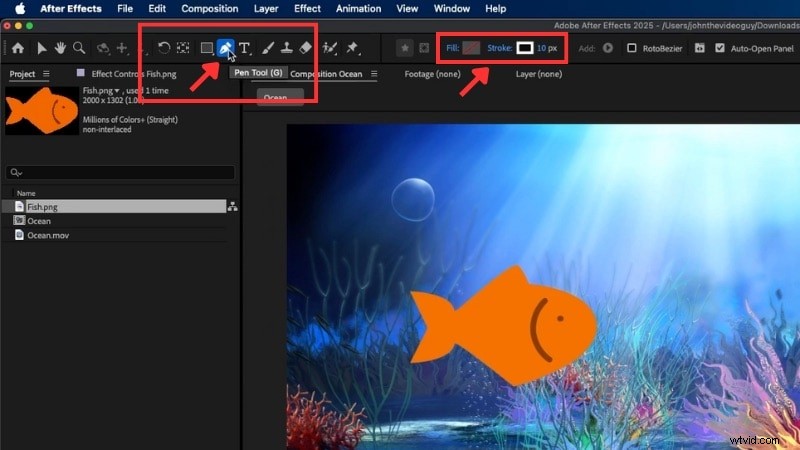
The Pen Tool is the main tool for drawing motion paths in After Effects. You can also access it by pressing G on your keyboard. The Pen Tool lets you plot anchor points that shape how the object travels when After Effects animates along a path.
Each point defines part of the path, and understanding how each click works will make the animation process smoother. Here are the three main click modes to know:
- Single Click: Adds straight anchor points for linear paths. This works well when you want steady or mechanical motion, such as a car driving on a straight road.
- Click and Drag: Creates curved anchor points for smoother arcs. Dragging adjusts the direction handles, giving you more control over how the path bends between points.
- Hold Option (or Alt on Windows): Adjusts the curve handle or changes the curve into a pointed corner. This helps you control how the path bends or turns.
As you draw, try to visualize how your object moves through the space. Once the path looks right, you'll use it to make After Effects move an object along a path (this will be explained in Part 2).
After Effects also has an Auto-Orient option that you can enable to make the object face the direction of movement. It keeps the motion smooth and helps every turn or curve flow naturally along the path.
2. Prepare the Object to Animate
Before making the object follow a path in After Effects, set up the object you want to move. You can animate any element, like an arrow, plane, car, or text icon, as long as it fits your scene.

Use a simple graphic that fits your project's style. For clear results, use a .PNG file with a transparent background so it blends neatly with your footage. If you don't have the right icon yet, you can find plenty of free and high-quality assets online.
Here are a few trusted sources:
- Flaticon - Great for flat-style icons, symbols, and simple illustrations.
- Pixabay - Offers many photos, icons, and transparent PNGs suitable for various themes.
- Freepik - Great for editable vector graphics, icons, and design packs that work well in After Effects.
Always check each site's license terms before using the assets in your video. Once your object is ready, let's continue to Part 2, where you'll move it along a path in After Effects.
Part 2. How to Animate an Object Along a Path in After Effects
Now that you've prepared your icon or object, let's animate it along a path in After Effects. In this section, you'll learn how to draw the motion path with the Pen Tool. Plus, how to control the way your object travels across the scene.

Follow the instructions below to make an object move along a path in After Effects:
Step 1
Draw the Motion Path
After inserting your object into the timeline, ensure no other layers are selected. This ensures you draw on a new layer instead of modifying an existing one.
Select the Pen Tool (or shortcut G) from the toolbar. Set Fill to None and Stroke to a Solid Color. Adjust the stroke width to around 10-12 pixels so it's easy to see.
To draw the path:
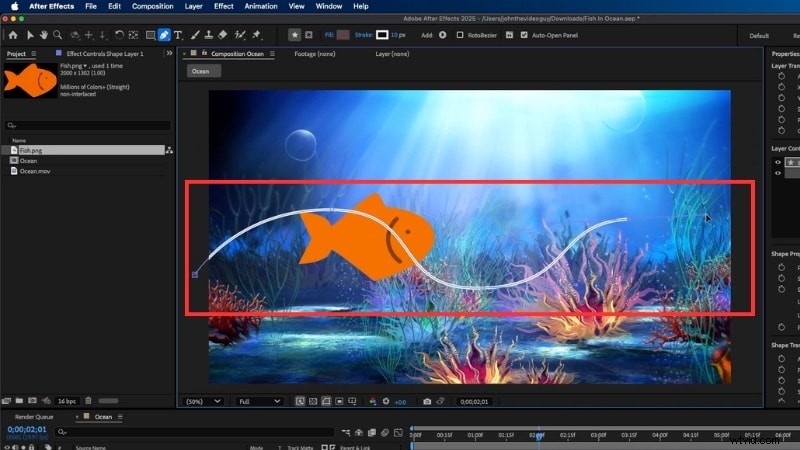
- Click on the composition to place anchor points and draw your path.
- Click once to make straight points, or click and drag to create curves for smoother turns.
Repeat placing the points each time you want to make a turn. You can adjust anchor points and curve handles anytime using the Selection Tool (V) for cleaner movement.
Select the Shape Layer that contains your path.
Expand its options by clicking the arrow beside it, then go to Contents > Shape 1 > Path 1. Click on Path to highlight it.
Press Command + C (or Ctrl + C on Windows) to copy it. This step will save the motion path data so you can apply it to your object later.
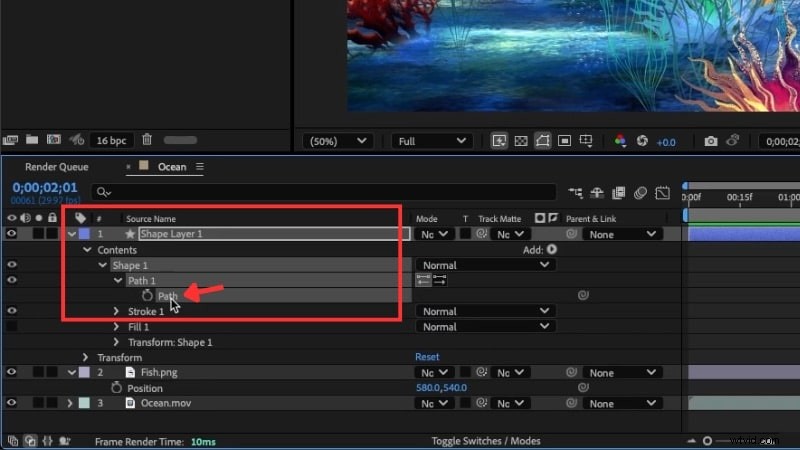
Step 3
Apply the Path to Your Object
Select your object layer and press P on your keyboard to reveal the Position property. Click on the Position property, and paste the path using Command + V (or Ctrl + V on Windows).
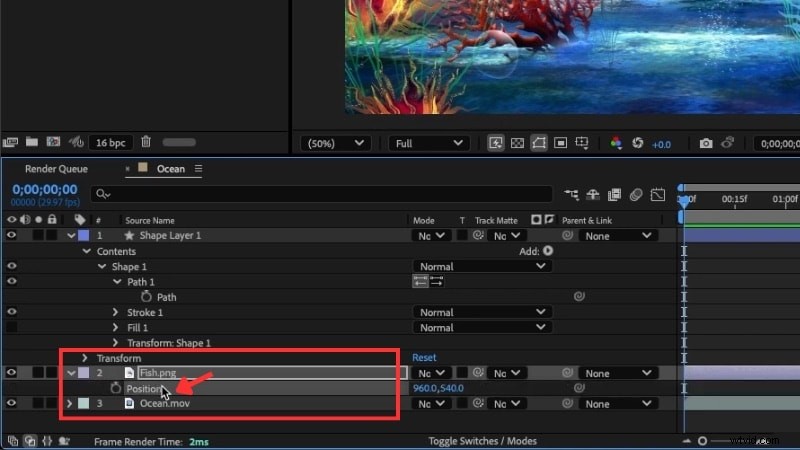
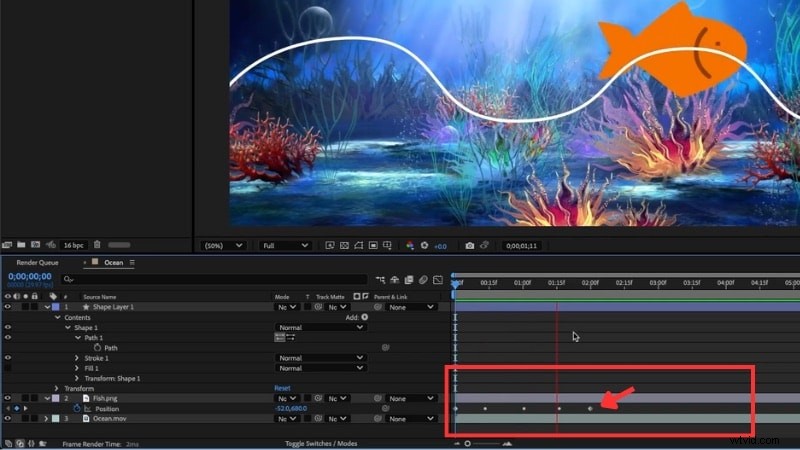
After pasting, you'll see a line appear in your composition; that's the motion path. Keyframes will also appear in your timeline automatically.
Press the Spacebar to play the animation, and you'll see After Effects move the object along the path you drew.
You can hide or delete the Shape Layer earlier since you won't need it anymore.
Step 4
Adjust Speed and Timing
The length of your animation depends on the distance between the first and last keyframes. To change the timing:
- Move the last keyframe farther along the timeline to slow down the motion.
- Move it closer to speed up the animation.
This control lets you match the object's movement with other elements in your project.
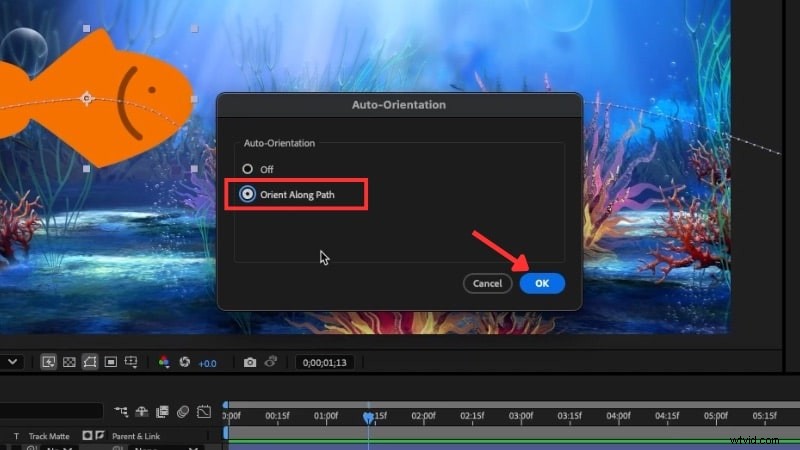
To make the object face the direction of travel automatically:
- Right-click the object layer and choose Transform > Auto-Orient.
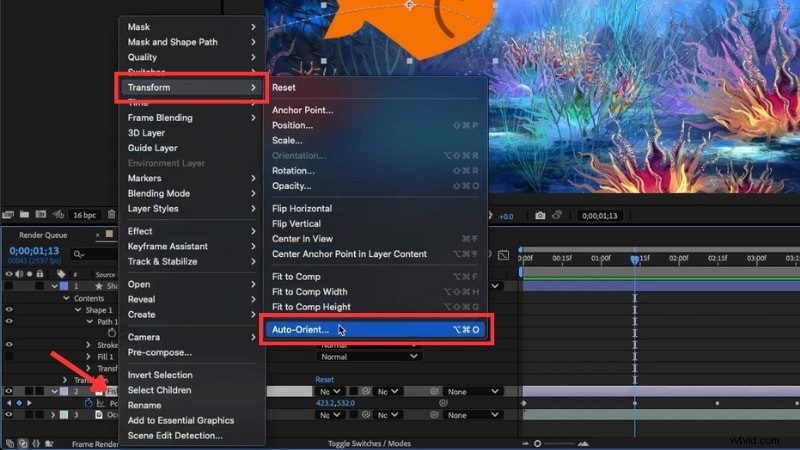
- In the pop-up window, select Orient Along Path and click OK.
This setting keeps the object facing the direction of travel as After Effects animates along the path. It'll help make the motion look more realistic, which is perfect for things like planes, cars, or arrows that should point forward.
Once you complete these steps, you've successfully made the animation of an object follow a path in After Effects. You can use the same technique to animate icons, text, or other design elements for titles, maps, or motion graphics sequences.
Bonus: Alternative Editor for Animating an Object Along a Path
Have you tried to animate an object along a path in After Effects but ran into problems? The Adobe ecosystem has long been a benchmark in the design world. But for beginners, it can feel complex and hard to learn.

Here are some common issues people face when making an object follow a path in After Effects:
- Anchor points land in the wrong place,
- Bezier handles make turns hard to control,
- Auto-Orient points the icon in the wrong direction,
- The object spins at sharp corners, and
- Too many adjustments are needed for a simple route animation.
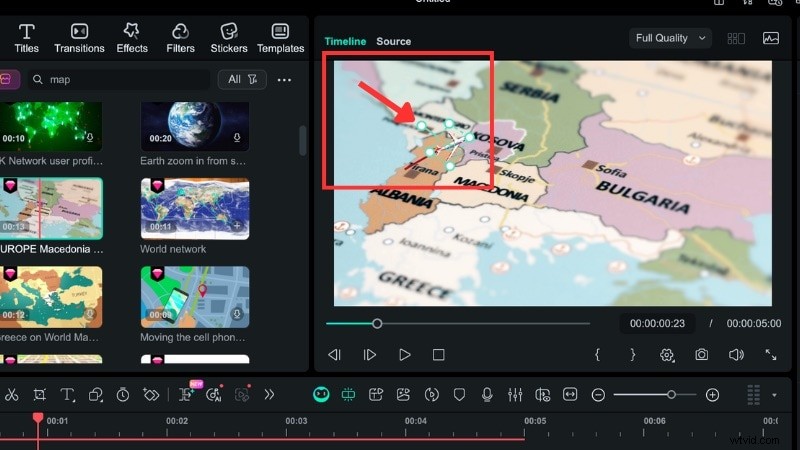
If these problems sound familiar, try an easier option. Wondershare Filmora now includes a Pen Tool in Version 15. It lets you create and animate motion paths like you would when you animate an object along a path in After Effects, but with fewer steps.

 Secure Download
Why Choose Filmora for Path Animation
Here's how Filmora compares with the typical object follow path After Effects workflow:
- Simple Setup: In After Effects, you need to draw, copy, and paste the path before linking it to the object. In Filmora, you can connect the object right from the path settings in the Shape editing panel.
- Built-in Preset Objects: Filmora includes ready-made objects that fit path animations, such as planes, cars, scooters, and map markers.
- Easy to Learn: Filmora keeps all controls, strokes, effects, and trim path settings in one panel. You can see everything while working instead of jumping between menus.
- Organized Timeline Editing: Filmora has a simple timeline where you can draw, animate, add text, and apply effects in one place. You don't need to pre-compose or open multiple panels like in After Effects.
- Auto Face Direction: Turn on Follow Path to make your object face the right way as it moves. It's one-click instead of several menu steps.
How to Make an Object Move Along a Path in Filmora
Follow the steps below to learn how to use Filmora's Pen Tool to draw and animate a path like this:

Step 1
Start the Project and Add Assets
Create a new project in Filmora, import your video or image, and drag it to the timeline. Adjust its scale and position so your scene looks clear.
Secure Download
Step 2
Draw the Route with the Pen Tool
Go to Drawing Tools > Pen Tool and draw your path directly in the Preview window.
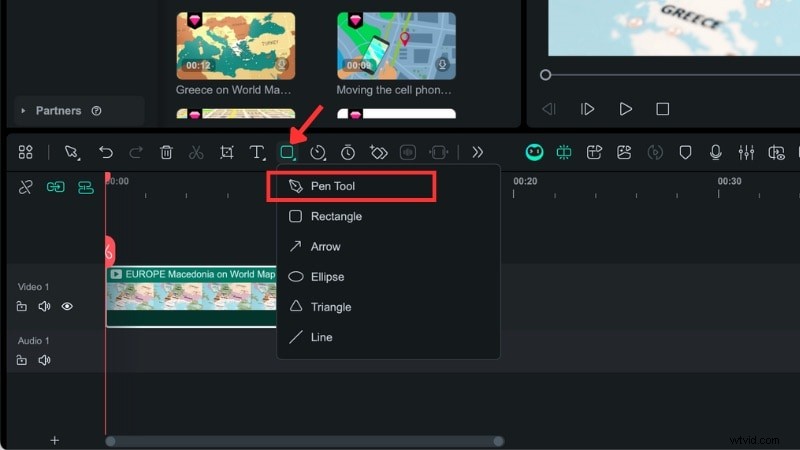
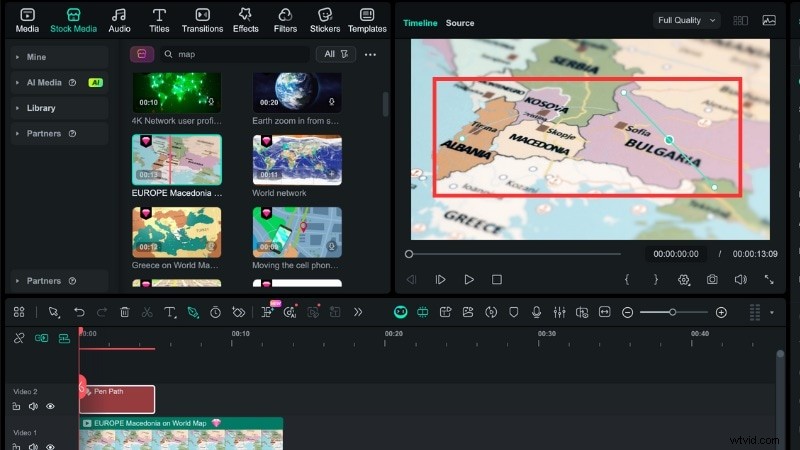
Click to add points, or click and drag to create curves for smoother turns.
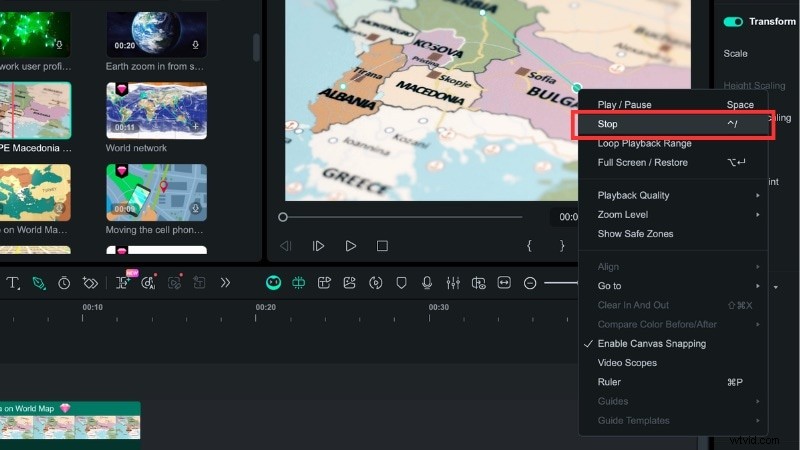
When you finish outlining your line, right-click anywhere in the Preview window and select Stop to complete the drawing.
Step 3
Adjust the Stroke Style
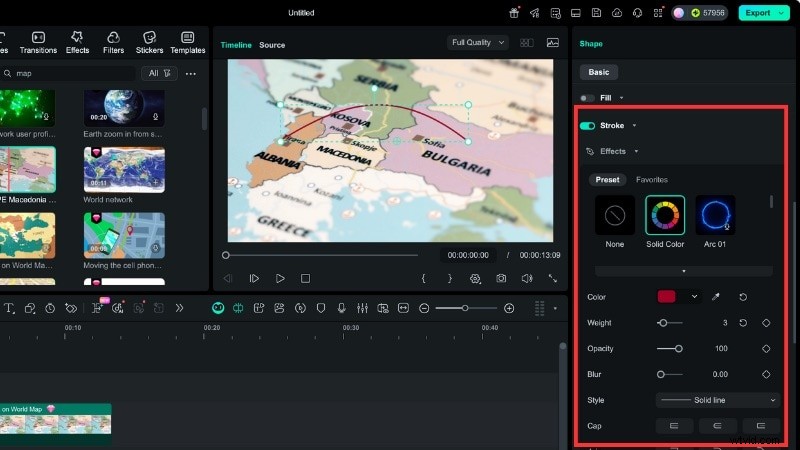
When you draw a shape with the Pen Tool, the Shape Editing panel appears on the right. Scroll to the Stroke section to set the color, line thickness (Weight), and opacity. You can also choose from preset stroke styles to save time.
Step 4
Add a Trim Path Effect
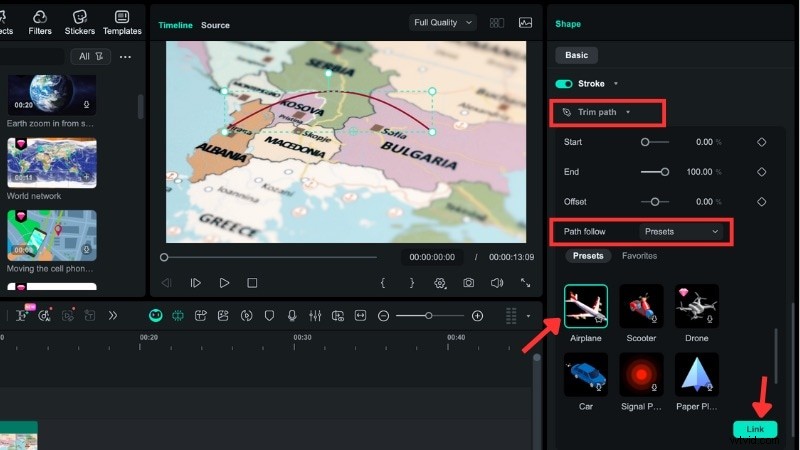
Go to the Trim Path panel and set the Path Follow to Preset. Select an object from the list of presets and click Link to connect it to your path.
Step 5
Animate with Keyframes
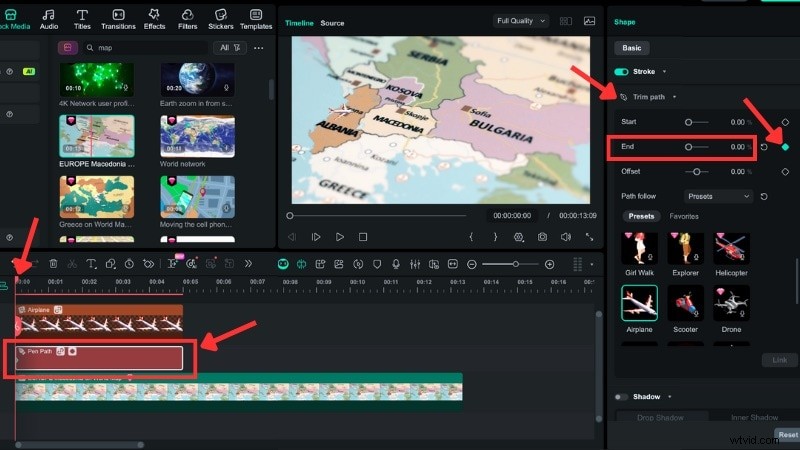
To animate the line, select the Pen Path track on the timeline and go to the Trim Path settings.
- Move the playhead to the start of the clip and set the End value to 0%, then add a keyframe.
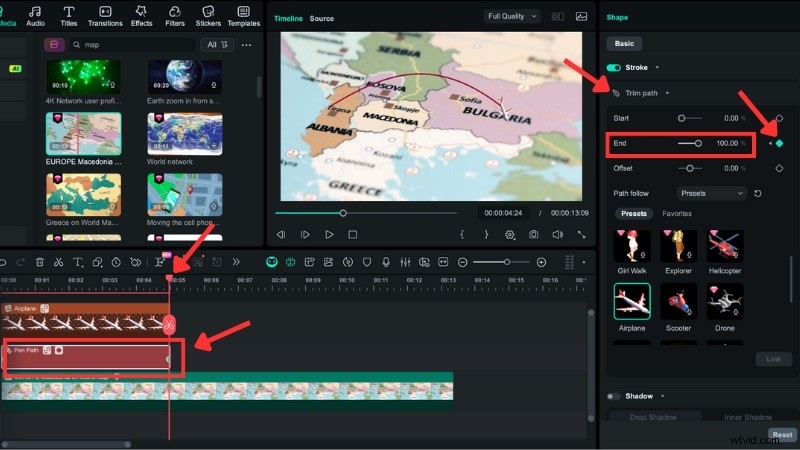
- Next, move the playhead to the end of the clip, change the End value to 100%, and add another keyframe.
- Play the video to preview the motion.
Step 6
Adjust the Object's Direction
If your object isn't facing the right direction, click it in the Preview window and rotate it until it matches the path.
Conclusion
Animating an object to follow a path in After Effects is a useful skill for creating smooth movement in your projects. With the Pen Tool, you can design routes, curves, or shapes and make icons, arrows, or text move precisely where you want.
If the After Effects animate along path process feels too complex, Filmora offers a simpler approach. You can achieve similar results without handling multiple layers or detailed setups.
Try Filmora first and see if you really need the After Effects move along path for your next animation.

Filmora
AI Video Editing App & Software
Best tool for making videos anywhere for all creators!
Your Perfect First Video Edit Starts Here - No Experience Needed