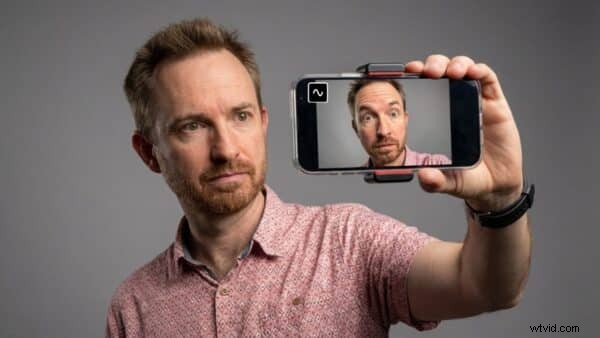
Starting a podcast used to demand expensive microphones, complex software, and a dedicated studio. Today, your smartphone is all you need.
Modern phones boast powerful processors, high‑resolution cameras, and increasingly capable audio hardware. When paired with the right app and a few smart accessories, a phone can become a fully portable podcast studio that delivers professional‑grade audio and video.
In this guide you’ll learn the exact steps to record, edit, and publish a podcast from your phone, plus the gear that makes the difference.
Key Takeaways
- Phones now have microphones and cameras capable of studio‑quality sound and video.
- A dedicated platform like Riverside records local, uncompressed audio and up to 4K video, ensuring top‑notch quality even during remote sessions.
- External microphones, headphones, a tripod, and proper lighting dramatically improve production value.
- The recording environment—soft surfaces, minimal echo—is more important than pricey gear.
- Preparation matters: airplane mode, battery, storage, mic distance (20–30 cm), and level checks prevent common issues.
- Apps like Riverside let you edit with text, export separate tracks, and create social‑media clips—all from your phone.
- With the right setup, your phone becomes a fully portable podcast studio.
Why Start a Podcast on Your Phone?
Mobile podcasting eliminates the biggest barriers: it’s convenient, inexpensive, and video‑ready.
Convenience & Flexibility
Record interviews on the go, capture conference discussions, document travel, or produce quick solo episodes—all with the studio you carry.
Low Startup Cost
Traditional setups can range from $500 to $2,000+. A phone plus a modest microphone upgrade delivers near‑studio audio without breaking the bank.
Video‑Ready by Default
Phones can shoot 4K video. Whether you target YouTube, Spotify Video Podcasts, TikTok, or Instagram Reels, you can record high‑resolution footage and studio‑quality audio simultaneously.
Choosing the Right App
While a phone’s native recorder can work in a pinch, serious podcasters rely on dedicated software. Riverside is among the best for mobile recording, offering a 20% discount with coupon MRC.
Why Riverside Stands Out
- Local, lossless recording – no compression or internet distortion.
- 4K video & uncompressed audio – each participant’s track is separate, simplifying post‑production.
- Remote interviews made simple – guests join via a link from any device.
- Instant transcripts – edit by text and create show notes effortlessly.
Essential Gear for Mobile Podcasting
While a phone alone can record, the following accessories make a noticeable upgrade.
External Microphone
Phone microphones are adequate, but external mics deliver cleaner, richer sound.
- USB/XLR options: Samson Q2U, RØDE PodMic USB.
- Plug‑in mics: RØDE VideoMic GO II, Shure MV88.
- Wireless lavaliers: RØDE Wireless Micro, DJI Mic.
Headphones
Wired headphones help you monitor audio, avoid echo, and catch issues early. Even simple earbuds work; just be cautious with built‑in microphones on earbuds that may reduce quality.
Phone Tripod
Eliminates handling noise and shaky video, keeping your framing consistent.
Lighting (for Video)
Ring lights, small LED panels, or natural window light all improve visual quality.
Optimizing Your Recording Environment
Sound quality depends largely on your space. Aim for a “soft” room with carpeting, curtains, or furniture to absorb echoes. Avoid hard‑surface areas like kitchens or bathrooms.
Environmental Tips
- Choose a quiet spot with minimal background noise.
- Use rugs or blankets to reduce reverb.
- Position the microphone 20–30 cm (8–12 inches) from your mouth.
- Test audio levels before recording.
Getting Started with Riverside
- Download and install the Riverside app for iOS or Android and create an account.
- Select your microphone and camera (prefer the rear camera, 4K or 1080p, separate audio tracks).
- Invite guests via a simple link—no complicated setup required.
- Activate airplane mode to avoid interruptions, then reconnect to Wi‑Fi if needed.
- Check storage and battery—video files are large.
- Record a short test clip and verify levels.
Editing and Publishing from Your Phone
Riverside’s text‑based editing lets you trim filler words, remove mistakes, and cut sections directly from the transcript. Separate tracks for each speaker enable precise balancing and noise reduction.
Export clips for TikTok, Instagram, or YouTube Shorts to grow your audience quickly. For advanced editing, consider free tools like Premiere Pro’s mobile app.
Final Thoughts
With a smartphone, a quiet room, and Riverside, you can produce studio‑quality audio and video anywhere. Start simple—record your first episode, learn as you go, and build a polished brand with intros, outros, and consistent sound.
FAQ
- Can I record a podcast with just my phone? Yes; adding an external mic boosts quality.
- What’s the best app for mobile podcasting? Riverside offers local, uncompressed audio and 4K video, ideal for remote interviews.
- Can I record video podcasts on my phone? Absolutely; a tripod and good lighting yield great results.
- Do I need expensive gear to start? No—phone, quiet space, and a solid app are sufficient.