
This guide explains how to edit YouTube live stream videos. You can use the built‑in YouTube Studio Editor for quick trims, or download the VOD to your computer and edit it with MiniTool MovieMaker, a free Windows editor that adds advanced features without a watermark.
- How to Edit Live Stream Video on YouTube
- How to Edit YouTube Live Stream Videos Using MiniTool MovieMaker
- Conclusion
- People Also Ask
Many creators believe their work ends once the livestream finishes, but editing the VOD can significantly extend its reach. This step‑by‑step guide covers everything from simple cuts in YouTube Studio to full‑scale edits with external software.
How to Edit Live Stream Video on YouTube
Fast‑Track Steps:
- Locate the video in YouTube Studio.
- Open the Editor.
- Trim and cut the footage.
- Blur faces or other sensitive content.
- Save the changes.
After a livestream ends, YouTube automatically saves it as a Video on Demand (VOD) in the Live section of your channel. From there you can keep it public, switch it to private, or delete it permanently, and you can edit it directly using the YouTube Studio Editor.
1. Find Your Live Stream Video
Navigate to Content in the left sidebar of YouTube Studio, then click the Live tab at the top to locate the desired VOD.
2. Open the Editor
Click the pencil icon (Details) next to the video to open its page, then select Editor from the left menu to launch the built‑in editor.
3. Trim and Cut the Live Stream Video
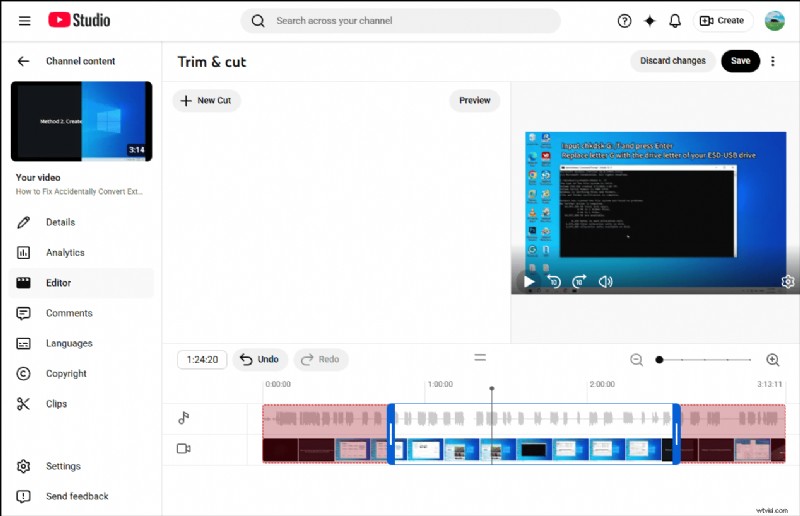
Select Trim & cut from the top menu. A blue frame will appear on the timeline; drag its edges to keep the segment you want. Everything outside the frame is removed. When satisfied, click Save to apply the edits.
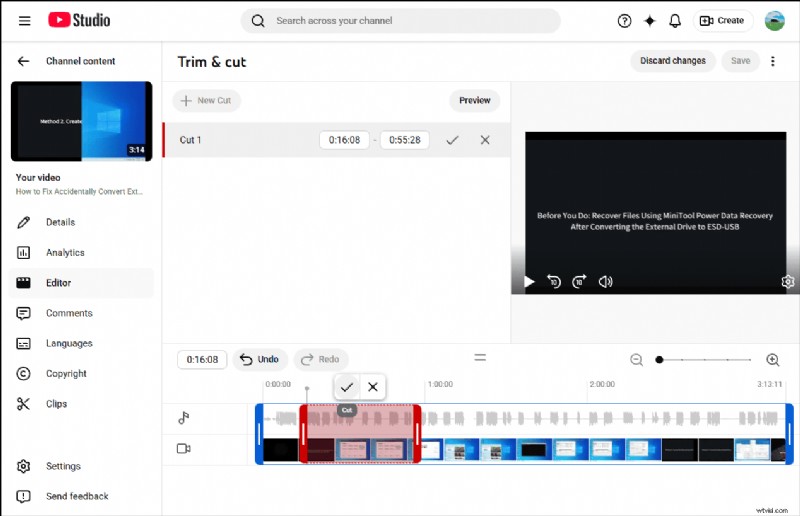
To delete a middle section, choose + New cut. A red frame will appear; adjust its edges to highlight the portion to remove. Confirm with the checkmark icon, then click Save and Confirm changes.
4. Blur the Video
Click Blur and select Face blur or Custom blur to protect sensitive information.
5. Save the Video
Click Save in the upper‑right corner and choose Confirm changes to finalize the edits.
Fast‑Track Steps:
- Save the live stream video to your computer.
- Download and install a video editor.
- Import the video and add it to the timeline.
- Trim, split, and crop as needed.
- Export the final product.
YouTube Studio’s native editor is ideal for quick edits, but if you need to crop, add text, or merge multiple clips, MiniTool MovieMaker offers an intuitive interface with no watermark.
How to Edit YouTube Live Stream Videos Using MiniTool MovieMaker
1. Download the Live Stream Video from YouTube to Your PC
In YouTube Studio, locate the VOD, click the three‑dot options icon, and select Download.
2. Install MiniTool MovieMaker
Ensure the application is installed on your PC. If not, download it from the official site.
MiniTool MovieMaker – 100% Clean & Safe
3. Import the Live Stream Video
Open the program, click New Project to enter the main workspace. Import the downloaded video via Import Media Files on the left, then drag it onto the timeline.
4. Trim the Video
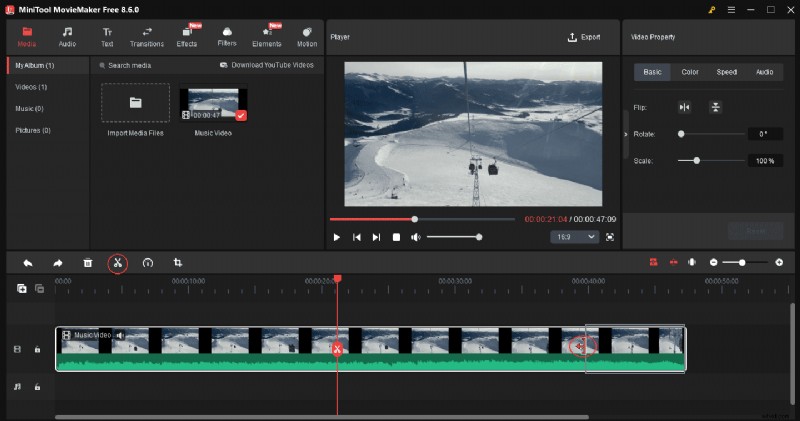
Hover over the start or end of the clip on the timeline to reveal the trim icon; drag it inward to remove unwanted sections. To delete a middle segment, use the Split tool, then delete the unwanted portion.
5. Crop the Video
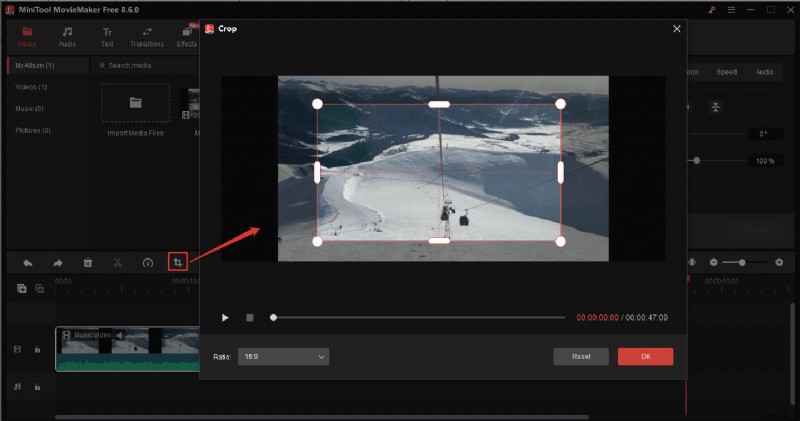
Click the Crop icon in the timeline toolbar, adjust the red rectangle to select the desired area, then click OK to apply.
6. Add Captions or Text
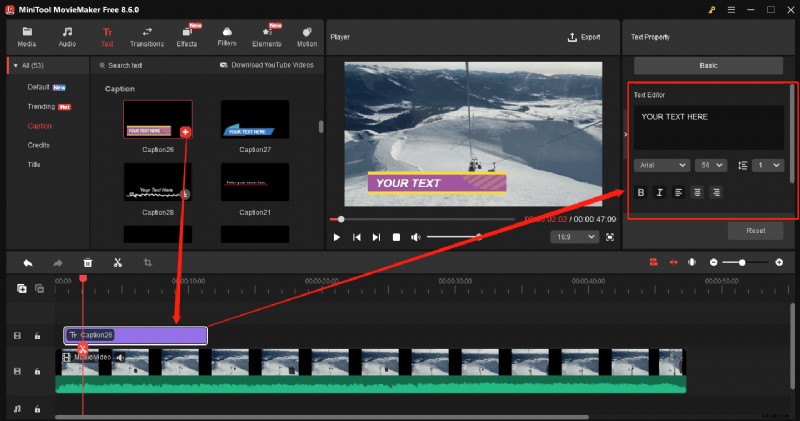
Navigate to Text at the top, choose a template or a caption style, and drag it onto the timeline. Use the Text Editor to customize the wording.
7. Export the Video
Click Export in the upper‑right corner. Select the destination folder, output format, resolution, and frame rate, then click Export to render the file.
MiniTool MovieMaker is an affordable, user‑friendly editor that includes a variety of effects, transitions, and overlay options. For a detailed review, see PCMag’s review.
Conclusion
After a livestream ends, I typically use the YouTube Studio Editor for quick highlights or MiniTool MovieMaker to assemble compilations from multiple VODs. If you run into issues with MiniTool, contact [email protected] for support.
People Also Ask
Does a live stream stay on YouTube forever?
Yes. As long as the stream is under 12 hours, YouTube permanently stores it as a VOD, just like any other uploaded video. It remains until you delete or privatize it.
Can you clip a YouTube live stream?
Yes, you can clip a short segment (5–60 seconds) directly in YouTube Studio or the Studio app.
How do you cut parts of a YouTube video that are not yours?
You cannot edit someone else’s video in YouTube Studio. However, you can clip shared segments and, for personal use, download the video and edit it with third‑party software.
Can I edit YouTube videos after uploading?
Absolutely. The YouTube Studio Editor lets you trim, blur, and add subtitles. For more extensive edits, download the video and use an external editor.