
To make it easy for viewers to navigate your videos, you can add chapters to your videos. In this post, I’ll offer you serval chapter markers to add chapters to MP4 and how to split MP4 videos by chapters.
Now, let’s see how to add chapters to MP4 and how to split videos into multiple clips by chapters. (Try MiniTool MovieMaker to add text to video!)
Add Chapters to MP4 with ChapterMaker
ChapterMaker is an application designed to editing video chapter files. It’s simple to use and can save chapter files in XML, OGM or TXT format. It doesn’t support directly adding chapters to video, but you can use Handbrake to embed chapters in a video.
Step 1. Open the ChapterMaker app.
Step 2. Go to the Chapter Time to edit the time and go to the Chapter Title to edit the title.
Step 3. When you are done, click on File to export the chapter file.
Step 4. Launch Handbrake, import the MP4 file and add the chapter file. Click on Start Encode to add chapters to MP4.
Add Chapters to MP4 with Drax
Drax allows you to add chapters to MP4 and M4V videos. You can import chapters and edit chapters in a video.
Step 1. Launch Drax after installing it on your computer.
Step 2. Import the MP4 file that you want to edit chapters.
Step 3. Go to the Chapters section after loading the MP4 video.
Step 4. Click the chapter that you want to edit its time and title.
Step 5. To create a new chapter, click on the Add Chapter button in the toolbar.
Step 6. Save the changes and export the MP4 video.
Add Chapters to YouTube Video
Do you want to add chapter markers to YouTube videos? Follow these steps:
Step 1. Log into your YouTube account.
Step 2. Click on your profile picture located in the top right corner.
Step 3. From the pop-up menu, click on YouTube Studio.
Step 4. Tap on Content in the left panel. Find the YouTube video you want to add chapters, click on the video.
Step 5. In the Description box, add the timestamps and titles like “0:51 Add Chapters to MP4”
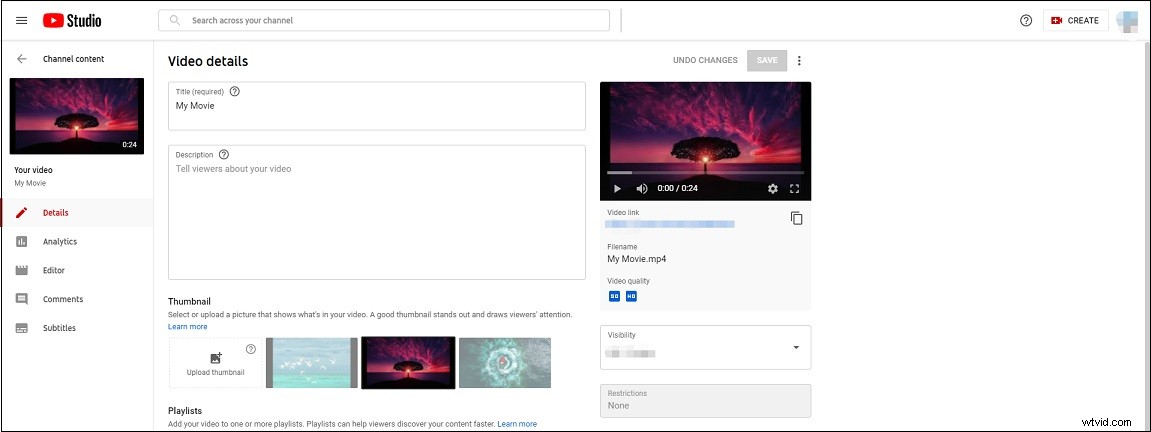
Step 6. Press on SAVE to save the changes.
Related article: How to Edit YouTube Videos (Windows/Mac/Phone)
Split MP4 Video by Chapters with HandBrake
Need to split a video into individual chapters? HandBrake is a good option. It can easily split a video into separate clips by chapters.
Step 1. Open the HandBrake app.
Step 2. Click on File to import the video with chapters.
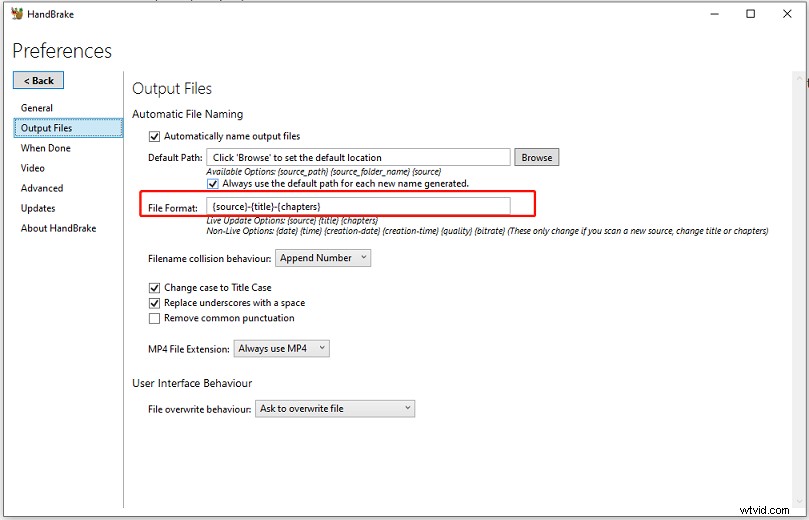
Step 3. Navigate to Tools > Preferences and select Output Files.
Step 4. Then enter {source}-{title}-{chapters} in the File Format box. Close the Preferences window
Step 5. Set the Range from chapter 1 to 1 and click Add to Queue, set the Range from chapter 2 to 2 and click Add to Queue… Once finished, click on Queue to check these added chapters.
Step 6. Select a preset and click on Browse to specify the destination folder.
Step 7. Lastly, click on Start Queue to split the video by chapters.
Conclusion
That’s all about how to add chapters to MP4 and split MP4 by chapters. Choose a chapter maker and try to create chapters for your video!