
In this guide we dive deep into MiniTool MovieMaker’s video text templates, a powerful, free editing tool for Windows. From eye‑catching titles and engaging captions to polished end credits, we cover every template type and show you how to use them to elevate your videos without a steep learning curve.
Quick Navigation:
- MiniTool MovieMaker Video Text Templates Overview
- How to Use Video Text Templates in MiniTool MovieMaker
- Conclusion
- People Also Ask
Text is a critical storytelling element. Well‑designed text directs viewers’ attention, highlights key points, and adds emotional resonance. When used correctly, it transforms an ordinary clip into a professional‑looking production.
For editors seeking a rich text library that’s easy to use, MiniTool MovieMaker offers an ideal solution.
Download MiniTool MovieMaker – 100% Clean & Safe
MiniTool MovieMaker Video Text Templates Overview
The software’s text library is divided into three main categories:
- Title Cards: Video openings and chapter separators
- Captions: Informational overlays throughout the footage
- End Credits: Production credits and acknowledgments
Title Cards
A title card is a standalone clip that includes a polished background and a text overlay you can drag onto the timeline. Only the text is editable; the background remains fixed.
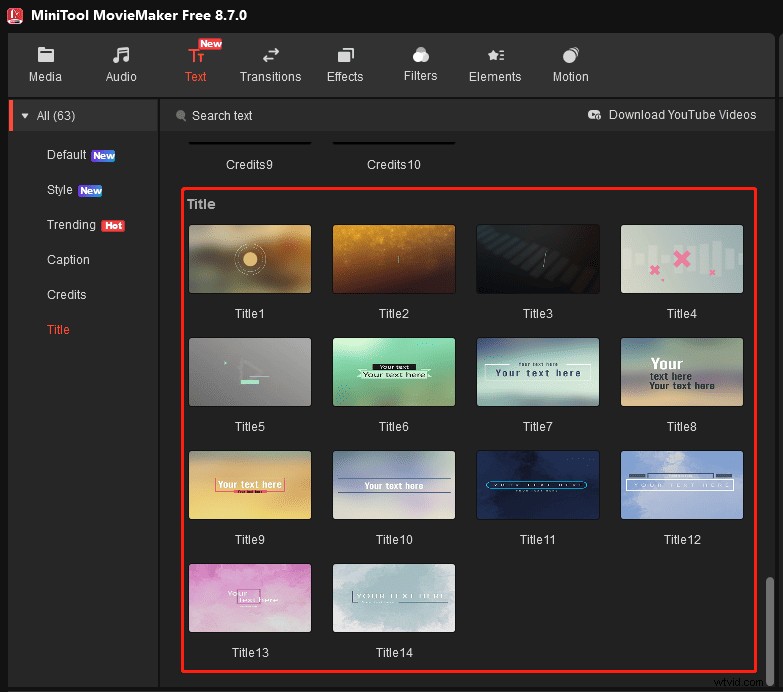
Use a title card to introduce a new topic or to separate chapters, giving viewers a clear visual cue about what’s coming next.
All templates feature soft‑focus gradient backgrounds with low‑saturation, gentle tones—perfect for vlogs, travel shorts, corporate videos, instructional clips, and lecture recordings.
End Credits
End credits are independent clips with a black background and varied text formats.
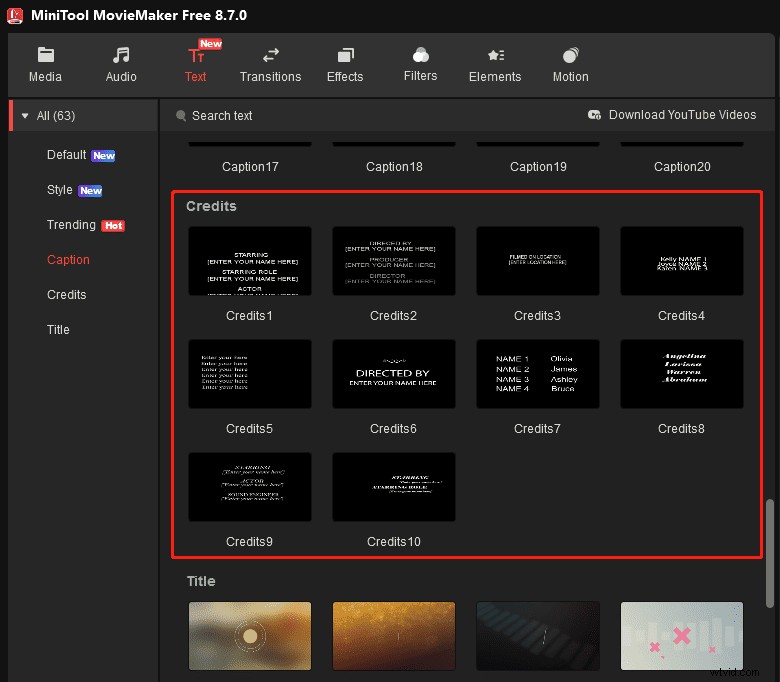
Place credits at the end of your video to display production information or to thank collaborators.
Captions
Caption templates overlay directly on existing footage, so they don’t extend the video’s duration. They’re ideal for creating dynamic intros and outros.
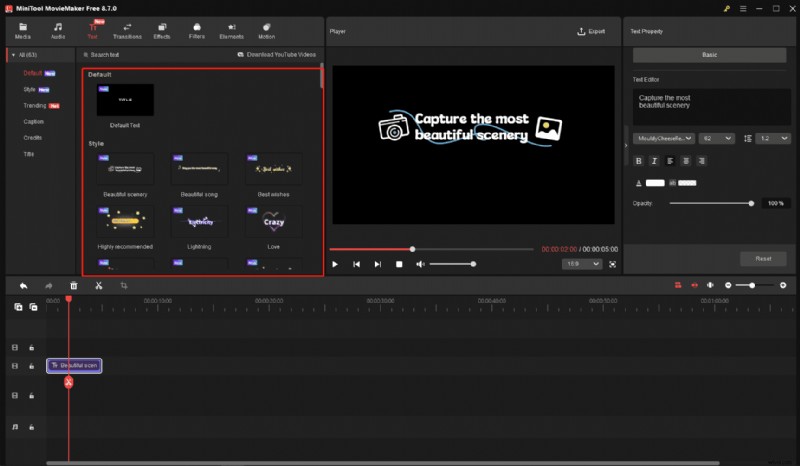
MiniTool MovieMaker offers three caption styles:
1. Default – Static text and speech bubbles for clear, conversational captions.
2. Style – Transparent backgrounds with glowing, animated overlays, perfect for short‑form content.
3. Caption – Animated text with geometric side bars, lower thirds, and hierarchy layouts.
How to Use Video Text Templates in MiniTool MovieMaker
Fast‑Track Steps:
- Download and install the free software.
- Launch the app and import your video.
- Add the clip to the timeline.
- Navigate to Text and drag the desired template onto the timeline.
- Type your content and customize the style.
- Adjust the display duration.
- Export the finished video.
These templates let you add professional‑looking titles, captions, and credits without starting from scratch.
Download MiniTool MovieMaker – 100% Clean & Safe
1. Import a Video
After opening the app, click New Project to reach the main interface. Choose Import Media Files to load your footage, then drag it onto the timeline.
2. Choose a Text Template
- Click Text in the top menu to view available templates.
- Select Default > Default Text for static captions or bubble text.
- Choose Style or Caption for animated, eye‑catching overlays.
- Select Credits for end credits or Title for opening screens.
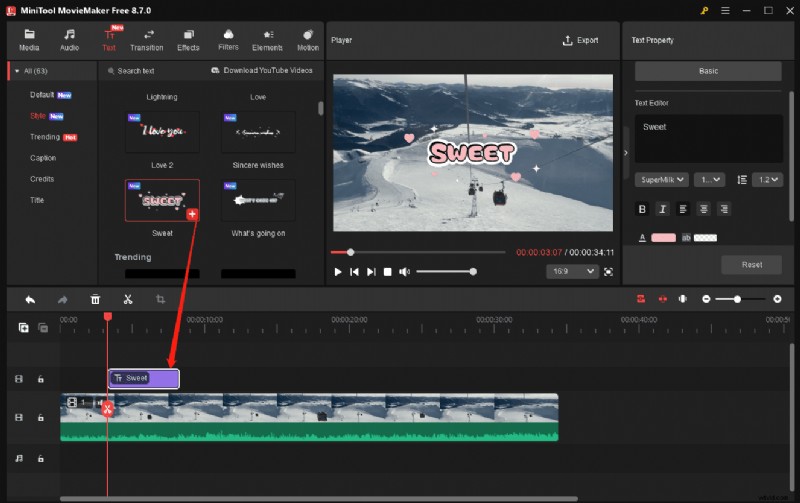
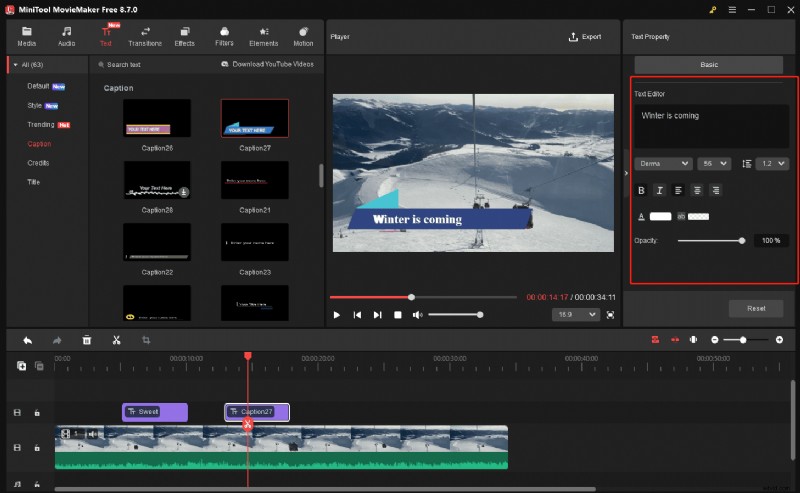
3. Type and Customize Text
Replace the placeholder text in the editor, then adjust font, size, and color. When using a Style template, keep the original font and color to preserve the polished look.
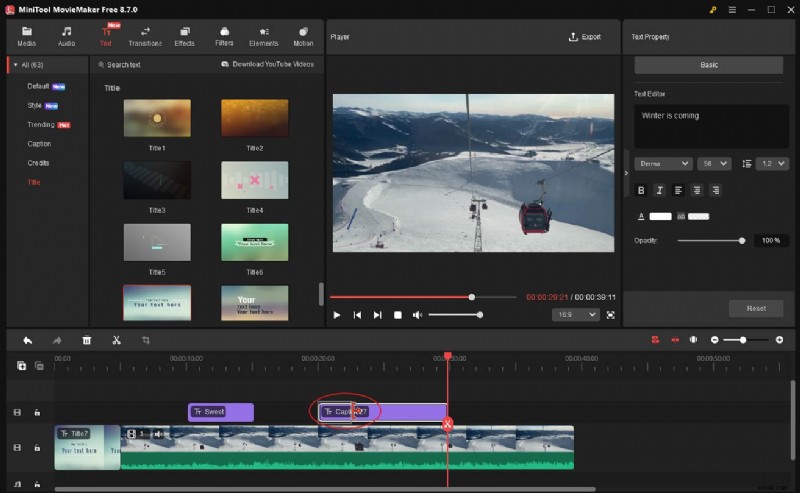
4. Adjust the Duration of Text
Hover over the edge of the text clip until a red arrow appears; drag left or right to shorten or lengthen the display time.
5. Export the Video
Click Export in the upper right, choose format, resolution, and frame rate, then confirm to start rendering.
MiniTool MovieMaker’s extensive template library enables you to add titles, credits, and captions with ease, instantly boosting the quality of your videos.
Conclusion
Video text templates are a powerful feature that adds professionalism and engagement to your projects. If you run into any issues while using MiniTool MovieMaker, contact us at [email protected] for support.
People Also Ask
Can I add text to an iPhone video?
Yes. Use Apple’s native iMovie, or third‑party apps like InShot or CapCut.
How to make a video with typing text?
MiniTool MovieMaker lets you add animated typing effects via its Style caption templates.
How to transcribe video to text?
Use MiniTool Video Converter’s Intelligent Subtitle feature:
- Open the software and select Intelligent Subtitle.
- Upload your video and choose an AI model.
- Export the generated transcript.
How to add text to a video on Canva?
- Log in to Canva and start a new project.
- Upload your video.
- Click Text on the left panel and choose a template.
- Double‑click the text box to type.
- Customize style and download the finished video.