
Nowadays, the traditional playback of movies on DVD is no longer popular and it also takes up a lot of space. So, you need to digitize the DVD so that you can play DVD movies on your iPhone, iPad, computer, or save them to the cloud to save your room space. This post from MiniTool will teach you to rip movies from DVD.
What is Rip?
It refers to digital extraction, the process of copying audio or video content from a CD, DVD, or streaming media to a computer's hard drive.
Ripping is different from simply copying an entire file. When a copy is created, one cannot view the transferred files, nor check if there is any encryption, nor know any file format of the original copy. One copies DVDs one by one to the hard disk through programs such as Linux's dd command and then plays the resulting ISO file as the original DVD.
Is Rip Illegal?
The legality of ripping varies from country to country, so you should know the local laws regarding ripping or intellectual property rights before ripping to avoid making violations. In the US and UK, the law allows ripping for personal use but does not support ripping for redistribution and commercial purposes. Therefore, be sure to check the copyright protection laws in your country to make the correct decision.
How to Rip Movies from DVD?
Here’s a guide on how to rip movies from DVD to your PC or MAC:
1. Choose a tool to rip your movies from DVD.
If you don’t know how to choose the DVD ripper, you can reference this post to help you make a decision: Also Read:https://videoconvert.minitool.com/video-converter/convert-dvd-to-digital.html
2. Copy your DVD file.
As you know, almost all DVDs are copy-protected, and it involves legal protection issues. So, you need to know the law about copy protection in your location before proceeding.
3. Rip your DVD.
We take the HandBrake as an example.
HandBrake supports Windows, MAC, and Linux as the operating system.
You can download HandBrake for free, as well as the HandBrake DVD ripping feature to transfer your videos from disc to your computer, no matter whether you are using an older version of Win10 or MAC OS.
a) Insert your DVD into the computer.
b) Double-click HandBrake to open this app.
c) Choose the target DVD file from Source Selection in the left panel to scan it.
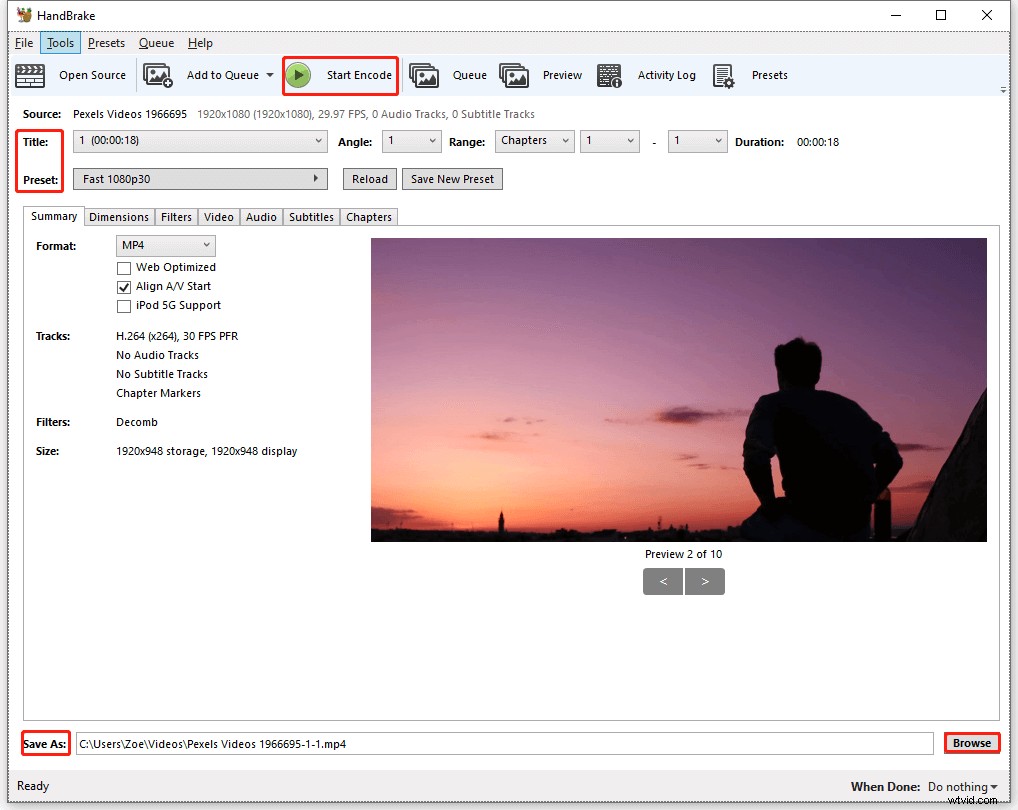
d) You can go to the Title section at the top of the main interface to make your choice.
e) Choose your ideal preset from a number of output presets in the Preset selection below the Title. Also, you can do some settings for your output file, such as format, quality, filters, etc. in the big box of the main interface.
f) You can choose the destination location for the output file under the Save As section. Click the Browse button on the right of the Save As section to change the default destination location of the output file.
g) Click the Start Encode button at the top menu bar to start ripping DVD to video.
Conclusion
This post provides you with an example of ripping DVDs. Admittedly, there are some alternatives to HandBrake. You can choose the best way to rip movies from DVD. By the way, if you want to create videos, you can download this application – MiniTool MovieMaker. It is a free app and supports a host of transitions, effects, motions, and elements. Download it now! You will find this app amazing!