
Step‑by‑Step Guide to Maximize Your Video Content
Learn how to turn a video into a polished article with Streamlabs Podcast Editor, boosting SEO and reach across platforms.
- Why the Video‑to‑Article feature was built
- Organic growth and SEO benefits
- Automatic transcription powered by Streamlabs Podcast Editor
- Sharing your article and video online
- Embedding into Notion and blogs
- Additional use cases
- Sample embedded sharing page
Why We Created the Video‑to‑Article Feature
Hi, I’m Alex from Streamlabs Podcast Editor. We noticed creators need a faster way to repurpose video content into written material that ranks well on search engines. Our new Video‑to‑Article tool solves that by converting video dialogue into an editable, SEO‑friendly article in minutes.
Organic Growth and SEO Through Video‑Articles
With a strong video presence on YouTube, Facebook, and Instagram, we realized our primary traffic driver was video alone. By publishing the same content as an article, we give search engines another entry point—keywords, metadata, and context that improve visibility. Users searching for subtitles, transcription, or related topics find our articles, creating a natural funnel back to our platform.
Streamlabs Podcast Editor Automatically Transcribes Your Video into Text
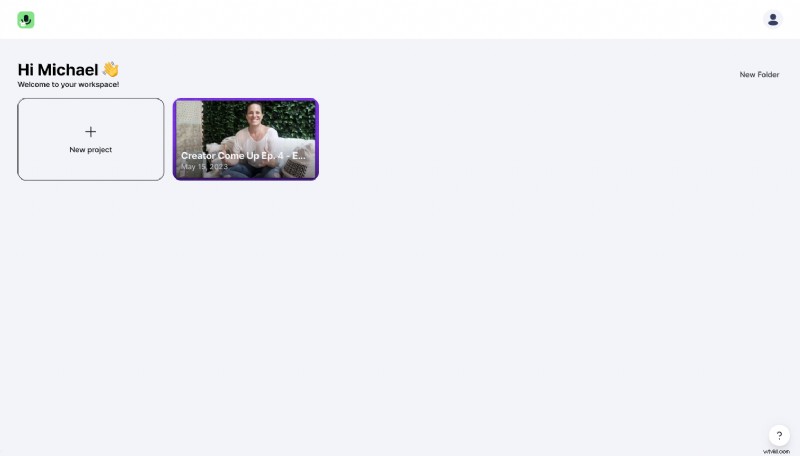
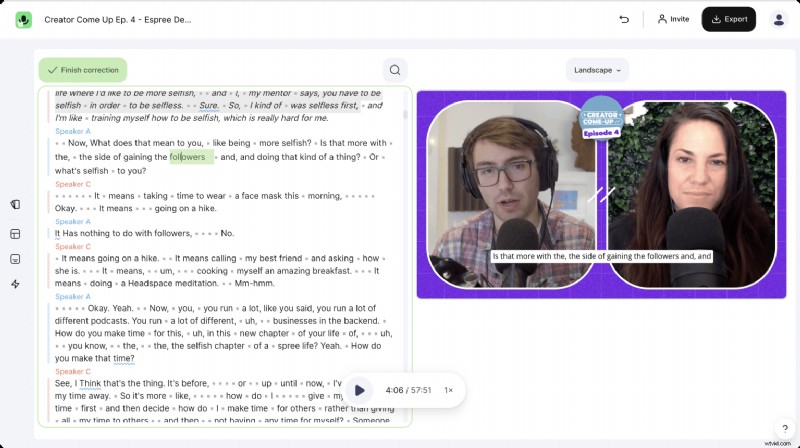
Start a new project, upload your video, and let the editor do the heavy lifting. The transcription appears in the text editor, where you can fine‑tune wording, correct errors, and format headings.
Editing the transcript automatically updates the subtitle track—choose static or dynamic styles, adjust font, size, color, or background, and view pause markers to keep timing accurate.
After editing, you can trim unwanted sections, insert line breaks, and export the finished video or article. The export button renders the final product ready for sharing.
Share Your Video and Article Online
Once your project is complete, you can download the video or generate a shareable link for the article. Ensure the public toggle is ON so the content appears on external sites like Notion or your blog.
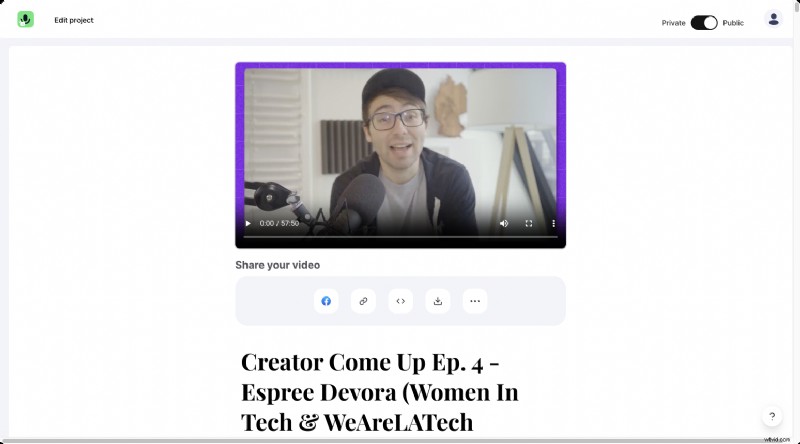
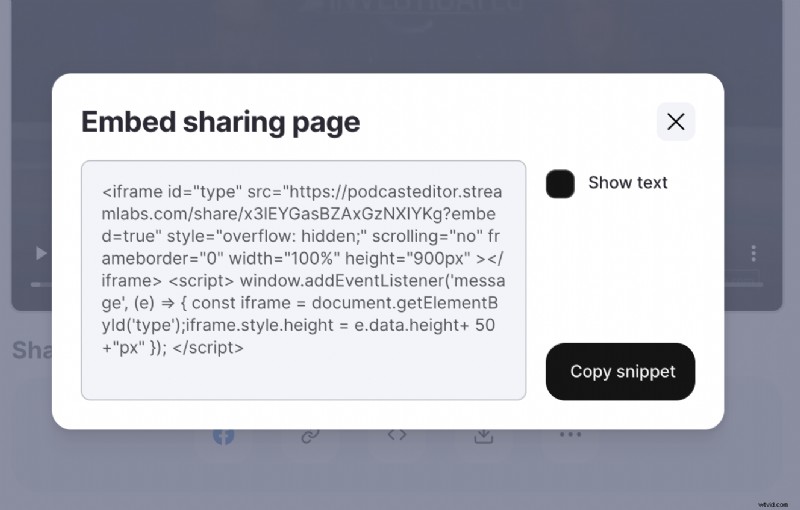
Click the Copy Link button to obtain a shareable URL. You’ll also find a Copy Snippet option for embedding.
Embed into Notion
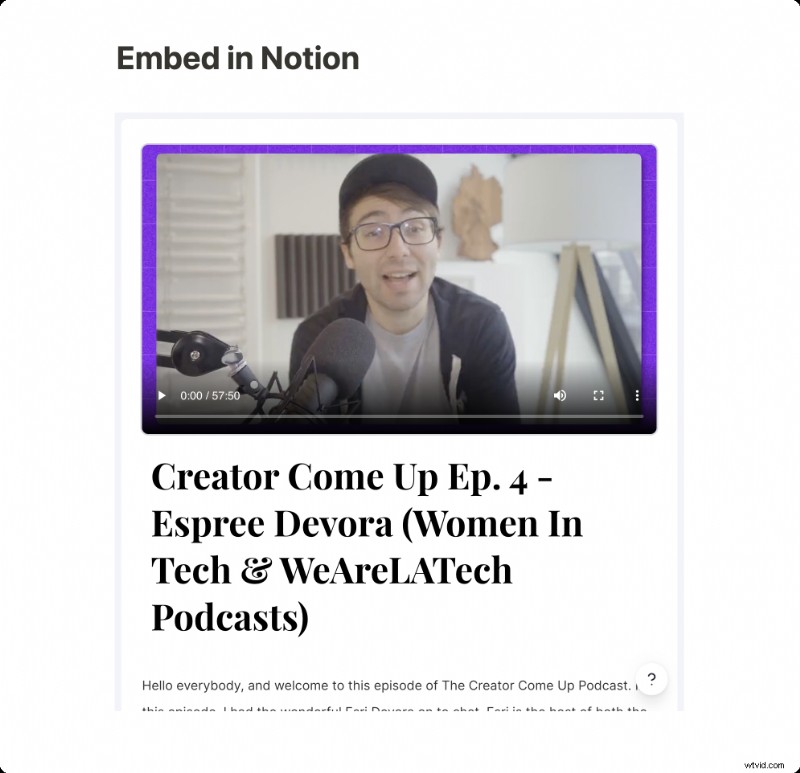
Copy the link, open Notion, type /video, and paste the URL. The video‑to‑article page appears as an interactive block, allowing readers to jump to any segment with a single click. A pop‑up preview plays if the viewer scrolls far from the original timestamp.
Embed into Your Blog
For blog integration, use the Copy Snippet option. In Ghost or any CMS that supports HTML, insert the snippet into an HTML block and publish. The embedded player keeps all interactive features, and you can accompany it with images and metadata just like a traditional post.
So Many More Use Cases
The same shareable link can be sent to a client, a colleague, or a marketing team—anyone can access the article and embedded video directly. This versatility makes the tool ideal for sales pitches, training, and knowledge sharing.
Thank you for exploring the Video‑to‑Article feature. We’re excited to see how you’ll amplify your content across platforms.