
Follow this clear, expert‑crafted tutorial to generate SRT subtitle files and add them to your Facebook videos in just a few simple steps.
Last Updated on October 30, 2025
We’ll walk through the entire process—from creating an accurate SRT file with free online tools to uploading it on Facebook—so your videos are accessible, engaging, and SEO‑friendly.
If you’re new to SRT files, check out our explanation of their structure and format before diving in.
Why Subtitles Matter on Facebook
Subtitles are more than just captions. They improve accessibility for viewers who watch without sound, boost engagement by keeping viewers’ attention, and give Facebook’s algorithm a clearer understanding of your content’s topic, which can enhance reach and retention.
Think of captions as video SEO—just as keywords help search engines index text, subtitles help platforms index video content.
Subtitle Formats: SRT vs. Burned‑In
You can create either:
- SRT files – closed captions that viewers can toggle on or off. These remain separate from the video and are searchable.
- Burned‑in subtitles – hard‑coded captions that cannot be removed, which may obscure important visual elements and are not recognized by Facebook’s algorithm.
For most Facebook posts, SRT files are recommended because they offer flexibility and better platform compatibility.
Generating an SRT File with Streamlabs Podcast Editor
Streamlabs Podcast Editor is a free, browser‑based video editor that automates transcription and SRT export. Sign up here to get started.
#1: Upload Your Video
Drag and drop your file into the editor, or paste a link from YouTube, Google Drive, or Dropbox. Be sure to set the correct language before uploading.
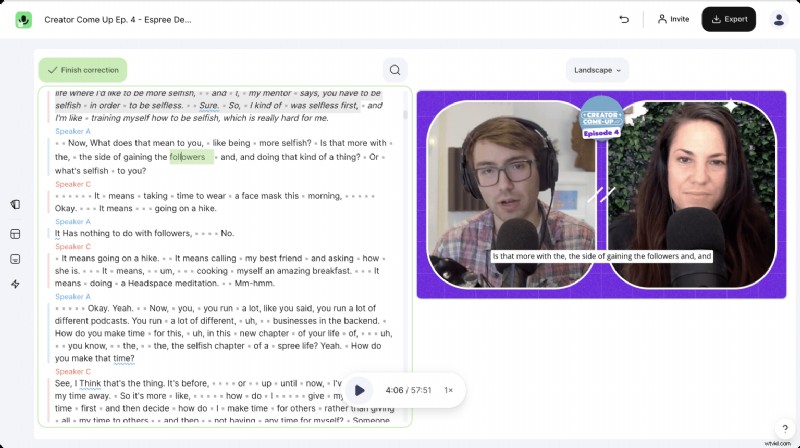
#2: Edit the Transcribed Text
AI transcription covers about 98% of the work, but a quick review ensures accuracy. Use the arrow keys to navigate and correct any mistakes.
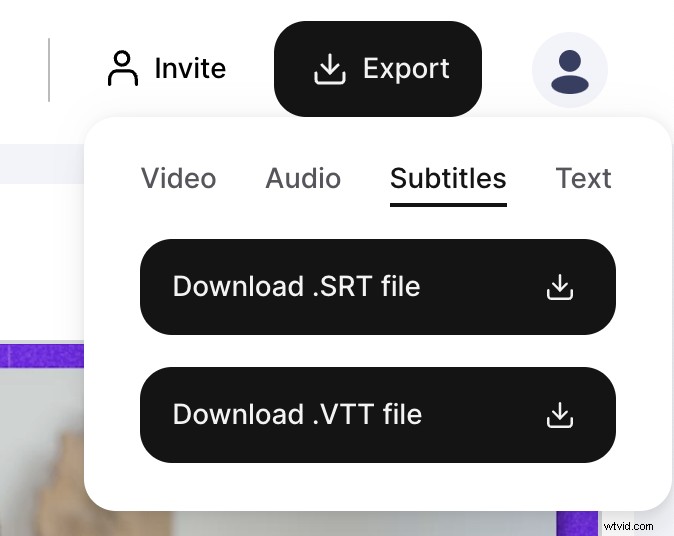
#3: Export the SRT File
Click Export in the top right, select Subtitles, then download the .srt file. You can also export as VTT or plain text if preferred.
Uploading the SRT File to Facebook
Once you have the SRT file, follow these steps to attach it to your Facebook video.
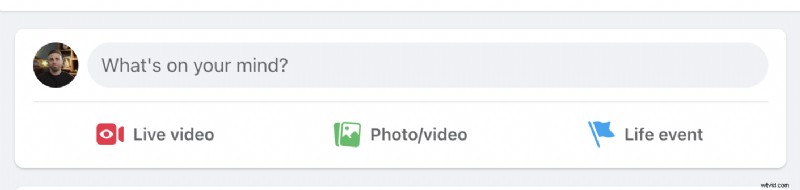
#1: Select and Upload Your Video
From your Facebook account, click Video and choose the file you wish to post.
#2: Access Video Options
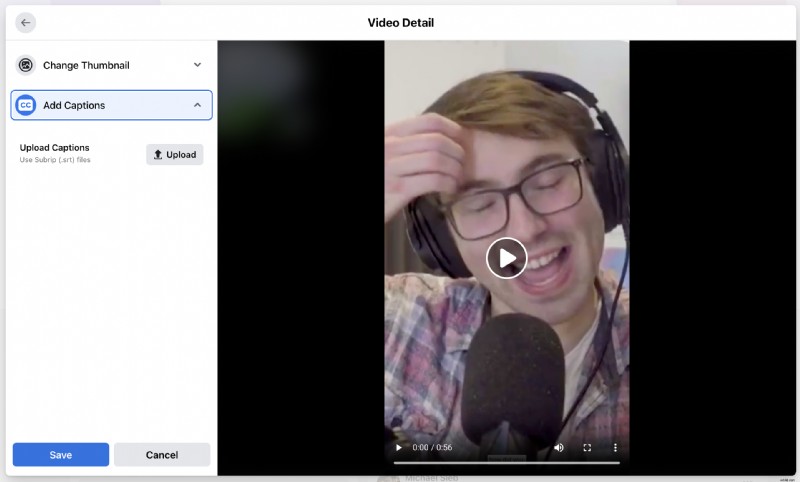
Navigate to Video Options and locate the Upload Captions section. Facebook automatically generates captions, but they often contain errors—especially for non‑English videos—so uploading a professional SRT file is highly recommended.

#3: Upload Your SRT File
Click Upload Captions, select the SRT file you exported, and ensure the file name matches the video file name. Facebook’s recent updates have made mismatched names problematic.
Tip: Add a custom thumbnail and a descriptive title to capture viewers’ attention as they scroll through their feed.
Side Note: Burned‑In Captions vs. Closed Captions
Facebook controls the style of closed captions—font, size, color, and placement. If you prefer burned‑in captions for creative control, you can use Streamlabs Podcast Editor to embed them directly into the video.
Regardless of your choice, SRT files provide the most flexibility and platform compatibility.
Congratulations! Your video is now ready with professional subtitles.
Further Reading
How to upload SRT files to YouTube videos? – A step‑by‑step guide on adding subtitles to YouTube videos.
Published June 01, 2023 by Michael Sieb
How to hardcode subtitles – Learn how to permanently embed subtitles into your video.
Published June 01, 2023 by Michael Sieb
What is the difference between Closed Captioning and Subtitles? – Understand the nuances between the two.
Published June 01, 2023 by Michael Sieb
© 2025 by Your Company – Edit your videos with text to grow your streams, podcasts & interviews! Enabling creators to do more.