
Do you want to edit your subtitles without any hassle? Discover how to refine your subtitles effortlessly using Streamlabs Podcast Editor’s free, cloud‑based subtitling tool.
Last Updated on October 30, 2025
Subtitles come in many formats—SRT, VTT, closed captions, or burned‑in captions. This guide covers every variant and explains the differences between subtitle versions, so you’ll always choose the right one for your project.
Before we dive into editing, let’s understand why accurate subtitles matter. They improve accessibility for viewers with hearing impairments, boost engagement, and help search engines index your content. In short, well‑crafted subtitles can raise your video’s visibility and reach.
Below is a step‑by‑step walkthrough for editing SRT files, which are the most common subtitle format. The same process applies to VTT and plain‑text exports.

SubRip Subtitle File (SRT)
SubRip (.SRT) files are ubiquitous, but manual editing can be tedious. Streamlabs Podcast Editor simplifies this with an intuitive, Google‑Docs‑like editor that integrates AI transcription and precise timing controls.
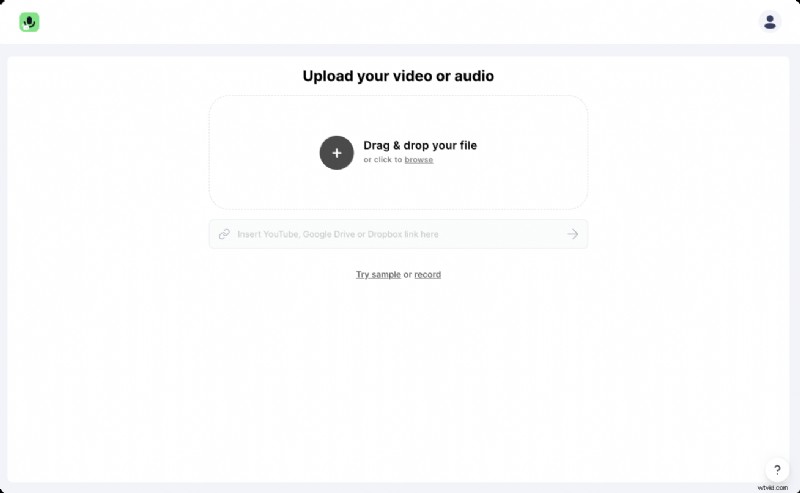
#1: Upload Your Video
Sign up for Streamlabs Podcast Editor—free and browser‑based—at streamlabs.com. Upload your video and let the editor do the heavy lifting.
#2: Refine the Transcribed Text
The editor auto‑transcribes your video, achieving roughly 98% accuracy. Review the text and correct any mis‑recognitions. Each edit updates the underlying SRT file in real time.
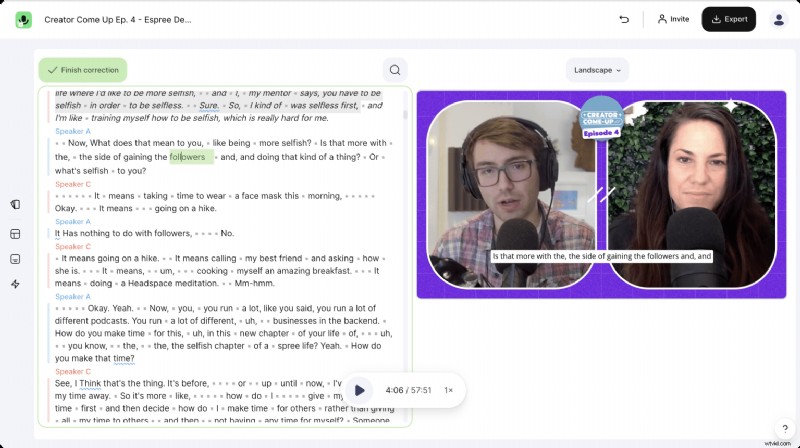
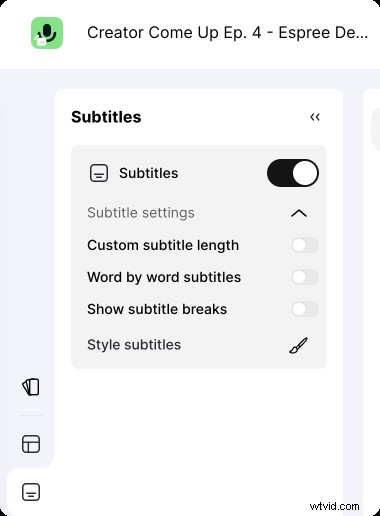
Pro tip: Use the arrow keys to navigate swiftly through the transcript. To control sentence breaks, toggle Show subtitle breaks in the top menu and drag the little triangles to set each subtitle’s duration.
#3: Export Your Subtitles
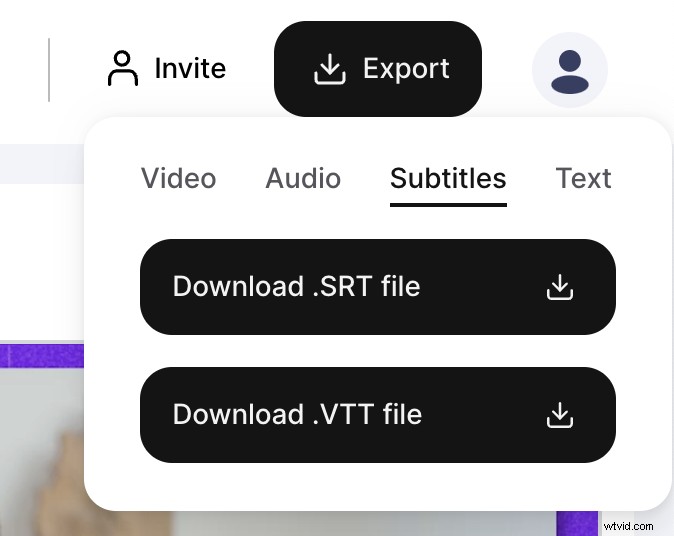
Once satisfied, click the Export button, select Subtitles, and download your .SRT file. You can also export as .VTT or .TXT for broader compatibility.
#4: Typical Use‑Cases for SRT Files
Apply your subtitles to any major platform—LinkedIn, Facebook, Twitter, YouTube, Vimeo—by uploading the .SRT file alongside your video. Viewers can toggle subtitles on or off, preserving a flexible viewing experience. If you need advanced video editing, simply import the SRT into your preferred editor.
Editing Burned‑In Subtitles
Burned‑in subtitles are permanently embedded in the video frame. Streamlabs Podcast Editor’s workflow remains the same: edit the transcript, correct errors, and render the video with captions baked in. This is ideal when you want subtitles that cannot be disabled.
Conclusion
Streamlabs Podcast Editor offers a streamlined, expert‑grade solution for editing all subtitle formats. Say goodbye to clunky text editors and hello to a polished, accessible video experience.
✦ Edit your videos with text to grow your streams, podcasts, and interviews! ✦
Enabling creators to do more.
Further Reading
How to easily add Subtitles to any video? – Learn how to add subtitles automatically and style them for maximum impact. (June 01, 2023) – Michael Sieb
How to translate your subtitles in Streamlabs Podcast Editor – Quick guide to translating videos into multiple languages. (May 31, 2023) – Michael Sieb
How to add close captions and subtitles to TikTok clips – Two methods for adding captions to TikTok videos. (June 01, 2023) – Michael Sieb