
Learn how to add subtitles or closed captions (SRT files) to your Vimeo videos with this step‑by‑step guide.
Last Updated on October 30, 2025
Adding subtitles is simpler than you think. It requires only a few clicks and no manual subtitling work.
Why subtitles matter: they improve SEO, accessibility, and engagement. Search engines index the text, making your video more discoverable. They also help deaf or non‑native speakers understand your content.
Subtitle file formats supported by Vimeo
Vimeo accepts SubRip (.srt), WebVTT (.vtt), DXFP/TTML (.dxfp), Scenarist (.scc), and SAMI (.sami). We recommend .srt because it’s the most widely used format across platforms.

Creating an SRT file in three simple steps
Use Streamlabs Podcast Editor, a free online tool that transcribes your video and exports an SRT file. No downloads required.
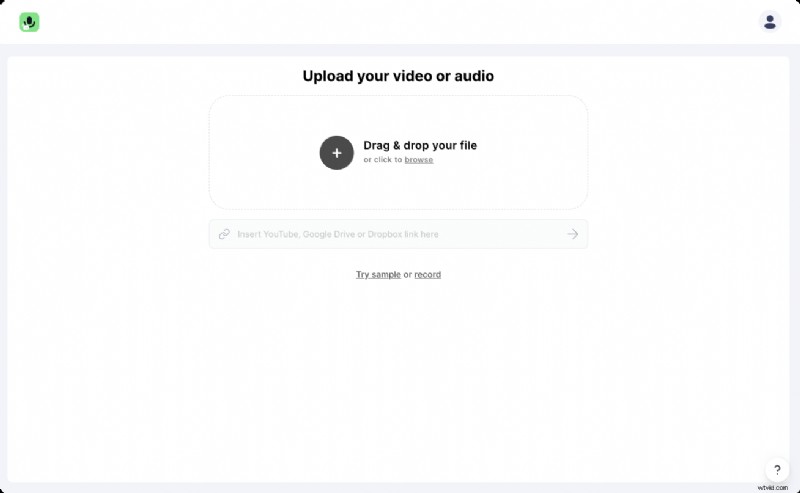
#1: Upload your video
Drag and drop your video file or link a YouTube, Google Drive, or Dropbox video. Specify the video language before uploading.
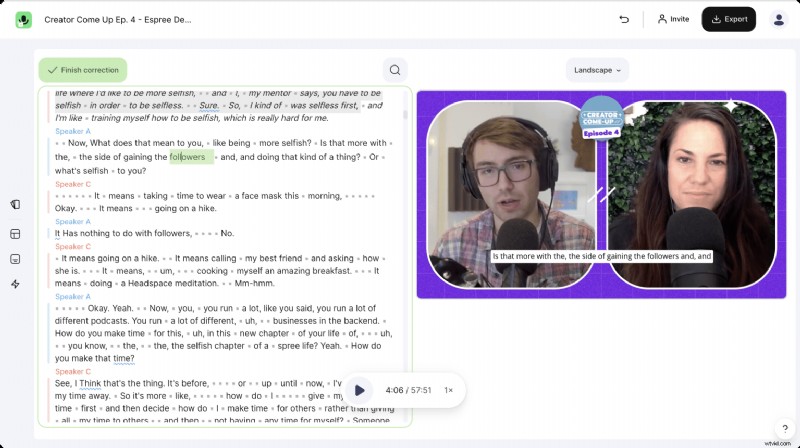
#2: Edit the transcription
The editor auto‑transcribes 98 % of the dialogue. Review and correct any errors, then the corrected text will be reflected in the final SRT.
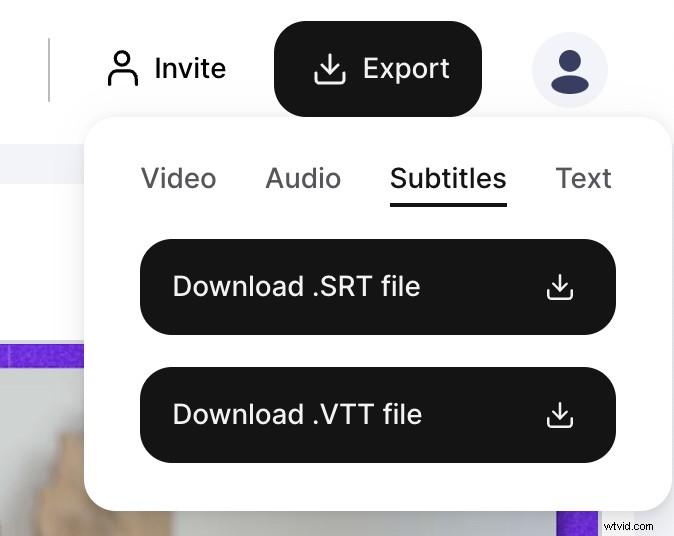
#3: Export the SRT file
Click Export → Subtitles → Download .SRT file. You can also download .vtt or a plain‑text transcript.
Uploading your SRT file to Vimeo
Follow these steps to attach the subtitles to your video.
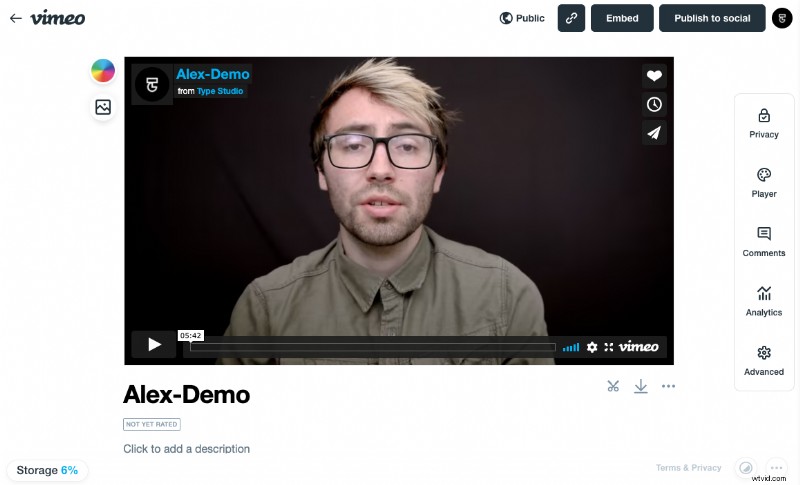
#1: Go to Advanced settings
After the upload preview, click Advanced on the right‑hand sidebar.
#2: Access Subtitle settings
In the left panel, select Distribution → Subtitles and click the + icon next to “My uploads.”
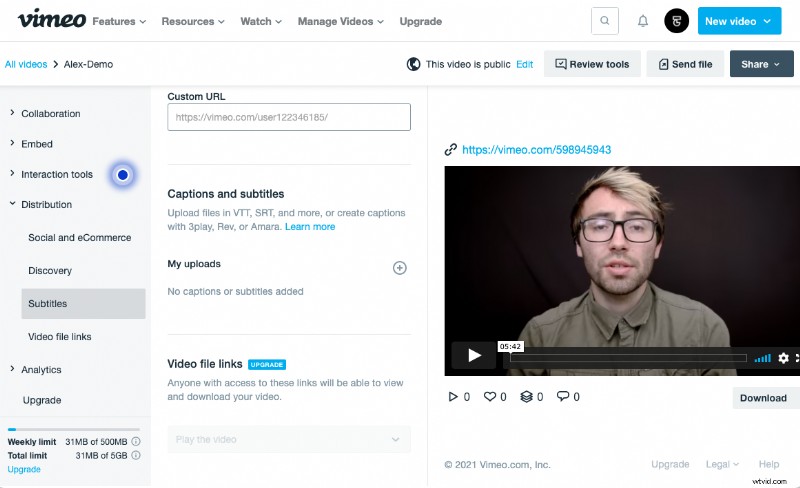
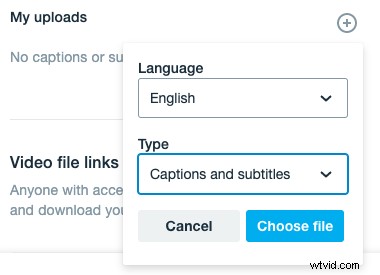
#3: Choose language and upload
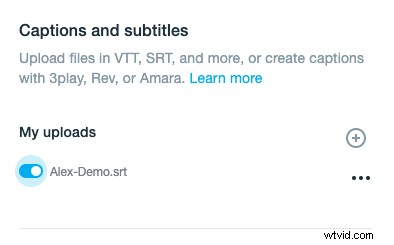
Select the appropriate language (e.g., English) and subtitle type “Captions and subtitles.” Click Choose file to upload your SRT, then toggle it on and hit Save.
Frequently Asked Question
What’s the difference between captions and subtitles?
While they look similar, captions include speaker cues and sound descriptions. For a deeper dive, read our article on closed captioning vs. subtitles.
Enhance your video content with text to boost engagement across streams, podcasts, and interviews.
Further reading
- What is the difference between Closed Captioning and Subtitles? – June 01, 2023 – Michael Sieb
- How to upload SRT files to YouTube videos? – June 01, 2023 – Michael Sieb
- How to add SRT subtitle files to Facebook videos? – June 01, 2023 – Michael Sieb