
Transcribing audio into written text converts spoken words into a format that can be read, searched, edited, and shared with ease. Whether you’re a student turning lectures into study notes, a podcaster repurposing episodes into blog posts, or a researcher reviewing interview recordings, audio‑to‑text technology has become an indispensable tool in today’s fast‑moving digital landscape.
What Is Audio‑to‑Text Technology?
Audio‑to‑text, also known as transcription, relies on speech‑recognition software that listens to an audio file and predicts the spoken content, converting it into editable text. Historically, transcription was a manual, time‑consuming process carried out by specialized professionals. Modern automated solutions now deliver near real‑time, highly accurate results, saving users significant time and effort.
Why Transcribe Audio?
- Time savings: Skip replaying the entire file—read the exact sections you need.
- Clarity: Transcripts eliminate background noise, accents, and unclear speech.
- Accessibility: Written content engages users who prefer reading over listening.
- SEO advantage: Search engines index text, boosting visibility and traffic.
Three Proven Methods for Transcribing Audio to Text
Below are the most effective approaches, each suited to different needs, budgets, and accuracy requirements.
1. SubtitleBee’s AI Speech‑to‑Text
SubtitleBee’s AI delivers up to 95 % accuracy across more than 120 languages. The platform supports a wide range of file formats—including MP4, AVI, MOV, SRT, TXT, ASS, and VTT—making it ideal for videos, podcasts, interviews, and lectures. After transcription, you can review, edit, and export the text or subtitles in your preferred format.
Key steps:
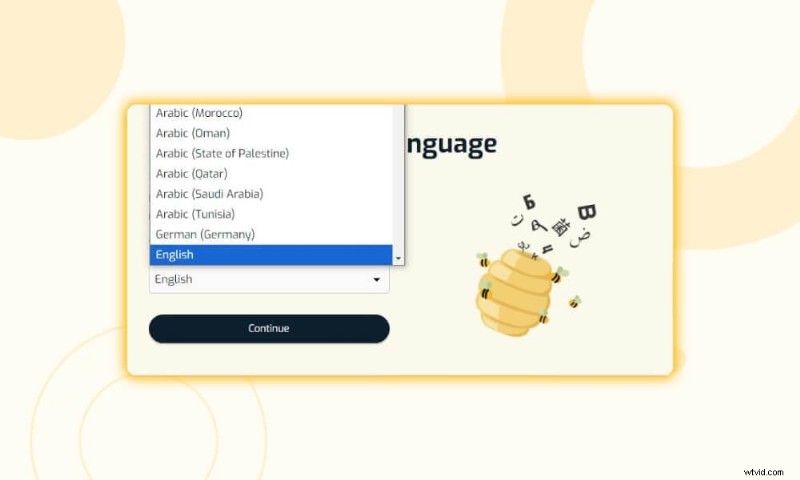
- Navigate to Features → Transcription and click Upload Audio File.
- Select the language and proceed.
- Upload your file.
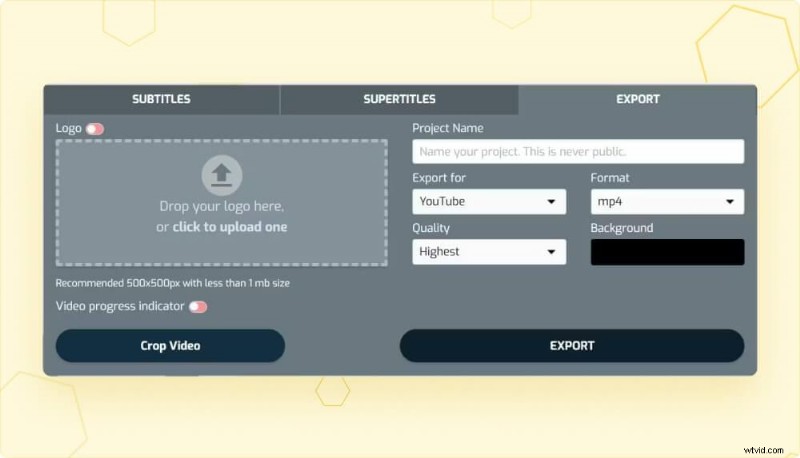
Once the transcription completes, review the text, make any necessary edits, and export as a .txt or subtitle file.
- Review and edit the transcript.
- Export to your desired format.
SubtitleBee is especially useful when you need quick, accurate, and multilingual transcriptions.
Pros
- Intuitive, user‑friendly interface.
- High AI accuracy (up to 95 %).
- Supports 120+ languages.
- Wide file format compatibility.
- Affordable plans with discounts.
Cons
- Web‑only; requires an internet connection.
- No mobile app yet.
- No live transcription feature.
2. Built‑In Voice‑Typing Tools
Modern operating systems and browsers offer native speech‑to‑text capabilities that are ideal for simple recordings or live dictation. While they lack advanced editing features, they’re free and privacy‑secure.
Apple (iOS & macOS):
- Open Notes or Voice Memos.
- Tap the microphone icon and record.
- Tap the “💬” button to generate the transcript.
Windows:
- Open Microsoft Word or OneNote.
- Press Windows + H to activate dictation.
- For file uploads, go to Home → Dictate → Transcribe.
Google Docs:
- Open a document, go to Tools → Voice typing (or Ctrl + Shift + S).
- Click the microphone icon and speak or play audio into the microphone.
Android:
- Open any text app.
- Tap the microphone icon on Gboard and speak.
Built‑in tools are perfect for quick, live transcriptions, but they typically cannot process long files and offer limited language support.
3. GPT‑Record Mode (ChatGPT for macOS)
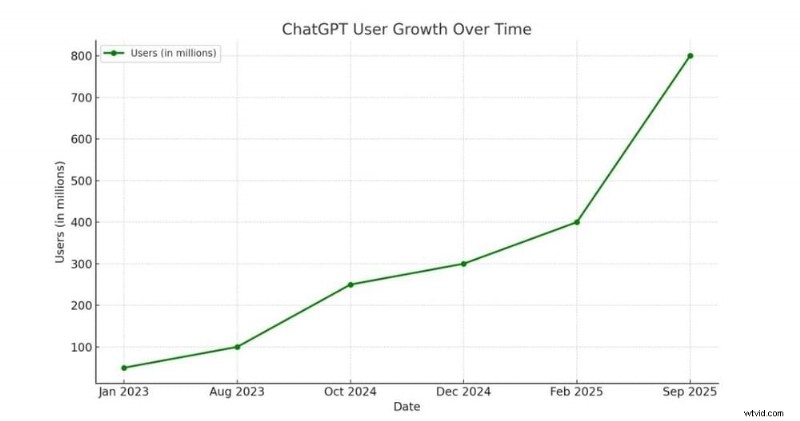
ChatGPT’s Record feature, launched in July 2025 for macOS, allows users to record up to two hours of audio directly within the app. Once stopped, the recording is sent to the ChatGPT server, where the AI generates a summary and a full transcript. The feature is free for ChatGPT Plus subscribers and is highly useful for meeting notes and quick summaries.
Pros
- Hands‑free recording and transcription.
- Integrated with ChatGPT’s powerful summarization.
- Accessible on any device via ChatGPT.
Cons
- macOS‑only.
- Requires a ChatGPT Plus (or higher) subscription.
- Two‑hour limit may be restrictive.
- No advanced editing tools or speaker labeling.
- No versatile export formats.
Conclusion
For most users seeking accuracy, multilingual support, and editing flexibility, SubtitleBee remains the top choice. Built‑in voice‑typing tools are ideal for short, ad‑hoc transcriptions, while GPT‑Record is excellent for macOS users who need instant summaries.
FAQs
Which free AI tool converts audio to text?
Google Docs Voice Typing is free and works in real time, but it does not support file uploads. For a free trial that handles uploads, try SubtitleBee’s AI transcription.
Can I transcribe audio on my phone?
Yes—both Android and iOS devices include live voice‑typing or Gboard for real‑time transcription. For file uploads, use SubtitleBee on a desktop or laptop.
For more details on Google Meet’s transcription feature, visit Google Meet Transcription Feature.