
Whether you’re conducting a webinar, recording a podcast, or providing remote support, a reliable screen‑sharing solution is essential. Below is a curated list of the best apps and software available for PCs and mobile devices, along with key features, pricing, and best‑use scenarios.
What Is Screen‑Sharing Software?
Screen‑sharing tools let you broadcast your computer or mobile display to other users in real time. Most also record the session for later use, providing a handy archive of presentations, demos, or troubleshooting sessions.
Choosing the right tool depends on your workflow, budget, and security needs. The following sections guide you through the most important considerations.
Why Choose Dedicated Screen‑Sharing Software?
- Seamless performance: Purpose‑built applications run smoothly, even with multiple participants.
- Enhanced security: End‑to‑end encryption and privacy controls keep your data safe.
- High‑quality recordings: Capture crisp video and audio, often better than native OS tools.
- No file transfers needed: Share content instantly without uploading large files.
Key Factors When Selecting a Tool
- Cost: One‑time purchase, subscription, or free tier? Match the price to your required features.
- Features: Look for screen recording, annotation, remote control, and the ability to share specific windows.
- Compatibility: Ensure the software works on your OS and device (desktop or mobile).
- Security: End‑to‑end encryption, two‑factor authentication, and privacy controls are a must.
- Ease of use: A clean UI reduces the learning curve for you and participants.
- Collaboration tools: Chat, file sharing, and whiteboarding enhance interactive sessions.
- Recording capabilities: Check video resolution, frame rate, and export options if you plan to publish the footage.
Top 6 Screen‑Sharing Software for Mac & Windows PCs
1. Riverside
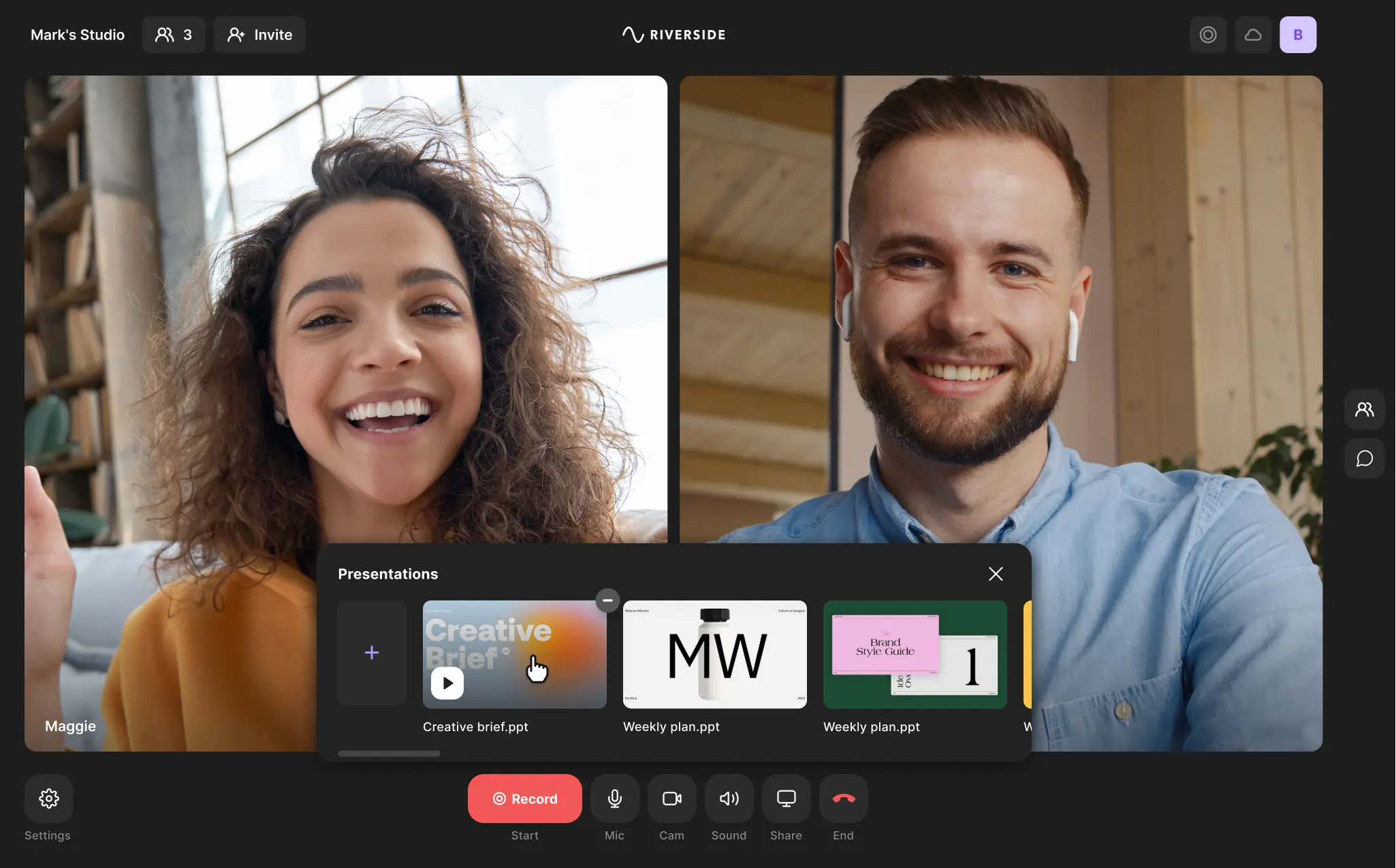
- Pricing: Free Plan; Standard $15/month; Pro $24/month; Business custom quotes.
- Platforms: Windows, Mac, iOS, Android.
- Highlights: Virtual studio, 4K video, 48 kHz audio, separate audio/video tracks, AI‑generated transcripts (100+ languages), local recording, live audience Q&A.
- Pros: All‑in‑one recording and screen‑sharing, user‑friendly, supports up to 9 guests and 1,000 viewers.
- Cons: Some features may be unnecessary for simple presentations.
- Best for: Live content creation with guests and audiences.
2. Zoom

- Pricing: Free basic; paid plans from $14.99/month/host.
- Platforms: Mac, Windows, Linux, Android, iOS.
- Highlights: Real‑time annotation, whiteboard, cloud recording, cross‑platform support.
- Pros: Intuitive interface, reliable video quality, robust feature set.
- Cons: Advanced functions require a paid subscription.
- Best for: Business meetings, education, webinars, and collaboration.
3. Google Meet

- Pricing: Free.
- Platforms: Mac, Windows, Linux, Android, iOS.
- Highlights: High‑quality sharing, Google Workspace integration, chat, whiteboard, breakout rooms.
- Pros: Seamless Workspace integration, user‑friendly, quick impromptu meetings.
- Cons: Limited compared to dedicated webinar tools.
- Best for: Small‑to‑medium team collaboration within Google Workspace.
4. Microsoft Teams
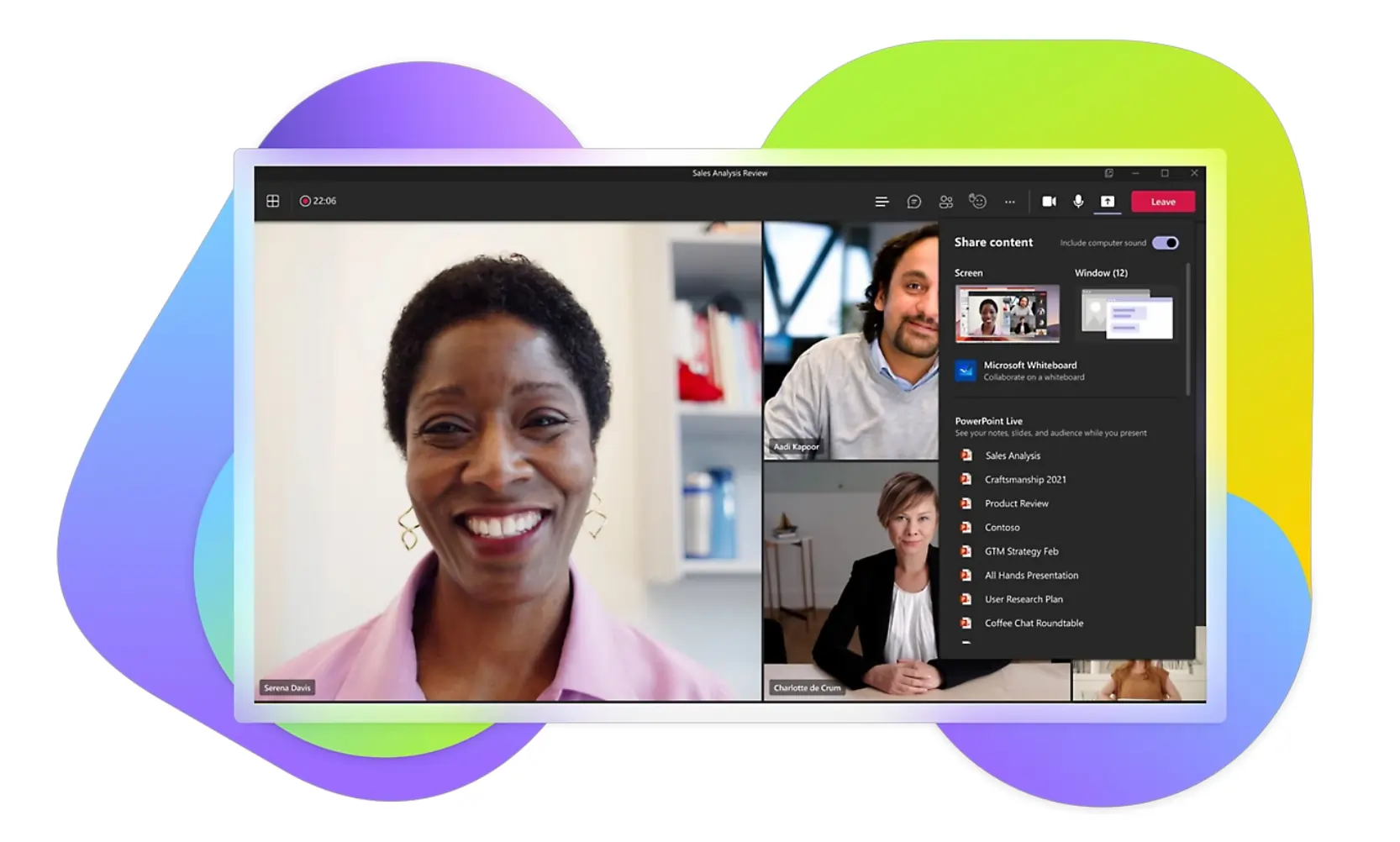
- Pricing: Free basic; Microsoft 365 Business Basic $6/month; Standard $12.50/month; Premium $22/month.
- Platforms: Mac, Windows, Linux, Android, iOS.
- Highlights: Simultaneous file editing, deep Office integration, chat, file sharing.
- Pros: Strong collaboration tools, scalable for any business size.
- Cons: Some features require a Microsoft 365 subscription; UI can be complex for new users.
- Best for: Organizations already using Microsoft 365.
5. AnyDesk

- Pricing: Free for personal use; Business $14.90/month.
- Platforms: Mac, Windows, Linux, Android, iOS.
- Highlights: Fast, low‑latency connection, encrypted, file transfer, clipboard sync.
- Pros: Exceptional speed, minimal latency for real‑time control.
- Cons: Advanced features behind a paywall.
- Best for: Real‑time technical support.
6. TeamViewer

- Pricing: Free personal; Business $14.90/month.
- Platforms: Mac, Windows, Linux, Android, iOS.
- Highlights: Remote control, file transfer, meeting and presentation tools.
- Pros: Reliable performance, secure, suitable for personal and business use.
- Cons: Free version limited to personal use.
- Best for: IT professionals offering technical support.
Top 5 Screen‑Sharing Apps for iOS & Android
1. AirDroid Cast
- Pricing: Free; Basic $12/device/year; Standard $21/device/year.
- Platforms: iOS, Android.
- Highlights: High‑quality mirroring, remote control for Android, cross‑platform support.
- Pros: Intuitive interface, powerful versatility.
- Cons: Advanced features require a paid upgrade.
- Best for: Tech support and presentations.
2. LetsView
- Pricing: Free; in‑app purchases from $19.95/user/month.
- Platforms: iOS, Android, Windows, macOS.
- Highlights: Wi‑Fi connection, annotation tools, screen recording.
- Pros: Broad compatibility, supports wired and wireless sharing.
- Cons: Not ideal for large‑scale business use.
- Best for: Personal and professional presentations.
3. Vysor
- Pricing: Free; Pro $2.50/month.
- Platforms: Android (Chrome extension for Windows/macOS).
- Highlights: Android mirroring, remote control, drag‑and‑drop file transfer.
- Pros: Simple setup, wireless or USB connection.
- Cons: Limited to Android devices.
- Best for: Android app developers and tech enthusiasts.
4. GoToMeeting
- Pricing: Free basic; paid plans from $14.99/month/host.
- Platforms: iOS, Android, Mac, Windows.
- Highlights: Integrated audio/video, meeting recording, transcription, mobile apps.
- Pros: Easy interface, strong security.
- Cons: Free trial limited features.
- Best for: Virtual meetings, webinars, collaborative sessions.
5. BlueJeans
- Pricing: Basic $9.99/month/host (up to 50 participants); Pro $17.99/month/host; Enterprise $29.99/month/host.
- Platforms: iOS, Android, Windows, macOS.
- Highlights: HD screen sharing, Dolby Voice audio, integrations with productivity tools.
- Pros: Multi‑platform support, robust integrations.
- Cons: Dependent on internet speed.
- Best for: Online training and educational sessions.
Frequently Asked Questions
What is the easiest screen‑sharing app?
Popular choices for beginners include Riverside, Zoom, Microsoft Teams, Google Meet, and LetsView, all known for intuitive interfaces.
Can I share my screen on FaceTime?
Apple allows screen sharing directly within FaceTime on macOS 12.1+ and iOS 15.1+. No third‑party app is required.
How do I share my screen?
Open your chosen app, select the target device or participant, and start the screen‑sharing session. The other party will then view your display in real time.
Can I share my screen with another phone?
Yes—install a compatible screen‑sharing app on both devices and initiate the session. The process is identical to sharing with a computer.