
Screen capture tools have evolved far beyond simple image and video capture. Modern solutions now offer integrated editing, annotation, and audio‑mixing capabilities that cater to a wide range of professionals, from podcasters to educators.
What Is a Screen Capture App?
A screen capture app records visual content from your computer or mobile device—whether that’s an entire screen, a selected region, or even a specific application window. Many tools also capture audio, allowing you to produce polished videos, tutorials, or presentations.
Beyond recording, the best tools let you annotate footage, edit video and audio tracks, add effects, and share directly to cloud services or social media.
Common Use Cases
- Content Creators & Podcasters – Capture high‑quality video for YouTube, streaming, or podcasting.
- Business & Marketing Teams – Record training sessions or demos for remote collaboration.
- Educators – Produce instructional videos and interactive learning modules.
- Developers – Showcase app or software demos for documentation or bug reporting.
- Technical Support – Record and analyze bugs or performance issues.
How to Choose the Right Tool
- Purpose – Identify whether you need image capture, video, audio, or a combination, and whether you’ll edit or annotate the footage.
- Quality – Look for at least 720p HD video and 44.1kHz audio to ensure clear, professional results.
- User‑Experience – A clean, intuitive interface reduces learning time and minimizes errors.
- Compatibility – Confirm support for your OS and device (Windows, macOS, Linux, iOS, Android).
- Sharing – Built‑in cloud uploads or social media links speed distribution.
- Price – Match the tool’s features to your budget, whether free, subscription, or one‑time purchase.
11 Best Screen Capture Tools & Apps for 2026
Best Free Tools
Riverside
Price: Free tier available; Standard $15/month; Pro $24/month; Team custom quotes.
Compatibility: Windows, macOS, Android, iOS.
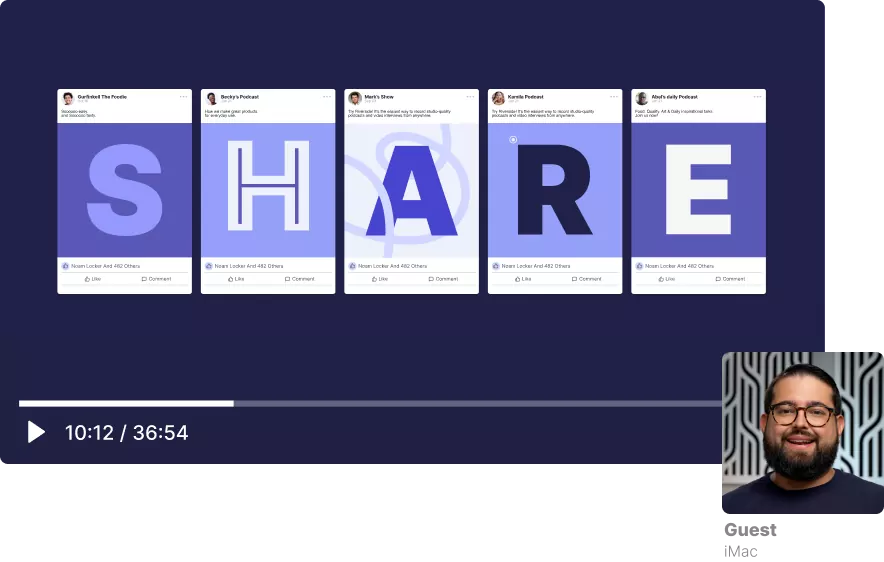
Riverside excels for creators who need 1080p screen capture and up to 4K webcam recording. Its local recording ensures smooth playback regardless of internet speed, while AI‑powered transcription and text‑based editing streamline post‑production.
- Local recording for glitch‑free playback
- Separate tracks for up to 7 guests
- AI transcription in 100+ languages
- Business Plan offers 4K slide recording
Cons: Watermark on edited videos in the free plan.
Best For: Content creators, podcasters, educators, and marketers who require high‑resolution, multi‑track recordings.
Free Cam
Price: Free tier; Cam Pro $227/year.
Compatibility: Windows.
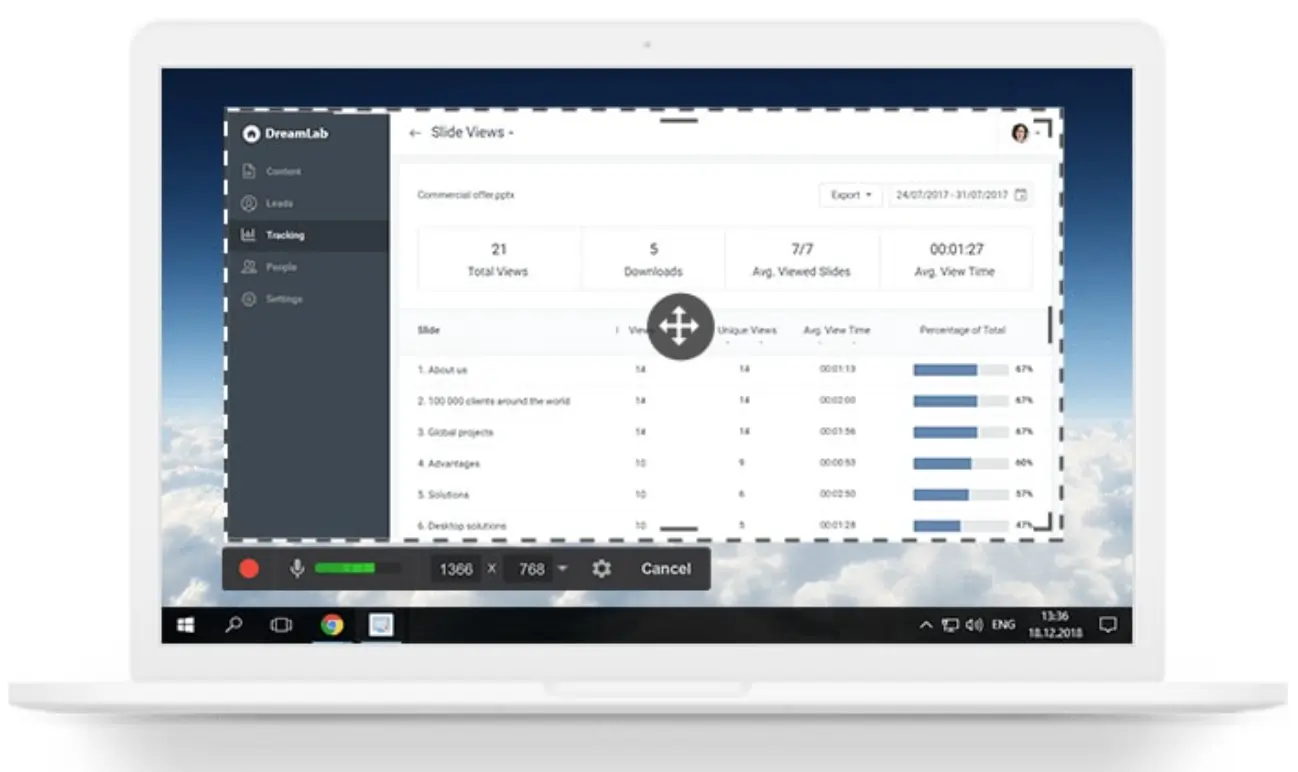
Free Cam offers intuitive controls, 720p (1080p in Pro) recording, and basic editing—ideal for quick tutorials or e‑learning videos.
- No watermark
- Direct YouTube upload
- Unlimited recording time
Cons: Limited export formats and basic editing features.
Best For: Professionals seeking a straightforward, free screen recorder with basic post‑processing.
Xbox Game Bar
Price: Free.
Compatibility: Windows 10/11.
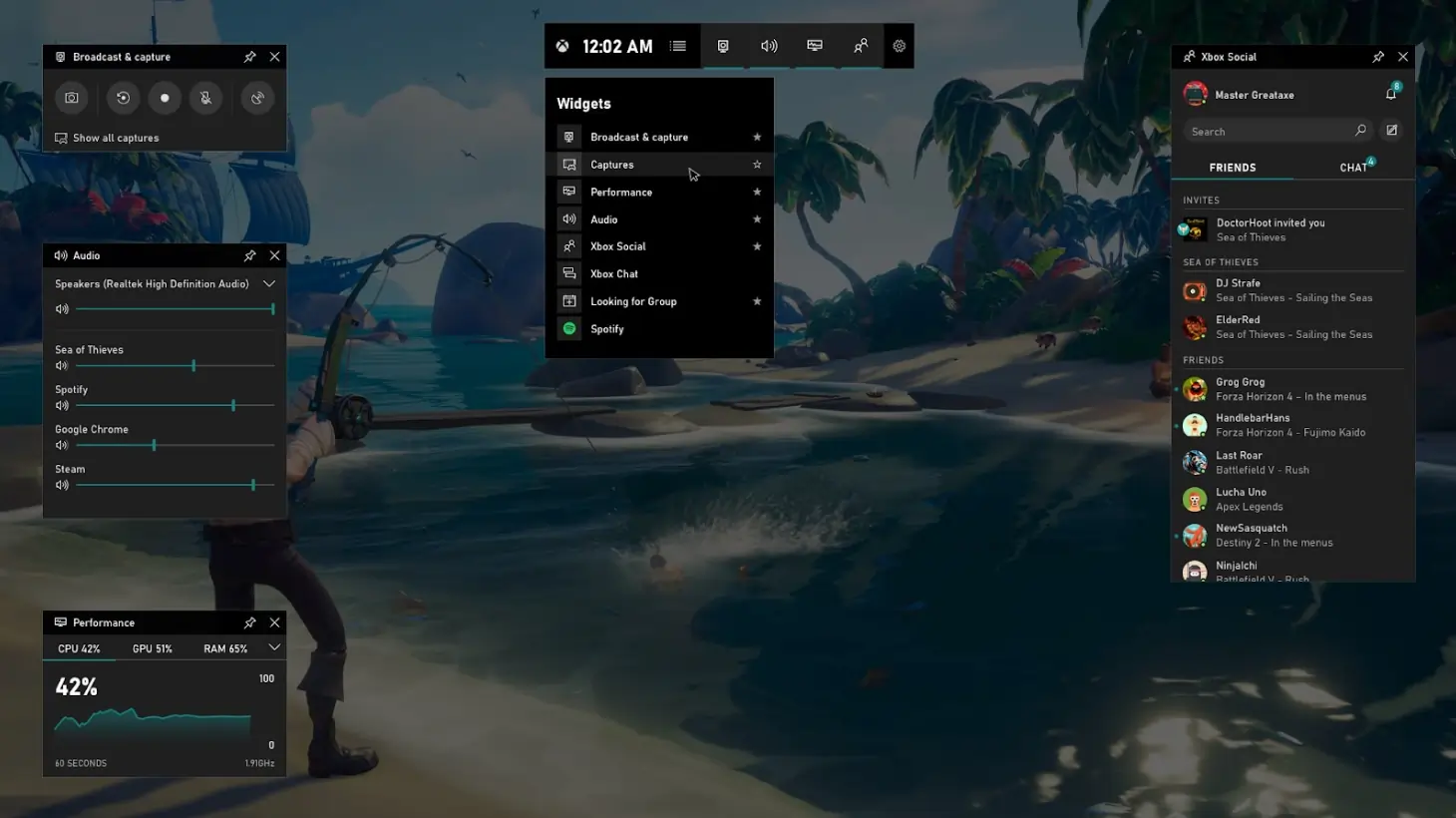
Pre‑installed on Windows, Xbox Game Bar captures gameplay, browser activity, and more up to 1080p, with optional microphone audio.
- Built‑in recorder, no extra installation
- High‑resolution capture (up to 4K)
- Microphone and system audio support
Cons: Windows‑only.
Best For: Gamers and Windows users needing a quick, free capture solution.
Screencastify
Price: Free; Starter $7/month; Pro $10/month.
Compatibility: Chrome extension for Windows & macOS.
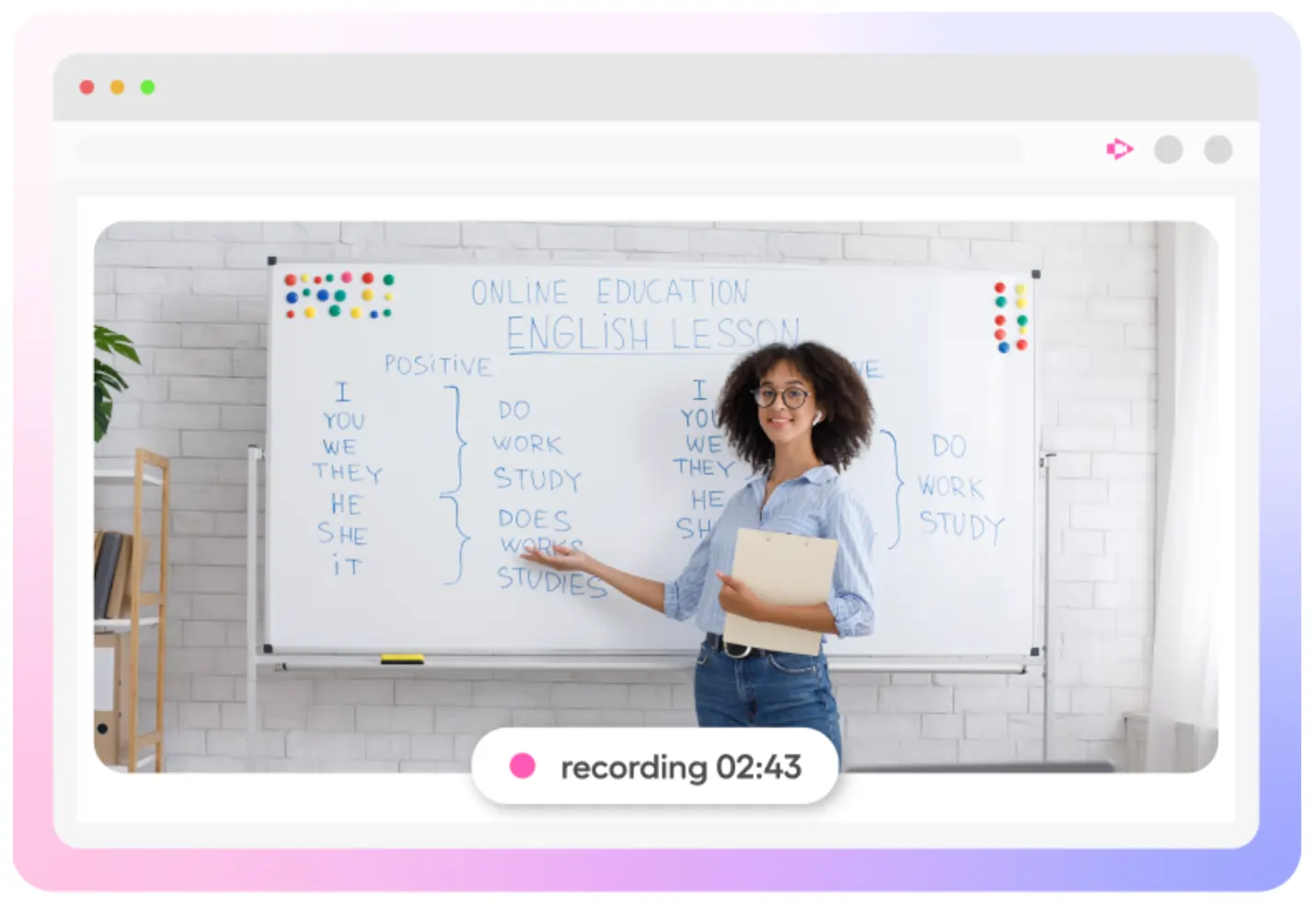
Screencastify records screen and webcam in 1080p, adds annotations, and automatically saves to Google Drive.
- Browser‑based, no installation
- Auto‑generated closed captions
- Direct link sharing for educators
Cons: 5‑minute recording limit on free plan; only Chrome.
Best For: Teachers and remote teams who need quick, cloud‑ready screen captures.
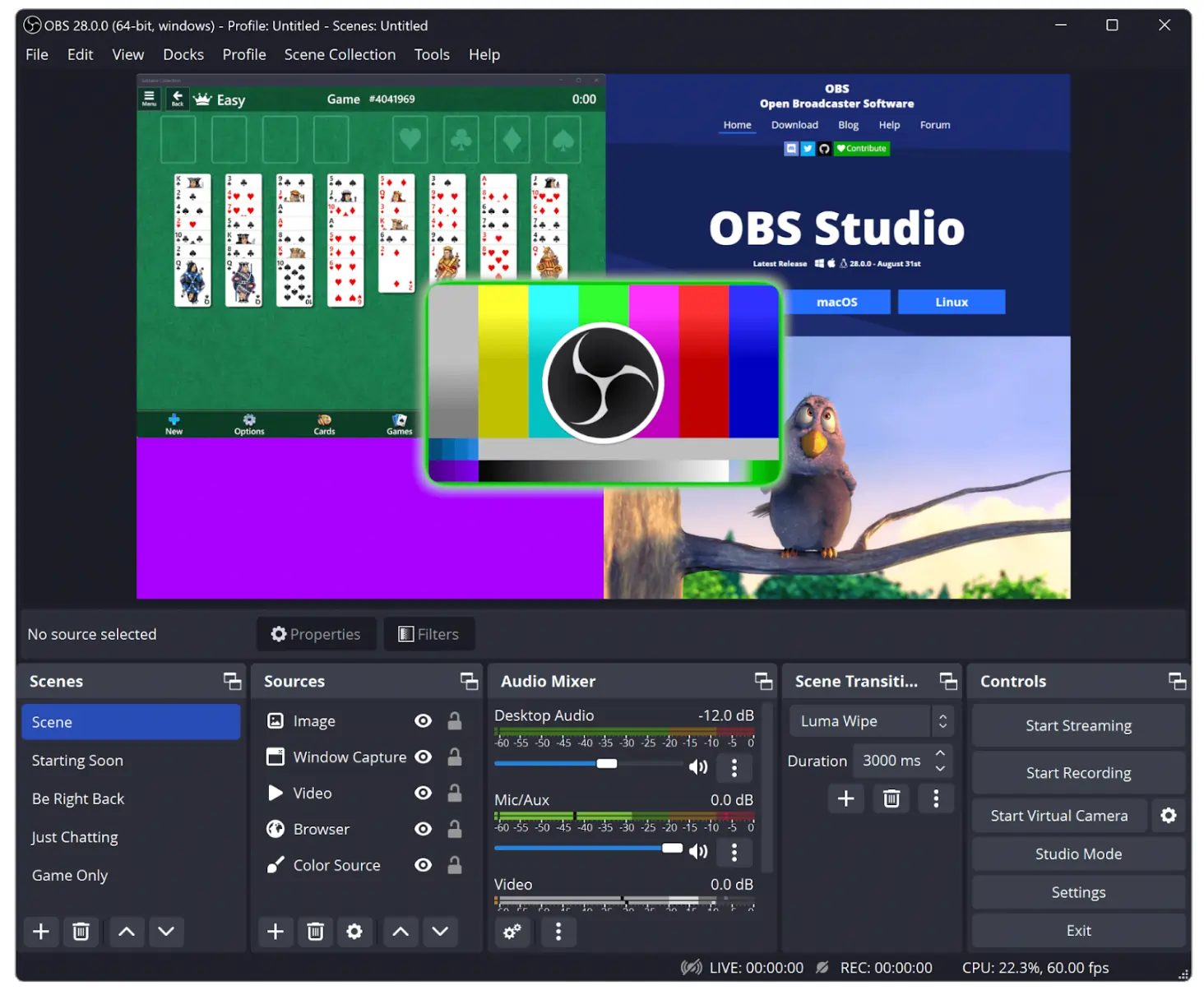
OBS Studio
Price: Free.
Compatibility: Windows, macOS, Linux.
OBS is the industry standard for gamers and streamers, offering extensive customization, live streaming, and multi‑source recording.
- Highly configurable interface
- Supports live streaming platforms
- Hotkey integration for quick actions
Cons: Steep learning curve; no built‑in editor.
Best For: Advanced users who require powerful live‑streaming and recording features.
Best Paid Tools
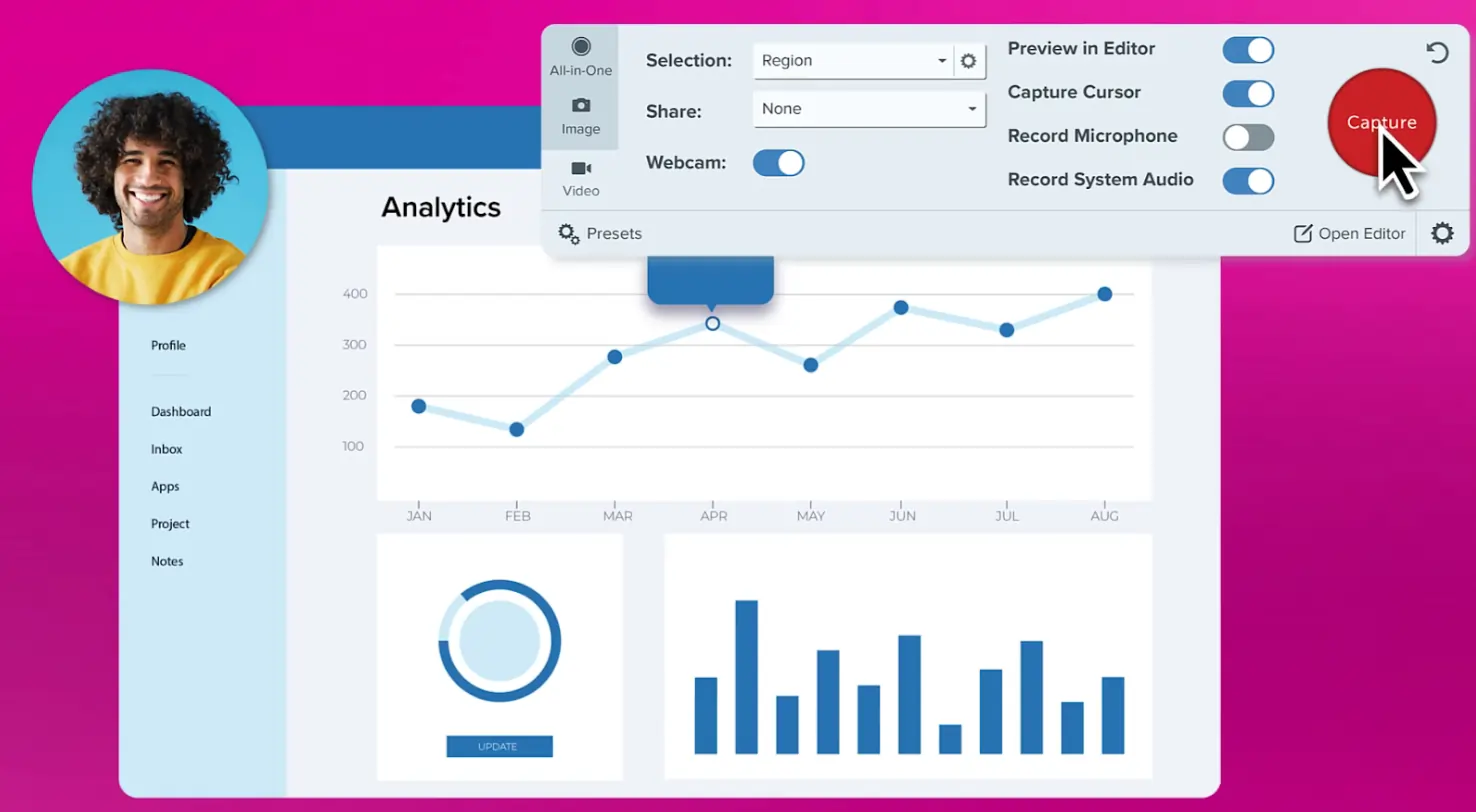
Snagit
Price: $62.99 (Individual/Business); $37.99 (Education); $53.99 (Non‑profit).
Compatibility: Windows, macOS.
Snagit offers a full suite of capture and editing tools, including a robust video editor, text extraction, and annotation features.
- Intuitive interface with guided tutorials
- Picture‑in‑picture webcam overlay
- Advanced editing—trim, blur, magnify, and add effects
- Integrates with Microsoft Office, Google Drive, Dropbox, YouTube, etc.
Cons: Premium pricing; advanced features may overwhelm beginners.
Best For: Professionals, educators, and marketers who need comprehensive editing and collaboration tools.
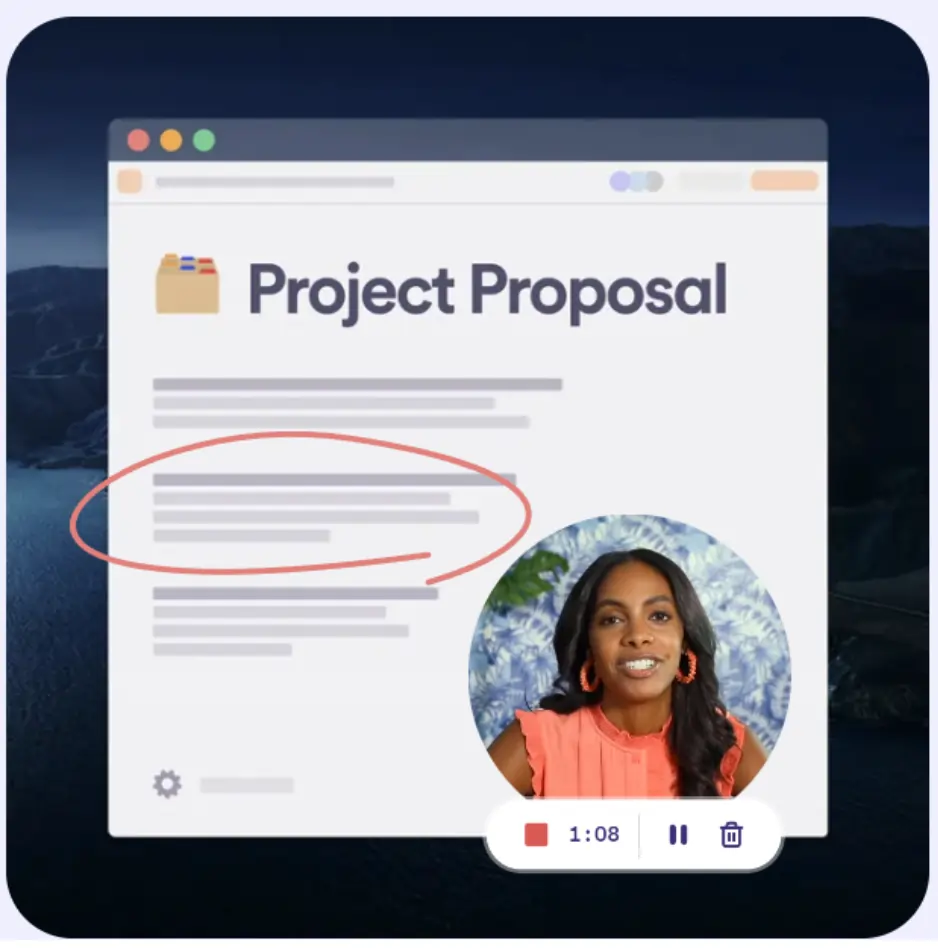
Loom
Price: Free Starter; Business $8/month; Enterprise custom quote.
Compatibility: Windows, macOS, Android, iOS, Chrome extension.
Loom turns screen recordings into collaborative videos with instant sharing, comment threads, and viewing analytics.
- Easy to record and share
- Closed caption generation
- Rich integrations (Slack, GitHub, Gmail, etc.)
- Cross‑platform support
Cons: Occasional bugs; limited editing capabilities.
Best For: Teams seeking quick, communicative video notes.
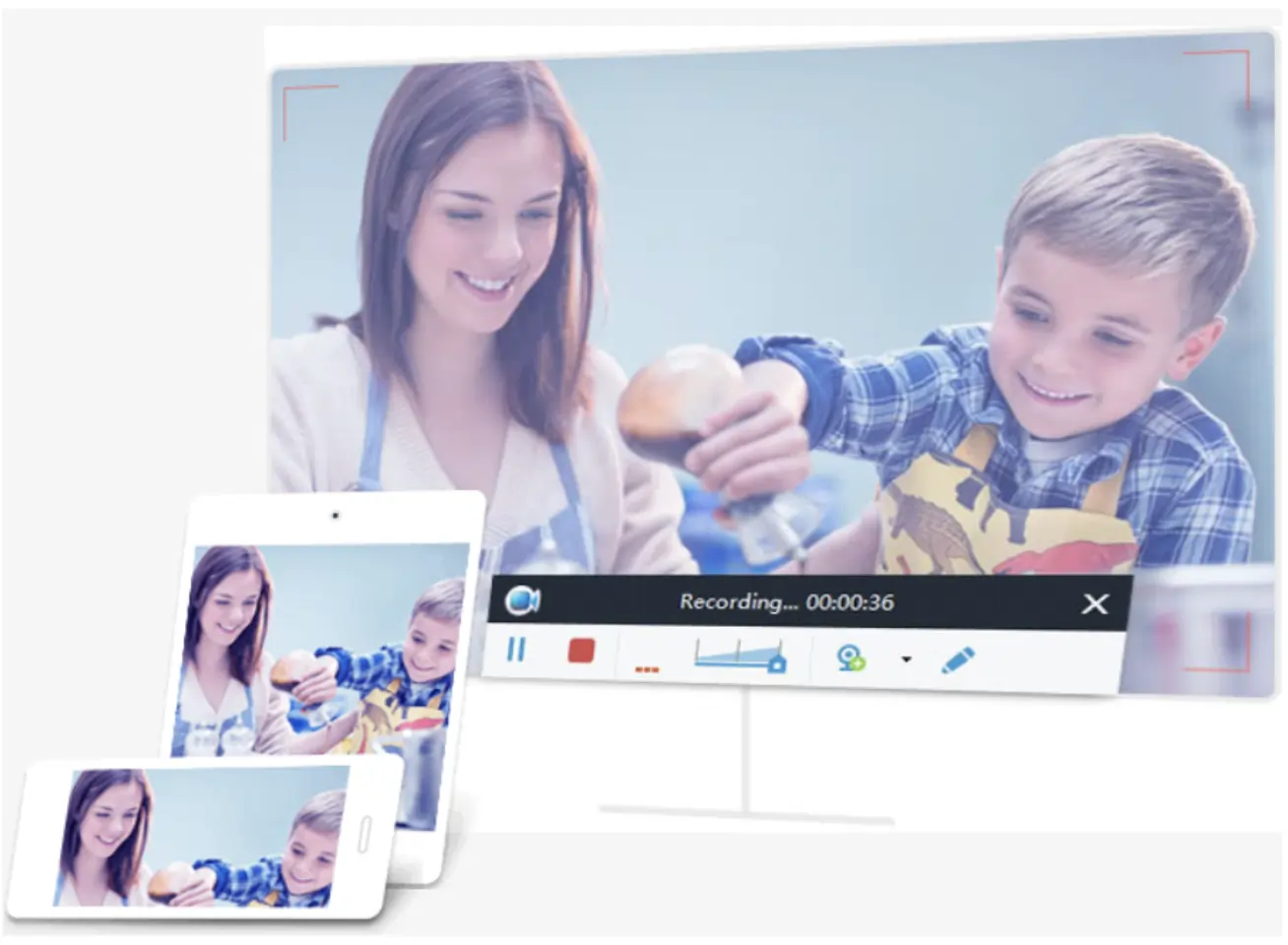
Apowersoft Unlimited Screen Recorder Pro
Price: Personal $69.95 (lifetime); Business $159.95 (lifetime).
Compatibility: Windows, macOS.
Designed for professional demos, this tool offers real‑time annotation and a separate video editor for trimming, merging, and branding.
- Real‑time screencast editor for instant callouts
- Schedule recordings to capture on demand
- Built‑in video converter (MPEG, MP4, AVI, etc.)
Cons: Unresponsive support; occasional sync issues.
Best For: Educators and sales teams creating how‑to videos.
Filmora Screen Recorder
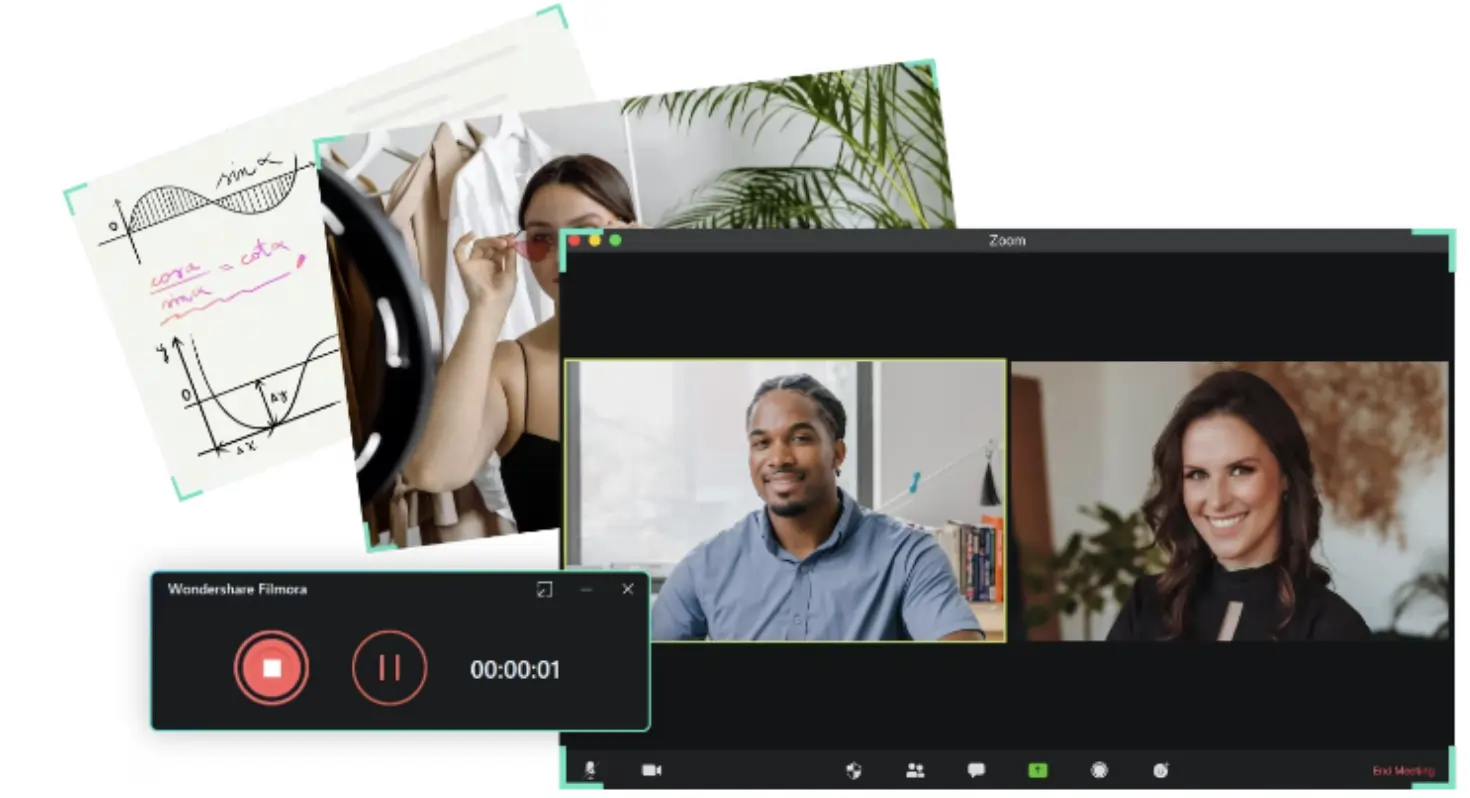
Price: $49.99/year (Individual); $155.88/year (Team); $40.99/year (Education).
Compatibility: Windows, macOS.
Filmora merges screen recording with a powerful editing suite, offering 200+ visual effects, 150+ assets, and over 1,000 templates.
- Text‑to‑Speech for up to 30 minutes of narration
- Stock media library access on premium plans
- Cloud storage for up to 10GB
Cons: Higher price point; occasional crashes.
Best For: Creatives and educators wanting a one‑stop recording and editing solution.
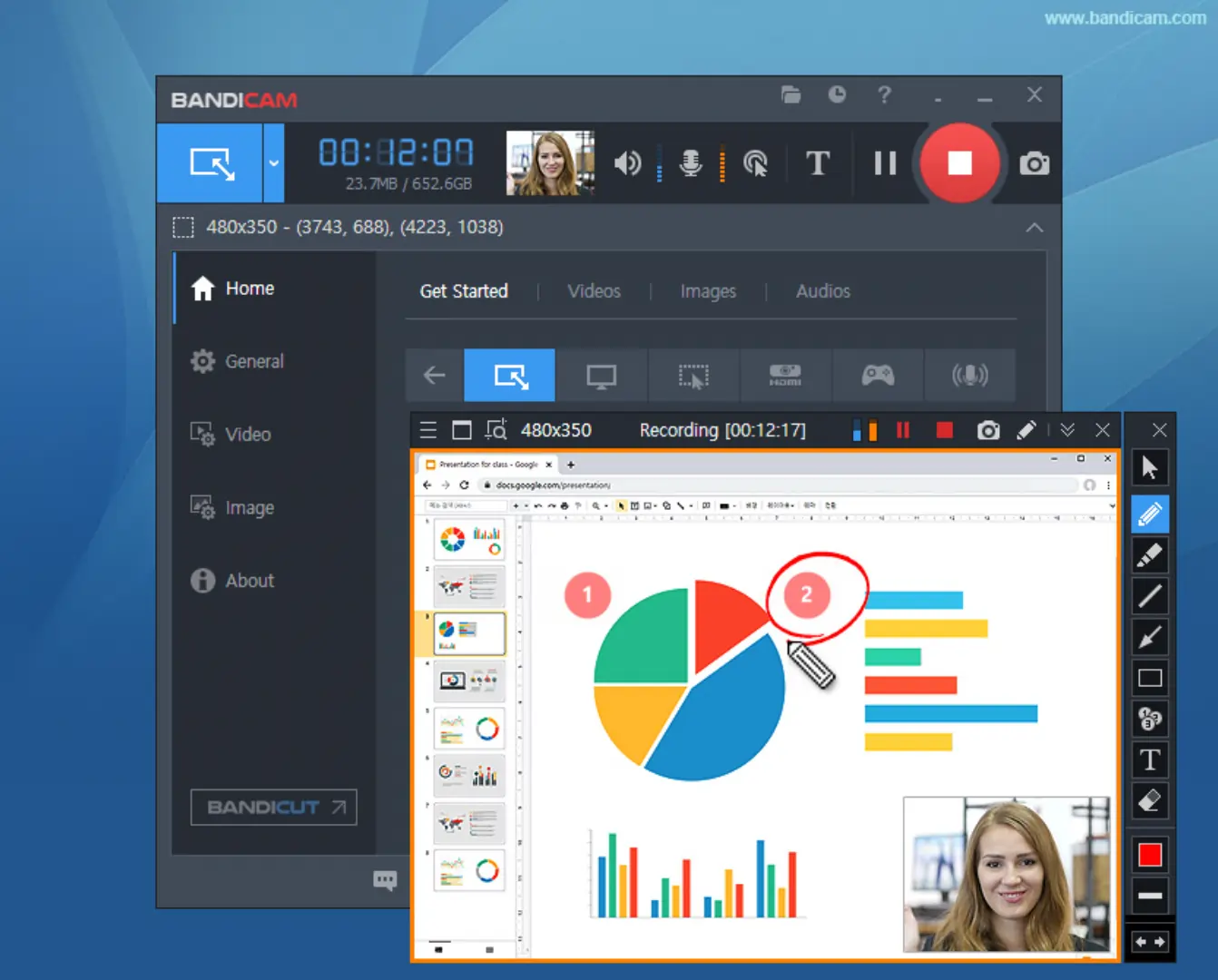
Bandicam
Price: Personal $33.26/year (lifetime $44.96); Bandicam + Bandicut $49.97/year (lifetime $59.78).
Compatibility: Windows.
Bandicam excels at high‑fps, 4K gameplay capture and supports external sources such as mobile devices and consoles.
- Up to 4K resolution at 480 FPS
- Real‑time drawing and annotation
- No watermark on recordings
- Scheduled recording and direct upload to YouTube/Vimeo
Cons: Limited editing; software can lag.
Best For: Gamers and Windows users who need ultra‑high‑quality footage.
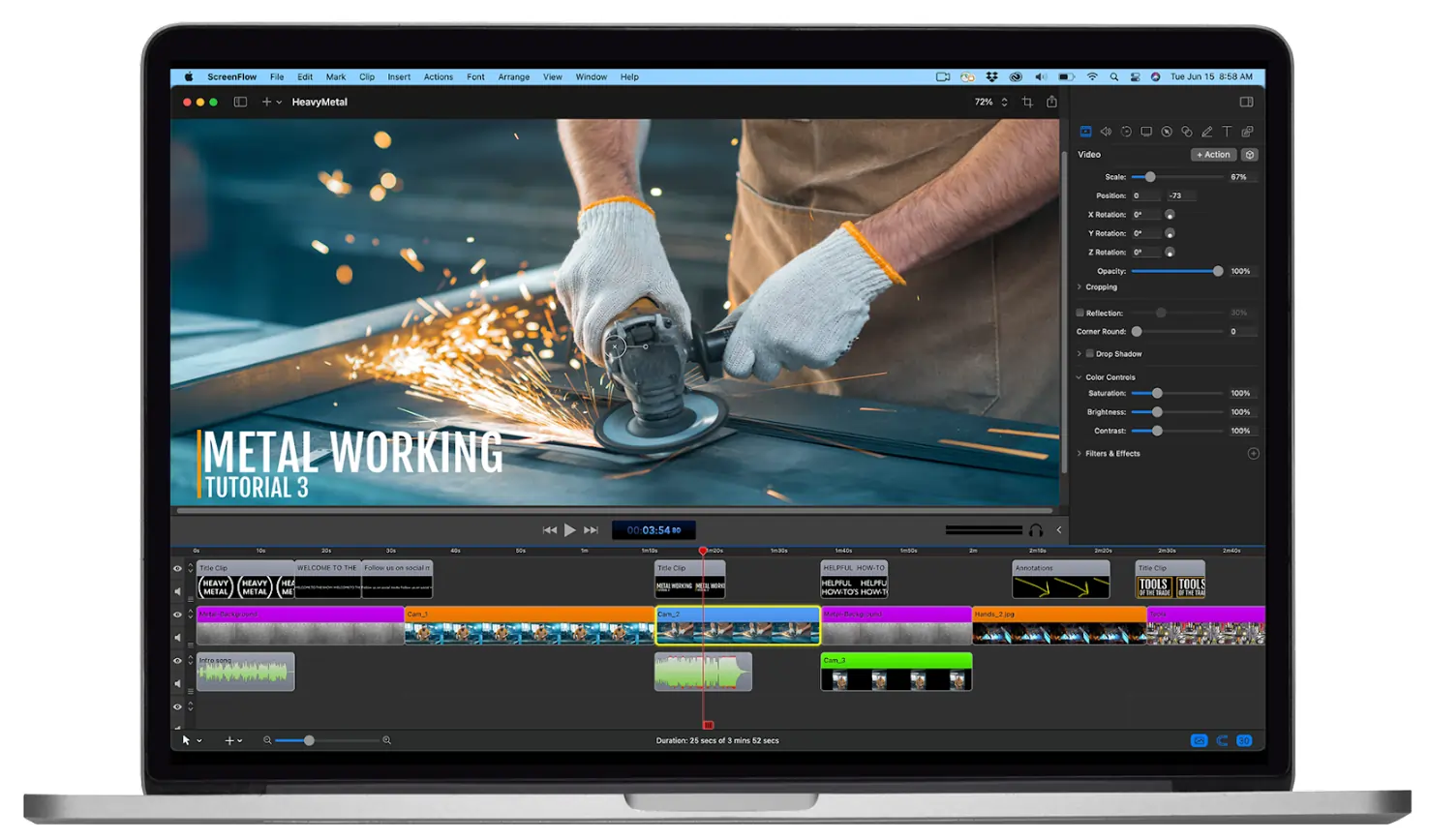
ScreenFlow
Price: $169/year; Super Pak $229/year; Super Pak+ $259/year.
Compatibility: macOS.
ScreenFlow offers a seamless recording experience for Mac users, with built‑in captioning, chroma‑key, and batch export features.
- Intuitive interface for quick learning
- Supports closed captions and ADA‑compliant subtitles
- Picture‑in‑picture and logo overlay
- Batch export to YouTube, Vimeo, Wistia
Cons: Expensive; occasional crashes.
Best For: Mac users creating polished tutorials or marketing videos.
Best Overall Screen Capture Tool
Snagit stands out for its comprehensive feature set—especially the Screen Draw and advanced editing capabilities—making it the go‑to choice for professionals across industries.
Top Free Screen Capture Tool
Riverside offers an intuitive, high‑resolution experience that is free for basic use, making it the leading choice for budget‑conscious creators.
Recording Tips
- Practice to master hotkeys and editing functions.
- Record in a quiet setting; use a noise‑reducing microphone if possible.
- Limit mouse movement to keep viewers focused.
- Use an external microphone for clearer audio.
FAQs
Does Windows 10 have a screen capture tool?
Yes—Xbox Game Bar lets you record gameplay and other screen activity. Access it with Win + G, then start recording with Win + Alt + R.
How do I capture a screenshot on my computer?
Windows: Win + PrtScn for full screen, Win + Shift + S for a region. macOS: Shift + Cmd + 3 full screen, Cmd + Shift + 4 region. Screenshots are saved to the Desktop or Pictures folder.
Does Chrome have a screen capture tool?
Chrome includes a screenshot feature accessible via Ctrl + Shift + I (or Cmd + Opt + I on Mac) followed by Ctrl + Shift + P (or Cmd + Shift + P) and selecting "screenshot" from the menu.