
Your video content’s quality hinges on the tools you use. Among them, recording software plays a pivotal role. While OBS Project remains a popular free, open‑source choice for screen capture, live streaming, and video production, its complexity can be a barrier for many creators. In this guide, we explore ten alternative solutions—both free and paid—to help you find the perfect fit for your workflow.
What is OBS Recording Software?
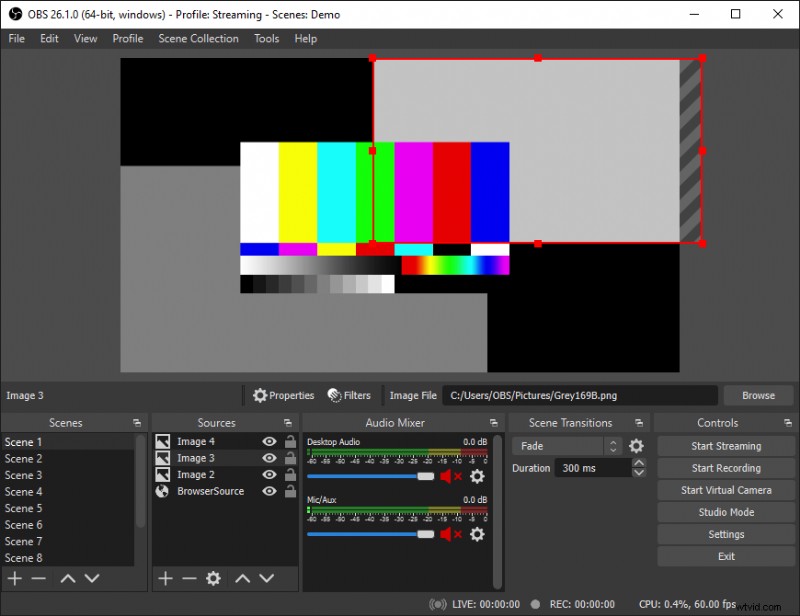
Open Broadcaster Software (OBS) is a free, open‑source platform that lets creators record and stream audio and video across Windows, macOS, and Linux. Its integration with popular streaming services such as Twitch and YouTube has made it a go‑to choice for podcasters, gamers, and live‑streamers alike.
Key capabilities include:
- Audio mixer with noise suppression, filters, and VST plugin support
- Unlimited “scenes” with custom transitions
- Multiple input sources—screen capture, webcam, capture cards
- Studio Mode for previewing scenes before going live
- Multiview to monitor up to eight scenes and switch between them
- Modular Dock UI for flexible layout management
- Extensive customisation options
Is There a Better Alternative to OBS?
OBS excels for gamers who need a free, feature‑rich streaming solution, but it may not suit all creators—especially those who prefer a more intuitive interface or require advanced post‑production tools. The open‑source nature of OBS means that while the software is free, its interface can feel fragmented, and many advanced features are not streamlined for casual users.
Why Consider an OBS Alternative?
Choosing a dedicated recording platform can streamline your workflow, reduce setup time, and offer built‑in features that OBS lacks—such as local multi‑track recording, remote interview support, editing tools, and mobile integration.
Essential Features to Evaluate
When selecting a replacement, look for these attributes:
High‑Quality Audio and Video
Prioritise software that supports lossless WAV audio and at least 720p HD video. Professional‑grade cameras and microphones will only shine if your software can handle the output quality.
Ease of Use
A clean, intuitive interface saves time and reduces frustration—whether you’re a beginner or an experienced pro.
Multiple Input Options
The best tools let you record from external cameras, webcams, capture cards, and screen capture—all in one workflow.
Local & Multi‑Track Recording
For remote interviews, local recording ensures each participant’s feed is captured independently, preserving quality even if the internet falters. Multi‑track recording gives you separate audio and video tracks for more precise editing.
Bonus Features
Extra functionality—transcription, editing tools, live streaming, mobile apps, and scheduling—can set a platform apart.
10 Best OBS Alternatives for Creators in 2026
1. Riverside
Price: Free or paid plans starting at $24/month.
Compatibility: Browser‑based (Chrome, Edge) with iOS and Android apps.
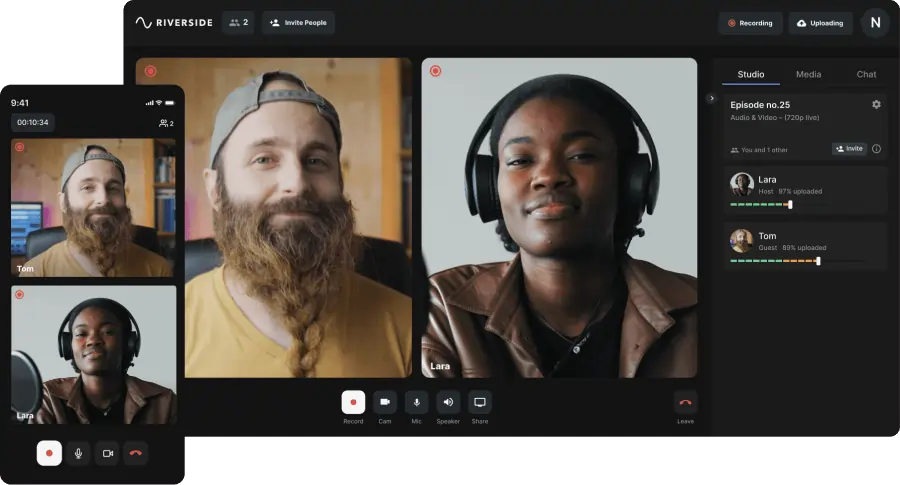
Riverside combines simplicity with professional features. Host an interview by generating an invite link; guests join with a click. Every participant records locally in 4K video and 48kHz WAV audio, ensuring pristine quality regardless of internet speed. The Media Board lets you add sound effects live, and a producer role can manage technical aspects from the sidelines.
Pros
- All‑in‑one recording and live‑streaming platform
- 4K video and 48kHz WAV audio
- Local, multi‑track recording
- Up to 9 guest invites
- Mobile app for on‑the‑go sessions
- Custom branding options
- Live streaming to YouTube, Facebook, Twitch, and RTMP destinations
- Integrated editing tools and transcription
Cons
- Editing tools available only on desktop
Best for Podcasters and creators who need a user‑friendly, high‑quality remote recording solution.
2. XSplit Broadcaster
Price: $60/year.
Compatibility: Windows only.
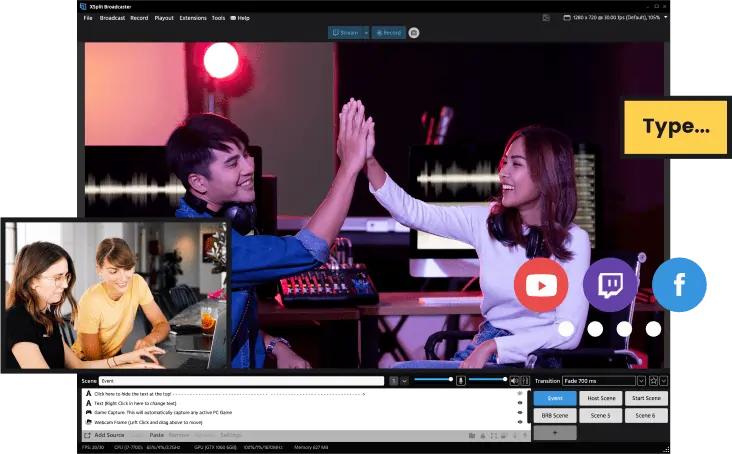
XSplit Broadcaster delivers a robust studio experience: scene management, plugin extensions, and support for multiple input sources—including Skype, Zoom, and Discord. Its producer tools cover noise suppression, chroma key, audio levels, and custom transitions.
Pros
- Intuitive interface
- Simultaneous multi‑platform live streaming
- Advanced producer controls
- Split‑screen mode for interviews
- Pre‑made scene presets
- Extensive plugin ecosystem
Cons
- Windows‑only
- Relies on third‑party apps for remote recording, limiting quality
- High CPU usage reported by some users
Best for Windows users seeking a feature‑rich live‑streaming tool with extensive plugin support.
3. Apowersoft Screen Recorder
Price: Free.
Compatibility: macOS, Linux, Windows.
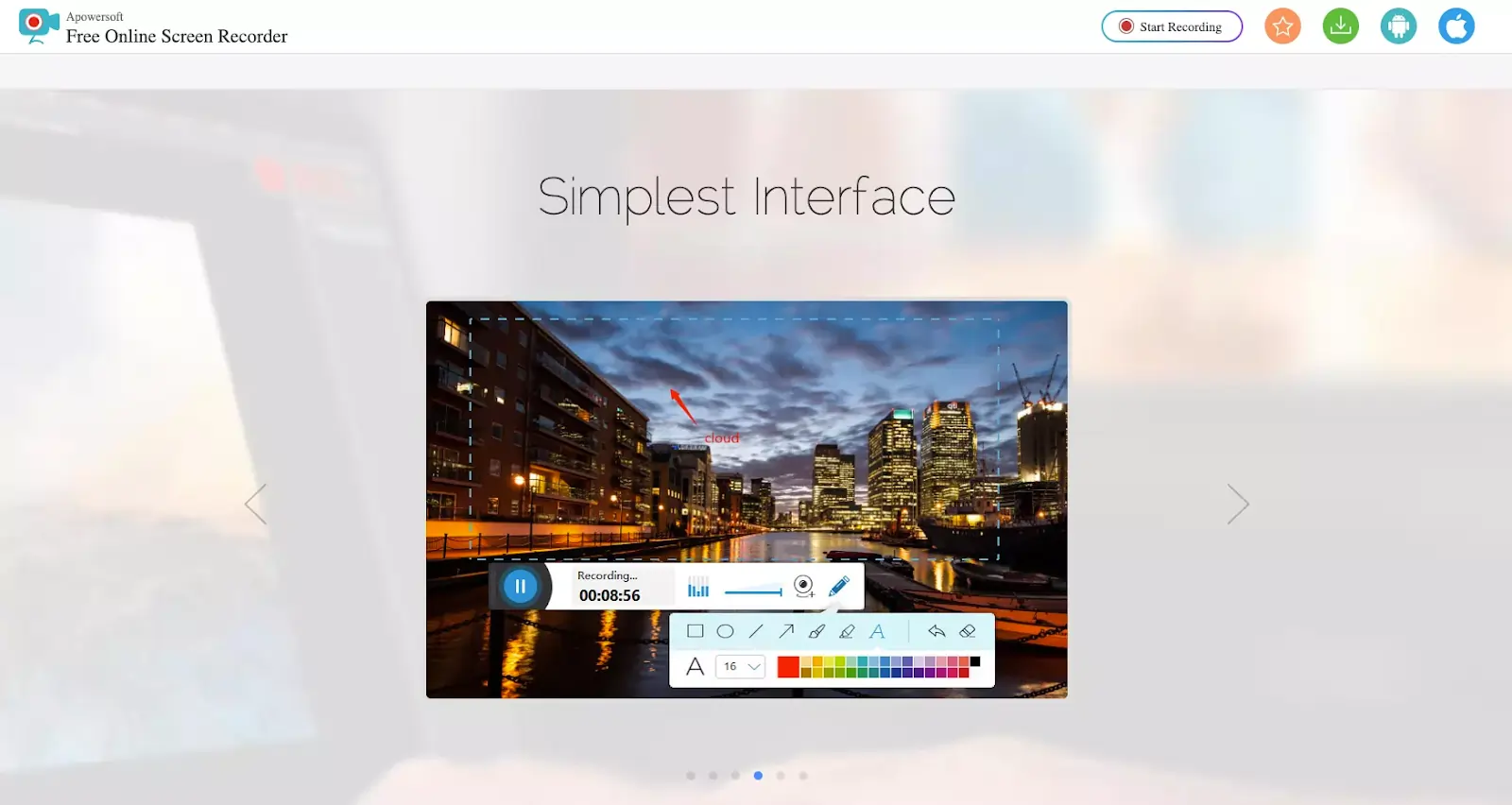
Apowersoft offers a straightforward browser‑based screen recorder that outputs to AVI, MOV, MP4, or WMV. It’s ideal for tutorials, presentations, and meetings, with direct uploads to Dropbox, Google Drive, YouTube, or Vimeo.
Pros
- No time limits or watermarks
- Screen and webcam capture
- Multiple export formats
- Cloud integrations
Cons
- Cannot record secondary monitors
- Requires a plugin download
Best for Professionals who need a free, versatile screen recorder for meetings and presentations.
4. QuickTime X
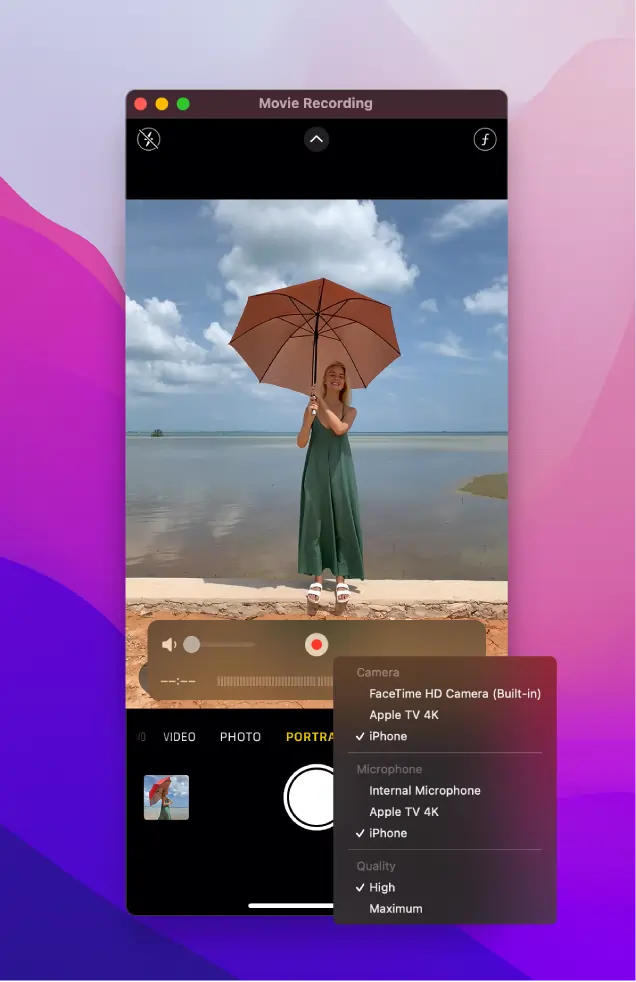
Price: Free (pre‑installed on macOS devices).
QuickTime provides simple screen and camera recording, but lacks remote interview support. It’s best for solo creators who need basic recording and editing tools.
Pros
- Pre‑installed on macOS
- Screen and camera capture
- Independent of internet speed
- Basic editing suite
Cons
- macOS only
- No remote recording capabilities
Best for Apple users requiring a quick, offline recording solution.
5. CamStudio
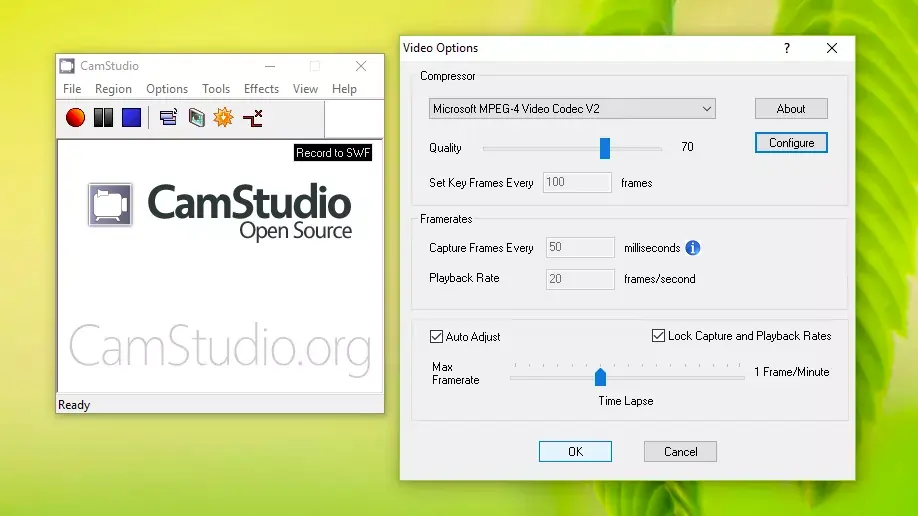
Price: Free.
Compatibility: Windows.
CamStudio is an open‑source recorder that balances simplicity for beginners with extensibility for advanced users. Its plugin architecture allows tailoring the tool to specific workflows.
Pros
- Free and beginner‑friendly
- No time limits
- Highly customizable
Cons
- Windows only
- Limited export formats
- Outdated UI design
Best for New creators seeking a free recorder, or experienced users who can leverage its extensions.
6. Loom
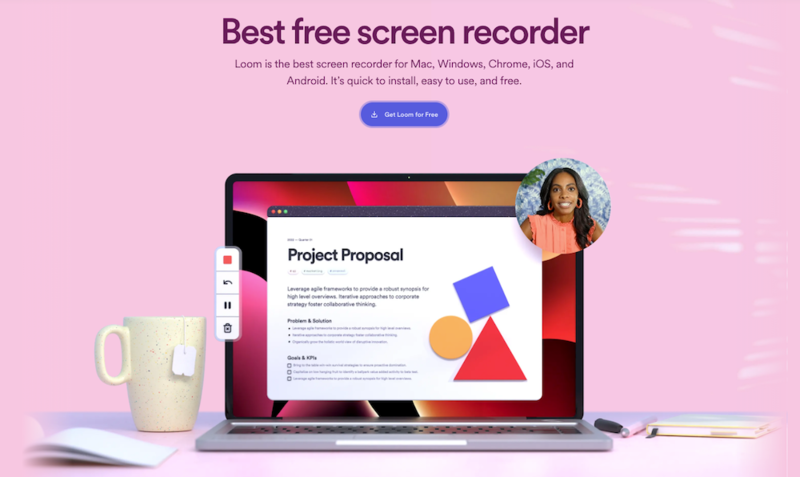
Price: Free for up to 25 videos (5 minutes each); paid plans start at $8/month.
Compatibility: macOS, Windows, iOS, Android.
Loom excels at quick screen and webcam recordings with instant sharing. Ideal for business communication, tutorials, and internal demos.
Pros
- Instant sharing and streaming
- Simultaneous screen and webcam capture
- Optimised for business use
Cons
- Quality below professional standards
- Not tailored for podcast or live‑stream production
- Limited editing options
Best for Educators and professionals who need rapid, collaborative video communication.
7. Streamlabs OBS
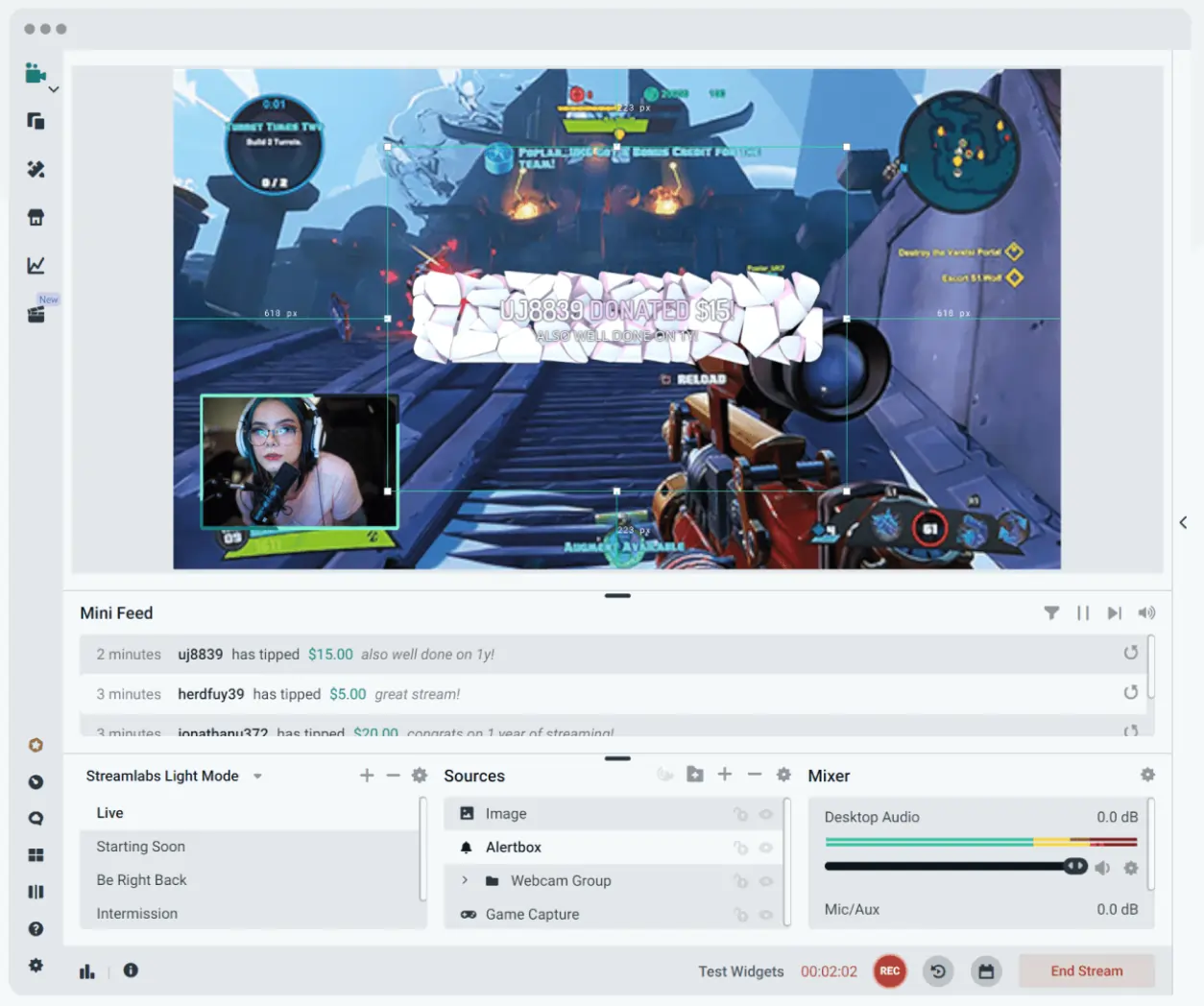
Price: Free; Prime Membership $19/month.
Compatibility: macOS.
Streamlabs OBS offers a cloud‑centric, user‑friendly take on OBS. While it lacks some advanced flexibility, it’s excellent for streamlined live‑streaming.
Pros
- Local recording
- Easy multi‑platform streaming (Facebook, Twitch, YouTube)
- Simultaneous multi‑streaming
- Built‑in tipping for viewers
- Mobile app support
Cons
- macOS only
- Limited input options
Best for Streamers who need an uncomplicated, cross‑platform broadcasting solution.
8. Movavi
Price: Free download; premium plans from $42.95/year.
Compatibility: macOS, Windows.
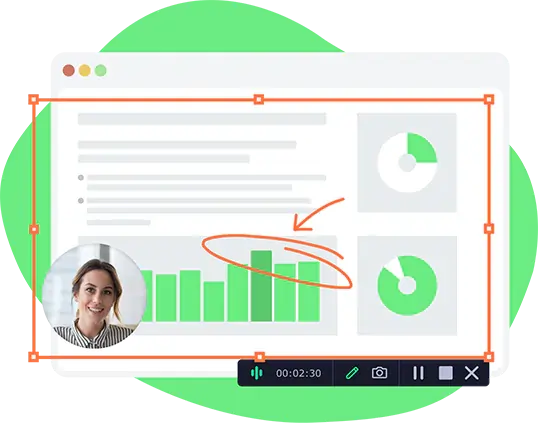
Movavi’s intuitive screen recorder lets you capture specific screen areas, webcams, or camera feeds. Its basic editing suite aids quick post‑production.
Pros
- Click‑to‑record clicks and mouse movements
- Webcam and camera support
- Scheduling feature
Cons
- No mobile app
- Advanced editing locked behind a paywall
Best for Beginners and users who want a hassle‑free interface without steep learning curves.
9. iSpring Free Cam
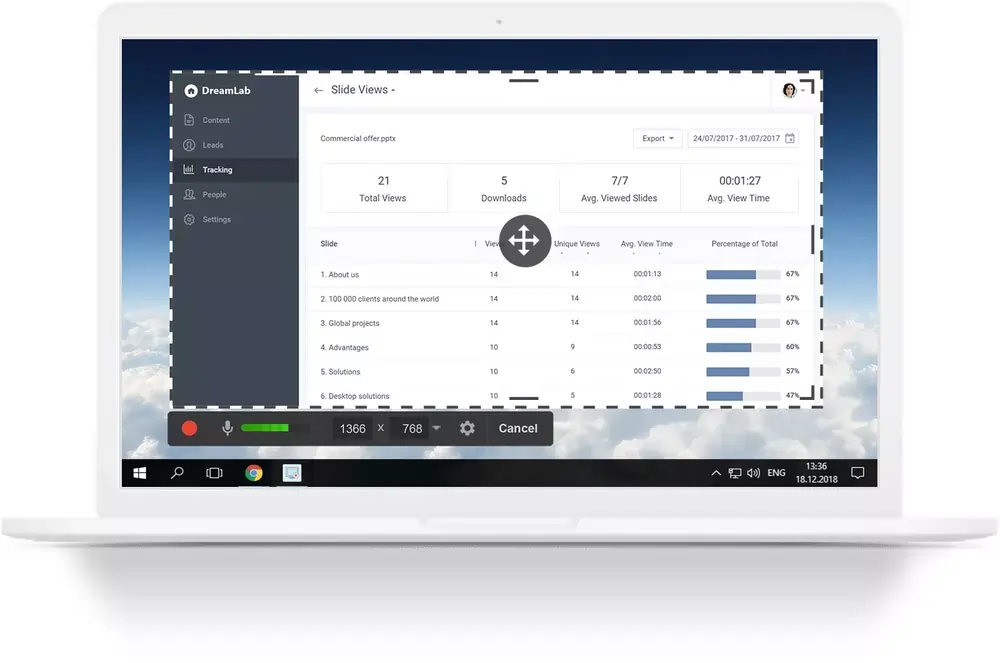
Price: Free for screen recording; iSpring Free Cam Pro offers webcam, annotations, and MP4 export for $227/year.
Compatibility: Windows.
iSpring Free Cam provides straightforward screen capture with audio editing. Its free tier suits casual creators; the Pro version unlocks richer features.
Pros
- Record mouse movements and clicks
- Capture audio from mic or system sound
- Basic editing tools
Cons
- Advanced features behind a steep paywall
Best for Beginners desiring a simple recorder with essential editing capabilities.
10. Zoom
Price: Free for 40‑minute meetings; paid plans from $149.90/year per user.
Compatibility: Web, macOS, Windows, iOS, Android.
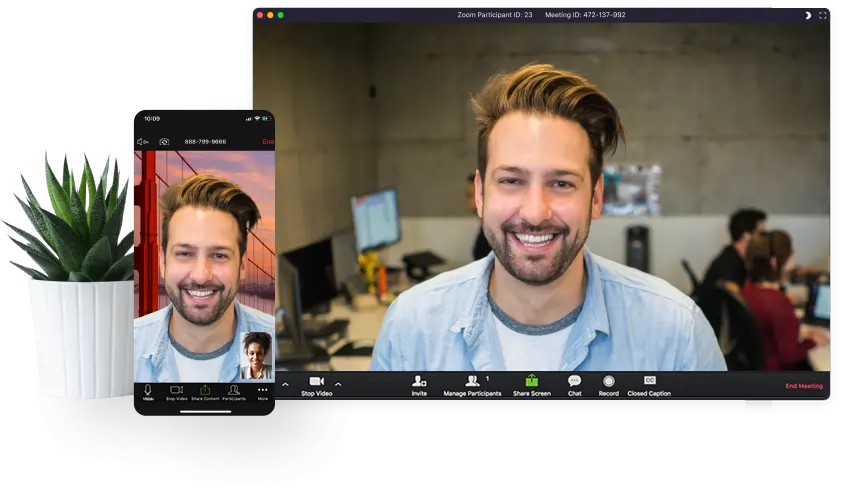
Zoom remains the de‑facto standard for remote collaboration. Its familiarity makes it attractive for podcasters, though its compression and single‑track recording can limit post‑production quality.
Pros
- Widely used and familiar to guests
- Screen and video capture
- Ideal for webinars and whiteboard sessions
Cons
- Compressed recordings reduce quality
- Free plan capped at 40 minutes
- Single‑track recording limits editing flexibility
Best for Entry‑level podcasters who need free, straightforward remote interviews.
Choosing the Best OBS Alternative for Your Needs
The optimal choice hinges on your workflow, budget, and content goals:
- Gaming & live streaming: Streamlabs OBS or XSplit for multi‑platform broadcasting.
- Podcasting: Riverside or Movavi for high‑quality remote interviews.
- Team collaboration: Loom or Apowersoft for quick, asynchronous video communication.
Frequently Asked Questions
Do professionals use OBS?
Yes—OBS is fully commercial‑ready and widely adopted by professional streamers, educators, and broadcasters. Some, however, opt for alternatives to avoid its steep learning curve.
What’s better, OBS or XSplit?
Both are excellent for live streaming. OBS offers a broader range of export formats and is entirely free, whereas XSplit prioritises user‑friendly setup and easier platform integration.
Which is better, Streamlabs or OBS?
Streamlabs builds on OBS’s core but adds cloud features and a polished UI. OBS tends to consume less CPU, making it more suitable for low‑resource systems.
Is OBS the best recording software?
While OBS is powerful, its complexity can be a hurdle. For creators seeking an all‑in‑one, user‑friendly solution—especially for interviews, screencasts, and live streams—alternatives like Riverside may provide a more streamlined experience.