
- September 20, 2024
- Film Editing Pro
We’ve all heard of Speed Ramping, but how can you actually use this tool effectively in your edits? Find out in this article, as we edit an action scene using this effect. For this demonstration we’ll be working in Avid Media Composer, but the principles apply to all NLEs.
One of the main ways you can use speed effects in action scenes is to make attacks appear more powerful, such as accelerating an incoming punch or kick right near the point of impact to give it a little bit more force.
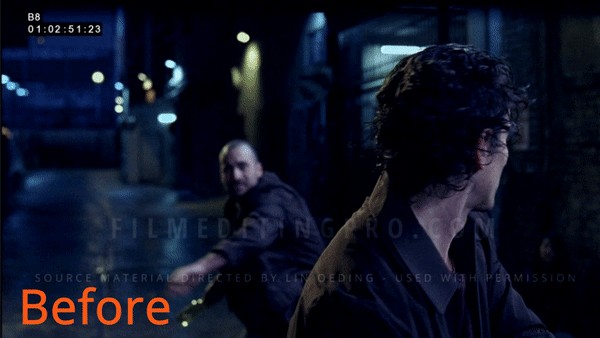
The action scene we’re working with has a bottle smash near the end of the fight, so we’ll insert a speed ramp to slow down the footage as the actor swings the bottle, and then speed it up just before the bottle smashes, so the impact itself is much more forceful.
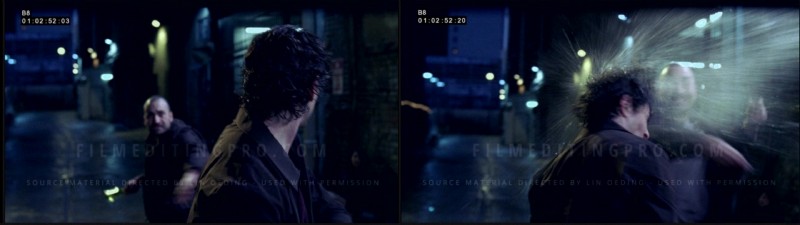 We’ll use a speed ramp on this clip to add impact to the bottle smash
Start by adding a speed effect to the shot in your NLE; in Avid Media Composer, we do this by finding the Timewarp effect, and dragging it onto the clip. Next, you want to access the controls to edit your speed effect, such as the Motion Effects Editor in Avid.
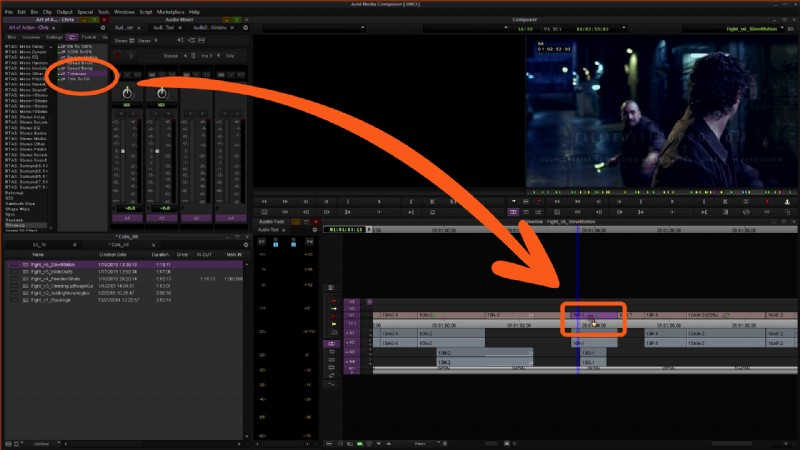 find the ‘Timewarp’ effect, and drag it onto the clip
Locate the speed graph within the editor, as this is going to be the easiest way to fine tune a speed ramp for this application. In our example, it’s currently a flat line, because we haven’t made any changes to it yet.
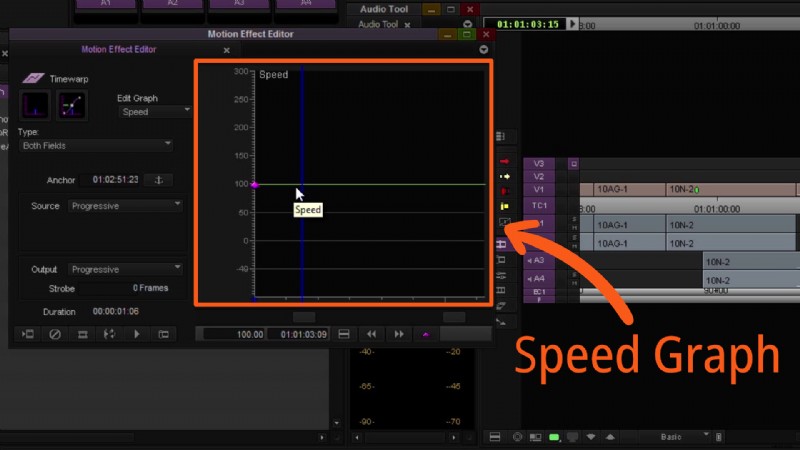 In Avid, the speed graph is found in the effects editor pop-out menu
Find the points that you want the speed effect to start or stop changing, and make them keyframes. Next, drag the nodes on the speed graph up or down to increase or decrease that section’s speed.
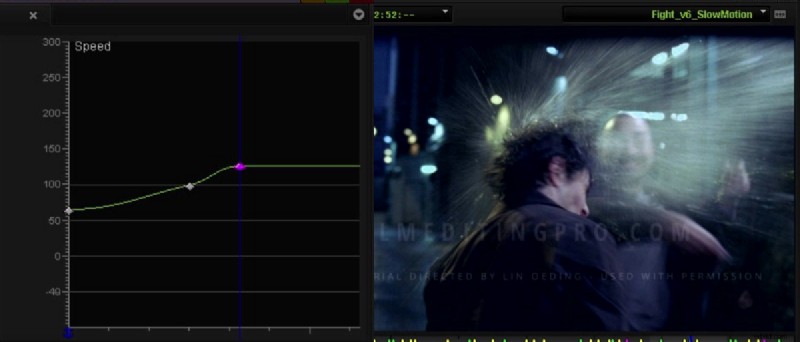
We want the bottle swing to slow down from the start of the clip to midway through the swing, and then ramp up just before the point of impact. To do this, we’ll make two keyframes mid-swing, drag the node at the start of the clip down to 50%, and then move our second node upwards to 125%.
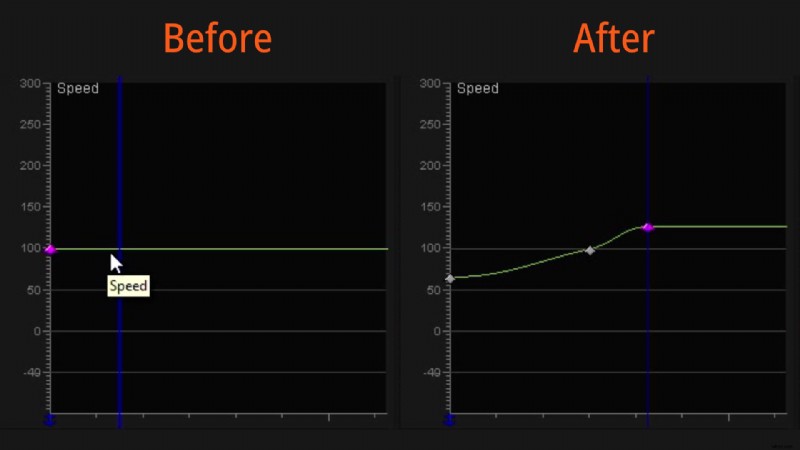 Adjust the nodes to reduce the speed at the start of the clip, and ramp up towards the end
Play the clip back, and see how the effect looks, tweaking the node placement to your taste. You might want to adjust the speed ramp to suit the style and tone of your scene.
Alternatively, when you start adding sound design to the clip you might want to use a specific sound effect. This means you might also alter the speed ramp to match the sound design.
Wrap Up
This is an excerpt from one of Film Editing Pro’s courses, taught by professional editors. To access the full course, or for tons more editing training, head over to our Free Training page to get started with some sample lessons on any topic that you like, from general creative editing, to working with music, cutting action scenes, trailers, promos, and a bunch more.
