

Nov 07, 2025 • Proven solutions
Face‑swap features have surged in popularity across social media platforms such as Snapchat, TikTok, and Instagram. Whether you’re filming a quick selfie on your iPhone or editing a polished video on a PC, swapping faces or even changing gender can add a fun twist to your content. In this article, I’ll walk you through three reliable methods: using professional desktop software (Wondershare Filmora), mobile apps, and a free online tool.

Part 1: Replacing Faces with Desktop Video Editing Software – Wondershare Filmora
Filmora offers a dedicated Face‑Off feature that automatically detects and overlays a new face onto the original one. The software also supports motion tracking for dynamic replacements and provides a library of ready‑made face presets.
Watch Aaron’s tutorial on swapping faces with Filmora for a visual demonstration, then download the free trial to experience hassle‑free face replacement today.


Method 1: Quick Face‑Off Swap (3 Simple Steps)
- Import your video clips into Filmora.
- Apply the Face‑Off effect with a single click.
- Export the finished video.
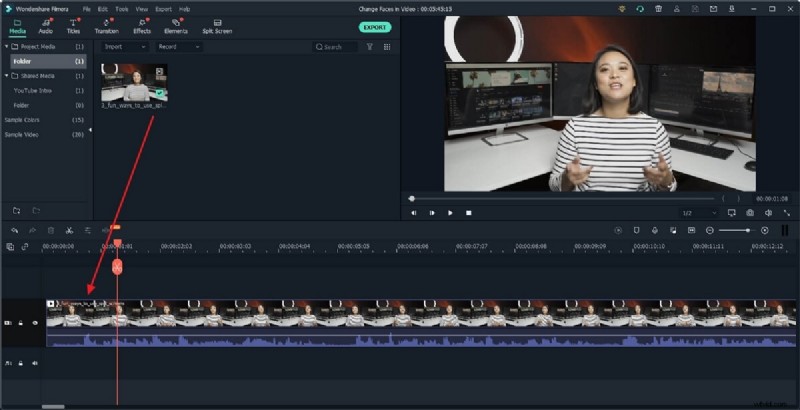
Step 1: Import Your Video
Filmora accepts virtually every video format, so you can drag and drop files directly into the media library or use the Import button to browse.
Once loaded, place your clip on the timeline.
Step 2: Apply Face‑Off Effect
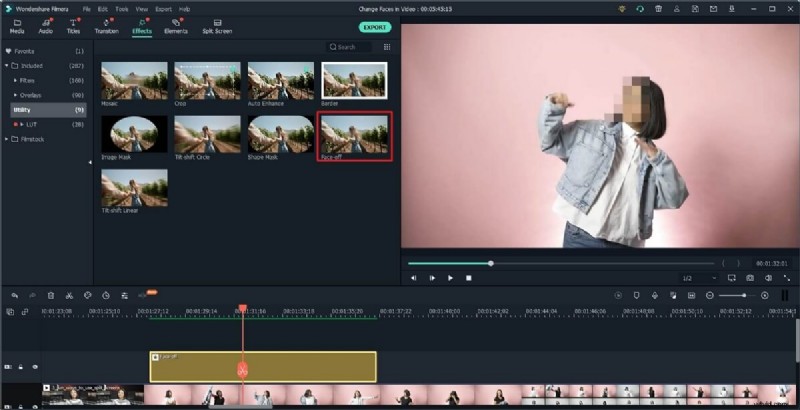
Select the clip on the timeline, go to the Effects tab, choose Utility, and drag the Face‑Off effect onto the track above your video. Adjust the duration by trimming the effect clip.
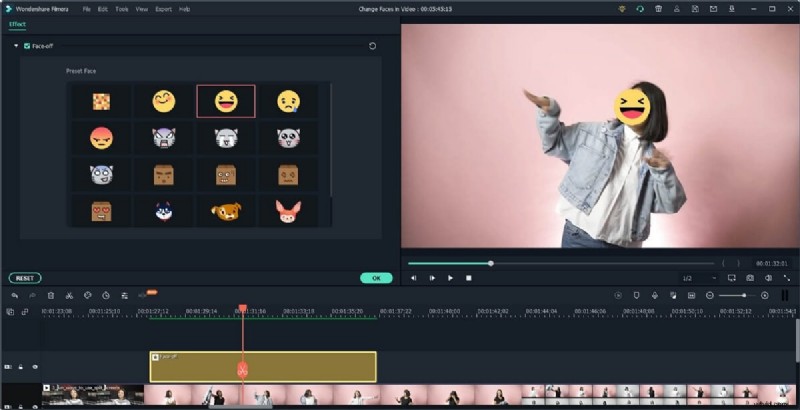
Double‑click the effect to open the settings panel, where you’ll see a range of face presets. Pick one that matches the context and Filmora will automatically overlay it on detected heads.
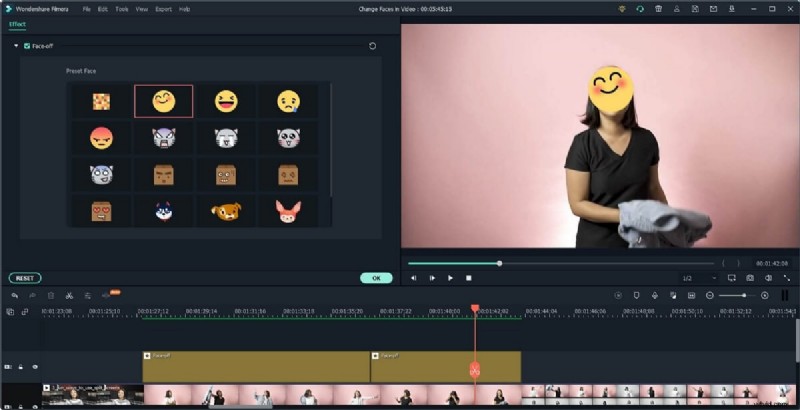
Tip: For precise control, split your video into smaller segments and apply multiple Face‑Off layers if you need different faces.
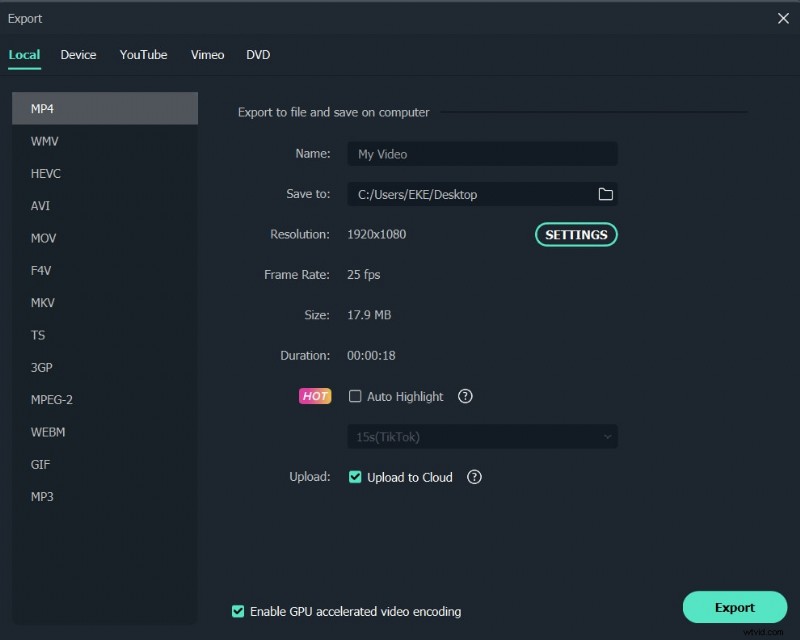
Step 3: Export Your Video
Click Export and choose your desired format (MP4, AVI, MOV, etc.). Filmora also offers direct uploads to YouTube or burning to DVD. For playback on mobile or gaming consoles, use the Device presets.
Method 2: Dynamic Replacement with Motion Tracking
From version 10 onward, Filmora’s motion‑tracking tool lets you overlay any image or video onto a moving face, creating a smooth, realistic swap.
- Track the face’s movement.
- Attach your chosen image to follow the motion.
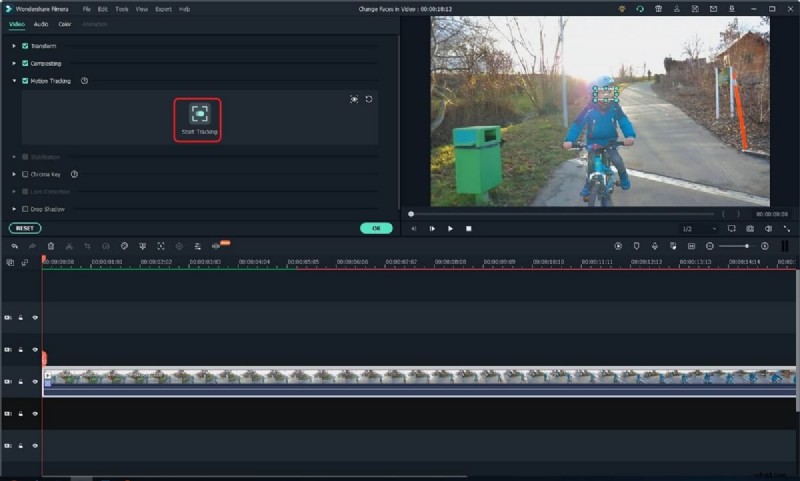
Track Movement
Double‑click the clip, enable Motion Tracking, and drag a box around the face. Hit Start Tracking to capture the motion path.
Attach Your Image
Place the replacement image on the track above your video, adjust size and position, then select the image from the motion‑tracking drop‑down and confirm.
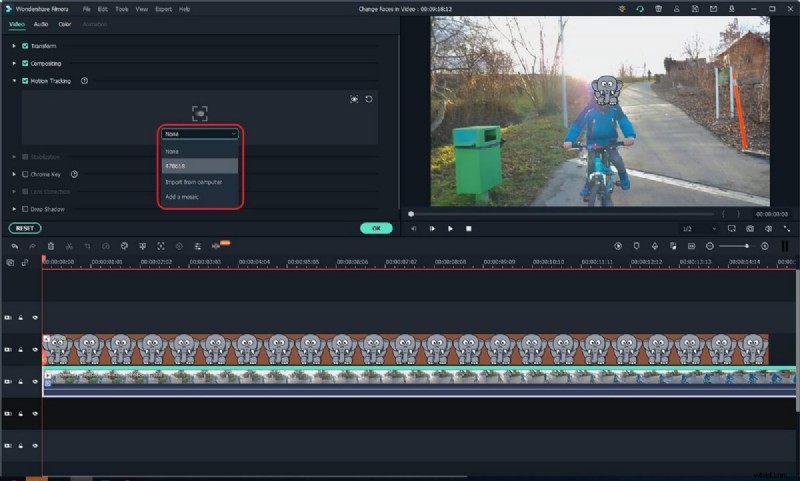
Play the timeline to verify the swap, then export as usual.
For more advanced motion‑tracking techniques, see How to Do Motion Tracking in Filmora.

Bonus: Filmora’s Auto Scene Detection can automatically split a clip whenever a scene change occurs, making it easier to target specific segments. Right‑click a clip, choose Scene Detection, and click Detect.
Part 2: Face Replacement on Mobile Devices with Wondershare Filmora
Method 1: Green‑Screen & Chroma Key (Android & iOS)
Using a green‑screen backdrop or chroma‑key technique is an efficient way to swap faces on the go. Filmora’s mobile app lets you overlay a new face onto a recorded clip in real time, ideal for short‑form content on TikTok or Instagram.
Follow the step‑by‑step tutorial below and share your creation instantly.
Method 2: Face Swap with Stickers (Android & iOS)
Stickers provide a playful alternative to face replacement. The mobile app’s tracking feature ensures the sticker follows the subject’s face throughout the clip.
- Create a new project and import your video.
- Select a sticker from the library.
- Enable tracking to lock the sticker to the face.
Step 1: Create a New Project and import the footage.
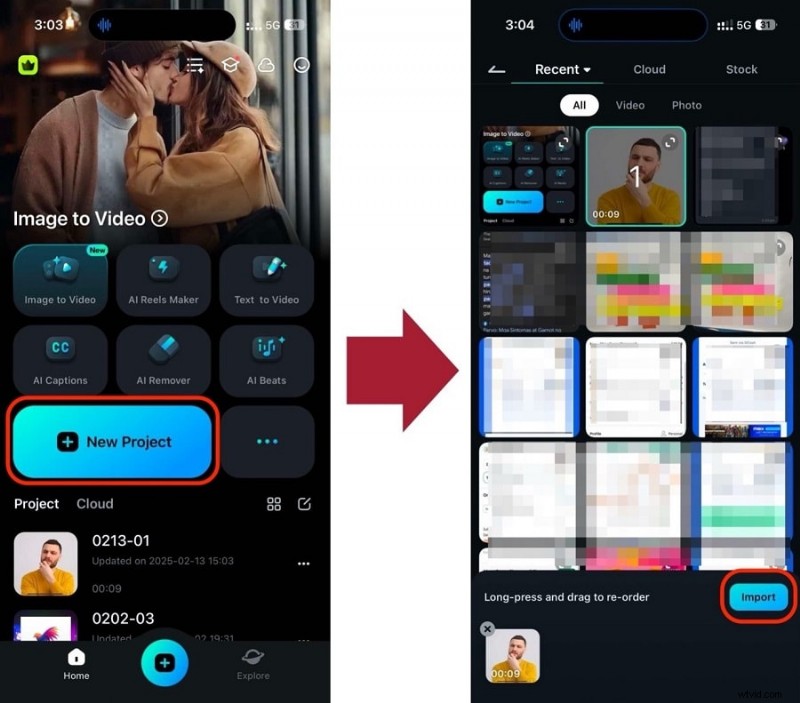
Step 2: Choose a Sticker—search the library for a fun face mask or other effect.

Step 3: Activate Tracking so the sticker follows the face movement.
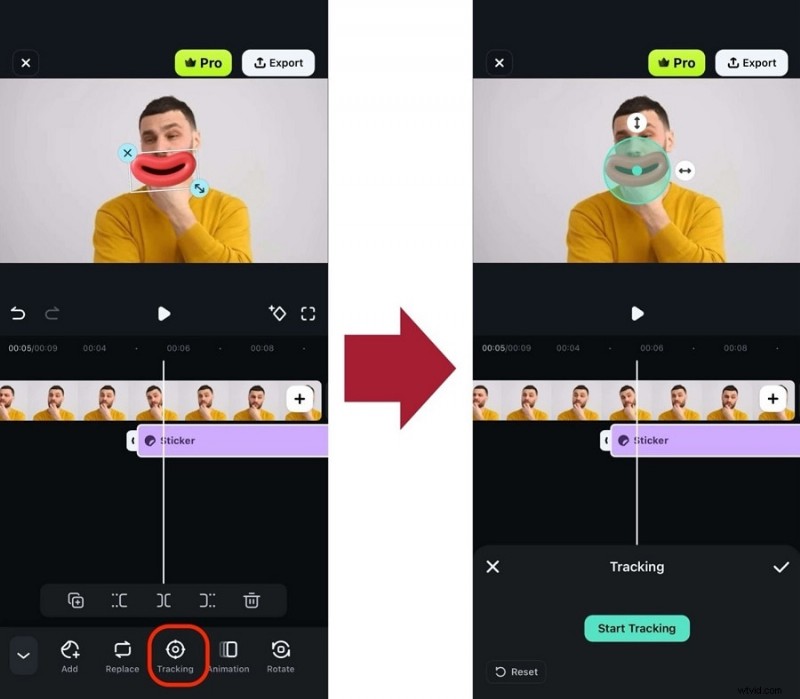
With just three clicks, you can transform a video with stickers and enjoy the convenience of mobile editing.
Part 3: Free Online Face‑Swap – FaceHub
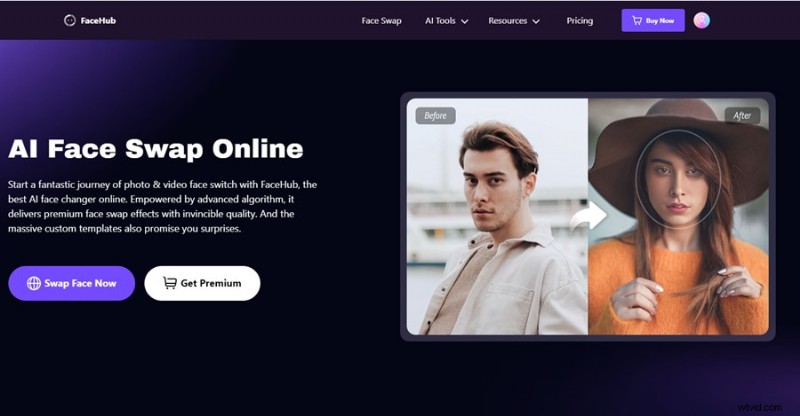
For those who prefer a no‑install solution, FaceHub offers a web‑based tool that uses AI to swap faces in video clips. It’s straightforward and ideal for quick edits.
- Upload your video.
- Initiate the face swap.
- Download the finished clip.
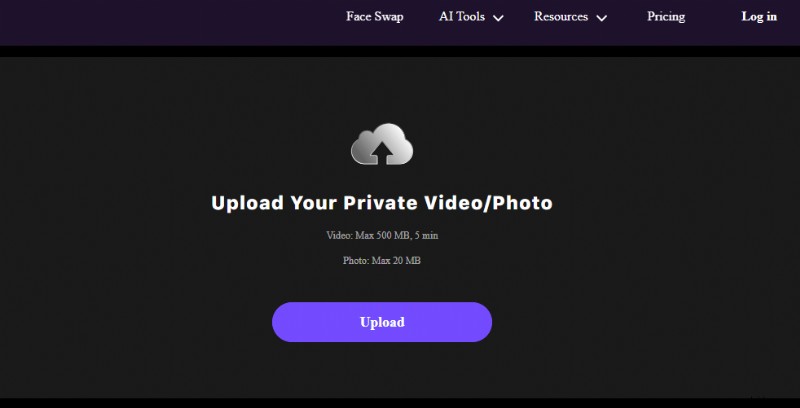
Step 1: Open FaceHub in your browser, click Swap Face Now, and upload your file.
Step 2: After uploading, select a template or manually choose the faces to swap, then hit Swap.
Step 3: When processing is complete, click Download to save your video for sharing on social media.
FaceHub’s AI ensures a realistic swap with minimal effort, making it an excellent choice for casual users.
FAQs About Face Swapping in Videos
- Is it safe to use online face‑swap tools?
- Can I export my face‑swap video in multiple formats?
- How long does it take to swap faces in a video?
- Is it legal to change faces in videos?
Answers:
- Choose reputable sites with HTTPS and positive reviews to avoid malware.
- Yes – most editors support MP4, AVI, GIF, and more.
- Simple swaps may take a few minutes; complex edits can take longer.
- Always obtain permission from the individuals whose faces you use to respect privacy and copyright.
Conclusion
While advanced programs like After Effects or Sony Vegas Pro can deliver highly polished swaps, Filmora offers a balanced mix of power and simplicity. It’s perfect for hobbyists and professionals alike. Download the free trial, explore the full feature set, and start swapping faces with confidence.
Liza Brown
Liza Brown is a writer and a lover of all things video.
Follow @Liza Brown