
What follows is the step-by-step guide on how to quickly make a picture-in-picture video for free.
In a picture-in-picture (PIP) video, there’s a smaller video playing in a window on top of another larger video. For example, this video effect is used to show someone narrating the action happening in the main clip, or highlight certain parts of your story.
Another common practice of pic-in-pic videos on social media, live streaming, and video sharing platforms is making reaction videos. In this post, you can easily learn from our detailed and illustrated tutorials to put a picture or video on a video, to make a picture-in-picture video.
Best Free Picture-in-picture Video Editor for You
FilmForth is the best free pic-in-pic video editing software that allows you to overlay any video with videos, photos, GIFs, and even stickers, to create your own PIP videos in a few clicks. Apart from that, with the abundant video editing features offered, FilmForth is also able to trim videos, crop videos, merge videos, add transitions to videos, split videos, add special effects to videos, etc. It’s free, versatile, and watermark-free.
FilmForth is compatible with Windows 10 and Windows 11, now hit the download button to get FilmForth from Microsoft for free!

How to Make a Picture in Picture Video with FilmForth
Step 1. Create a New Project in FilmForth
To get started, please make sure that FilmForth is fully installed, launch it from Windows start menu, then hit New Project button in the middle.
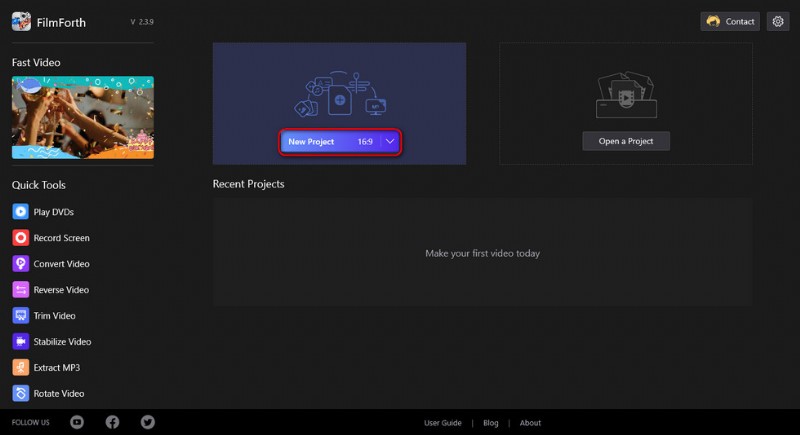
Create a new project
Step 2. Import the Video into FilmForth
Drag and drop the files into the program or click ADD VIDEO/PHOTO CLIPS button to import the video & photos you intend to set as PIP video background. FilmForth supports most industrial-standard video formats, and for the best media sharing result, the recommended video formats are MP4 and MOV.
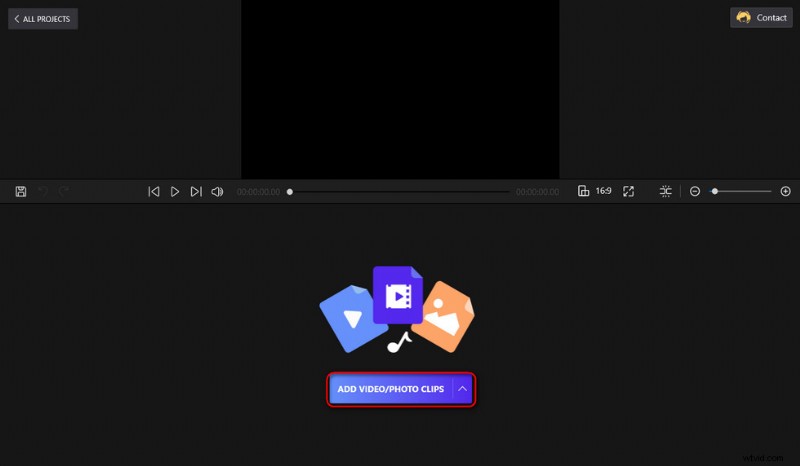
Import Video Files
Step 3. Create a Pic-in-pic Video with FilmForth
To create a picture-in-picture video, hit the backspace button from the lower-left corner to exit the editing options panel, and hit the Picture in Picture button, and then Add Pic in Pic. From the pop-up menu, click to choose to add your own video/photo clips or our build-in stickers and GIFs.
Click the audio track in the timeline to edit the audio track for your pic-in-pic video.
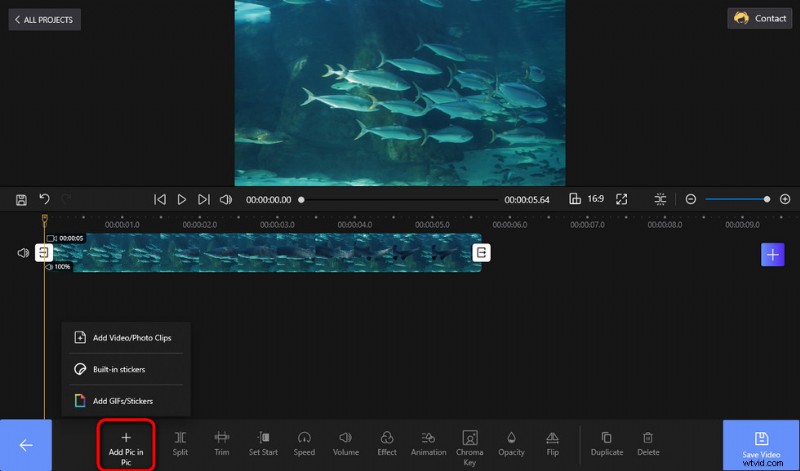
Hit the Picture in Picture Button
Step 4. Edit the Pic-in-pic Video
After the overlaying video has been added to the background video, you can drag the handlebar from the preview screen to reposition the added video. Meanwhile, FilmForth also offers a variety of video editing features for you to improve your videos. Click the buttons from the lower operation panel to trim a video, split a video, crop a video, add animations to a video and more.
And with the Chrome Key button provided, you get to change video background or remove video background.
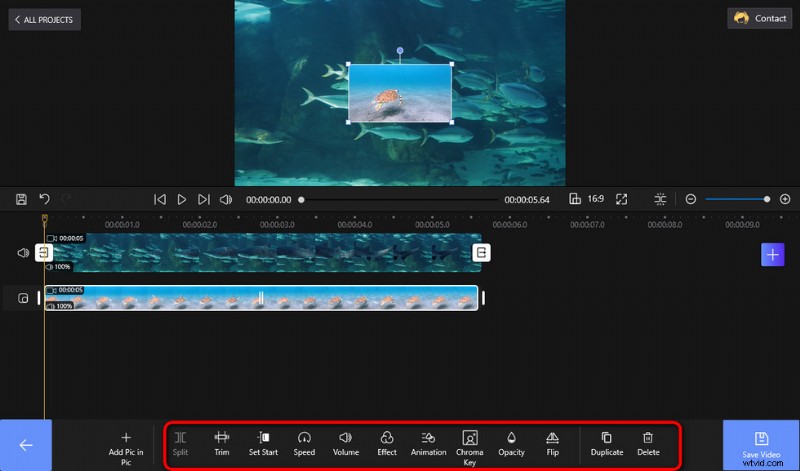
Edit PIP Video
Step 5. Save and Export the Pic-in-pic Video
The jobs are finished in FilmForth video editor, and now it’s time to export the PIP video. At the video editing workplace, click Save video button from the lower-right side. A dialog will pop up for you to export the video, there you can customize your video bitrate, resolution, frame rate, etc. and select an output file folder for your videos.
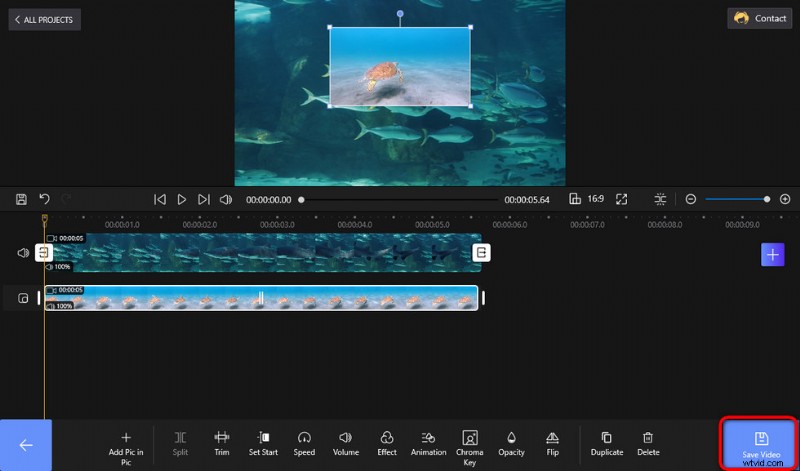
Save and Export the PIP Video
Picture-in-picture Video FAQs
What is a picture-in-picture video?
A picture-in-picture video is a video displayed on the full screen at the same time as one or more other videos or pictures are displayed in inset windows.
How to put a picture or video on a video?
To put a picture or video onto a video, you should apply the picture-in-picture effect. FilmForth offers an easy approach to making picture-in-picture videos, without requiring any video editing skills.
How do I make a picture-in-picture video?
To make a picture-in-picture video, you can use FilmForth. FilmForth allows you to make picture-in-picture videos with simple clicks.
Can I do picture-in-picture in video editors?
Many video editors offer the picture-in-picture video editing feature, and FilmForth is the best pic-in-pic video editor that is competent for making pic-in-pic videos with videos and photos without watermarks.
Where can I find picture-in-picture templates?
In FilmForth, you can find templates for Christmas, birthday, wedding, etc. for you to make eye-catching picture-in-picture videos.
How to make a picture-in-picture YouTube video?
To make a picture-in-picture YouTube video for your channels, you can use FilmForth to make a picture-in-picture video from your video and picture materials and then upload it to YouTube.
Is FilmForth really free?
Yes, FilmForth is completely free to use and highly rated by hundreds of users, you won’t find any payment option in FilmForth.
At Last
The picture-in-picture video effect is heavily used by Twitch streamers and YouTubers while they’re playing games or watching videos, and it has been proved to be one of the best received visual forms for today’s audiences. All in all, don’t hesitate to give FilmForth a try and make your own pic-in-pic videos, I believe they will seem better than you expected. For any questions, leave us a message below.
More Related Articles
- 7 Best Free YouTube Video Editors
- Final Cut Pro Review – Is It Worth it?
- Top 3 Apps to Convert YouTube to MP3 for iPhone
- How to Edit or Create a GIF Free and Easily
- How to Add Music to a Video for Free