
If you’re looking for a way to make a GIF loop repeatedly, this post will tell you how to loop GIFs forever and how to stop GIF from looping. If you need to make a GIF from video, try MiniTool MovieMaker developed by MiniTool.
Now, let’s take a look at how to loop GIF infinitely and how to stop GIF from looping.
How to Loop GIF Infinitely
Here’re two methods to help you add an endless loop to a GIF.
Photoshop
Photoshop not only lets you edit photos but also allows you to edit GIFs such as add text to GIF, loop GIF forever, split GIF, resize GIF and so on. More importantly, it can be used to convert MP4 to GIF.
Here shows you how to make a GIF loop endlessly in Photoshop.
Step 1. Run the Photoshop app you’ve installed on the computer.
Step 2. Drag and drop the target GIF to Photoshop. Or navigate to File> Open> Open With… to import the GIF.
Step 3. Then all GIF frames show in the Timeline window, you can adjust the GIF speed or delete frames from the GIF.
Step 4. After that, click the Loop option in the lower-left corner of the Timeline window and select Forever from the drop-down list. Or choose Other… to set the loop times of the GIF.
Step 5. Tap on File> Save for Web (legacy) to export the loop GIF.
Step 6. Finally, choose the GIF format in the Export window and save it on your PC.
Recommend article: How to Resize an Image in Photoshop and 2 Alternative Methods.
Ezgif
As a loop GIF maker and GIF editor, Ezgif is used to set GIF on a loop, convert GIF to video, split GIF, reverse GIF, etc.
Want to make your GIF loop forever? Take the following steps to learn how to loop a GIF infinitely.
Step 1. Open the Ezgif website in the browser.
Step 2. Launch the GIF Maker tool by clicking on GIF Maker.
Step 3. Select the GIF you want to loop from your device and tap on Upload and make a GIF!.
Step 4. The default loop option is loop forever. If you don’t want to make any change, just press the Make a GIF! button to go on.
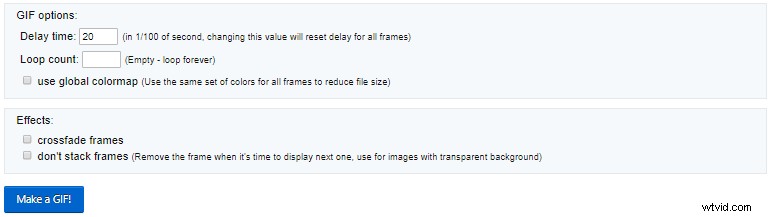
Step 5. Later, you can preview the GIF. If it is OK, hit the save button to save the looping GIF.
How to Stop GIF from Looping
Sometimes, looping GIFs could be annoying and make you crazy. So how to remove loop from GIFs? This part will show you how it works.
To stop GIF from looping, here recommend the best online image editor – Lunapic. It’s free and versatile, coming with almost all advanced image editing features like making image transparent, remove loop from GIF, etc.
Here’s how to stop GIF from looping.
Step 1. Head to the Lunapic website.
Step 2. Click on Upload to upload the looping GIF.
Step 3. Then navigate to Animation> Edit GIF Animation.
Step 4. Select the Loop 1 Time option in the Looping box and click Apply to apply the change
Step 5. After the process is done, right-click on this GIF to save it from the Lunapic.
Conclusion
It’s very easy to loop GIF infinitely, right? Pick out your favorite loop GIF maker and try it now!