
You get an error message “Your input can’t be opened: VLC is unable to open MRL” when trying to stream a video from the Internet or play a YouTube video. How to fix the error? Here are 9 solutions for you.
VLC is a multimedia player that can play local media files as well as stream videos from websites like YouTube. When you try to stream a YouTube video, you may get the following message:
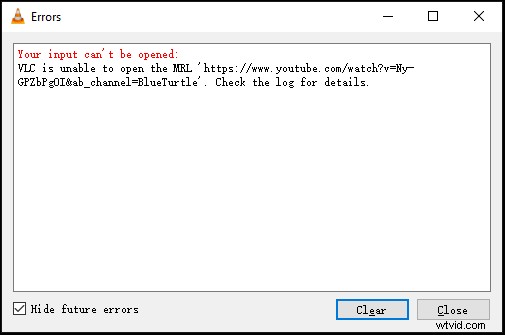
How to fix the Your input can’t be opened VLC error? Continue to read this post!
9 Solutions to Fix VLC “Your input can’t be opened”
- Reset VLC preferences
- Save the YouTube.lau file in the VLC playlist folder
- Turn off Windows Defender Firewall
- Disable third-party antivirus software
- Check for VLC Updates
- Reinstall VLC
- Change the file ownership
- Use another video player – MiniTool MovieMaker
- Download videos from YouTube
Fix 1. Reset VLC Preferences
To resolve this problem, you can reset your VLC preferences. Here’s how:
- Open the VLC app and head to Tools > Preferences.
- On the Simple Preferences window, click the Reset Preferences button and click OK to reset your VLC preferences.
- Then check if your video is streamable in VLC.
Fix 2. Save the youtube.lau File in the VLC Playlist Folder
Another solution for fix Your input can’t be opened is to put the YouTube.lau file in the VLC playlist folder. Here’s how:
- Click this link and copy the code.
- Create a new text file and paste the code. Then rename it “youtube.luac” and copy the file.
- Go to: C:ProgramFiles(x86)/VideoLAN/VLC/lau/playlist. If you can’t find the folder, right-click the VLC media player icon on the desktop and choose the Open file location.
- Replace the youtube.luac file with the file you just created.
Fix 3. Turn off Windows Defender Firewall
YouTube URLs would be blocked by Windows Firewall. To fix “VLC is unable to open the MRL”, you can disable Windows Defender Firewall. Here’s how:
- Click the search icon on the taskbar, enter “Windows Defender Firewall” and open it.
- In the left pane, click Turn Windows Defender Firewall on or off. Under the Private network settings and the Public network settings, check the Turn off Windows Defender Firewall box.
- Click OK.
Fix 4. Disable Antivirus Software
Antivirus software can also cause the “Your input can’t be opened” error. You can fix it by turning off antivirus software. Here’s how:
- Go to Settings > Update & Security.
- Click on Windows Security and select the Virus & threat protection option.
- Under the Virus & threat protection settings, click Manage settings and turn off Real-time protection.
Fix 5. Check for VLC Updates
Update your VLC to the latest version might fix the error. To check for updates, open VLC and go to Help > Check for updates in VLC.
Fix 6. Reinstall VLC
If the “Your Input can’t be opened: VLC is unable to open the MRL” error still exists, reinstall the VLC media player.
Fix 7. Change the File Ownership
Sometimes, this error occurs when you try to play local videos on your PC. To fix it, you can take ownership of the video. Here’s how:
- Find the video and right-click on it.
- Select the Properties option from the popup menu. Go to the Security tab and click the Advanced button.
- Tap on Change and enter “Administrator” in the box. Click OK to continue.
- Then check the Replace all child object permission entries with inheritable permission entries from this object box and click Apply > OK.
Fix 8. Use Another Video Player
VLC not working? VLC can’t play videos? You can use a video player – MiniTool MovieMaker (or other media players). It’s a free video player, video editor, and video converter.
Fix 9. Download Videos from YouTube
If you can’t stream videos from YouTube with VLC, download them to your computer. Here recommend MiniTool Video Converter to you. It can download YouTube videos/playlists in MP4 and MP3 format for free.
Conclusion
Now, try the above methods and check if it fixed the “Your input can’t be opened: VLC is unable to open the MRL” error.