
This article analyzed by MiniTool provides you with altogether nine methods to handle Google Play Store not working problem. Most of the solutions are easy to operate and have helped many users dealing with their situations.
Google Play Store, also called Google Play and formerly Android Market, is a digital distribution service operated and developed by Google LLC. It is the official app store for certified devices for the Android operating system (OS) and its derivatives as well as Chrome OS.
However, while using Google Play Store, you may encounter some problems. For example, you may be prompted with the “Sorry, something went wrong. Please try again later.” error when you try to find an application or download it.
Then, how to deal with such a situation? How to solve Google Play Store “Something went wrong Please try again” error? Let’s continue.
#1 Restart Google Play Store or Your Device
When you encounter the above case, in the first place, you are recommended to relaunch the Google Play Store app or further your device (mobile phone, computer, etc.).
Also Read:Something Went Wrong YouTube Error - Fix with These Methods!
#2 Check Network Connection
Secondly, you should check out your Internet connection to see whether there is a problem. You have to make sure that you have a stable and good bandwidth while using Google Play Store.
You can turn off and turn on the network connection, switch to Wi-Fi or Ethernet, or use another network. Besides, you may need to restart or power cycle your router or modem, as well as even flash your DNS.
Sometimes, just putting your device closer to the router may fix the issue. Or, you can toggle on and off the airplane mode to reconnect your Internet.
#3 Match Date and Time
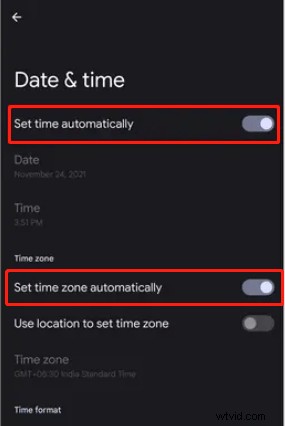
The mismatch of date and time can also cause that error. To deal with this, just set the right timezone or region with the below steps.
1. On your phone, go to Settings > System > Date & time.
2. Enable Set time automatically and Set time zone automatically.
#4 Sign out and Sign in Google Account
Also, you can try to sign out of your Google account and sign in it again in Google Play Store to handle the “Sorry, something went wrong on our end. Please try again.” or similar problem. Maybe you have recently changed your Google account password or signed in with multiple accounts.
- In Google Play Store, navigate to Settings > Passwords & accounts.
- Press on your email address.
- On your Google account settings screen, tap the Remove account button and confirm.
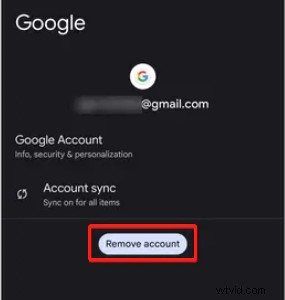
Then, log back into your Google account right there using Add account option.
If re-logging in the Google account doesn’t fix the issue, you may sync the account to see whether it helps. Just tap the Account sync option on the Google account settings screen and follow the guide.
#5 Manage Google Play Store Preferences
Besides, an improper app preference may also result in that error. So, you have to check or reset your Google Play Store preference.
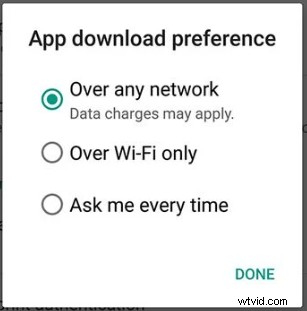
The Google Play Store has a native setting for only downloading apps over WiFi. If you have this option on and you are not using a Wifi, your downloads will be paused until you connect to WiFi. So, you can easily get the problem solved by disabling that feature.
- In Google Play Store, head to Settings > App download preference.
- Under App download preference, switch your selection to Over any network.
- Tap DONE.
#6 Clear Google Play Store / Google Play Service Cache
If your problem still exists, you may consider a data storage issue. That is to say, you may try to clear the data cache of Google Play Store or Google Play Service.
- In Google Play Store, move to Settings > Apps > See all apps > Google Play Store > Storage & cache.
- Under Google Play Store storage settings, tap the Clear cache option.
- Also, you are suggested to force stop Google Play Store and restart it.
<
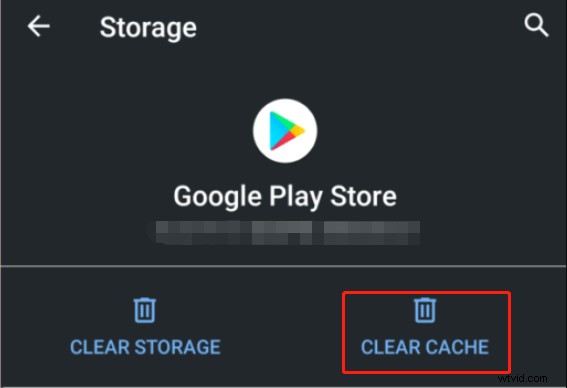
Similarly, go to Settings > Apps > See all apps > Google Play Service > Storage & cache to clear the cache for Google Play Service.
#7 Uninstall/Reinstall Google Play Store
Moreover, you can try to uninstall the updates of the Google Play Store to downgrade to its previous version. Or vice versa, if you are currently not running its latest version, just update to its newest edition to see whether the issue disappears or not.
Or, you may need to uninstall Google Play Store and reinstall it on your smartphone or other devices.
#8 Install APK Files from Web Browser
If unfortunately, none of the above solutions have successfully solved your problem and remove the “sorry something went wrong. Please try again later” warning, you can find the APK files of your target apps by searching in your browser and installing them directly from their official websites.
Unlike the App Store on iPhone, there is no limitation on adding apps from other resources on Android devices.
#9 Rely on Google Play Store Alternative
Lastly, you can make use of the replacements of the Google Play Store. Usually, your brand of cellphone has its own app store. For instance, Samsung mobiles have Galaxy Store. If your phone doesn’t have its app store, you can take advantage of Amazon App Store to get the programs you want.
Also Read:Google Play Music Will Shut Down: Move Music to YouTube Music
Conclusion
If you are suffering from “UH OH, looks like something went wrong. Please try again later.” Play Store error message, you can handle it with one of the above solutions. Actually, the above ways apply to not only Android devices but also iPhones, iPads, iPods, Mac, etc.
If you have additional methods, please share them with us in the below comment zone!
Videos/Audio/Photos Management Tools Recommended
These applications are completely compatible with Windows 11/10/8.1/8/7.
MiniTool MovieMaker
An easy-to-use video editing software without watermarks and limits. The embedded templates enable you to quickly make personal slideshows and share them with your friends!
MiniTool uTube Downloader
Free download YouTube videos, audio, and subtitles without ads or bundles. It can operate multiple tasks simultaneously at a high speed and supports multiple file formats.
MiniTool Video Converter
Quickly convert videos and audio from one file format to another to apply to more devices. It supports 1000+ popular output formats and batch conversion. Besides, it can also record PC screens without any watermark.