
A YouTube banner is one of the first things people see when they visit out your channel. That makes it an incredible opportunity to WOW your potential subscribers.
But YouTube uses that one banner image for all screen formats – TV, desktop, mobile and tablet. So it can be difficult to create a banner that fits and looks good on all devices.
With a few tips and the right tools, you’ll learn exactly how to make channel art fit on all devices.
So if you want to have a wow-worthy channel banner, keep reading.
In this YouTube channel art tutorial, we’ll cover:
- The perfect YouTube banner size
- How to work in a call to action on your banner
- Adding links to your YouTube channel
There are heaps of different tools and software when it comes to making channel art. There are even great free options, meaning you don’t need to invest in expensive software like Adobe Photoshop.
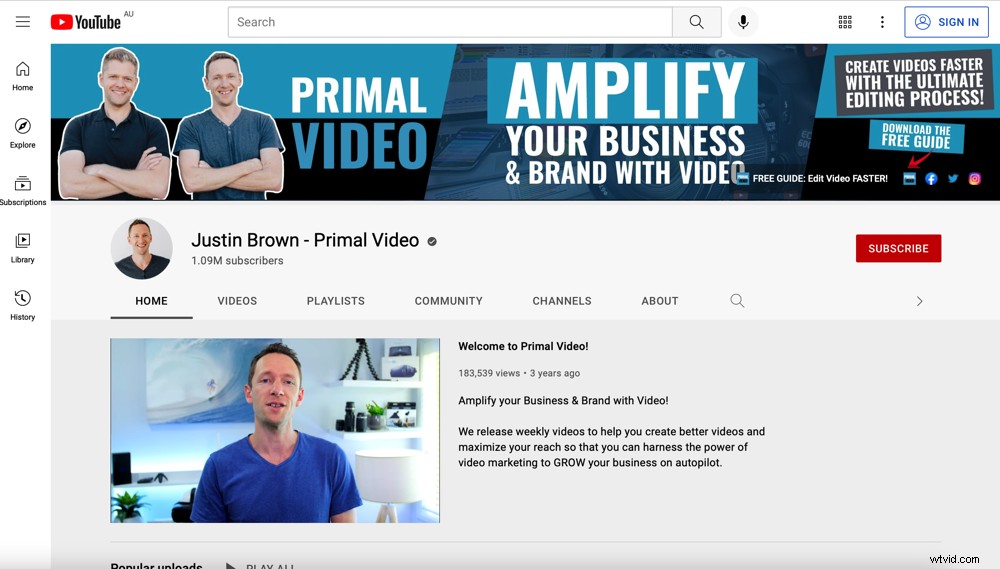
You don’t need Photoshop to easily create a stunning banner that impresses your viewers
We’ll run through how to make a YouTube banner without Photoshop using an awesome free YouTube banner maker.
Here’s exactly what you’ll learn in our step-by-step guide:
- Selecting the Correct Youtube Channel Art Size
- How to Fit Your Banner on All Devices
- Adding a YouTube Banner Background
- Adjusting Effects on Your YouTube Banner
- Adding Text to Your Channel Art
- Adding Graphics to Your Channel Art
- Adding Shapes to Your Channel Art
- Downloading Your Channel Banner
- How to Upload YouTube Channel Art
- How to Grow Your Business With Channel Art
Let’s get started.
How to Make a Channel Banner
Snappa is our software of choice when it comes to creating channel art. It’s our top recommendation because it’s free and simple to use – but you can follow along to this tutorial using any software just by following the same principles.
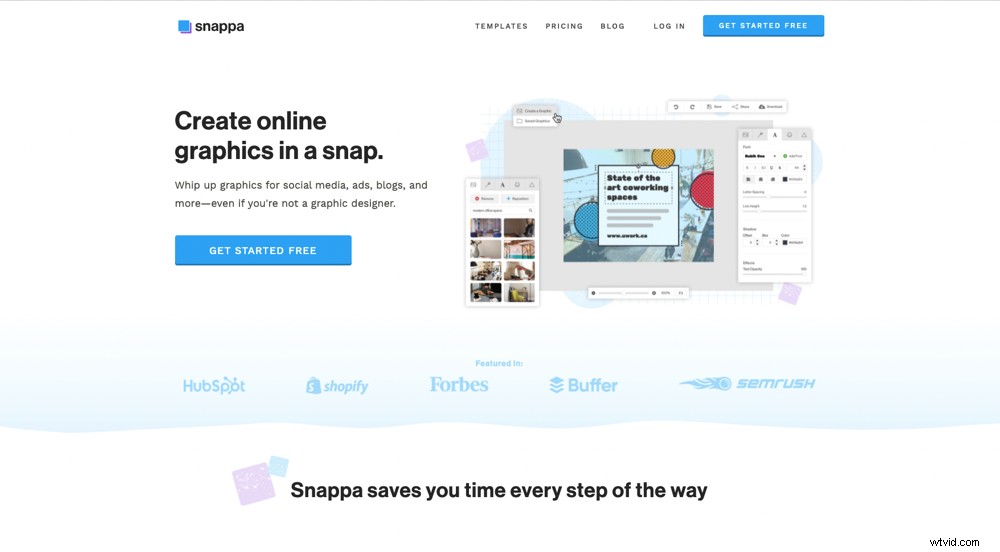
Snappa is our go-to YouTube channel art maker
First up, head to snappa.com and either create a free account or log in. Once you’re in, you can choose from lots of different preset templates.
Selecting the Correct Youtube Channel Art Size
If you scroll down you’ll see a template for YouTube Channel Art. This one is already sized at the correct YouTube banner dimensions 2560 x 1440 pixels.
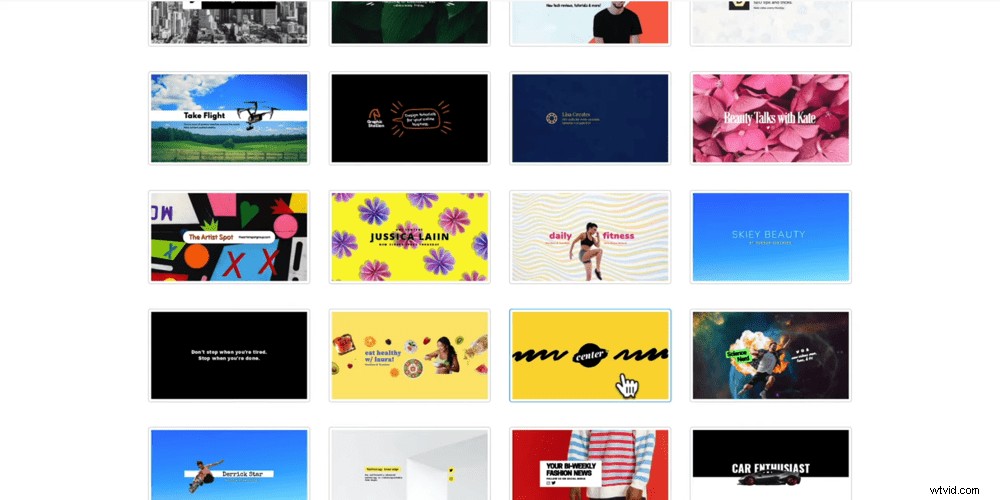
You can create so many things in Snappa, from YouTube thumbnails to social media posts
Now you’ve got two options. You can either create a banner from scratch or select one of the professionally designed templates.
If you’re short on time you can find a template you like the look of and customize from there.
For this YouTube banner tutorial, we’ll be starting from scratch. This way you know exactly what you can customize and achieve using Snappa.
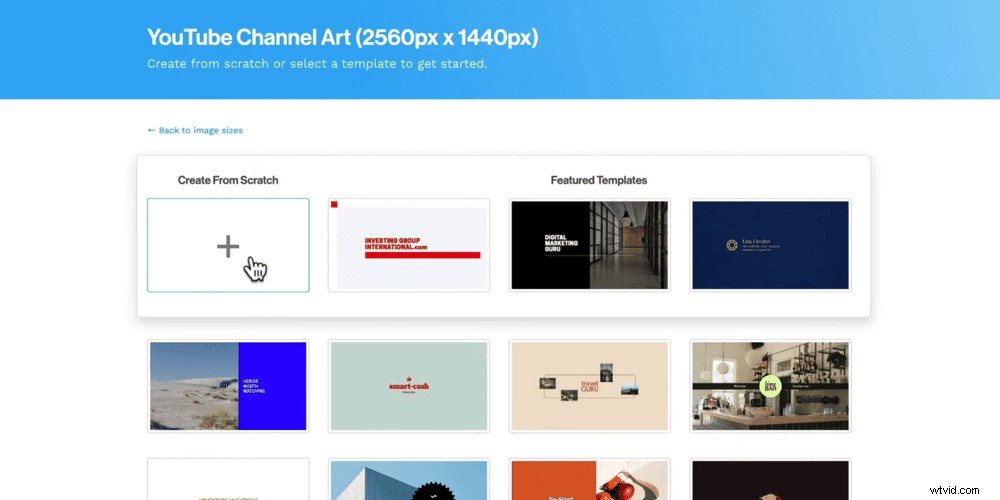
The correct dimensions for YouTube channel art are 2560 x 1440 px
Select Start from Scratch and an empty canvas will open.
How to Fit Your Banner on All Devices
One of the things we love most about Snappa it makes it super easy to fit your banner on all devices.
As we mentioned before, the one banner image is used for all screen sizes. But you can’t expect the banner to look the same on a massive 70” TV as it does on a 6” iPhone, right? Of course, they’re all displayed differently.
That’s why Snappa overlays a template showing the different YouTube banner safe areas that will be seen on different screens.
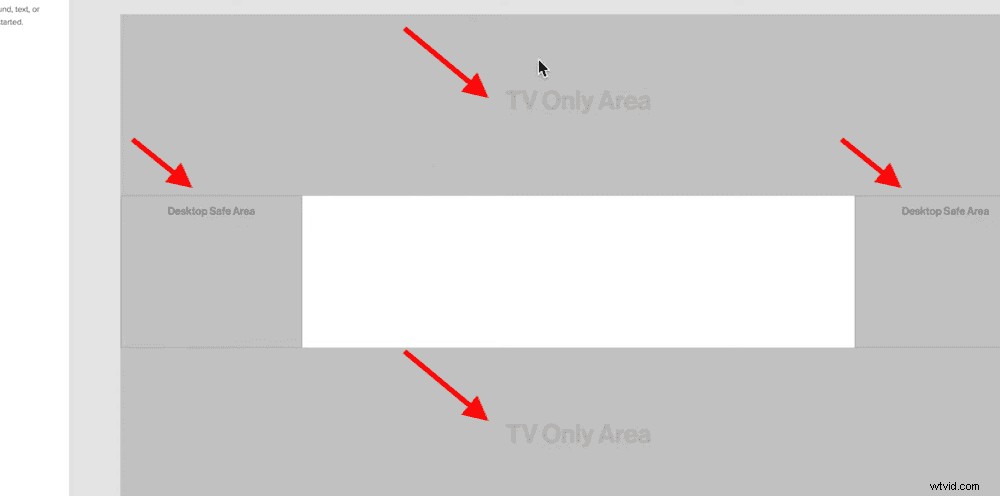
Snappa marks each YouTube banner safe area so you know what elements will appear where
The area on the top and bottom are TV Only Areas. The side areas are labelled Desktop Safe Area, so they will be visible on desktop depending on the size of the computer. And the middle section is visible on all devices – so you want to include all your key information here.
While there are heaps of banner apps out there, there aren’t many that have this awesome feature built in.
You can turn the overlay on and off by selecting the Toggle safe zone button on the top menu.
Now it’s time to start designing your YouTube channel banner.
Adding a YouTube Banner Background
First up, let’s add a background image. Press the Bkgrnd button in the top left corner. You’ll see lots of free images, patterns and textures in here but you can also input a background color or upload image files.
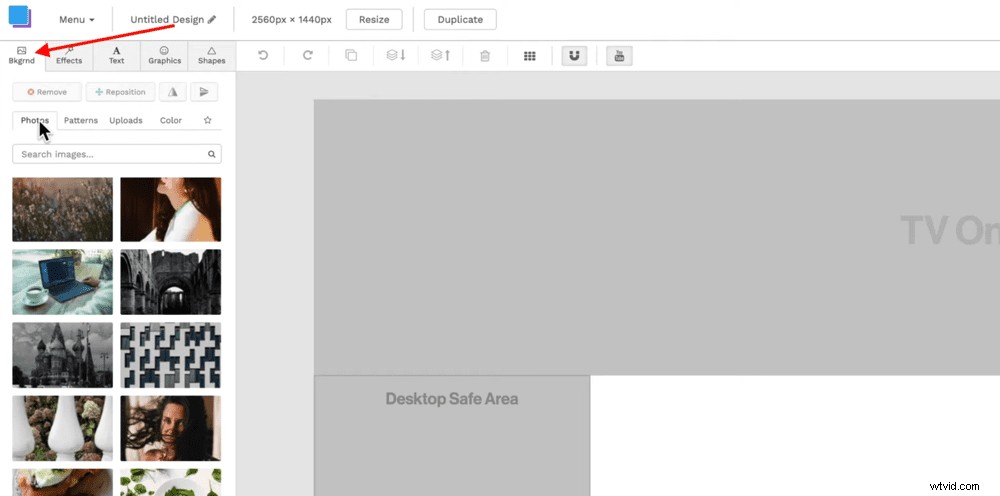
You can select Photos, Patterns, Uploads or Color as your banner background
Once you’ve chosen your YouTube banner background, you can select Reposition to move it around to your desired positioning.
Adjusting Effects on Your YouTube Banner
Next, go to Effects in the top left corner and make any adjustments to your image. One effect we love is the Color Overlay. Input your color and then slide the bar to the right to make the overlay bolder.
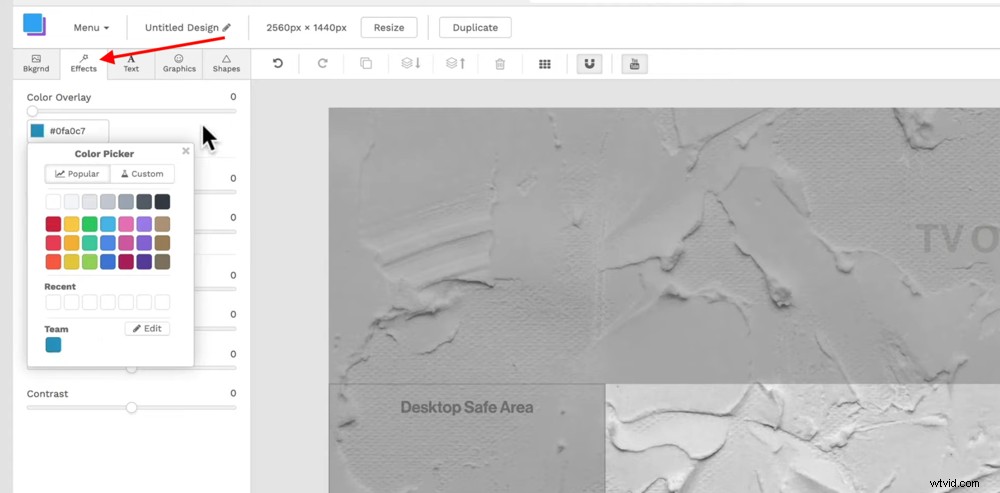
There are a range of effects you can choose from to customize your channel art
You also have the option to adjust the:
- Darkness
- Blur
- Saturation
- Hue
- Brightness
- Contrast
Adding Text to Your Channel Art
Let’s jump across to the Text tab. Here you can add a heading, subheading and text. You can change the font, size, color, alignment, spacing, height and shadow of the text.
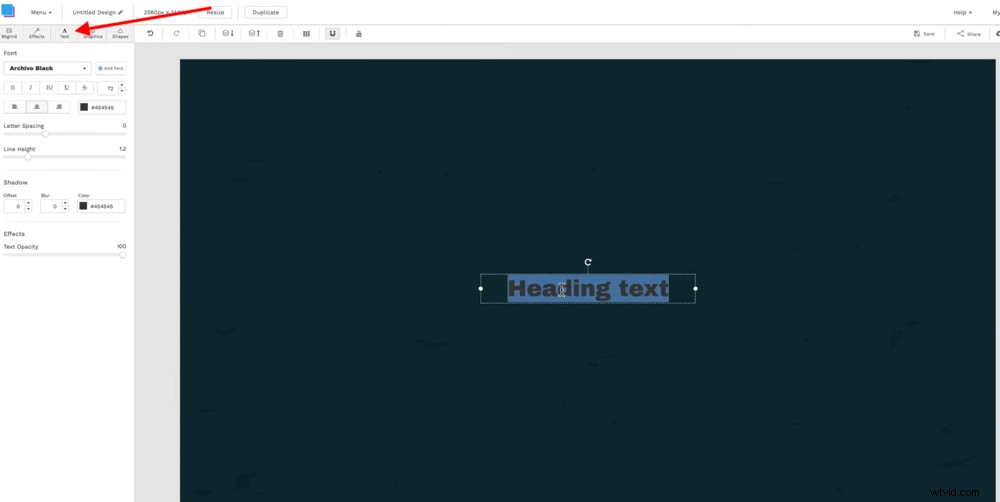
You can select the text box and press Duplicate in the top menu when you need multiple boxes
It’s a good idea to include your channel or brand name as well as key features of your channel. This can give viewers an idea about the kind of video content you’ll be releasing.
Adding Graphics to Your Channel Art
When you’re happy with the text, move to the Graphics tab. This is where you can insert any of Snappa’s images, icons, emojis or you can upload your own graphics.
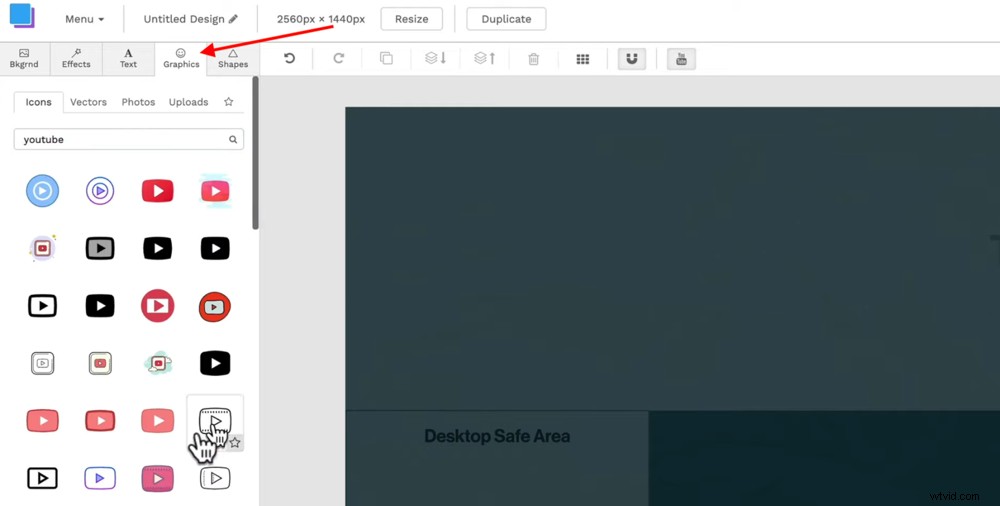
Type in the search bar to find the perfect icon for your banner
Once uploaded, you can select the graphic and adjust the opacity in the left menu.
Adding Shapes to Your Channel Art
Next, head to the Shapes tab.
This is a really fun way to play with different design elements in your banner.
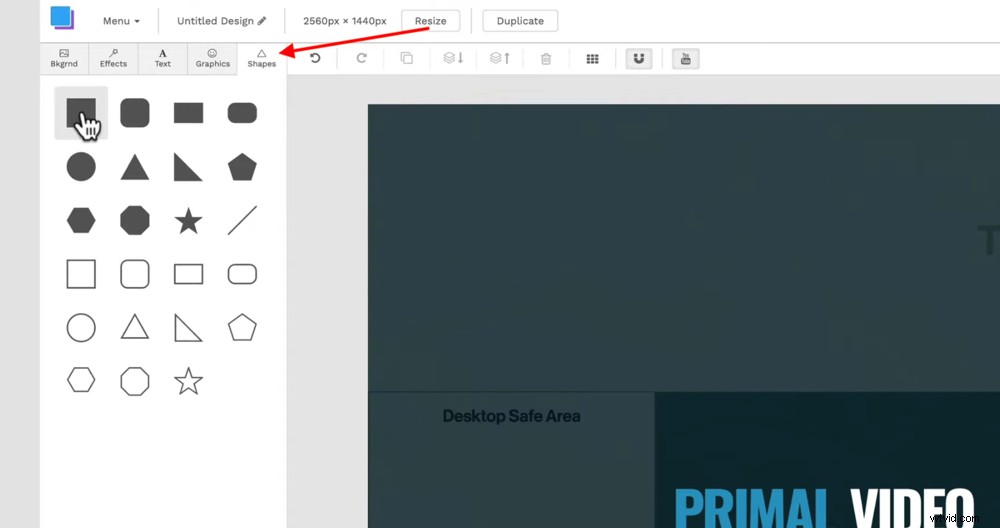
Select different shapes to dress up your banner design
You could start by adding in a simple square, scaling it and rotating it to create different visual effects. You can get really creative and make your design unique.
To move any of the elements backwards or forwards, select the element and press the Move layer back or Move layer forward button in the top menu.
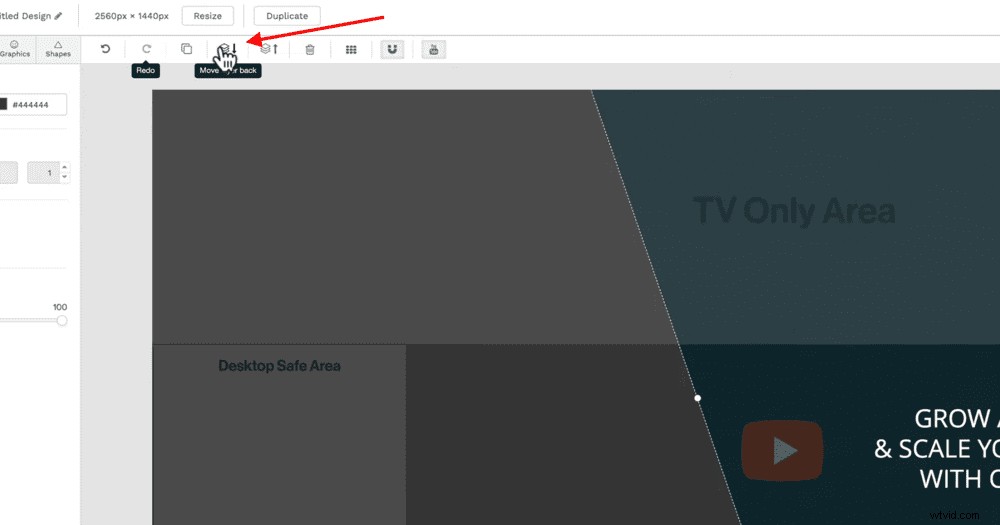
You can adjust the layer order by selecting the Move layer back and Move layer forward buttons
Bonus tip: Background Image Removal
There is another really cool feature on Snappa that we’ll run through quickly. This feature is a background removal tool. So if you wanted to include an image of yourself, this is a great way to achieve this. You will need the paid version to access this feature though!
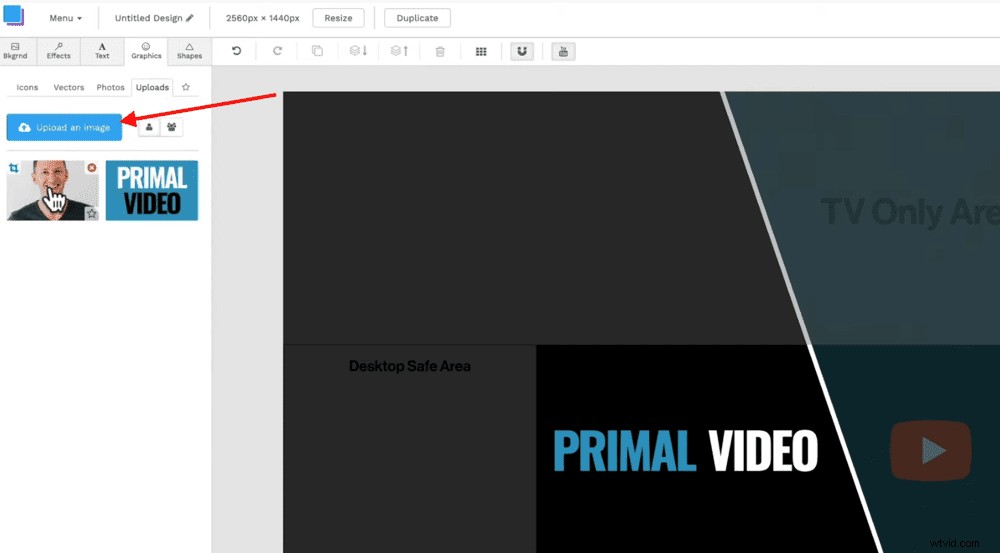
Add images to your YouTube banner in the Graphics tab
Head to Graphics, Uploads and then Upload an Image. Find an image of yourself (or anything you’d like to include on your banner).
Once the image is on your canvas, you can select it and then turn on the Remove Image Background button. Snappa will then analyse your image and remove the background.
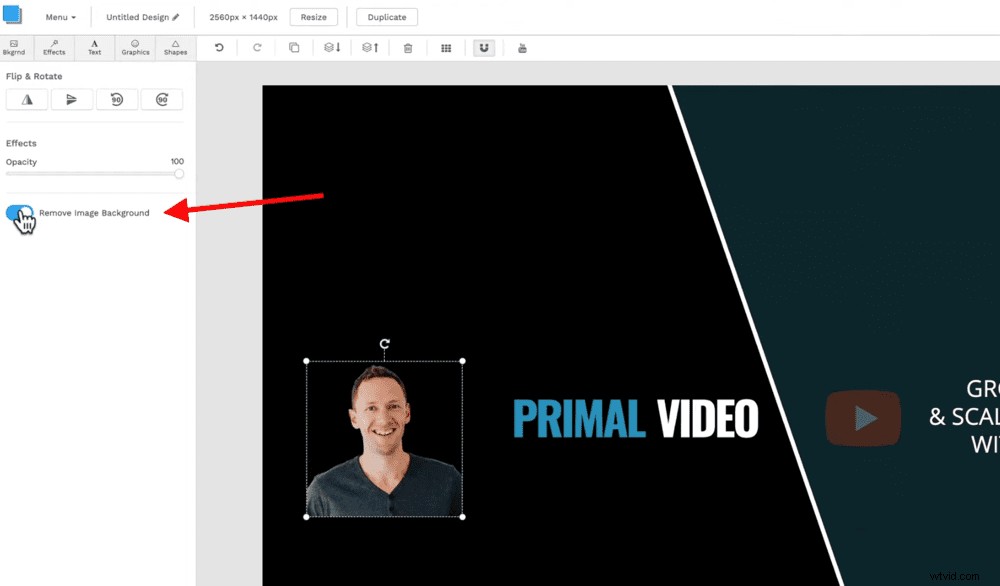
Snappa’s background removal feature is an awesome tool
The software does a really good job of this! It’s super accurate – we definitely recommend checking it out if that’s something you’d like to include.
Downloading Your YouTube Channel Art
Once your banner design has achieved wow-worthy heights, it’s time to download.
In the top right corner, select Download. You can select any of the download options but the one we recommend is Retina PNG (2x size). This is just because it seems to be the best quality.
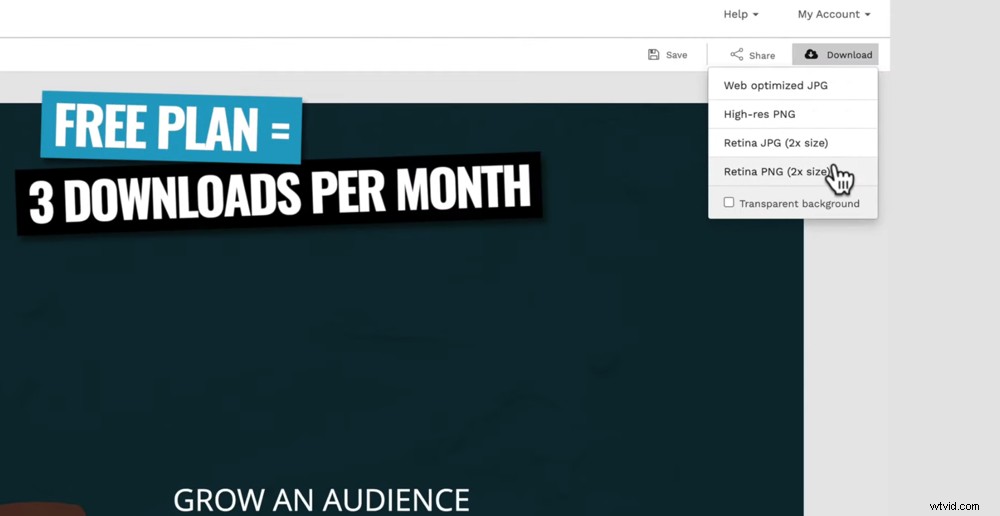
We recommend downloading your channel banner in ‘Retina PNG (2x size)’ format
All that’s left to do is name your file and save to your computer.
Snappa’s free plan gives you three downloads per month. If you’ve exceeded your monthly downloads, you’ll need to jump on the paid plan.
Awesome work! Now you’re ready to upload your YouTube banner to your channel page.
How to Upload YouTube Channel Art
Go to your YouTube account, select your channel icon and go to YouTube Studio. Then go to Customization, Branding and then select Upload under the Banner image section.
Find your image, select Open, Done and then Publish in the top right corner.
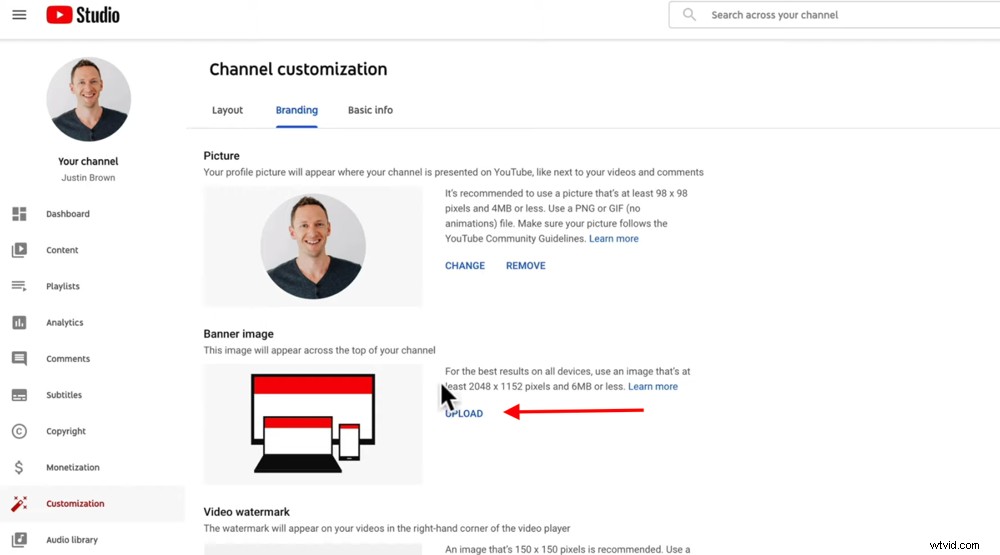
You can upload your channel art under Customization and then branding in YouTube studio
You now have an awesome new YouTube banner on your channel!
How to Grow Your Business With Channel Art
Sure, your YouTube banner can make your channel look amazing but it can also help you grow your business. You can do this by placing a call to action on your banner.
If you check out our Primal Video YouTube channel, you’ll notice we’ve got links to our social media accounts (Instagram, Twitter and Facebook), website and also a free PDF guide.
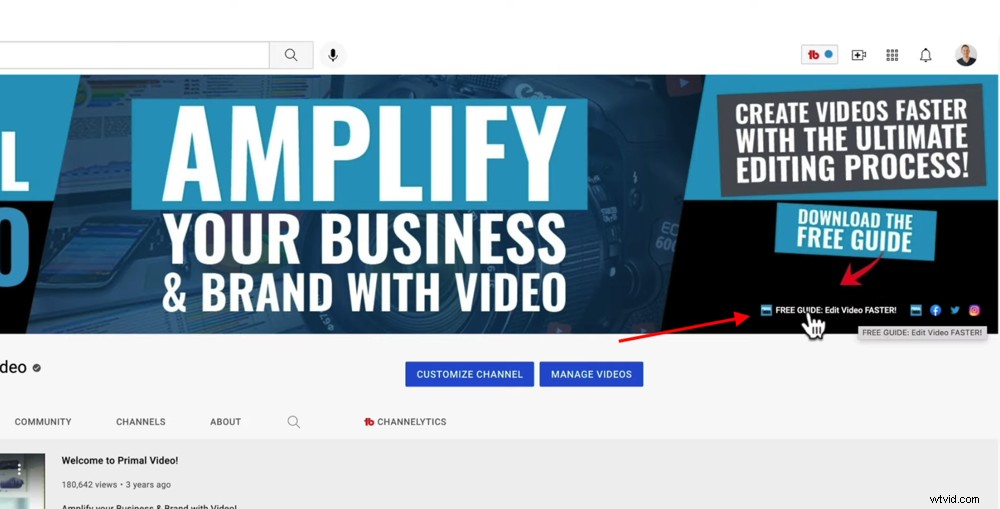
You can design your banner to point to links on your YouTube page
We’ve used the right hand side of our banner to give a call to action, pointing to that free PDF guide.
This is a really powerful way to grow your email list. You can offer to send the free PDF guide (or any content that’s of value) to the viewer’s email address. This provides them with useful information and helps you further build the relationship with them.
Adding Links to Your YouTube Channel
It’s super easy to add links to your channel. Head to Customization, Basic info and then Links. We recommend inserting links to your social media, website and a free resource for your viewers.
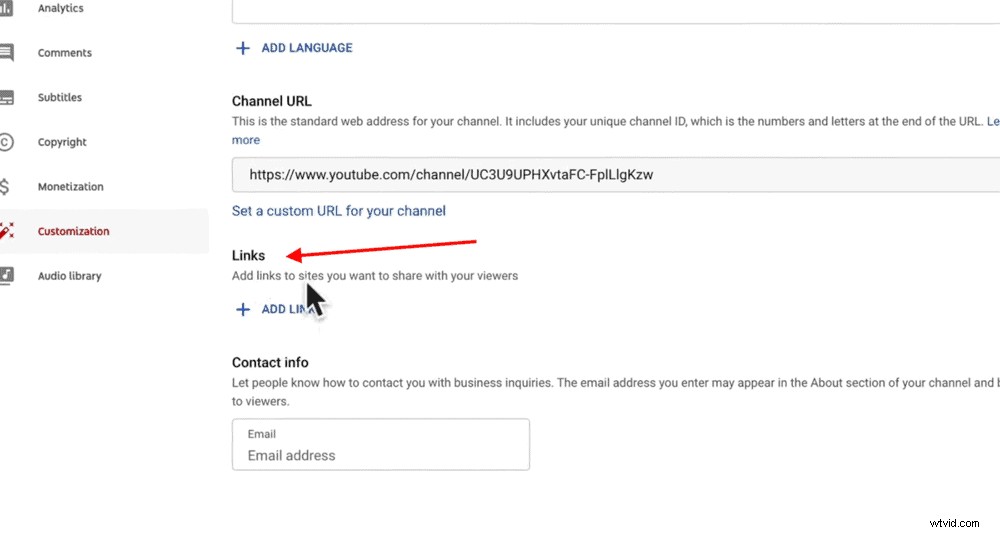
Adding links to your page really helps build your following
You can then use text, graphics or arrows on your banner to point to those links.
Just remember when you’re adding the graphics in for those links, to include them in the right Desktop Safe Area. This will ensure they appear above the YouTube-placed links.
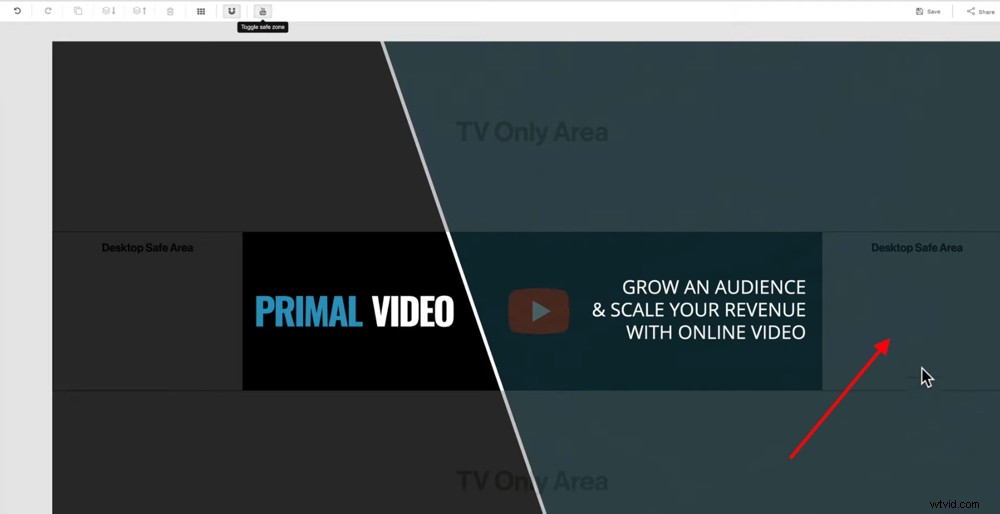
Check the YouTube banner safe area for where to include call outs to your links
Now You Know How To Make A Youtube Banner Without Photoshop
That’s it for our updated YouTube banner tutorial! We’ve run through how to create stunning YouTube banners that will not only impress your viewers and convert subscribers but also grow your business.
Snappa is our top recommended tool to do this. It’s an awesome free YouTube channel art maker that will leave you with a professional, high quality final product.
And remember, you can even utilise your YouTube banner to help build your email list.
We hope you enjoyed our updated guide on how to make a YouTube banner!
If you found it useful, feel free to share it on social media or with others who might like to learn more about channel art too.