
Preparation
What you need to prepare:
- A computer (Windows or macOS)
- Your sports video clips.
- Wondershare Filmora installed.
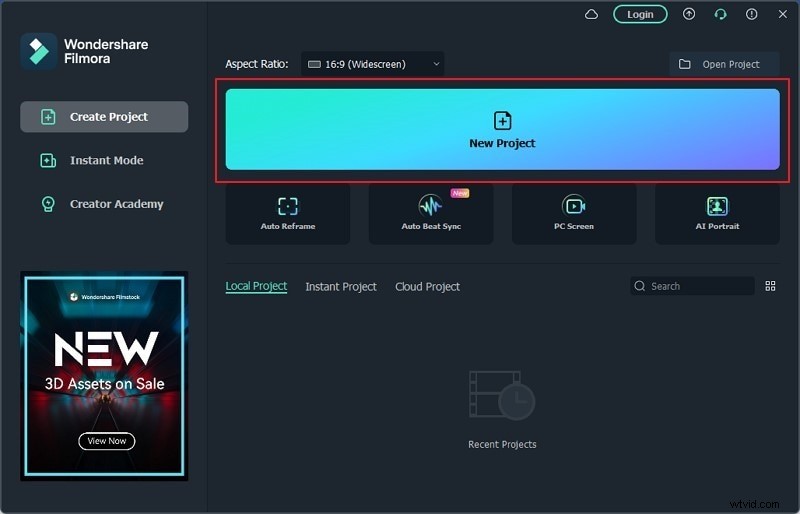
Step 1: Start a New Project
Ensure you have the latest version of Wondershare Filmora installed. Launch the application and click “New Project” to begin editing.
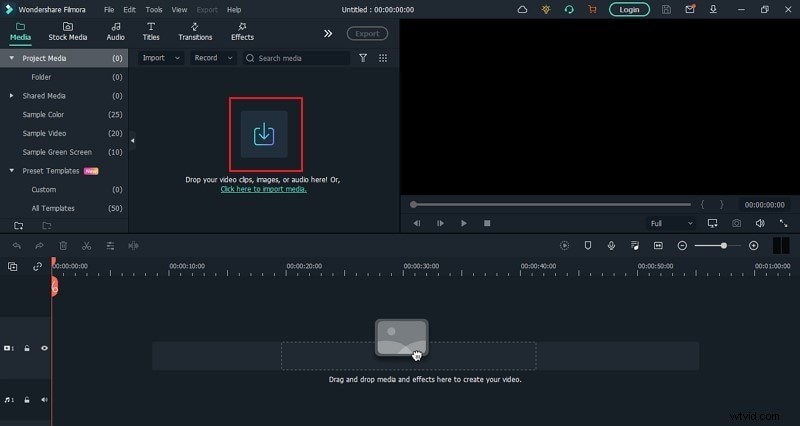
Step 2: Import Your Clips
Click the “Arrow Head” icon in the Media tab to add footage. Drag the imported clips onto the timeline in the desired order.
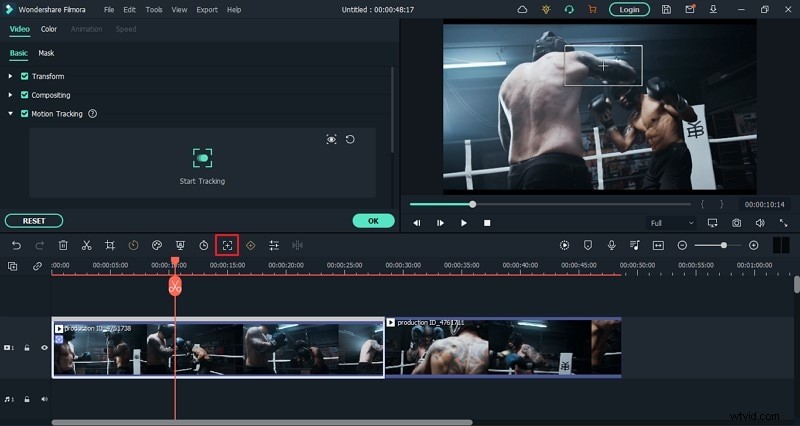
Step 3: Select a Clip for Motion Tracking
Choose the clip where you want to apply visual effects. Click the “Motion Tracking” button above the timeline, then draw a box around the object you want to track.
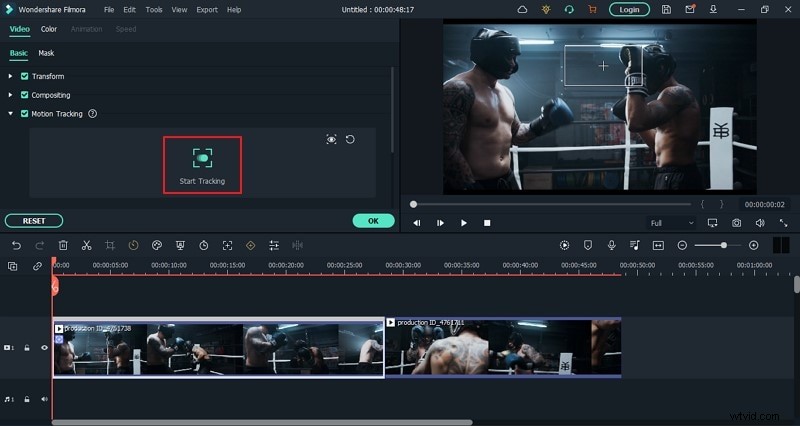
Step 4: Start Tracking
Place the playhead at the clip’s beginning and press “Start Tracking.” The software will follow the selected object throughout the clip.
Step 5: Add Visual Effects
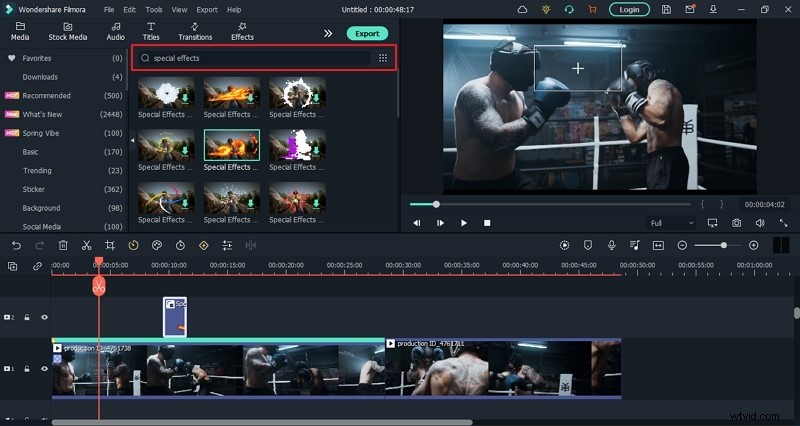
Open the “Elements” tab, select “VFX Effects,” and choose an effect from the search bar or list. Drag the effect onto the timeline beside the tracked clip and adjust its position in the preview window.
Step 6: Track Effects to the Clip
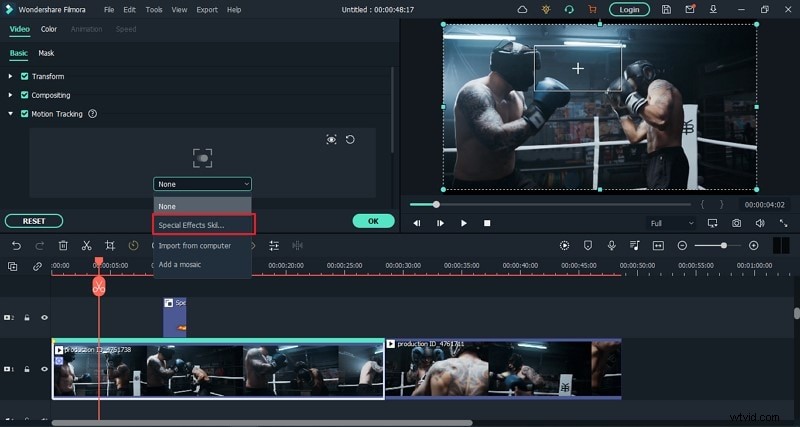
Select the tracked clip, then in the “Motion Tracking” dropdown choose the effect you added. If you’re adding multiple effects, duplicate the track and repeat the process.
Step 7: Export Your Video
Click “Export,” choose your desired format, and save the finished video to your desktop.
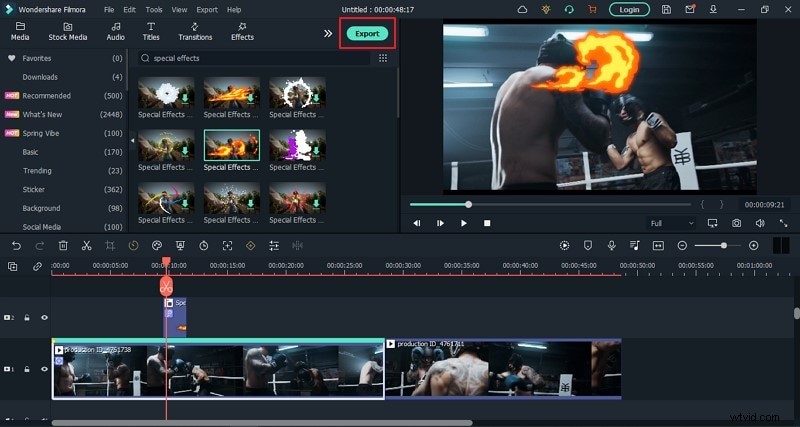
This workflow shows how to seamlessly integrate motion‑tracked visual effects into sports footage using Wondershare Filmora.
Summary
What you’ve learned:
- How to track moving objects in sports videos.
- How to overlay and position visual effects.