
Elevate your videos with a dynamic 3D shiny text animation that adds depth and a polished light‑sweep effect. This guide walks you through each step in Filmora 13, ensuring a professional finish.
Tools Required
- Windows or macOS computer
- Filmora 13 video editor
- Your video assets
Step 1: Set Up Your Project
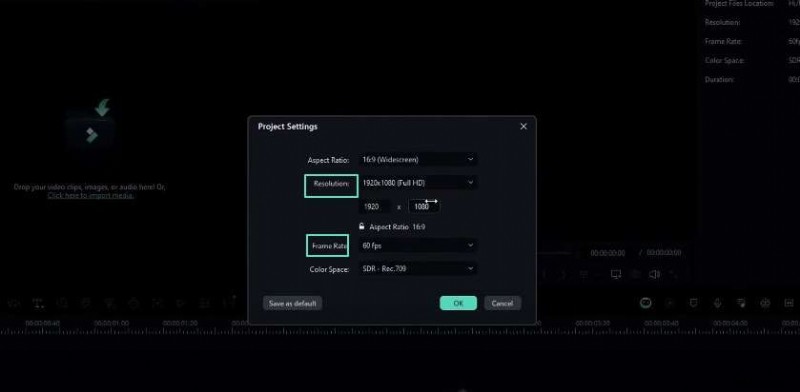
Open Filmora and choose a resolution of 1920×1080. Set the frame rate to 60 fps for smooth motion. You can adjust these settings later if needed.
Step 2: Add a Solid Color Background
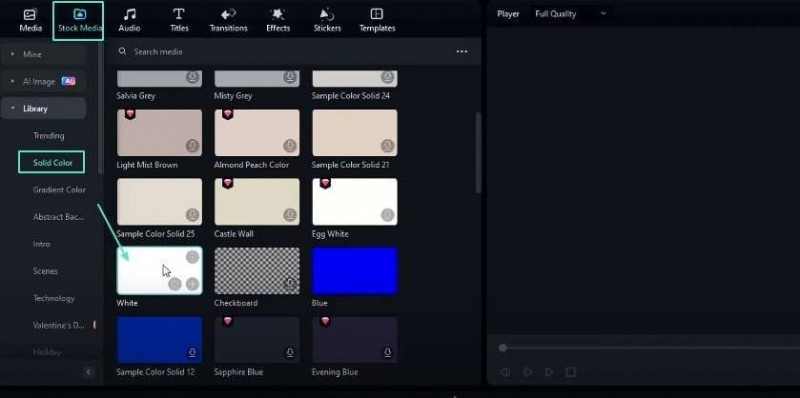
Navigate to the Stock Media library and pick a light background color. Drag it onto the timeline.
Step 3: Create the First Text Layer
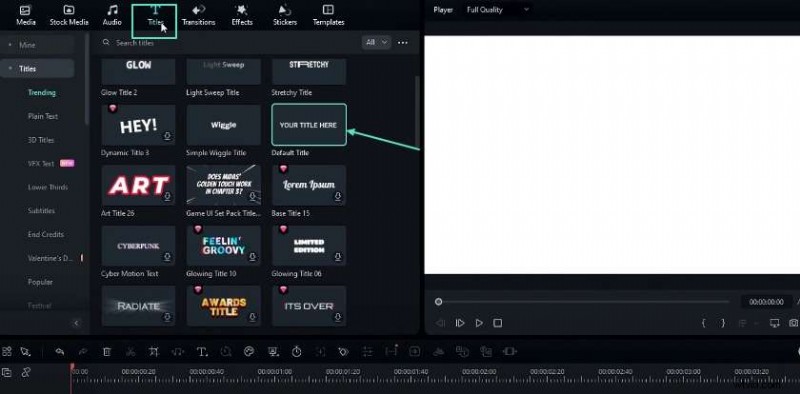
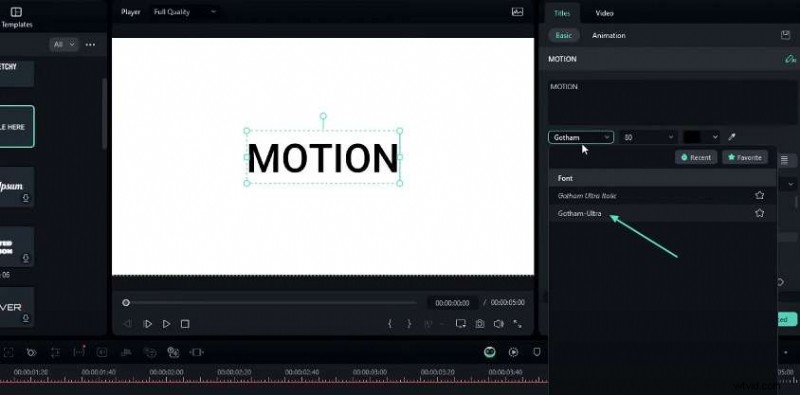
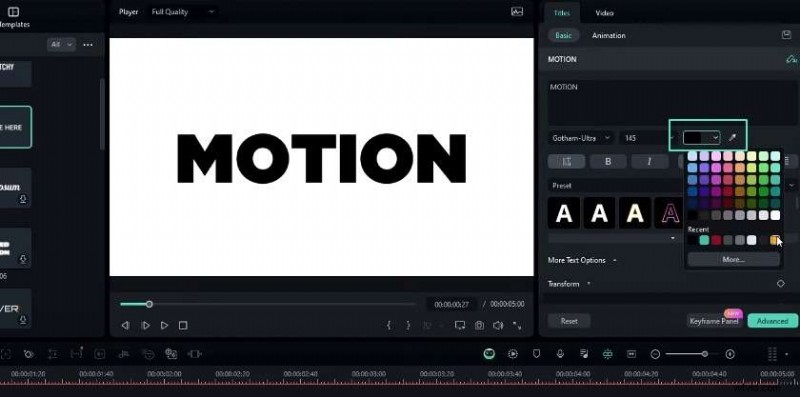
Go to the Text menu, add a default title, and change the color to black. Type your desired word—e.g., “motion”—and set the font to Gotham Ultra. Increase the scale slightly for emphasis.
Step 4: Duplicate and Customize the Second Text Layer
Copy the first layer, paste it above, and change the color to yellow. This creates a layered look.
Step 5: Add an Outline to the Second Layer
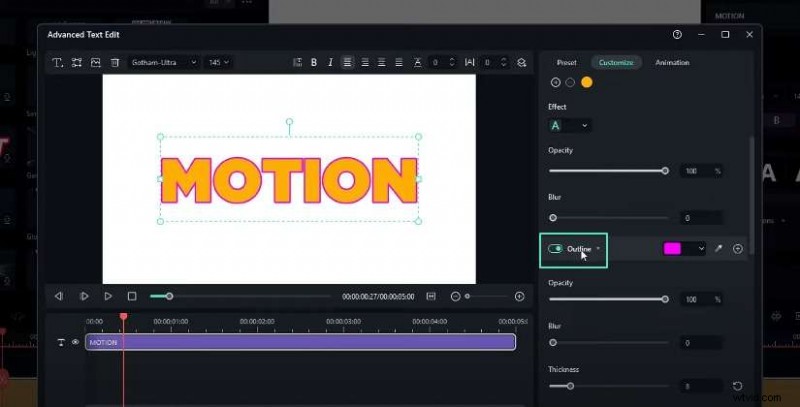
In Advanced Settings, enable the outline. Choose a color, set thickness to 4, and apply.
Step 6: Apply Wavy Animation
With each layer selected, go to Animation > In > Wavy Appearance In. Set the duration to 1.5 seconds for a subtle bounce.

Step 7: Create the 3D Effect
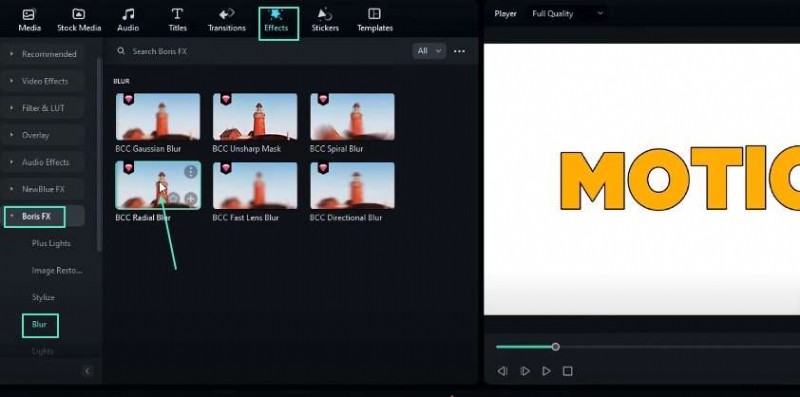
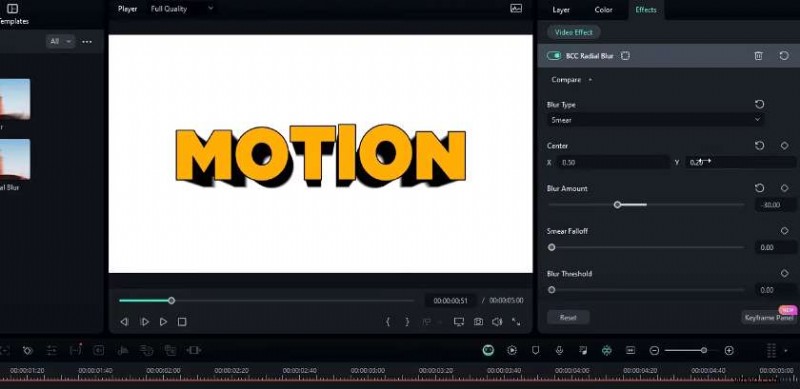
Drag the second text layer to the fourth track. Add an adjustment layer and apply Boris FX > Blur > BCC Radial Blur from the Effects tab.
Step 8: Fine‑Tune the Blur Settings
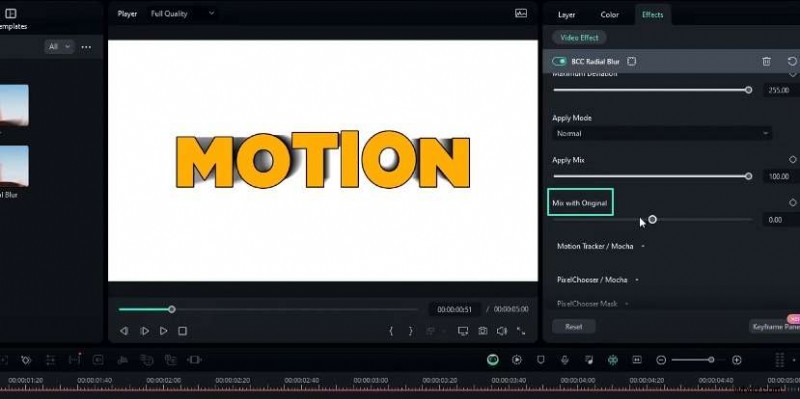
Set the blur type to Smear, blur amount to –30, and mix with original to –300 to sharpen the 3D look.
Step 9: Adjust 3D Direction
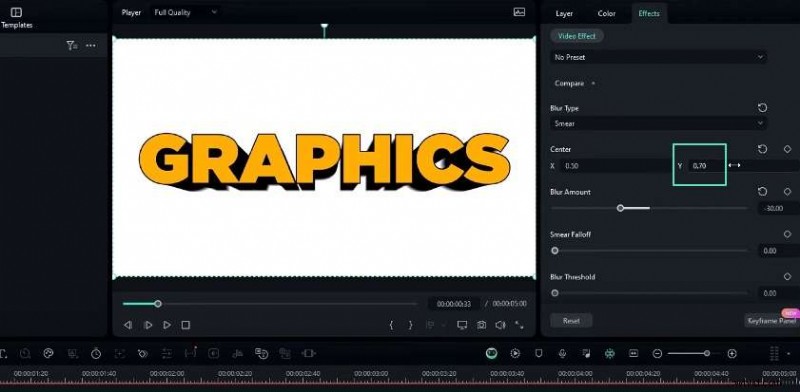
In the Center controls, tweak X to 0.5 and Y to 0.2 for a subtle tilt.
Step 10: Change the 3D Color (Optional)
Simply modify the second text layer’s color to match your design palette.

Step 11: Add an Extra 3D Layer (Optional)
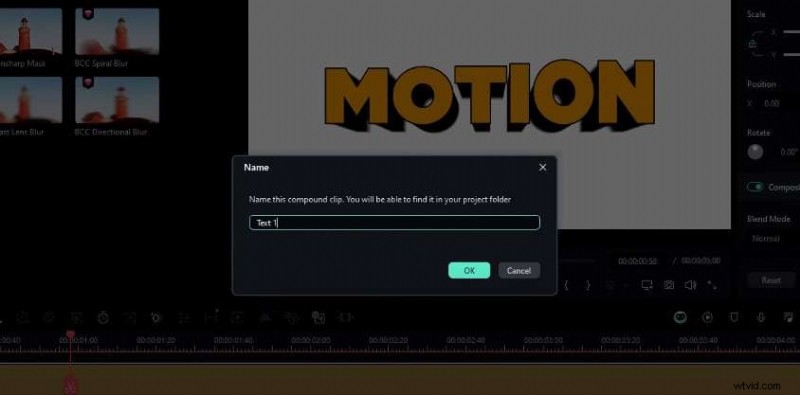
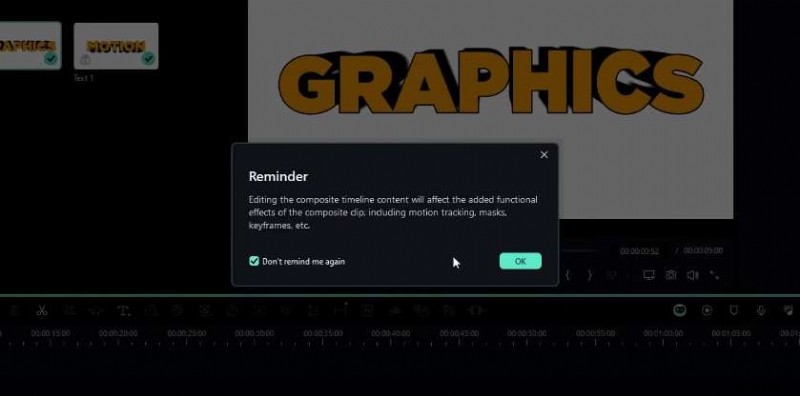
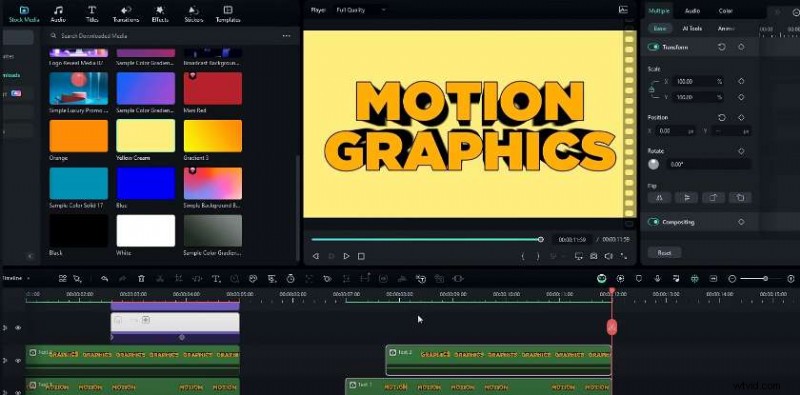
Select all current layers, copy (Ctrl +C), and create a compound clip (Alt + G). Name it “Text 1”. Repeat for a second compound clip (“Text 2”) with updated 3D direction.
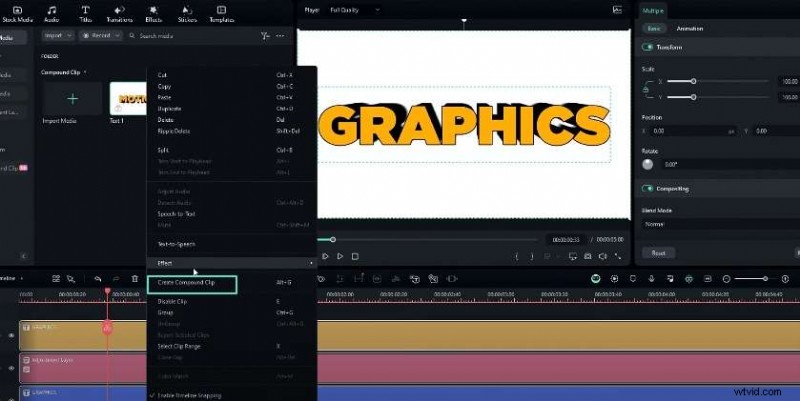
Hide the white background inside each compound clip and reposition the layers on the main timeline. Place a contrasting solid color behind them.
Step 12: Create a Light Sweep Layer
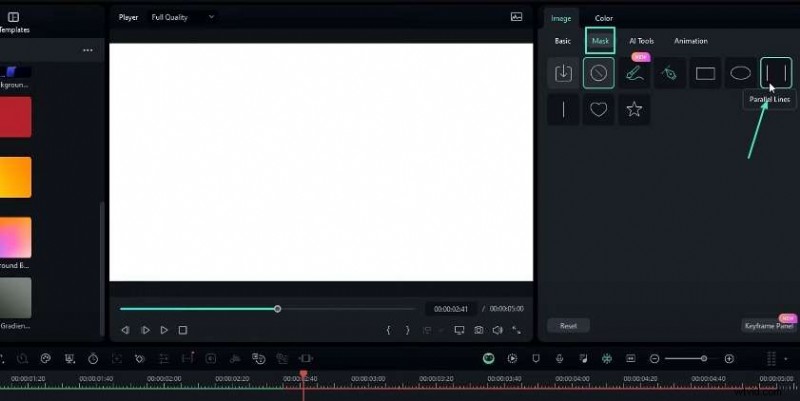
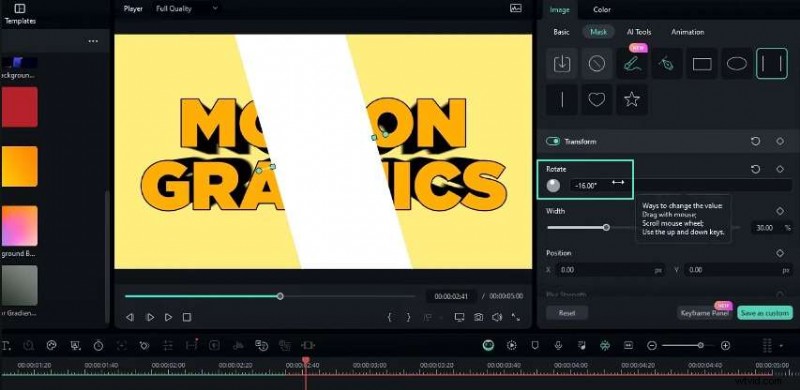
Add a white solid, apply a Parallel Lines mask, rotate to –6°, set line width to 12, and change the blend mode to Overlay.
Step 13: Animate the Sweep
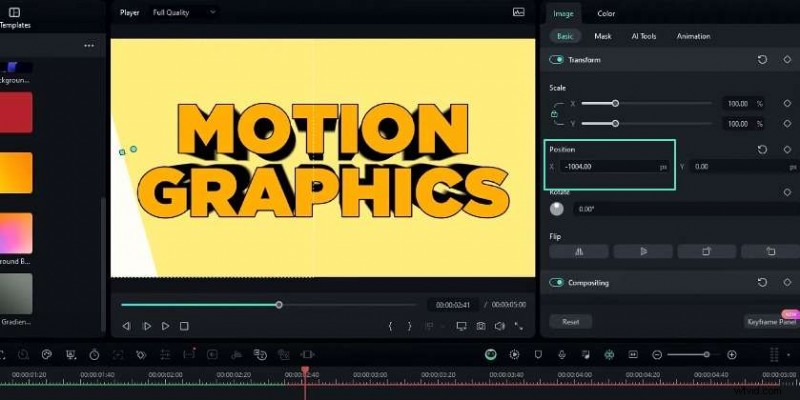
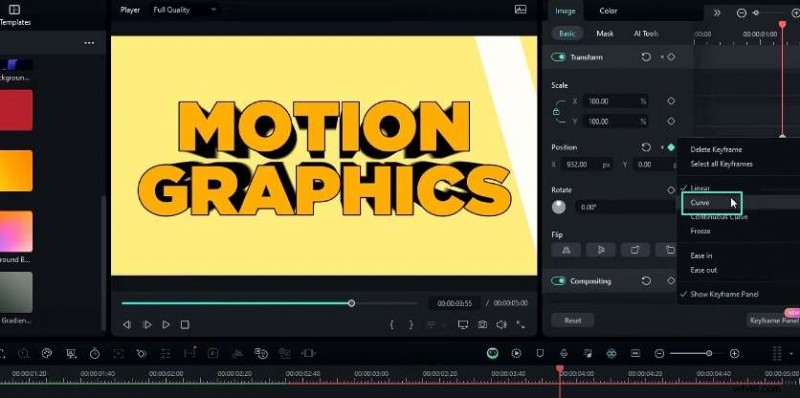
Keyframe the X position: start at the left edge, then move to the right after a few seconds. Add a smooth curve preset for a natural motion.
Step 14: Mask the Sweep to Text
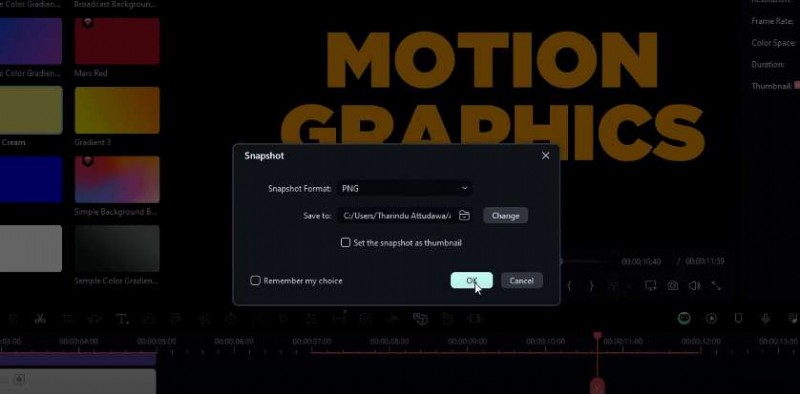
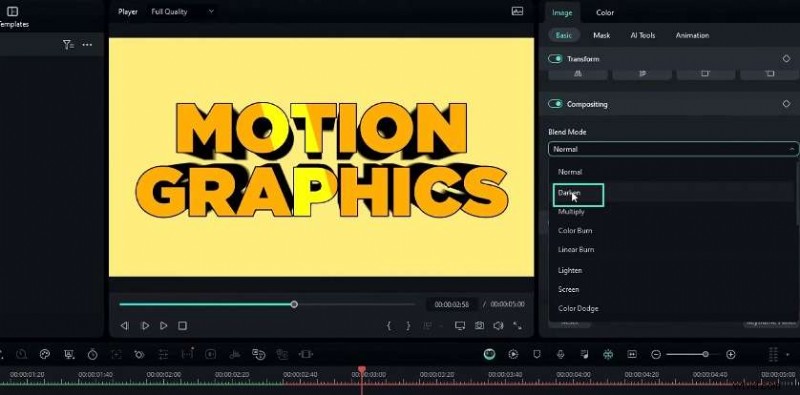
Duplicate the text layers, create a compound clip without the background, and take a snapshot. Import this snapshot as a mask onto the sweep layer. Invert the mask and set blend mode to Darken so the sweep only appears within the text boundaries.

Final Result
With the 3D layers and light sweep in place, you now have a polished, eye‑catching text animation perfect for intros, titles, and promotional content.
Further Learning
Explore the Filmora Creator Hub for additional tutorials on motion graphics and advanced visual effects. Enhance your editing skill set today.