
Have you ever wanted to create a photo-realistic mockup with a video in place of the still image? We did, and now we know the trick, we use mockups to showcase VideoScribe all the time! Mockups are a great way to showcase a website, app or design without going through the laborious build process. It helps your client or teams picture a concept and puts them in the perspective of a user with the chosen device or collateral.
You may have read our first Transforming Videos 101 piece on how to create an animated GIF from your video. Well, this instalment is specifically about how you can use video within a photo-realistic mockup using Photoshop. Like in our previous post for this series, we will be using our ‘Penne for your thoughts’ video because a) we love pasta, and b) we love puns. Check it out:
Like what you see? Did you know you can create your own whiteboard animation style videos with VideoScribe - sign up today to get access to our 7 day free trial.
Now, this edition of Transforming Videos 101 is written with an assumption that you have a basic understanding of Adobe’s Photoshop app and of course, an active Photoshop subscription.
How to create photo-realistic mockups using Adobe’s Photoshop
One of our favorite sources for free mockups is Mockupworld. These guys have stacks of free .psd mockups, from business cards to magazine covers - there’s a free mockup for every piece of your marketing collateral. In this example, we’re going to show you how to make your video ‘play’ on a device.
Step 1: Find a design that you’re happy with
We searched ‘iPad’ to find our mockup.
Step 2: Open your downloaded .psd file in Photoshop
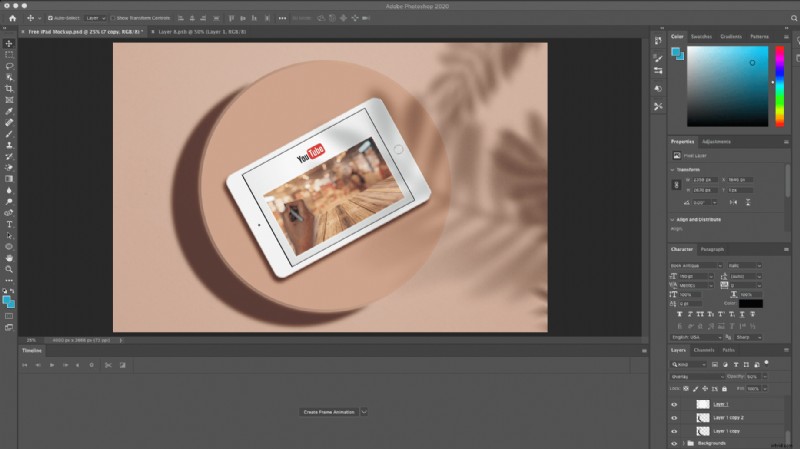
Open your chosen design in Photoshop and locate the editable screen layer.
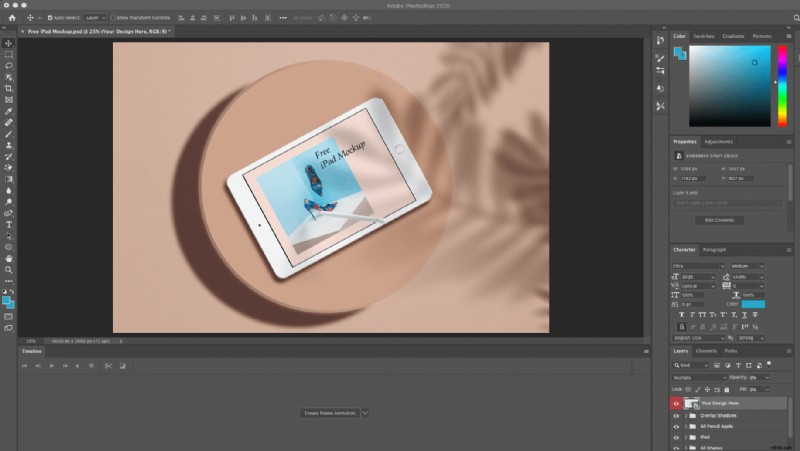
Step 3: Add a new video layer
Double click on the layer and clear the placeholder content. Once you have a blank canvas, you add in your video file. Click ‘Layer’, scroll down to ‘Video Layers’ and select ‘New Video Layer From File…’. Locate your video and import.
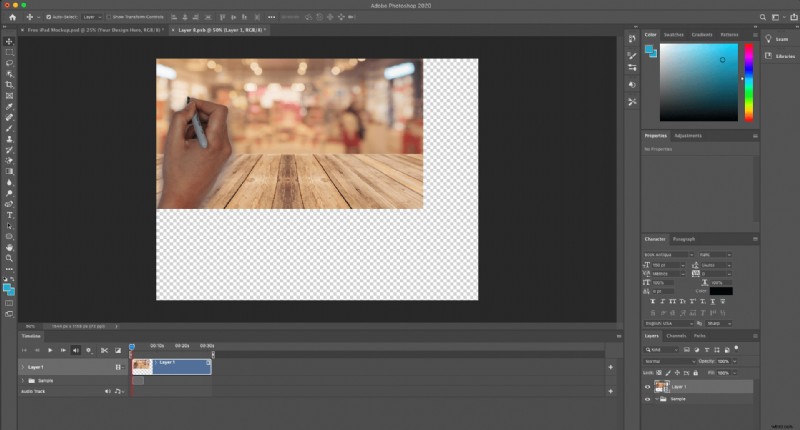
Step 4: Make the background fill the canvas
Once your video layer has been imported, adjust the size of the video so it fills the canvas. Because our video doesn’t perfectly fit the canvas size, we’re going to add in a generic iPad background so it looks as though it’s playing through YouTube.
Before:
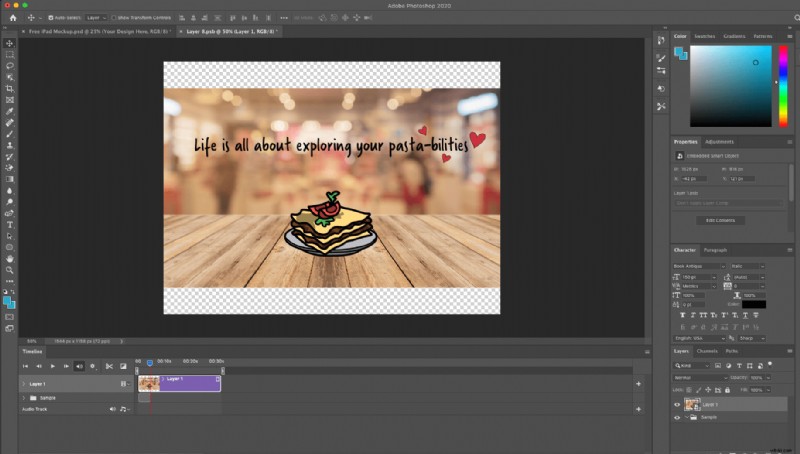
After:
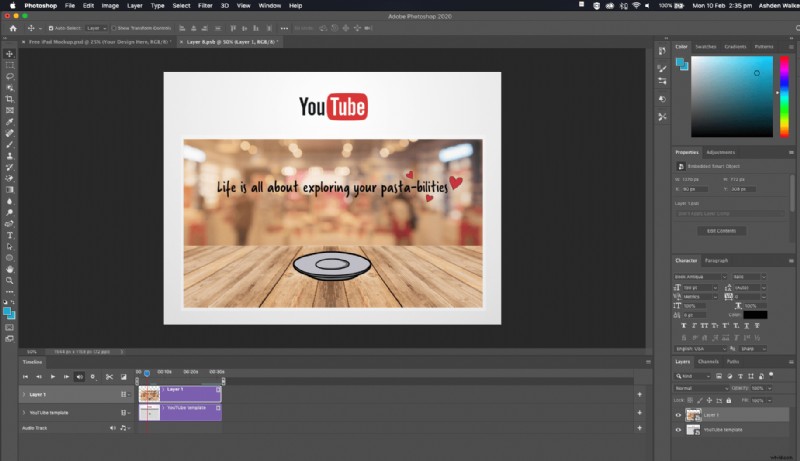
Step 5: Save your video layer
Once you are happy with the positioning of your video, click ‘Save’ and then head back to the master mockup. Here, you’ll see the video in situ of the mock.
Step 6: Adjust the timings
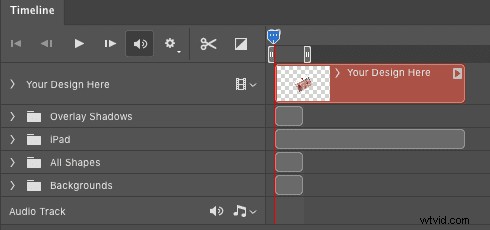
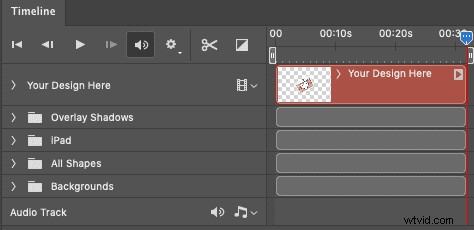
Make sure your Timeline view is visible on your master mockup screen and adjust all of your assets “run length” to the full length of your video. That way all layers - including the iPad mock, background and shadow - will be visible for the length of our video. Here’s our before and after:
Before adjusting:
After adjusting:
Step 7: Final touches and export your mockup
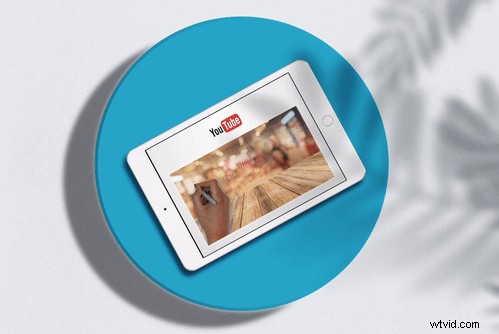
With these timeline adjustments, the video and mockup will now play alongside each other. With a few additional tweaks to the primary colors (to make it more in line with our VideoScribe brand), we’re now ready to export. Click ‘File’, ‘Export’, ‘Render Video…’, make your preferred adjustments then click ‘Render’. That’s it. Here’s our finished product, in GIF format, thanks to EZGIF:
Want to know how you can transform your video into a GIF? Read our blog post on how to create an animated GIF from your video.
How other brands have showcased using photo-realistic mockups
By now, hopefully you’ve got some ideas on how you can create a range of photo-realistic animated mockups. But in case you’re lacking in the inspiration department, we’ve done some digging and found three examples of other brands using photo-realistic animated mockups.
Apple
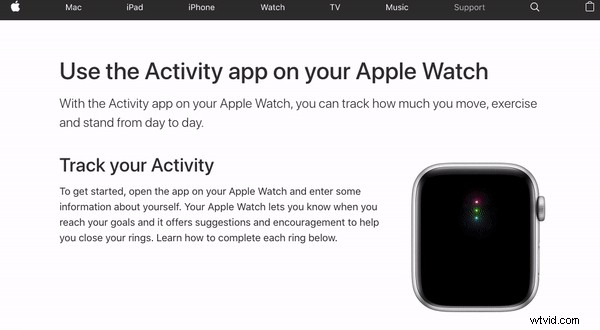
In this Activity support article by Apple, the Apple Watch loads with a blank face. After 3 seconds the activity rings load and you get a full idea of how you’d be tracking your activity with the Apple Watch and the Activity app. Very nice execution by Apple with an infinitely looping GIF to showcase the users experience with the watch face.
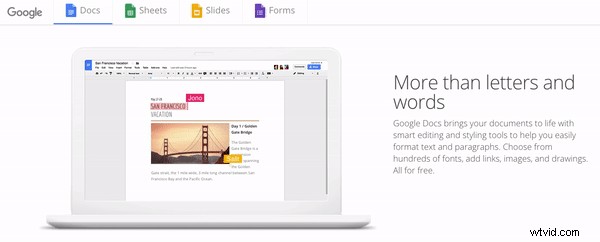
Google has showcased the collaborative use of Google Docs very cleanly on their About page. The white laptop mockup plays host to an example of multiple contributors editing a Google Doc in real time. Like Apple, they have also opted for an infinite loop with this animation.
Venmo
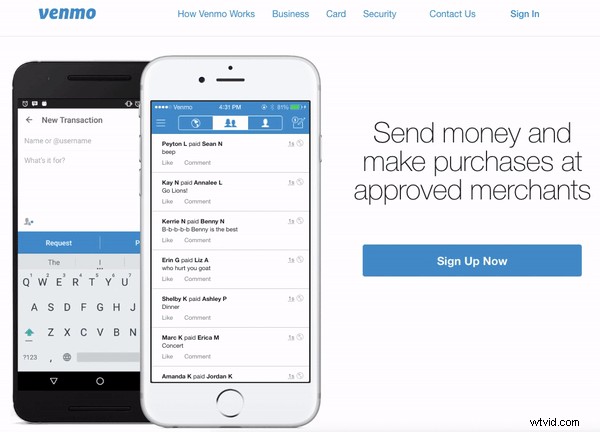
The final example we're showcasing is by Venmo. These guys make paying back friends and family easy and their animated mockups showcase the user interface in action.
Regardless of how you choose to use your animated photo-realistic mockup, the main thing is, now you know how to do it! Keep your eyes peeled for our upcoming blogs in the Transforming Videos 101 series, with the next release suited for the presenters and pro-PowerPoint users among us.
If you’d like to create a similar video about how much you love pasta, pizza, or just the Italian cuisine in general like us, sign up to your 7 day free trial with VideoScribe.