Every filmmaker knows the frustration of a sluggish edit—timeline stutters, previews freeze, and render times feel endless. The root of these headaches isn’t a lack of skill; it’s a machine that can’t keep pace with modern workflows. This guide explains the key bottlenecks, what truly matters in a video‑editing computer, and how to select the right system for your specific needs.
Whether you’re cutting YouTube content or color‑grading a feature film, the right hardware foundation will save you hours and preserve your creative flow.
Need more gear ideas? Visit our gear guide hub page for a full catalog across all categories.

The Problem: Why Most Computers Fail Modern Video Editing
4K footage, multiple effects layers, and real‑time color grading demand simultaneous decoding, rendering, and memory management. Ordinary laptops or budget desktops can handle web browsing and gaming, but once you scrub a timeline they grind to a halt. The result? Lost productivity and stifled creativity.
- Timeline stuttering disrupts timing decisions.
- Dropped frames hide the final look.
- Long render times turn quick edits into overnight chores.
- Crashes and freezes risk lost work.
- Inability to multitask forces you to close other programs.
But you don’t need a $5,000 Hollywood workstation to achieve smooth editing—understanding the real performance drivers is key.
What’s Really Causing Your Computer to Struggle
The most common pitfalls center on four critical bottlenecks. Most users focus on the wrong ones.
Bottleneck #1: Insufficient Processing Power
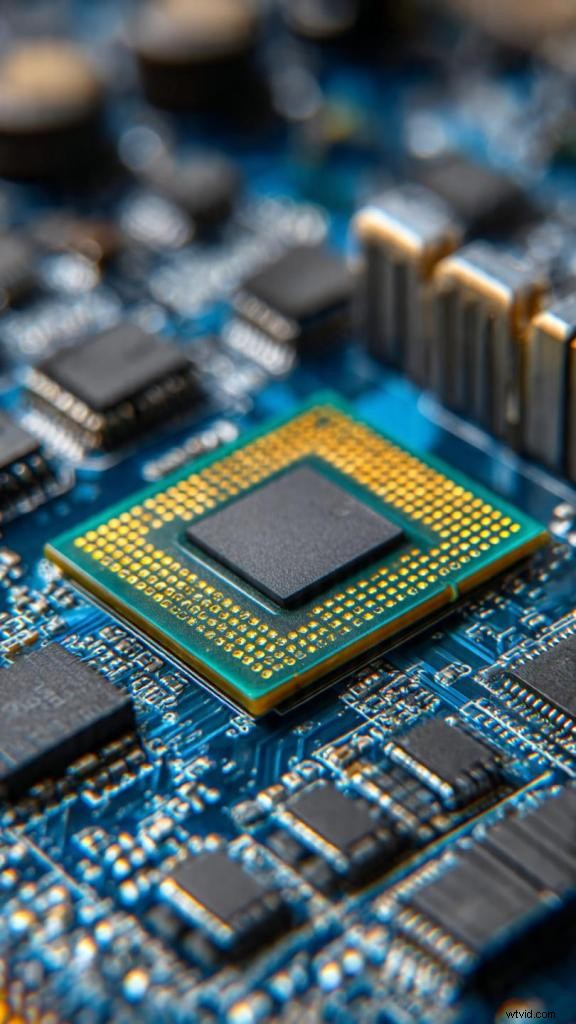
Your CPU coordinates decoding, effect application, and frame preparation. A processor lacking cores or clock speed will throttle the entire workflow.
Example: On a dual‑core system, a simple transition took 30 seconds. Switching to an 8‑core CPU made the same task instantaneous.
Bottleneck #2: RAM Shortages
RAM is your on‑board workspace. When it fills, the system resorts to slow disk paging.
Recommendation: 16 GB minimum for 1080p; 32 GB ideal for 4K; 64 GB+ for 8K, heavy After Effects, or multi‑app sessions.
Bottleneck #3: Limited GPU Acceleration
Modern editors leverage GPU power for real‑time effects, color grading, and encoding. Integrated graphics leave large performance gaps, especially with 4K+ content.
Bottleneck #4: Slow Storage
Even a fast CPU and GPU will choke if data can’t be fed quickly. Traditional HDDs lag; SSDs deliver the required throughput.
The Solution: What Actually Matters in a Video‑Editing Computer
Focus on these components, and you’ll build or buy a machine that works like a well‑tuned engine.
Mac vs. Windows: The Real Talk
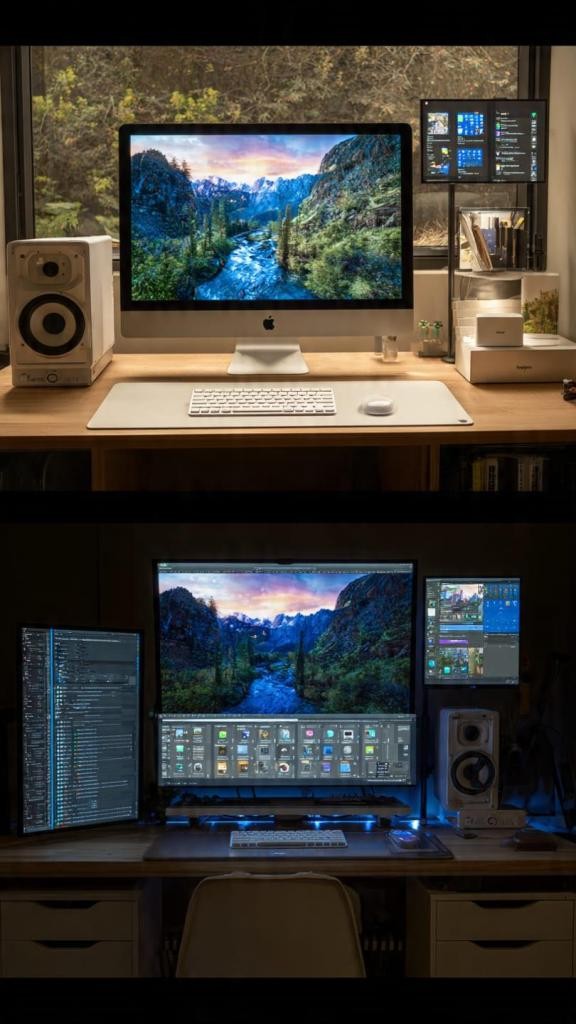
Both platforms can handle 2025/2026 editing workloads.
- Mac: Stable, excellent color management, and native support for Final Cut Pro. The M4/M3 chips deliver desktop‑class performance. Premium pricing but no upgrade path.
- Windows: Greater performance per dollar, upgradeable hardware, and broad software compatibility. Requires occasional driver tweaks.
Choose Mac if you’re invested in Apple’s ecosystem or need Final Cut Pro; choose Windows for maximum flexibility and budget control.
The Essential Components Breakdown
Processor (CPU)
- 1080p: Intel Core i5 or AMD Ryzen 5 (6‑8 cores)
- 4K: Intel Core i7/i9 or AMD Ryzen 7/9 (8‑12 cores)
- 6K/8K: Intel Core i9, AMD Ryzen 9, or AMD Threadripper
RAM
- 16 GB minimum for 1080p
- 32 GB ideal for 4K
- 64 GB+ for 8K or heavy After Effects
Graphics Card (GPU)
- Budget ($200‑300): NVIDIA RTX 3060 12 GB
- Mid‑range ($400‑600): RTX 4060 Ti or RTX 4070
- Professional ($700+): RTX 5080 or RTX 5070 Ti
CUDA support makes NVIDIA the safest bet for Premiere Pro and After Effects.
Storage
- System drive: 500 GB SSD minimum, 1 TB recommended.
- Project drive: 1‑2 TB SSD for active files.
- Archive drive: HDDs for completed projects.
Use USB 3, Thunderbolt, or USB‑C for external storage to maintain transfer speeds.
Monitor
- 1080p: 24‑27″, consider 1440p for more workspace.
- 4K: BenQ PD2725U (95 % P3, 100 % sRGB).
- Color‑critical: Apple 32‑inch Pro Display XDR (6K, precise P3).
Choosing Your Perfect Editing Computer
Step 1: Define Your Actual Needs
- Resolution: 1080p vs. 4K vs. 6K/8K
- Complexity: Basic cuts vs. heavy grading
- Volume: Occasional vs. daily editing
- Software: Premiere Pro, Final Cut Pro, DaVinci Resolve, etc.
Step 2: Choose Your Platform
- Mac: Final Cut Pro, Apple ecosystem, streamlined experience.
- Windows: Best performance per dollar, upgradeable, Windows‑only tools.
Step 3: Set Your Budget Range
- $800‑1,200: Entry‑level, 1080p‑centric, basic 4K.
- $1,500‑2,500: Sweet spot for serious 4K work.
- $2,500‑4,000: Professional 4K/6K with effects.
- $4,000+: High‑end 8K and VFX workstations.
Step 4: Prioritize Your Spend
- Highest priority: CPU and RAM.
- Medium priority: GPU and primary SSD.
- Lower priority: Aesthetics, RGB lighting.
2025’s Best Video‑Editing Computers (Tested & Recommended)
Best Overall Desktop: Apple Mac Studio (M3 Ultra)
28‑core CPU, 60‑core GPU, 96 GB unified memory, 1 TB SSD. Handles 24× 8K ProRes streams with ease. Price: ~$3,999+. No upgrade path—buy at full spec.
Best Windows Desktop: Dell Precision 3660
12th‑gen Intel Core i7, 16 GB DDR5, 512 GB NVMe SSD, NVIDIA RTX A2000. Price: ~$1,600. Excellent upgradeability.
Best Budget Desktop: Apple iMac 24″ (M4)
8‑core CPU, 8‑core GPU, 4.5K Retina display. Ideal for beginners and small spaces. Price: ~$1,299. All‑in‑one, no upgrades.
Best Laptop Overall: Apple MacBook Pro 16″ (M4 Pro)
Desktop‑class performance, 17‑hour battery life, portable. Price: ~$2,499. Perfect for on‑location editing.
Best Budget Laptop: ASUS ProArt P16
RTX 50‑series GPU, OLED 4K display (ΔE < 1), 1,600 nits HDR. Price: ~$1,499. Strong color accuracy, moderate battery life.
Best Gaming PC for Editing: MSI Aegis ZS
13th‑gen Intel Core i7, RTX 3060, 16 GB DDR5, 512 GB SSD + 1 TB HDD. Price: $1,200‑1,500. Upgrade‑friendly.
Best All‑in‑One for Creators: Microsoft Surface Studio 2+
28‑inch PixelSense touchscreen, solid GPU, compact design. Price: ~$3,499. Touchscreen workflow for precise editing.
Essential Upgrades & Accessories
Monitor Calibration Tools
Datacolor SpyderX Pro ($179) or X‑Rite i1Display Pro ($269). Accurate color grading starts with calibration.
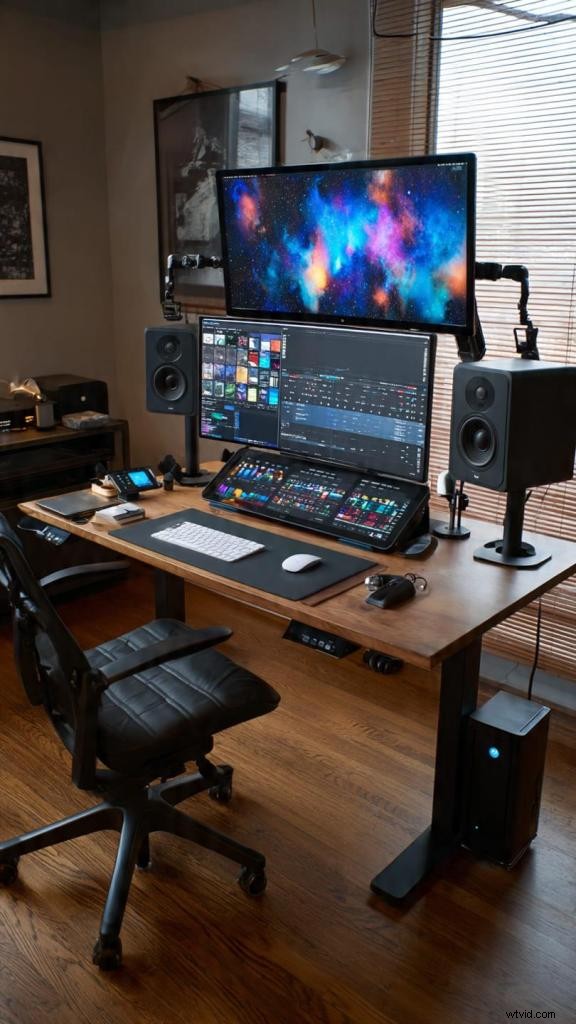
Quality Monitor Speakers
Studio‑grade options: Mackie CR Series or PreSonus Eris (≈$100–150/pair).
External Storage Solutions
- Active projects: Samsung T7/T9 portable SSDs (1‑2 TB).
- Archive: Western Digital or Seagate external HDDs (4‑8 TB).
Ergonomic Essentials
- Ergonomic chair
- Adjustable monitor arm
- Standing desk converter (if needed)
Input Devices for Precision
- Editing keyboard: Loupedeck Live
- Mouse: Logitech MX Master series
- Graphics tablet: Wacom tablets
Frequently Asked Questions
Q: Can I edit 4K video on a laptop? Yes—modern laptops with enough RAM (≥16 GB) and a dedicated GPU can handle 4K projects. The MacBook Pro 14 (2024) is a proven example.
Q: Do I really need a Mac for professional editing? No. Windows workstations match Macs in capability; the choice depends on software ecosystem and personal preference.
Q: How much should I spend? $1,500‑$2,500 is solid for 4K; $800‑$1,200 suffices for 1080p; budget above $4,000 is reserved for 8K and VFX workloads.
Q: Can I upgrade my current computer? Desktops are usually upgradeable; laptops and Apple Silicon Macs are limited. If the system is >5 years old, a new build is often wiser.
Q: More RAM or a faster CPU? Prioritize RAM up to 32 GB, then invest in a faster CPU. Both are essential, but RAM prevents crashes; CPU affects export speed.
Q: Do I need a 4K monitor to edit 4K? Not strictly, but a calibrated 4K display is invaluable for color grading and fine detail.
Q: How important is GPU VRAM? Critical: 4 GB for 1080p, 8 GB for 4K, 12 GB+ for 6K/8K or heavy effects.
Q: Build a custom PC or buy prebuilt? Custom PCs offer better value and precise component selection; reputable prebuilt systems (Dell, HP, Apple) provide warranty and support.