
Need a free, reliable way to rotate, flip, or re‑frame your footage? This guide walks you through the easiest steps to adjust video orientation in Shotcut and introduces Wondershare Filmora as a streamlined alternative. Whether you’re correcting a 90°, 180°, or 270° rotation, mirroring a clip, or converting a vertical video to horizontal, you’ll find clear instructions and helpful tips here.
In this article
- Overview of Shotcut Video Editor
- Rotating Video in Shotcut (90°, 180°, & 270°)
- Flipping or Mirroring a Video with One Click
- Converting Vertical to Horizontal and Removing Black Bars
- Wondershare Filmora – A Simplified Alternative for Video Rotation
Overview of Shotcut Video Editor
Shotcut is a free, open‑source editor that delivers a solid set of tools for basic and intermediate video work. Its feature set includes:
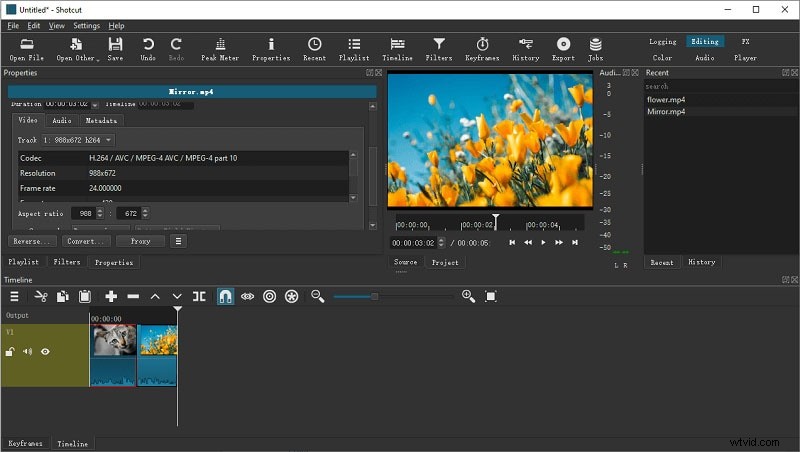
- Video Capture: Record from screen, webcam, or external mic with support for up to 4K resolution.
- Standard Editing: Trim, cut, copy, paste, and keyframe effects. Proxy editing keeps high‑resolution workflows smooth.
- Audio Tools: Apply filters for volume control, mixing, tone generation, and pitch adjustment.
- Video Effects: Blend modes, track compositing, transitions, 360° filters, reverse playback, and scopes.
- Wide Format Support: Edit audio, video, and photo files from multiple codecs, with network streaming and alpha‑channel handling.
Shotcut’s versatility makes it an excellent choice for anyone looking for a no‑cost, open‑source editor.
Rotating Video in Shotcut (90°, 180°, & 270°)
Rotating footage in Shotcut is straightforward. Follow these steps to adjust orientation quickly:
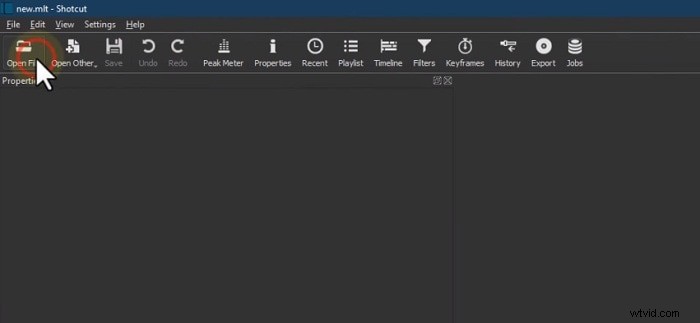
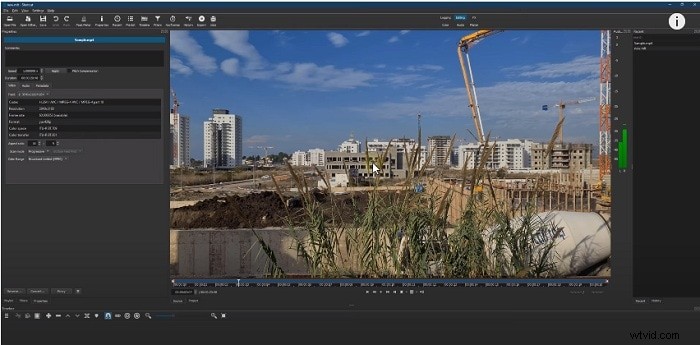
- Open a new project and import your video.
- Drag the clip onto the timeline.
- Open the Filters panel and click the “+” icon.
- Search for “Rotate” and select “Size, Position & Rotate.”
- Adjust the rotation angle: Use the slider or type a numeric value to rotate by 90°, 180°, or 270°.
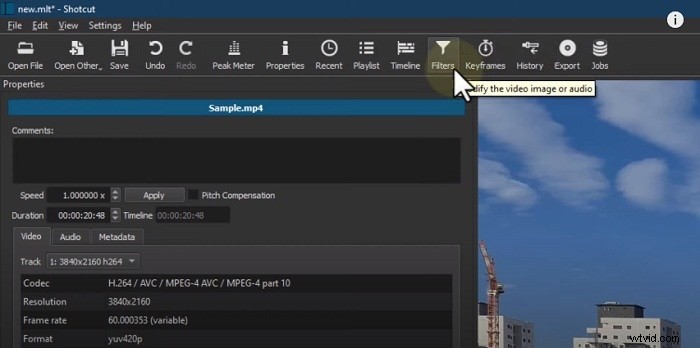

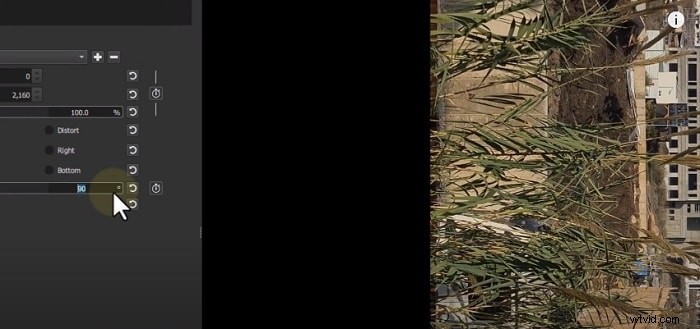
Flipping or Mirroring a Video with One Click
Mirroring is just as easy. Use the Mirror filter to flip your footage horizontally or vertically:
- Follow steps 1–3 from the rotation guide.
- Search for “Mirror.”
- Apply the filter; your clip will flip automatically.
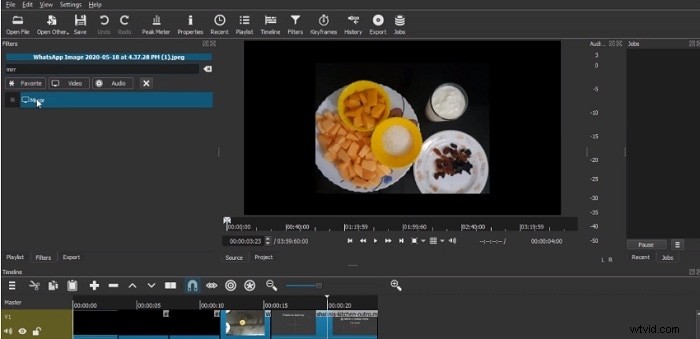
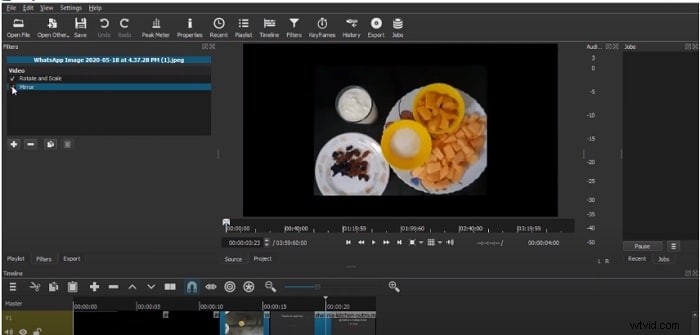
Converting Vertical to Horizontal and Removing Black Bars
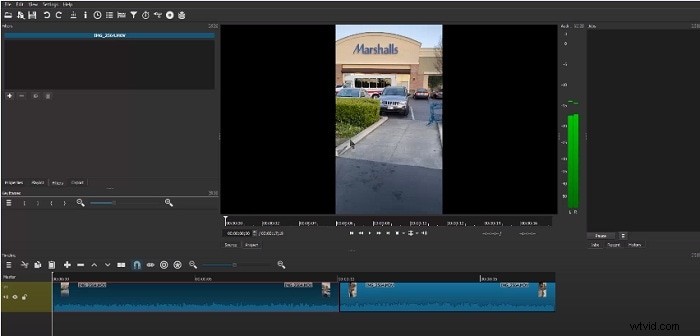
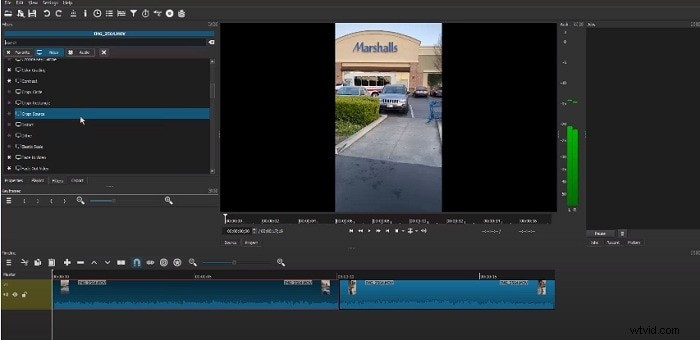
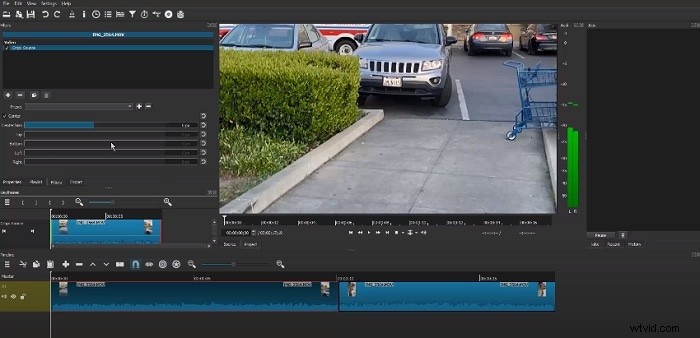
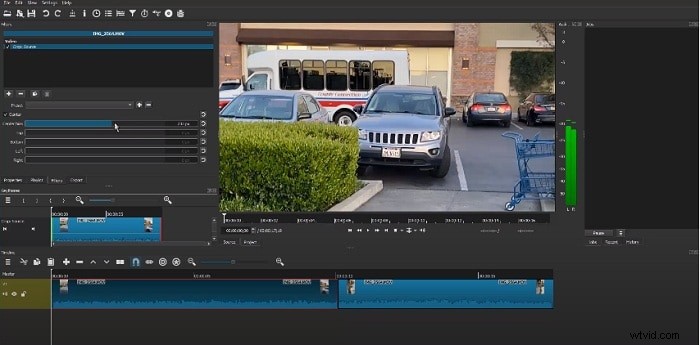
To transform a portrait clip into a landscape format without black bars, use the Crop Source filter:
- Drag the video onto the timeline.
- Open Filters, click “+”, and search for “Crop Source.”
- Toggle Center to remove padding.
- Adjust the crop to focus on the desired area.
Wondershare Filmora – A Simpler Alternative for Video Rotation
While Shotcut is powerful, its filter‑based workflow can feel cumbersome for newcomers. Wondershare Filmora offers a streamlined, one‑click interface that simplifies rotation and flipping:
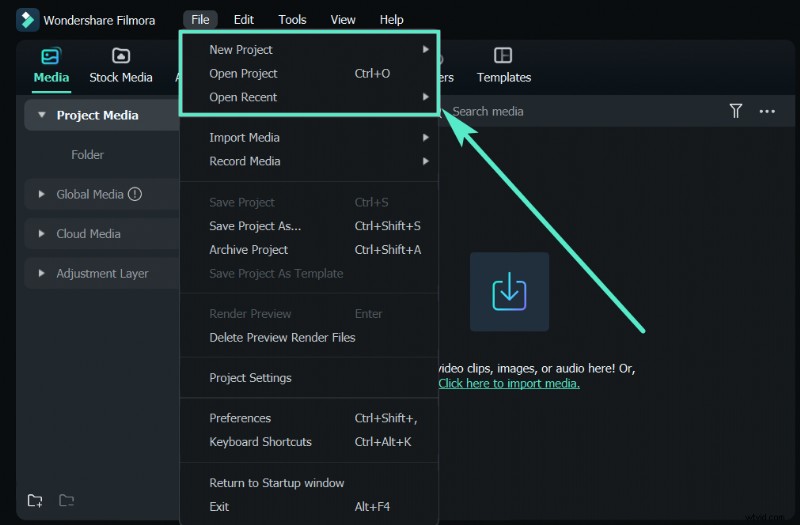
- Rotate by 90°, 180°, or 270° with a single click.
- Flip horizontally or vertically instantly.
- AI tools like Portrait Cutout, Auto Reframe, and Beat Sync accelerate creative workflows.
- Thousands of built‑in effects, templates, and a vast stock media library.
How to Rotate or Flip a Video in Filmora
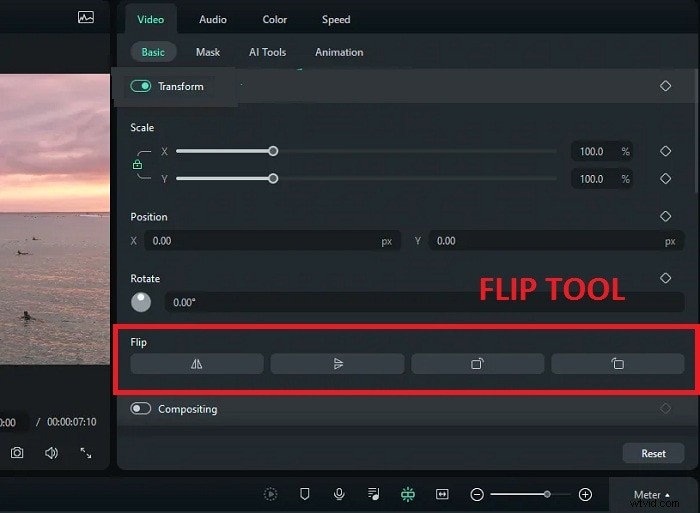
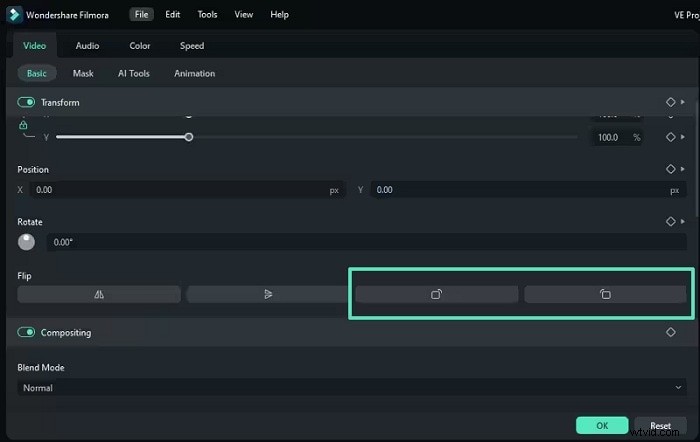
- Select Flip Horizontal or Flip Vertical in the Flip section.
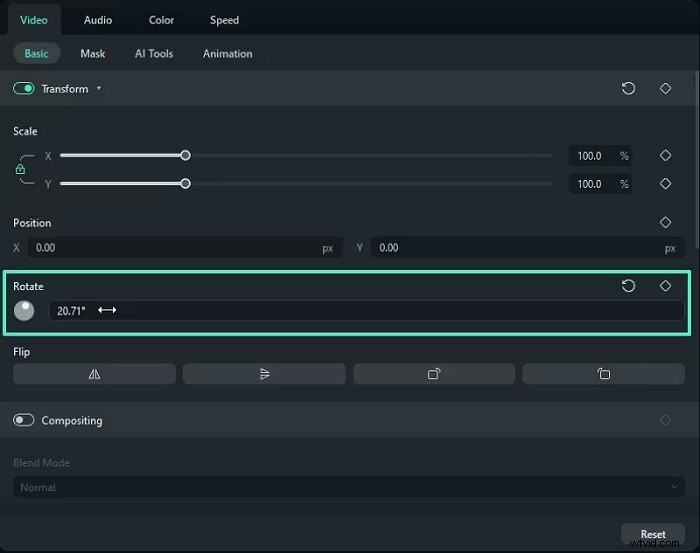
- Choose Clockwise or Counterclockwise in the Rotate section.
- Enter a specific angle or drag the rotation knob to achieve the exact orientation.
Turning a Vertical Video into Horizontal with Filmora
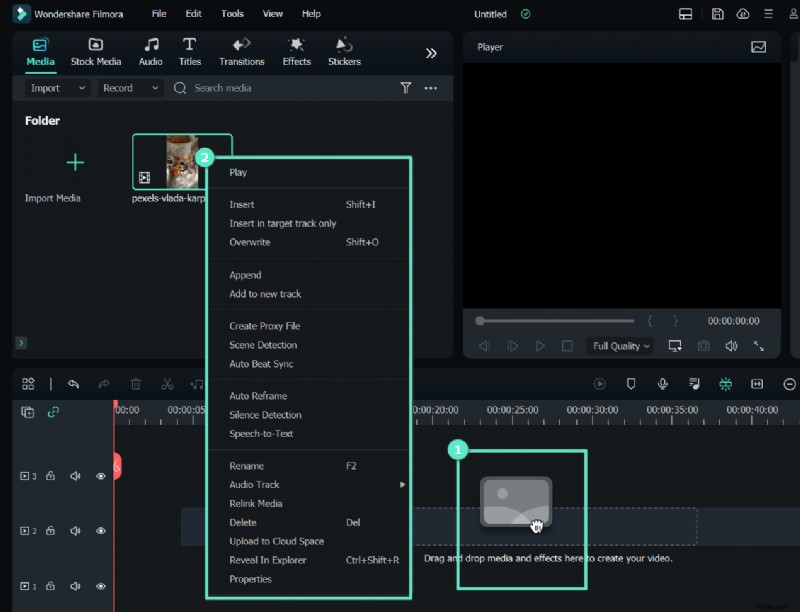
- Open Filmora and import your clip.
- Drag the clip onto the timeline.
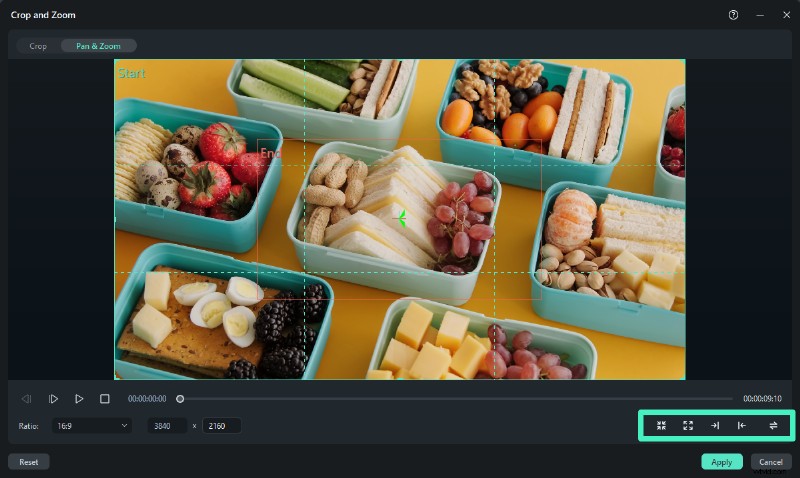
- Right‑click the clip, choose Crop & Zoom.
- Set the aspect ratio to 16:9.
- Confirm the crop, and your video is now landscape.

Feature Comparison: Shotcut vs. Filmora
| Ease of Use | Filter‑based; requires menu navigation. | One‑click buttons; beginner‑friendly. |
| Rotation & Flip | Manual slider or numeric input; separate filter for mirroring. | Dedicated buttons for 90°, 180°, 270° rotation and instant flip. |
| Key Features | Core editing tools; limited advanced options. | AI Portrait Cutout, Auto Reframe, Beat Sync, extensive effects library. |
| Ideal For | Users comfortable with free, open‑source tools. | Beginners and creators seeking rapid, high‑quality results. |
| Platforms & Pricing | Free, Windows, Mac, Linux. | Free trial, Windows & Mac; paid plans remove watermark. |
Conclusion
Both Shotcut and Wondershare Filmora enable you to rotate, flip, and re‑frame your videos with minimal effort. Choose the tool that best matches your workflow—Shotcut for a zero‑cost, open‑source solution, or Filmora for an intuitive, feature‑rich experience.

Filmora – ⭐⭐⭐⭐⭐
The Best AI‑Powered Video Editing Software and App
FAQ
-
How to rotate a video in Shotcut?
Import the clip, add the Size, Position & Rotate filter from the Filters panel, and set the desired angle.
-
How to rotate a video in Shotcut by 90°?
Apply the same filter and enter 90 (or –90 for counter‑clockwise) in the degree field.
-
How to flip or mirror a video in Shotcut?
Use the Mirror filter; choose horizontal or vertical flip as needed.
-
Can I make a vertical video horizontal in Shotcut?
Yes—apply the Crop Source filter, enable Center, and adjust the crop to remove black bars.
-
Is Shotcut free for video rotation?
Shotcut is open‑source and free; it offers rotation, flipping, and editing without watermarks or export limits.
-
What’s the best alternative to Shotcut for rotating videos?
Wondershare Filmora provides a more intuitive, one‑click rotation interface and AI enhancements.