
Captured a fantastic horizontal clip but want it in vertical format for TikTok or Instagram Reels? Convert your footage to a 9:16 ratio with just a few clicks—no apps, no hassle.
9:16 is the portrait orientation that dominates mobile‑centric platforms such as TikTok, Instagram Reels, YouTube Shorts, Snapchat, and more. It is the direct opposite of the traditional 16:9 landscape format.
Today’s web‑based editors make video cropping lightweight and instant. You can trim your clips to a portrait frame in seconds, all within your browser—no downloads required.
This guide walks you through the entire process on any device—PC, Mac, Android, iPhone, or tablet—using Clideo’s free online editor.
Table of contents
- What is the 9:16 aspect ratio?
- How to crop your video to 9:16 using Clideo
- Tips for cropping videos like a pro
- Frequently asked questions
- Conclusion
What is the 9:16 aspect ratio?
Aspect ratio is the proportional relationship between a frame’s width and height. The three most common ratios are:
- Landscape (16:9)
- Portrait (9:16)
- Square (1:1)
As mobile usage surged, vertical videos became the norm for scrolling feeds. Today, platforms expect 9:16 content to deliver a natural viewing experience on handheld devices.
It’s important to distinguish cropping from trimming. Cropping removes portions of a frame to alter the aspect ratio, whereas trimming shortens the timeline. Clideo’s Video Editor handles both functions.
Whether you need to meet the format requirements of YouTube Shorts, Instagram Stories, or TikTok, or simply correct a camera that recorded in the wrong orientation, 9:16 cropping ensures your footage displays correctly on mobile screens.
How to crop your video to 9:16 using Clideo
Clideo offers two web‑based tools—Video Editor and Video Cropper—that let you resize footage without installing software.
Below is a step‑by‑step walkthrough using the Video Editor, which also supports trimming and other edits.
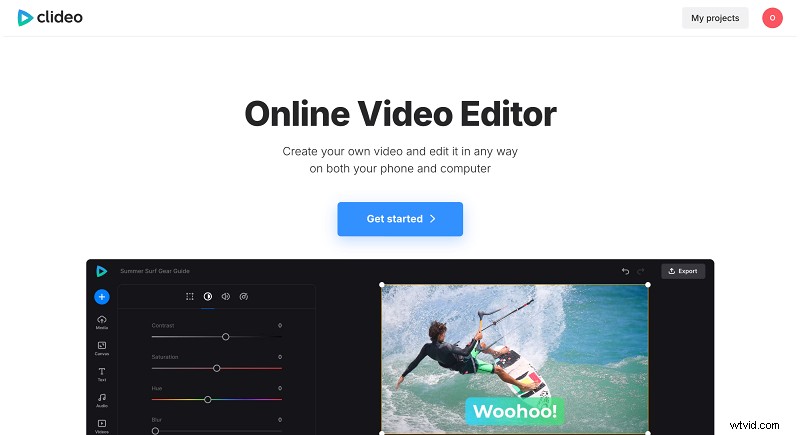
Follow these three simple steps:
-
Upload your video
Launch Clideo’s Video Editor in any modern browser and click “Get started.” Drag your file from your camera roll, computer, or cloud storage onto the canvas. Supported formats include MP4, AVI, MOV, and WMV.
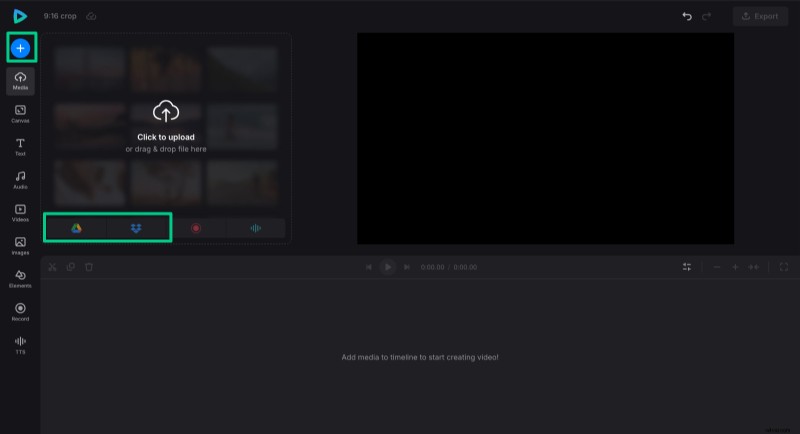
-
Crop to 9:16
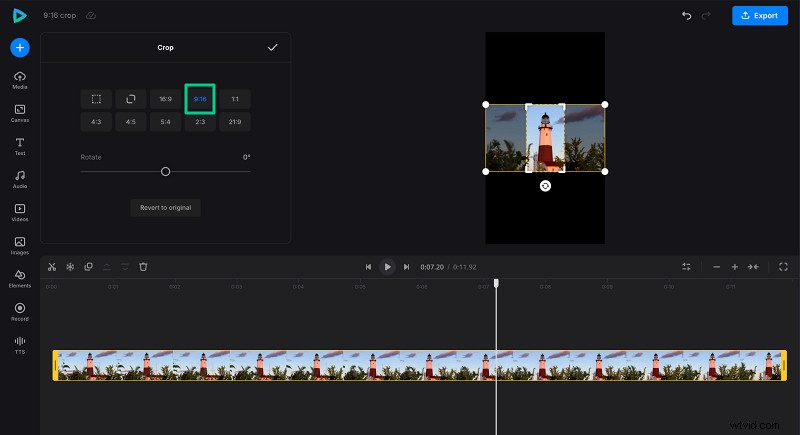
In the “Canvas” tab, set the canvas size to 9:16. Then, open the clip’s settings by clicking it on the timeline, go to the “Transform” tab, and select the crop icon.
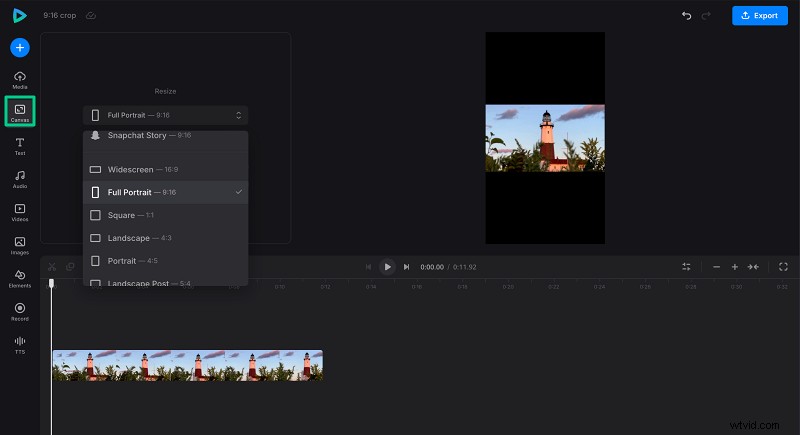
Choose the preset 9:16 ratio or switch to “freeform” to manually drag the crop handles. Confirm your selection with the checkmark.
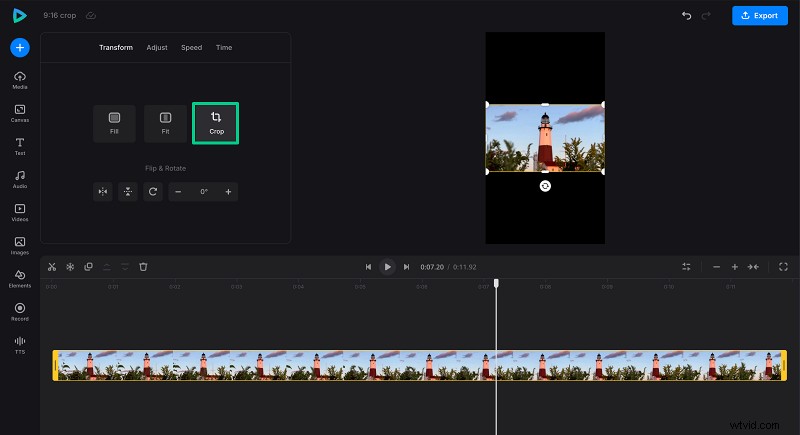
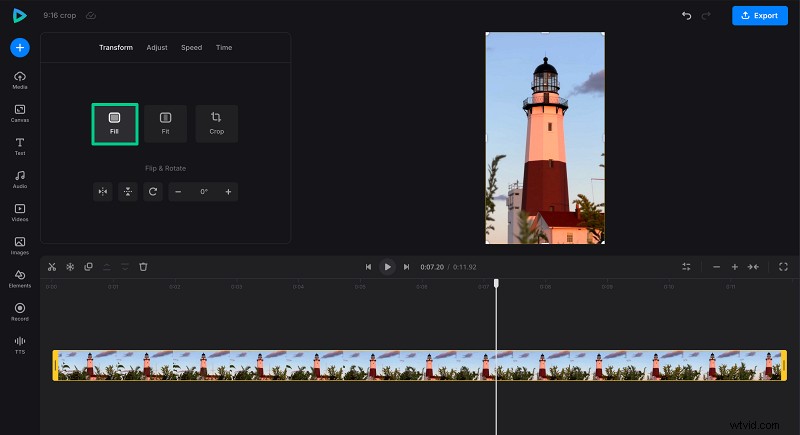
Finally, click “Fill” so the cropped area perfectly matches the canvas.
-
Export the edited video
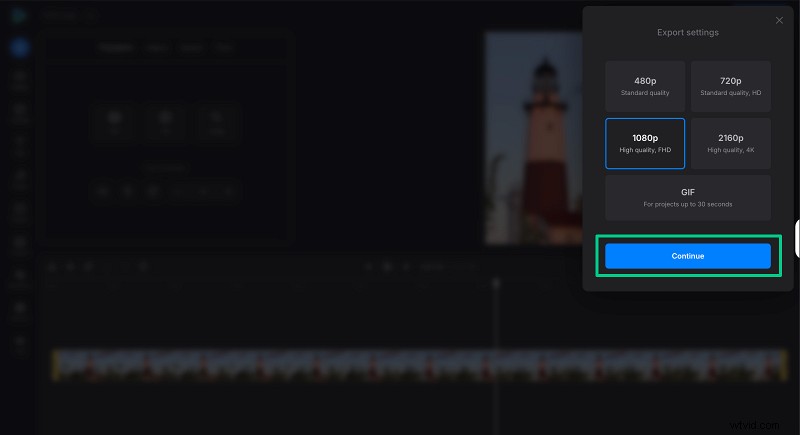
Click “Export” and choose the desired output quality. The tool defaults to MP4, and for clips under 30 seconds you can also create an infinite GIF.
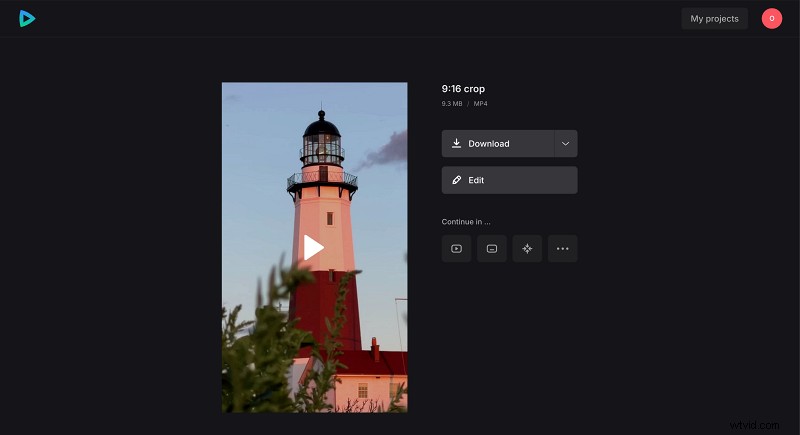
After processing, download the file or save it to your preferred cloud location. The export screen also displays the final file size.
For additional details on Clideo’s features, consult the Help Center.
Tips for cropping videos like a pro
While “video cropper” isn’t an official title, these best practices can help you achieve clean, engaging results.
- Match the platform’s specifications—YouTube uses 16:9, while Facebook’s feed prefers 1:1.
- Avoid black bars or clipped subjects—ensure key visuals remain within the frame.
- Use preset ratios when available—platforms often provide the correct template.
- Crop early in the workflow—start with the right orientation from the outset.
Remember that cropping differs from trimming (reducing the timeline) and resizing (altering dimensions without removing content). Choose the appropriate tool for your goal.
Frequently asked questions
Can I crop a video to 9:16 without installing anything?
Yes—Clideo’s online cropper runs entirely in the browser.
What video formats does Clideo support?
Clideo accepts MP4, MOV, AVI, MKV, and several other common formats.
Can I crop videos directly from my phone?
Absolutely—Clideo works on any device with a modern browser, including Android and iOS.
How do I select the desired area when cropping?
Choose a preset ratio like 9:16 for TikTok or Instagram, or manually adjust the crop box to focus on key elements.
Can I crop to custom dimensions?
Yes—Clideo’s Crop Video tool lets you set pixel‑exact dimensions for any platform or custom need.
Conclusion
Whether you’re posting on TikTok, Instagram Reels, or YouTube Shorts, cropping to 9:16 gives your content a natural feel on mobile screens. Clideo simplifies the process, letting you crop, adjust, and export your footage in just a few clicks.