
You’re at a point where you’re ready to move on from iMovie’s simple editor onto something that can do more (without being too hard to figure out). We tried and listed 7 beginner friendly iMovie alternatives you can try to save you the hassle of trial and error.
| iMovie Alternatives for Beginners Click to skip to tool |
|
|---|---|
| Tool | Description |
| VEED | Best for creators who want to make videos like a pro minus the learning curve |
| Movavi | Best online editor for remote learning and creating basic videos for work |
| Adobe Express | The tool with the biggest library of thousands of templates |
| Animoto | Most affordable premium versions and easiest drag-and-drop video creation app |
| WeVideo | Basic video editor perfect for casual content creators |
| Filmora | Best for creators who want advanced features and are willing to spend time to learn the tool |
| Promo | Simple tool for creating video ads |
Beginner-Friendly iMovie Alternatives
Whether you just need to make one video or you need to make a lot of content for yourself or your business these are the best tools to get the job done as quickly and easily as possible.’
[#TOC1]1. VEED (Browser-Based)[#TOC1]
Best for creators who want to make videos like a pro minus the learning curve
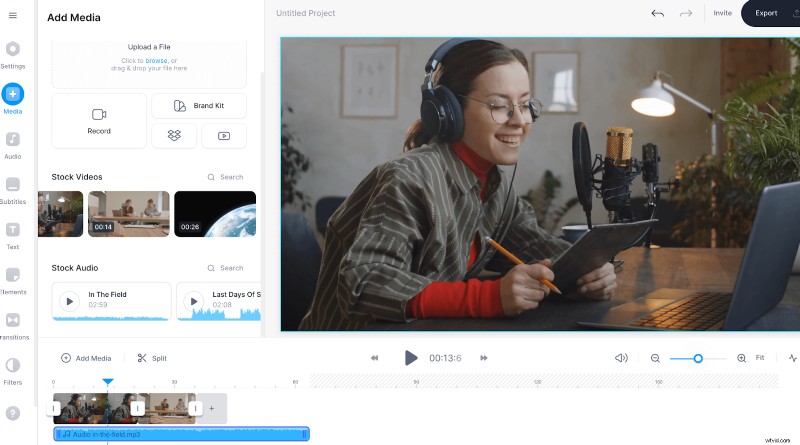
VEED lets you easily add photos, videos, audio, and more using its simple drag-and-drop feature. You can even automatically add subtitles.
It’s a great all-in-one video editor featuring tools you don’t normally get on browser-based apps. These include text animations, translations, green screen, one-click audio cleanup, and more. Access it anywhere from your desktop or laptop. Less fuss; less time wasted!
Pricing: Free with paid plans start at $12/mo
| Pros | Cons |
|---|---|
| All-in-one tool to record, edit, save, share, and collaborate on video | Free features may not be enough for the heavier content creators |
| Automatic subtitles and translations | Mobile app not yet available |
| Features auto-subtitles and translations | |
| Resize your video for all major social platforms | |
| Includes library of stock music, sound effects, video footage, and video templates |
[#TOC2]2. Movavi (Mac and Windows)[#TOC2]
Best online editor for remote learning and basic videos for work
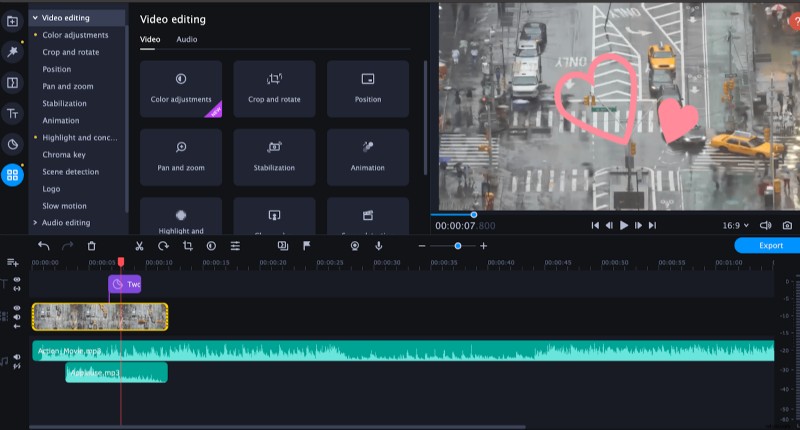
Because visually Movavi looks so similar to iMovie it’s often a popular initial choice. It shares a similar downside where the preview panel fills only half of the right side of the screen.
However, you do get more customization optionst than iMovie. And it’s highly recommended to educators and professionals who need to make videos for work.
You can do basic video editing like color correction, stabilization, apply filters, and crop and rotate your video. It also offers extras that iMovie doesn’t have like stickers, floating objects filters, and personalized logos. Plus, you will have access to a free library of stock media.
Pricing: Starts at $57/month
| Pros | Cons |
|---|---|
| More video customization options than iMovie | Small preview panel |
| Lets you add logos | Expensive (trial version available) |
| Access to free stock media | Interface and uploading media to the editor can be quite confusing |
| Reliable screen recorder | No subtitle feature |
| Big app size (about 80MB) |
[#TOC3]3. Adobe Express (Browser-Based)[#TOC3]
The tool with the biggest library of thousands of templates
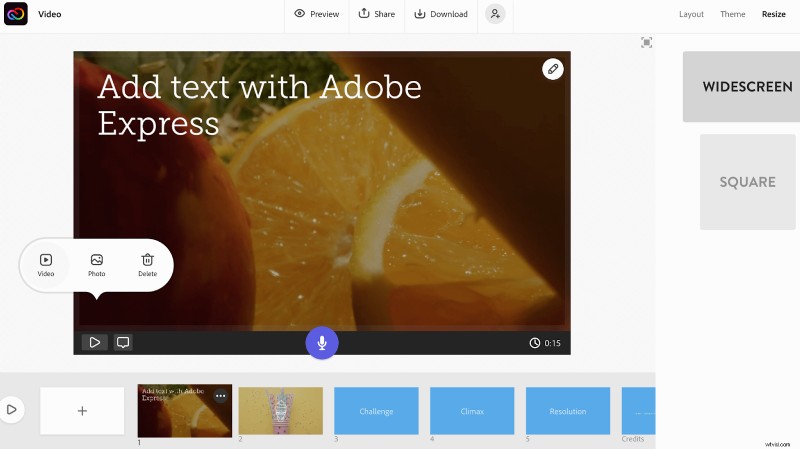
If you need to create a video presentation that focuses more on slides, Adobe Express is a suitable free iMovie alternative. It doesn’t have a lot of the fancy video editing features but you’ll have easy access to free stock videos, images, and icons that you can put together to create a presentation.
This app is quite limited when it comes to customization. You can only resize your video to widescreen or square. It’s also difficult to edit elements on the screen and there’s no editor timeline to easily move things around.
Pricing: Free
| Pros | Cons |
|---|---|
| Lets you easily create video presentations with slides for free | Extremely limited video editing features |
| Access to an extensive library of free media | No video filters |
| Browser-based | No editor timeline |
[#TOC4]4. Animoto (Browser-Based)[#TOC4]
Most affordable and easiest drag-and-drop video creation app
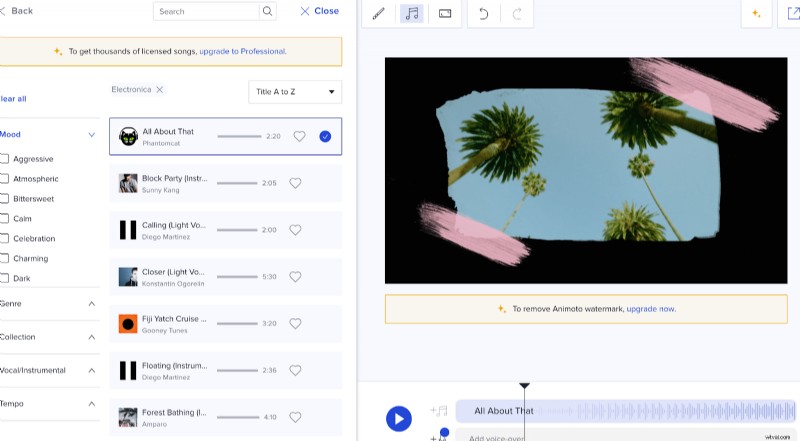
Like Adobe Express, Animoto has easy-to-customize video slide templates. And unlike Adobe Express, it has a timeline where you can see each of your uploaded media separately. Plus, you can drag and drop files hassle-free into the editor.
If you don’t want to make a lot of creative decisions on how you customize a video from scratch then this is the best free iMovie alternative for you.
One really fun feature that stands out is the theme picker that lets you design and style your video in just one click. Change the background color, add frames, plus you also get access to a wide range of stock videos and audio clips. The biggest drawback is the massive Animoto branding displayed on your video if you have a free account.
Pricing: Free with paid plans starting at $8/mo
| Pros | Cons |
|---|---|
| Easy-to-customize video presentation slides | Limited video editing tools |
| Theme picker (change your video’s design in one click) | Free version offers very few stock media and fonts |
| Stock audio and video library | Huge Animoto branding on videos for free accounts |
[#TOC5]5. WeVideo (Browser-Based)[#TOC5]
Basic video editor perfect for casual content creators
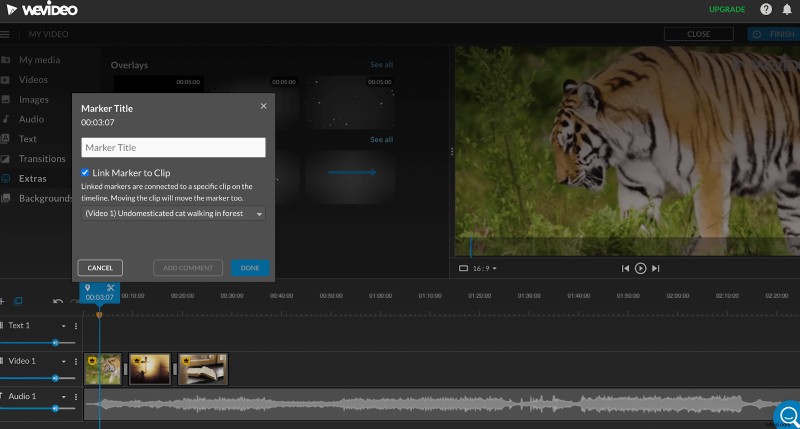
WeVideo features two editing interfaces: the simplified editor and full-featured editor. The two aren’t very far from each other, and if you’re used to the drag-and-drop mechanism, the full version may actually be easier to use. It doesn’t have a lot of advanced features but it’s a sufficient enough alternative to iMovie if you only want to do the basics like cropping, rotating, and adding animations to your videos.
One limitation that may turn you away from this tool is that most of the stock media available are only for premium subscribers. It’s hard to do a search for images, videos, and audio clips because the app almost only shows the paid media!
Pricing
Free - publish videos up to 5 minutes in length per month plus 1GB of cloud storage; download your videos with a max resolution of 480p.
Power (around $4.99/month) - publish up to 30 minutes a month with 20GB storage; access to templates and motion titles. Max 720p resolution.
Unlimited (around $7.99/month) - everything in Power plus no publishing time limits. Get unlimited storage and 1080p resolution.
Professional (around $19.99/month) - everything in Unlimited plus unlimited access to stock media; brand customization and premium templates. Max 4k resolution.
Business (around $36.99/month) - everything in Business plus authorize up to 3 users. Use collaboration tools and create your own templates.
| Pros | Cons |
|---|---|
| Customized on onboarding surfaces the most relevant templates for you | Visually outdated-looking user interface feels overwhelming at first |
| Stock media library | Most stock media aren’t available to free users |
| Easy drag-and-drop media upload | Very strict publishing limit of 5 minutes of video length per month for free accounts |
[#TOC6]6. Filmora (Mac and Windows + Mobile App)[#TOC6]
Best for creators who want advanced features and are willing to spend time to learn the tool
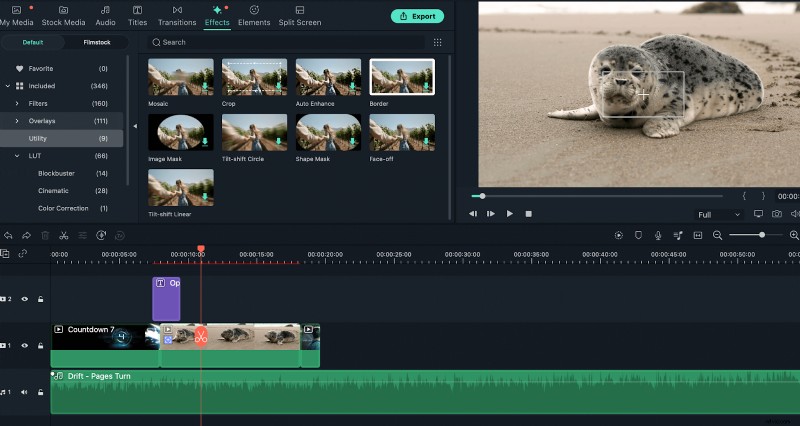
Having the closest interface to iMovie, Wondershare’s Filmora offers a wide range of video editing and customization features for content creators who fall somewhere between beginner and intermediate skills level wise.
It features a clean, organized timeline, transition effects, animated text, and video effects.
It does take some time to master the tools, but once you’re used to them, you can be as creative as you want with your videos.
Perhaps, the most significant feature that stands out is its mobile app—available in the App Store and Play Store. It offers a free trial but the subscription is a bit pricey and the editor plus videos take up a lot of precious storage space. This is only recommended to those who are willing to invest time and money for a more robust video editor.
Pricing: Starting at $28/mo
| Pros | Cons |
|---|---|
| Slightly more advanced without being too overwhelming | No free version (trial available for a few days) |
| Includes text-to-speech and speech-to-text features | Small cloud storage |
| Stock media from three large libraries | |
| Mobile app |
[#TOC7]7. Promo.com (Browser-Based)[#TOC7]
Simple tool for creating video ads
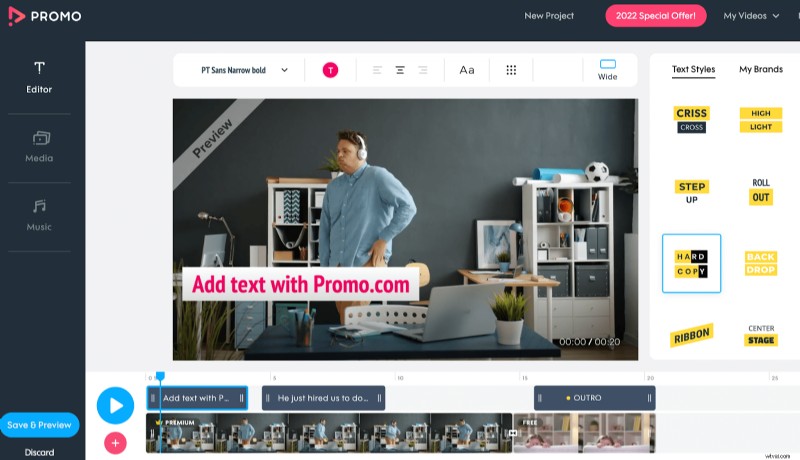
If you need to make video ads but don’t want to be bothered with coming up with the creative Promo.com is the best tool for you.
It has a timeline where you can arrange and organize elements. But you can’t do much with your videos; no split tool, video filters, etc.
It’s a tool to put videos, music, and text together. You can add transitions and customize the size of the video, but that’s pretty much it.
However, it’s great for small businesses or entrepreneurs who want to make marketing videos using stock media and their own branding.
Pricing: Starting at $18/mo
| Pros | Cons |
|---|---|
| Focus on video ads makes ad-creation easy | Very limited video editing features |
| Library of stock audio and video footage | Basic version only offers 3 stock media per month |
| Interface is simple enough you can figure it out on the first try |
What’s the best overall iMovie alternative for you?
The best overall tool to create professional-looking videos quickly and easily is VEED. With VEED, you get the most important editing tools plus features that you rarely get from other editors—like auto-subtitles, translations, green screen editor, clean audio and so much more!
Here are some of its key features:
- Library of templates, music, sound effects, and video footage
- Resize, crop, rotate, and flip your videos.
- Automatically add subtitles with one click!
- Translate your subtitles to multiple languages.
- Split, combine, rearrange audio and video clips on the timeline by dragging and dropping them.
- Add elements to make your videos stand out: animated text, stickers, soundwaves, and annotations.
- Record your screen and webcam.
- Go live simultaneously on multiple platforms using VEED’s live streaming tool.
- Clean your audio in one click!
Start creating stunning videos with VEED!