
In this video tutorial, we’ll learn how to create an Inception-inspired effect with the use of a drone and After Effects.
What makes this effect stand out is the matching parallax we can see across both landscapes during the drone movement. The real trick is getting this movement to match up for both shots.
If you don’t own a drone but still want to learn how to create this look in After Effects, you can download the project file. The file includes two drone shots.
Download the FREE After Effects project file here!How to Film the Drone Shots
Starting out, I recommend flying your drone about 50 to 100 feet above the trees, at the highest point relative to your location. This is important because it allows you to see off into the far distance. This will also help create visible parallax.
Next, angle the drone camera so that the distant horizon line is centered in the frame. And, if you have the ability to film in 4K, I recommend that too, but it isn’t required.
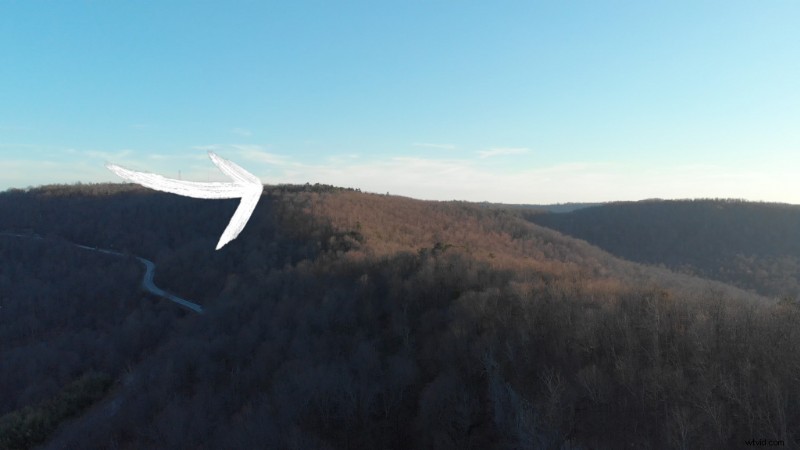
We need to match the movement of our drone flight for two different shots. You can do this any way you like, but the easiest method is just to fly the drone horizontally.
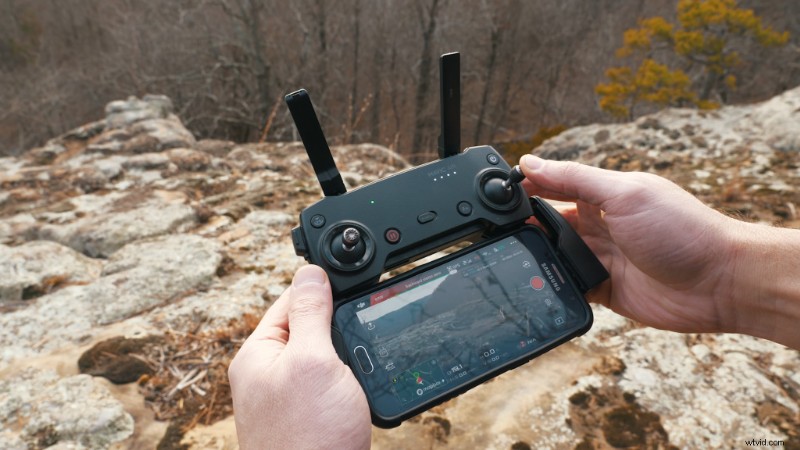
Start recording and fly the drone sideways by pushing the right control stick all the way to the right side or left side of the controller. By pushing the control stick all the way over, we’re maxing out the drone’s speed, so we know the speed for both shots will match up closely. I recommend doing this for at least 20 seconds after you hit record.
Extra Location Tips
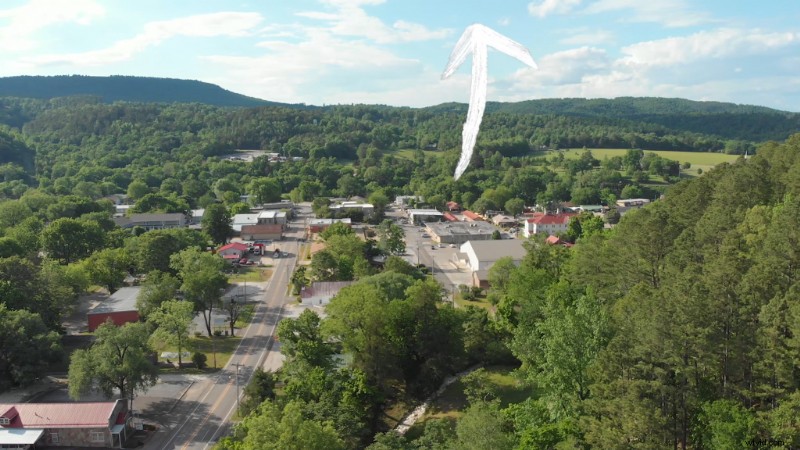
First, make sure you don’t have anything cross the top of the frame, except the sky. This is very important because the sky will have to blend together on both shots.
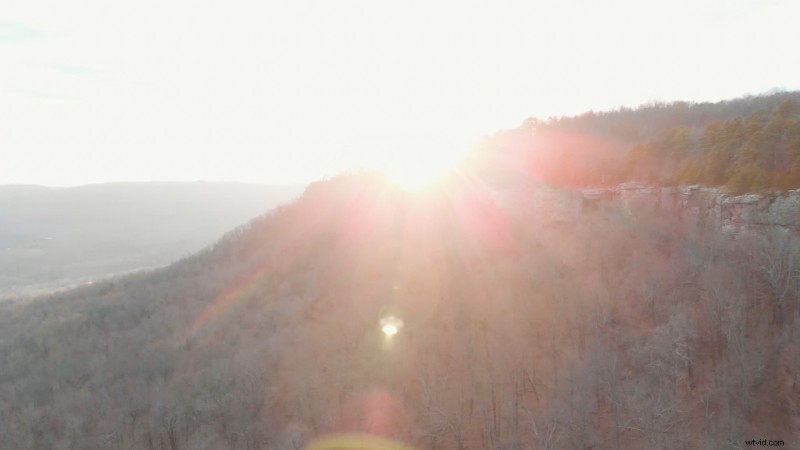
Avoid filming directly into the sun while it’s setting or rising, as it creates problematic lens flares.
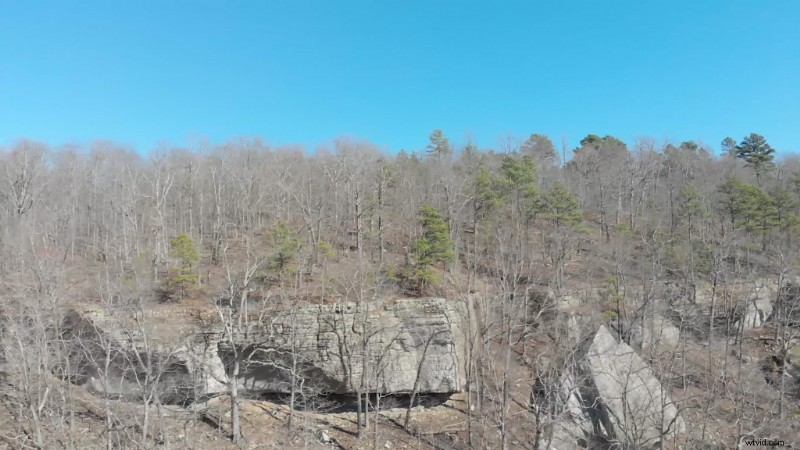
Finally, avoid filming shots where you can’t see off into the distance. For example, on this shot where I’m filming a mountain ridge, I’m too low to see past it into the distance. This type of shot won’t provide the parallax we need during the movement, and will end up looking like a flat picture moving across the screen.
Creating the Look in After Effects
After you import your drone shots into After Effects, we need to trim off the front and the back of each clip. This is because the drone usually takes a few seconds to reach maximum speed and we need the speeds of both shots to match closely throughout.
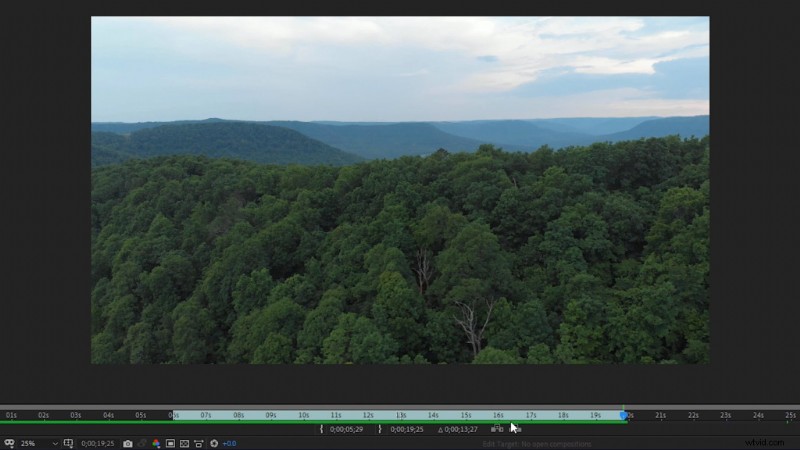
Next, add both drone shots into a composition and scale them both to fit. Decide which drone shot you’d like to have at the top of the landscape, then rotate it 180° degrees. Also, make sure it’s the top of the two layers in the composition.
Use the Rectangle Tool to mask out most of the sky on the top landscape shot. Make sure the rectangle mask extends quite a bit past the shot, on both sides and at the bottom. This is so we won’t notice an edge when we increase the mask feathering. Set the mask feather to around 150 to 200.
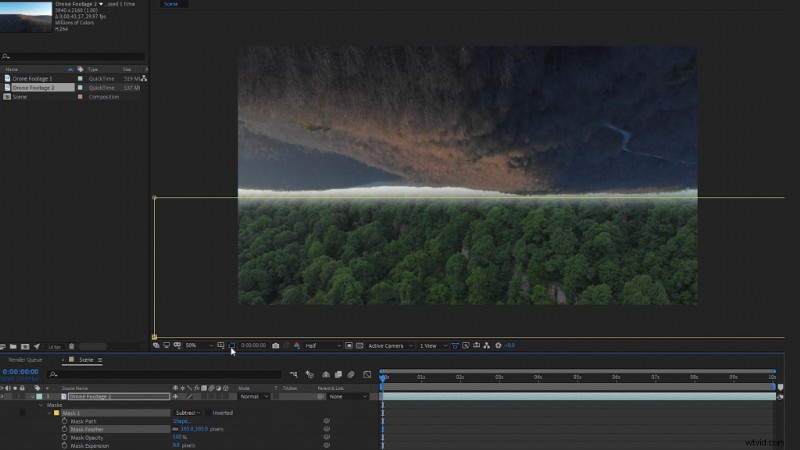
Space the top and bottom drone shots away from each other, enough to have some sky visible between the two. The sky should look sandwiched between both landscapes. You can preview the composition to see if the landscapes are moving in the same direction.
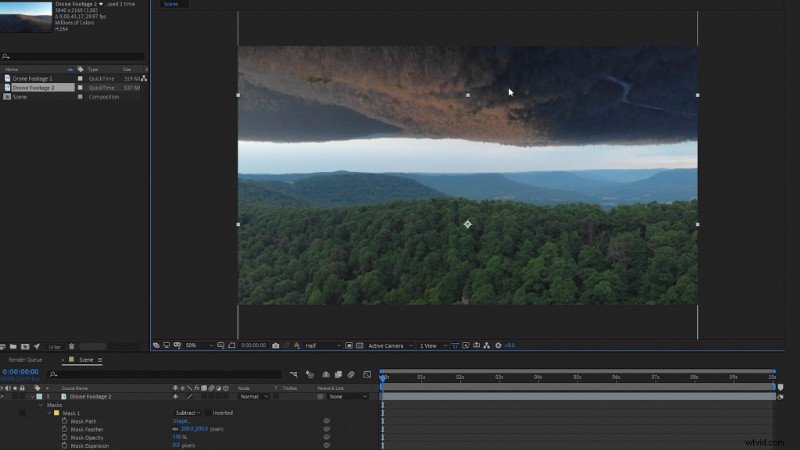
If your landscapes are moving in opposite directions, we can easily fix this with two different methods in After Effects.
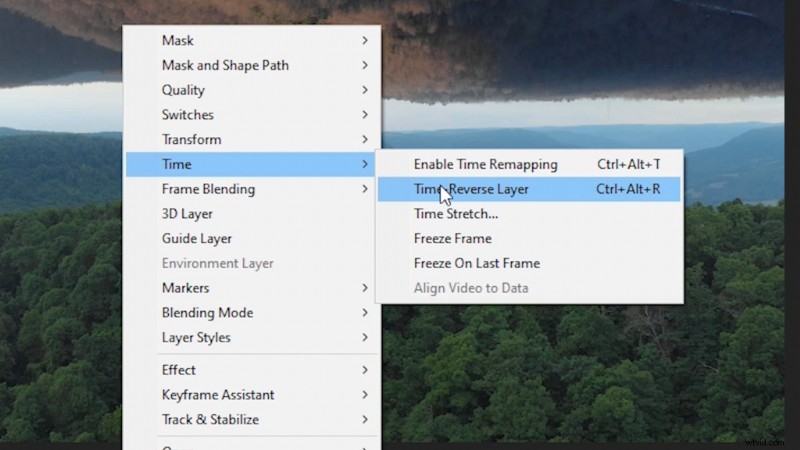
The first is simply time-reversing one of the drone shots. Right-click on one of your shots, then navigate to Time and then select Time-Reverse Layer.
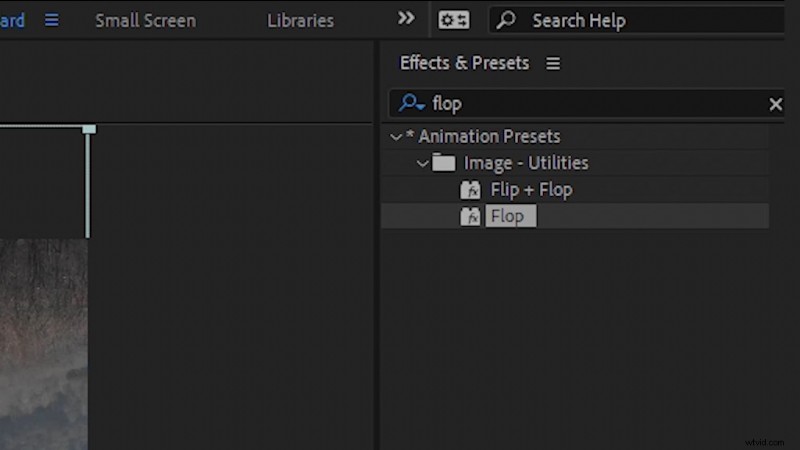
The second method is to horizontally flip one of the drone shots. Navigate to the Effects & Presets panel and search for a preset called Flop. Drag and drop it onto one of your drone shots. This’ll horizontally flip the shot using the Transform effect.
And that’s it! You can add a color grade if you’d like to better match both shots together. You can also parent one landscape to the other and then create some movement by keyframing the scale and position of the footage.
Interested in the tracks we used to make this video?
- “Fresh Hip Hop” by Trending Music
- “Last Fight” by Tellent Studio
- “Rain Rain Go Away” by Cosmo
- “Lo Fi Abstract Chillhop” by Trending Music –
- “UX Paradise” by Tiny Music
- “Lo-Fi Dreams” by Trending Music
Want more innovative filmmaking tips? Check these out.
- 3 PC Upgrades for a Lightning-Fast Video-Editing Rig
- Can You Use Holiday Lights in Your Video Content Throughout the Year?
- Make Deadlines and Stay Organized as a Freelancer
- 2019’s Top 10 Awesome Film and Video Lighting Tutorials
- 9 Things Filmmakers Can Learn from the Star Wars Universe