
Get a fresh take on your footage with these pro tips, and view your own work from different angles while on location as well as in the edit.
In this tutorial, I want to share some tips on how you can view your work through fresh eyes. What I mean by “fresh eyes” is: Viewing your work from a new perspective, and hopefully getting a better idea of how your work will look when it’s completed. (A common example is just walking away and taking a five minute break. When you return, you’re seeing your project with fresh eyes.)
We’ll be looking at two different scenarios for using these tips: First, when you’re out shooting on location. And second, when you’re editing at your computer.
When Filming on Location
Use an External Monitor
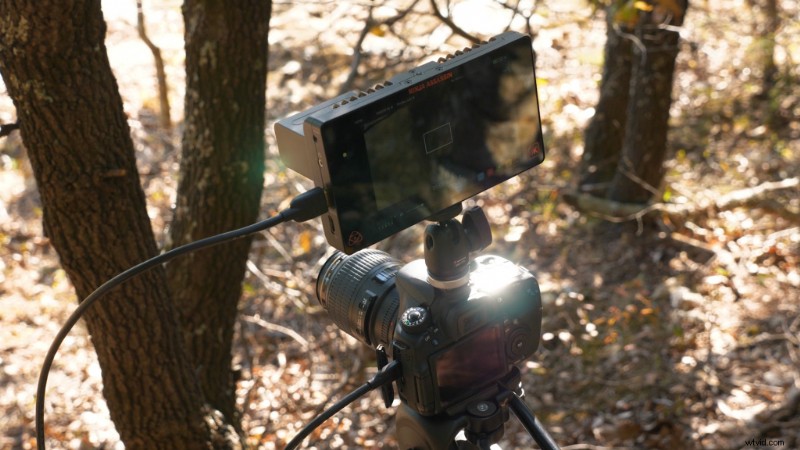
A bigger screen enables you to see fine details you might miss, allowing you to fix them right then and there. You don’t have to use an expensive external monitor, even the cheaper ones work just fine for this. And, if you think about it, this makes a lot of sense. A lot of us are probably filming in 4K, and we’re doing it on these tiny LCD screens.
Use Your Phone with a Camera App
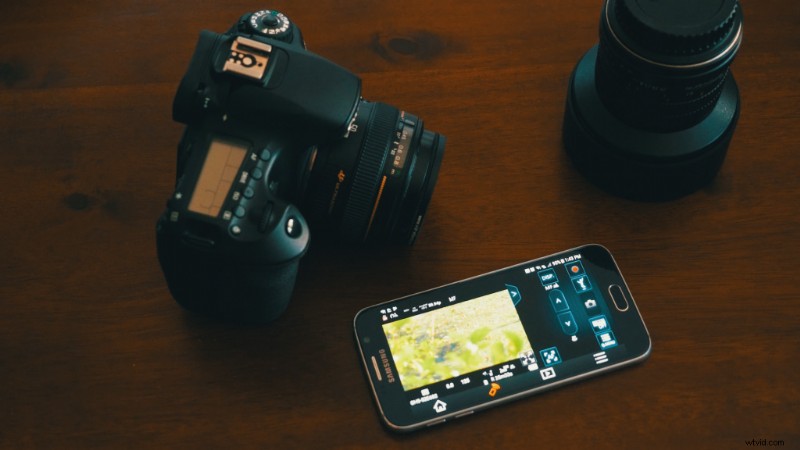
Most modern cameras have compatible apps you can install on your phone. These apps allow allow you to control your camera, and also act like an external monitor. While it’s not as big as an external monitor, it’s wireless and something you’ll likely have with you.
Flip the Image Horizontally
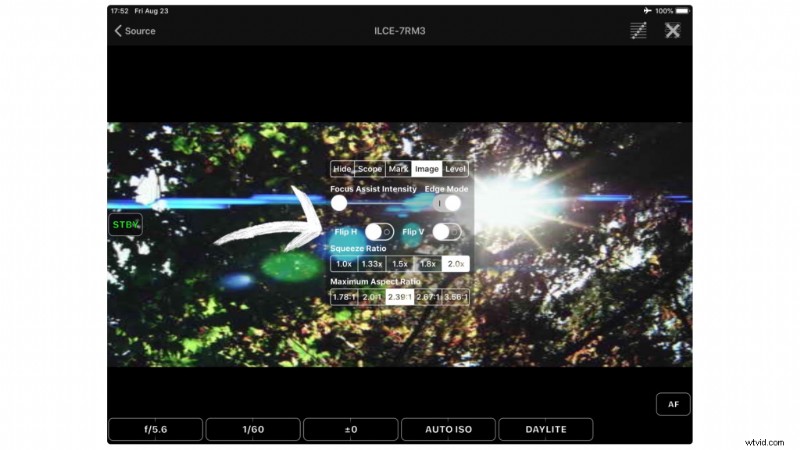
This is my favorite method for getting a fresh perspective — using a monitor option to flip the image horizontally. This mirrors everything in your shot. So, relative to everything flipped, your composition stays the same. Often seeing your scene like this, you may notice things you didn’t before.
Use LUT Preview Functions
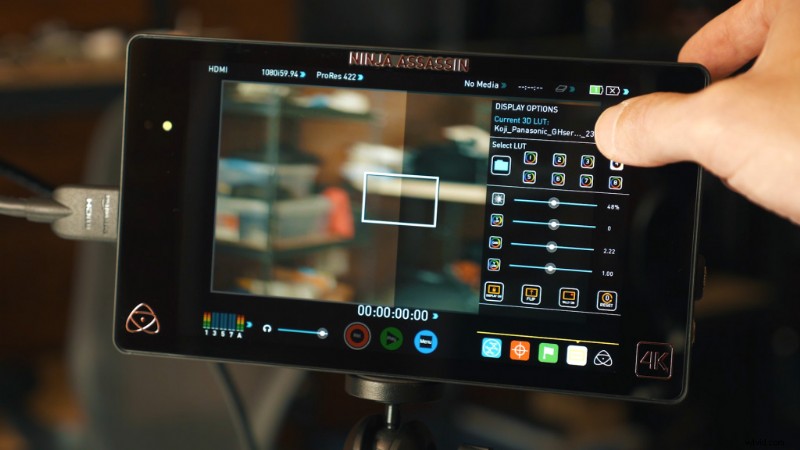
Some monitors will have LUT preview capabilities, but more and more cameras have this feature also. Essentially, you load LUTs onto your camera or monitor, then preview what your image would look like with that LUT applied to it. This is really helpful if you’re filming in a log profile, where everything looks flat.
When Editing
View Your Work at Full Screen
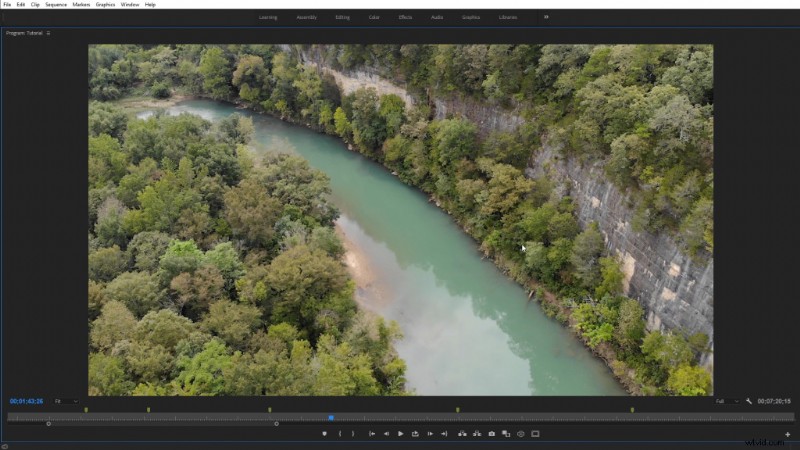
More often than not, we edit our footage in a relatively small view window compared to the final output size.
In Premiere Pro and After Effects, just select your monitor window and press the Tilde key. In Resolve, you can use the shortcut Ctrl +F on PC or Cmd +F on a Mac to toggle full screen mode.
Mirror the Footage Horizontally
I use this trick a lot if I’ve been working on a VFX shot for long periods of time. It’s a quick trick for a fresh take on the footage. In Premiere Pro, you can apply the Horizontal Flip effect to a clip. In After Effects, just search the effects and presets panel for an effect called “Flop.”
Preview Your Work on Different Screens
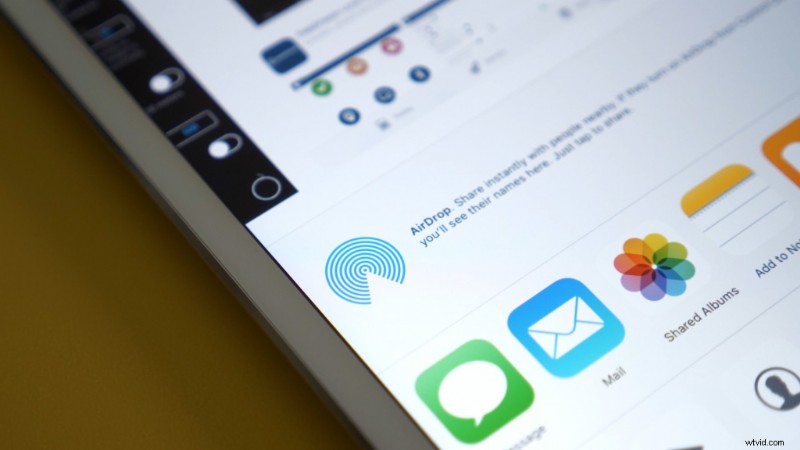
Preview your work on different screens, such as a TV or phone. Again, this just helps change up how you view your project. Every screen is going to have subtle differences so you can see how your project holds up.
To do this quickly, I recommend using Air Drop on Mac, or apps like Dropbox and Chromecast. Anything that can easily send your work to different screens.
Watch the Video on the Intended Format Before Completion
If you’re making content for a specific platform (such as YouTube, Facebook, Instagram, etc.) render out a section of the video and upload it as a private video. Then preview it to see how everything holds up under the platform compression. This can help you identify color issues in advance, such as color banding.
Interested in the tracks we used to make this video?
- “Stir Crazy” by Tonemassif
- “Lof-fi Dreams” by Trending Music
- “Ambient” by Sugar Beats
Want more tips on video production? Check these out.
- What You Need to Know About Memory Cards Heading into 2020
- How to Create a Realistic Miniature Look with a Drone
- Introducing Shutterstock’s New Unlimited Music Subscription
- Work Faster With Shorts and Loops from Shutterstock Music
- Edit for Social Media with Premiere Pro’s Auto Reframe