
“Toggle animation” is a distinctly hidden feature in Adobe Premiere Pro’s Essential Graphics Panel. So how does it work?
The Essential Graphics panel was a powerful addition to Premiere Pro back in 2017, entirely changing how editors work with graphics inside of the program. It includes the relatively new toggle animation feature in the Essential Graphics panel, which means you can now turn on keyframing for five different properties. So, let’s take a closer look at how to use this feature to create a basic animated lower third.
Step 1 — Create Your Graphics
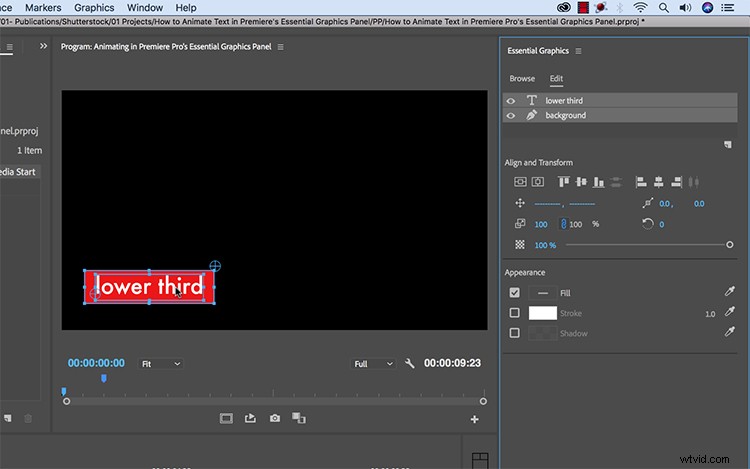
For the first step, I’ll add text using the Type tool. Once I’ve created the text, I’ll open up the Essential Graphics panel by selecting Window > Essential Graphics. Clicking on my graphic clip in the timeline will allow me to see all of the properties and tools under the Edit tab of the Essential Graphics panel.
Next, I want to add a simple background element to my graphic. To do this, I’ll grab the Rectangle shape tool, which is located in a submenu just underneath the Pen tool. Now I can create a new rectangle directly over my text in the Program monitor. I can now see it in the Essential Graphics panel. To place the rectangle under the text, I’ll simply drag and drop. I’ll also right-click and Rename the layer to “Background.”
To straighten out my graphic elements, I’ll use the Align and Transform tools. I can position the graphics in relation to the sequence or to each other by highlighting both elements. For the final preparation, I need to reposition the anchor point of my background rectangle so that it will animate properly. I want it to animate in from the left to the right, so I’ll move the anchor point directly over the left side. I can fine-tune the positioning by holding the Command key.
Now the graphic is ready for animation.
Step 2 — Animate the Properties
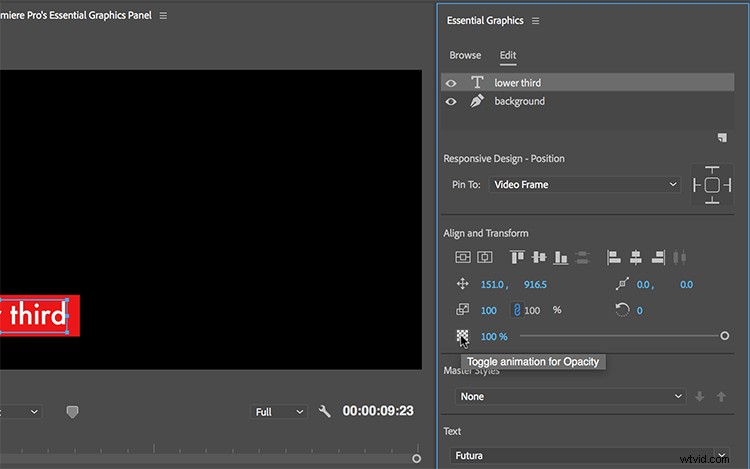
You can currently toggle on animation (keyframing) for five different properties:
- Position
- Anchor Point
- Scale
- Rotation
- Opacity
These properties are located just below the Align and Transform tools in the Essential Graphics panel. Toggle property animation on and off via clicking the corresponding icon button. The icon will turn blue to let you know that animation is active for the selected layer. If you click on an active icon that has existing keyframes, it will automatically delete all existing keyframes for that property.
Since I want my background to animate in for roughly one second, I’ll bring my playhead to the one-second mark. I’ll toggle scaling animation on by clicking the icon. Next, I’ll drag my playhead to the beginning and change the horizontal scale to zero. Now when I play back the first second, the background rectangle animates in. I’ll repeat these steps to animate the Opacity of the text. Next, I’ll fine-tune the animation.
Step 3 — Fine-Tune
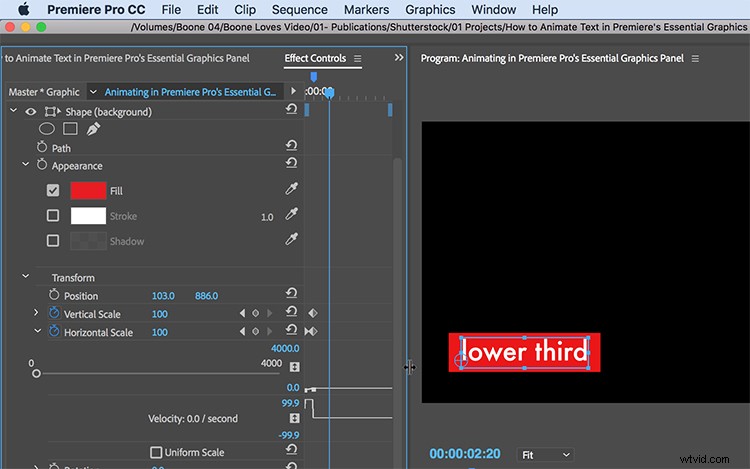
While I can animate these properties inside the Essential Graphics panel, I can’t see the keyframes. To make precise adjustments to the animations, I’ll open up the Effect Controls panel by going to Window > Effect Controls. Here, I have access to the keyframes of each layer in a graphic clip. Any adjustments I make here will carry over to the Essential Graphics panel.
To smooth out the animation of my background rectangle, I’ll add some Easy Ease to the Scale keyframes. I also want my text to fade in near the end of the background animation. To retime this, I will simply move the first Opacity keyframe closer to the last keyframe. Now my animation is perfectly timed and ready to go.

Looking for more video tutorials? Check these out.
- Learn to Choreograph a Fight Scene with a Hollywood Stunt Coordinator
- Video Tutorial: Understanding the Basics of Lightroom
- How To Create Your Own Foley + 40 Free Sound Effects
- Video Tutorial: Fine-Tune Your Next Edit with J and L Cuts
- How To Shoot Product Shots: 3 Cheap And Easy Setups
Cover image by GoodStudio.