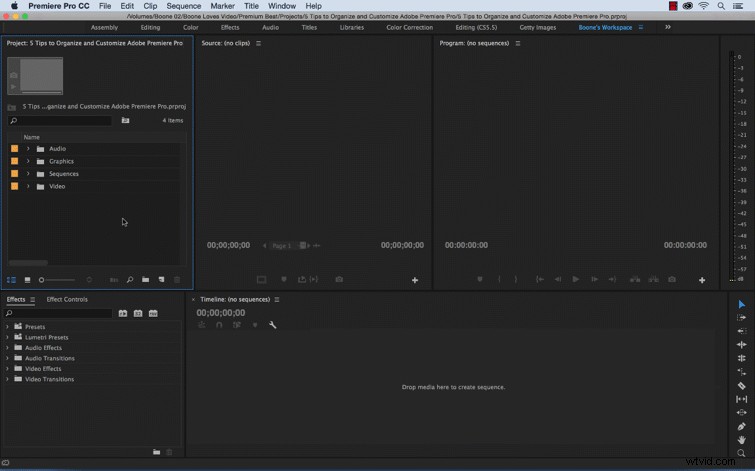
These five tips will help you organize and customize Adobe Premiere Pro to your own personal preference.
Speed and efficiency make all the difference in your daily video editing workflow. Use these tips, tricks, and techniques to customize your Premiere Pro experience for maximum organization.
1. Custom Bins
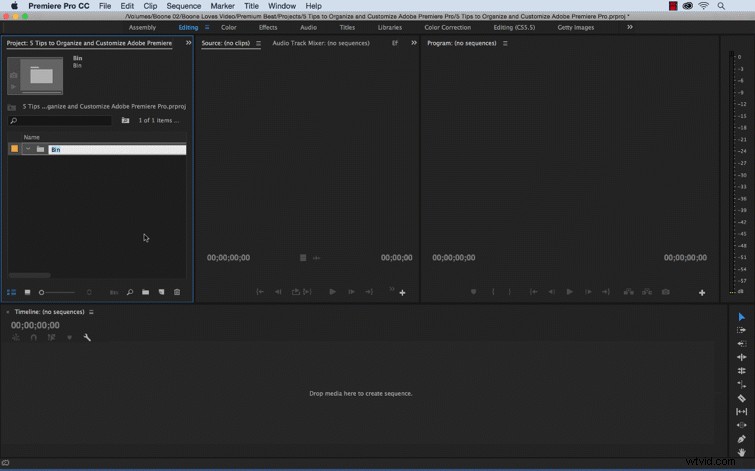
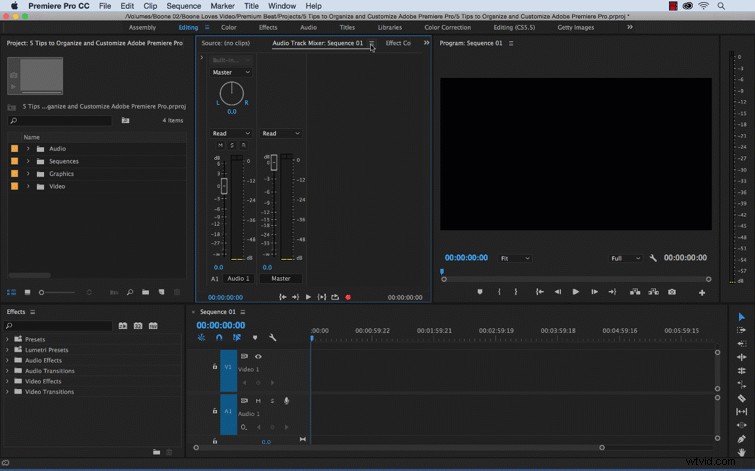
Creating and using custom bins will help keep your project neat and organized. This is beneficial when passing on your project to other editors, or returning to an old project. You won’t have to waste time searching for specific content. I usually create custom bins for Video, Audio, Graphics, and Sequences. Depending on the scope of the project, I’ll create a number of subfolders as well.
2. Customize Your Source and Program Monitors
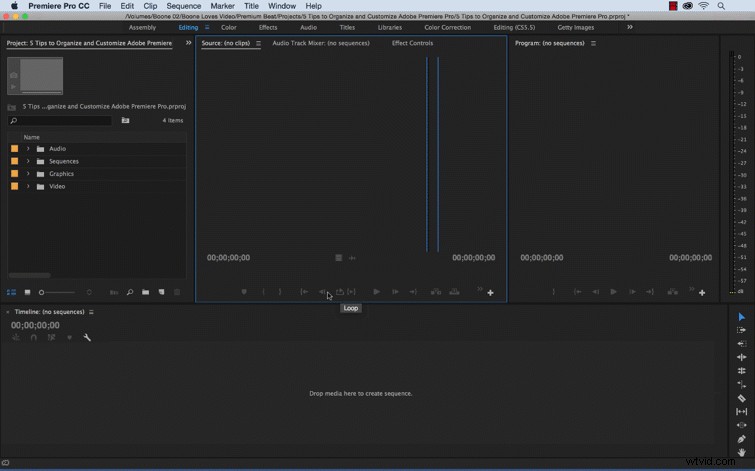
I’m quite comfortable with keyboard shortcuts, so I rarely use any of the default buttons located in the Source and Program Panels. If you’re like me, you can use the Button Editor at the bottom of the Source and Program Panels to customize what buttons you would like to see. Whittle it down to just a few select buttons, or just remove all of them for a minimalist look.
3. Save Track Height Preset
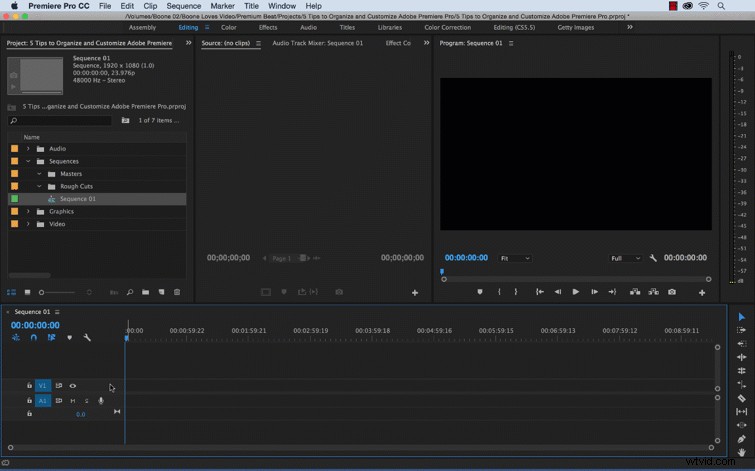
While it may not seem so, you probably spend a lot of time resizing tracks in your timeline. All of that time can add up. I find it quite frustrating to constantly adjust my video and audio tracks each time I create a new sequence. Save some time by creating a Track Height preset in the Timeline Display Settings menu.
4. Save Custom Workspace
While Adobe Premiere Pro comes with a handful of useful workspace presets, it’s nice to customize your interface to your own personal preference. Whether you’re working on a documentary feature, editing a multi-cam event, or adding metadata to a library of footage, putting panels where you want them to be is a luxury.
5. Use Project as a Template
After you’ve created your bins, and customized your Source and Program monitors, your timeline, and your workspace, it’s useful to save your project and let it serve as a template. Open up your template project later, save out a copy, and you’re ready to go with custom bins and all of your preferences setup. You can even add branding assets and regularly used files into the template Premiere project to make your life easier.