
Is your iPhone’s speaker or headphone volume unexpectedly low? A few quick checks can often restore full sound, whether you’re listening to music, watching videos, or on a call. Follow this guide for expert‑approved fixes.
Solution 1: Verify Sounds & Haptics Settings
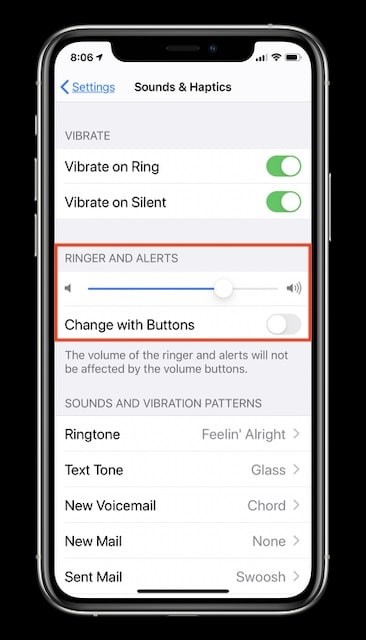
Low alert or ringtone volume is a common culprit. Ensure your device’s ringer and alert levels are maximized and that the side‑button control is disabled to avoid accidental changes.
- Open Settings.
- Select Sounds & Haptics.
- Slide the Ringer and Alerts slider to the maximum.
- Toggle off Change with Buttons so volume buttons affect only media.
- Review each alert tone listed below the slider and confirm they’re not set to a low level.
Solution 2: Disable Noise Cancellation When Calling
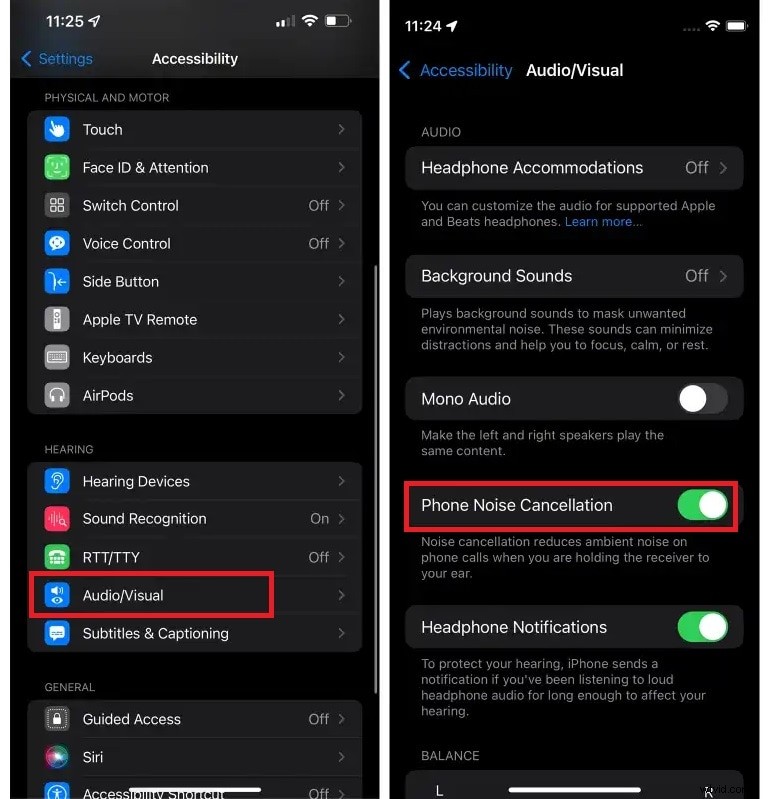
Noise Cancellation can unintentionally lower the speaker volume during phone calls, especially when the speaker is active.
- Open Settings.
- Select Accessibility → Hearing → Audio/Visual.
- Turn off Noise Cancellation.
Solution 3: Reset Bluetooth Connections
Bluetooth interference can cause sudden drops in both speaker and headphone volume. Re‑pairing the device often resolves the issue.
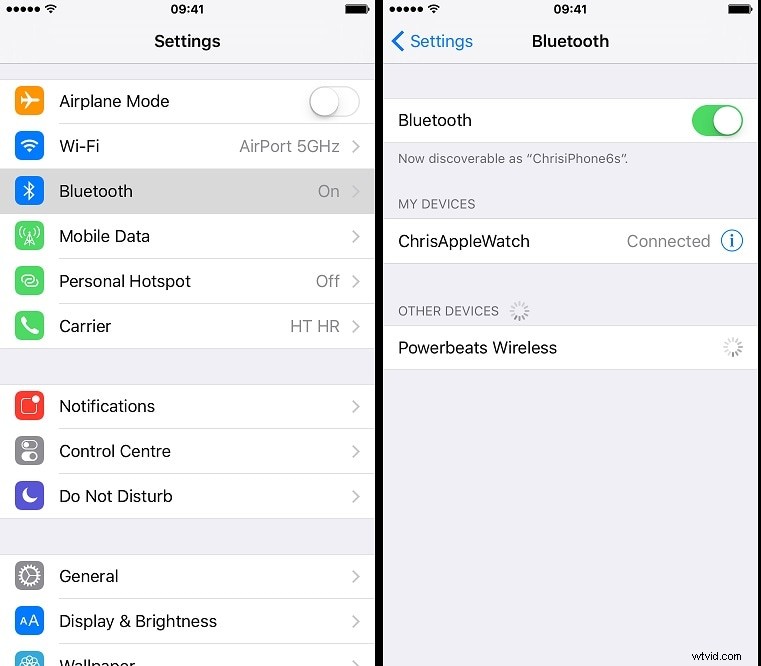
- Open Settings → Bluetooth.
- Ensure Bluetooth is ON and delete any paired devices.
- Toggle Bluetooth OFF, then ON again.
- Reconnect your wired or wireless headphones.
Solution 4: Turn Off Airplane, Low Power, and Do Not Disturb Modes
These modes can mute or reduce volume for battery conservation or privacy.
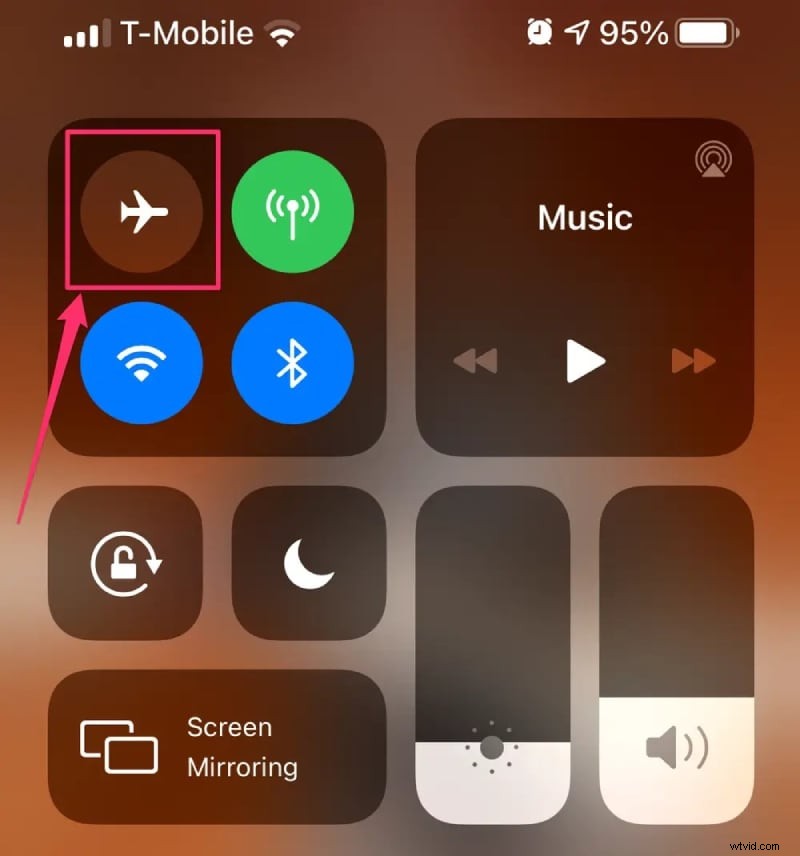
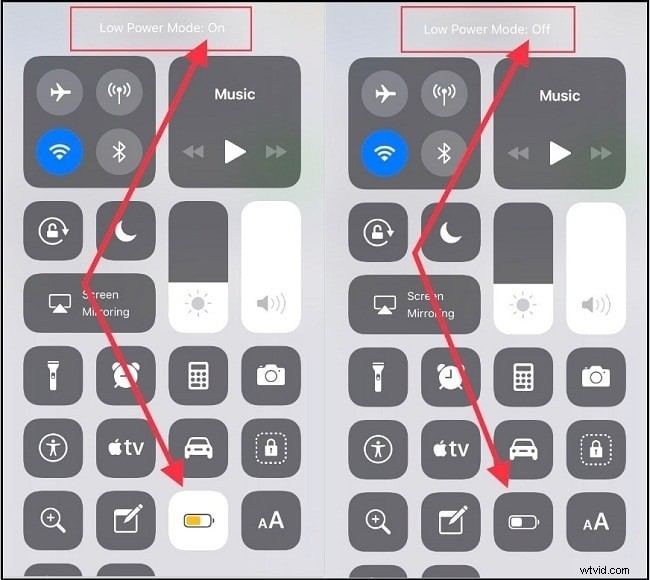
- Airplane Mode – Disable via Control Center or Settings and restart the device if necessary.
- Low Power Mode – Charge your phone and turn it off from Control Center or Settings → Battery.
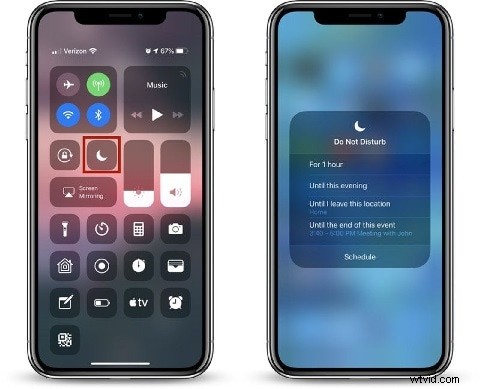
- Do Not Disturb – Ensure it is OFF in Settings → Focus → Do Not Disturb.
Solution 5: Update to the Latest iOS
Apple regularly releases bug‑fix updates that can resolve audio issues. Keeping your device up‑to‑date is essential.
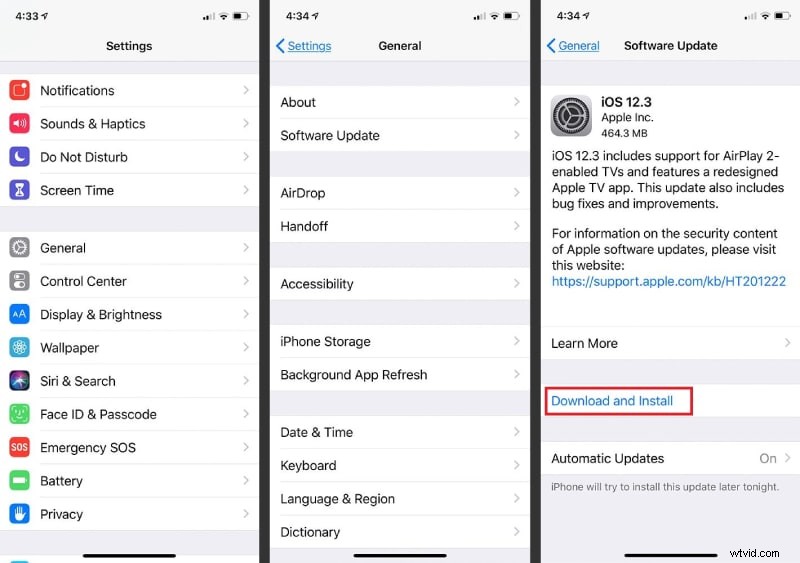
- Open Settings → General → Software Update.
- If an update is available, tap Download & Install.
Solution 6: Reset All Settings
If software updates don’t help, resetting all settings can clear misconfigurations. Your data remains intact, but you’ll need to re‑enter Wi‑Fi passwords and similar preferences.
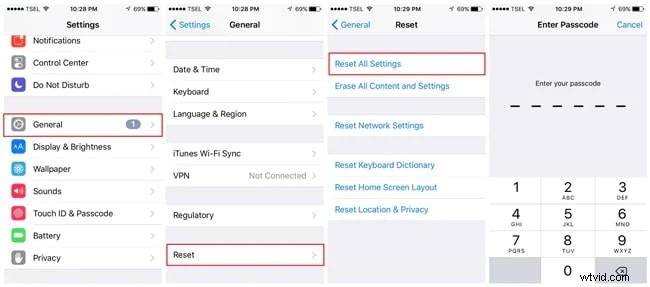
- Open Settings → General → Reset → Reset All Settings.
- Confirm with your passcode.
When to Seek Professional Help
If the volume remains low after trying all the above steps, a hardware fault may be present. Schedule a repair appointment at an Apple Store or an authorized service provider. For video audio enhancement, consider using Wondershare Filmora to boost sound levels.
Frequently Asked Questions
Q1: Why does my iPhone volume suddenly drop, even at maximum?
A1: Common causes include misconfigured Sounds & Haptics settings, active Low Power Mode, Do Not Disturb, or recent Bluetooth changes. Noise Cancellation on calls can also interfere. Reviewing the steps above usually restores normal volume.
Q2: Will updating iOS fix low speaker volume?
A2: Yes. Many audio issues are addressed in iOS releases. Always check for the latest update and install it; if you recently updated and now see a problem, a subsequent patch may resolve new bugs.