
When you listen to music on a device, the default audio profile often sounds flat and generic. An equalizer tailors the frequency response to match the original recording, revealing subtle details and genre‑specific nuances.
Whether you’re using a smartphone, computer, or browser‑based streaming, a dedicated equalizer is essential for the audiophile. Below we highlight the best equalizer solutions for Chrome, iPhone, Android, and desktop, complete with preset profiles and customization options.
1. Chrome Sound Equalizer Settings
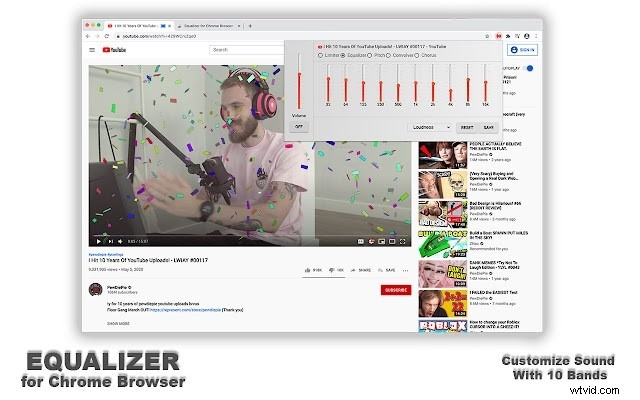
For Chrome users streaming music or video online, the “Equalizer for Chrome Browser” extension delivers 21 ready‑made presets and a 10‑band adjustable EQ. It runs lightweight, keeping CPU usage minimal, and is free.
How to set it up:
- Open Chrome Web Store and click Add to Chrome.
- Follow the prompts to install.
- Launch your streaming platform and play a track.
- Click the extension icon, choose a preset or tweak the 10 bands in real time.
2. iPhone Equalizer Settings – Equalizer Fx (Bass Booster App)
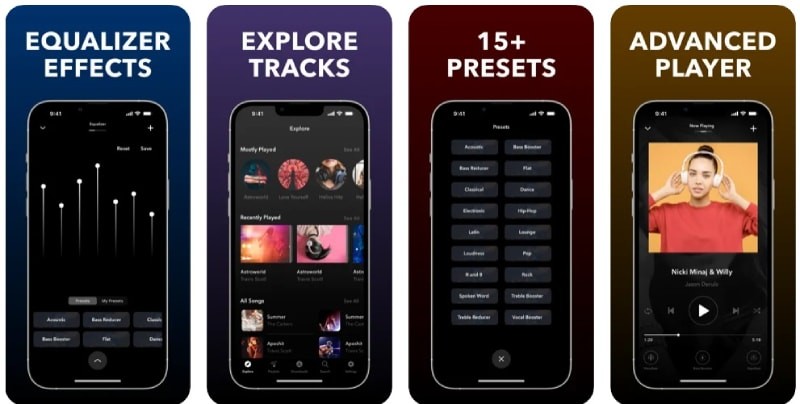
Equalizer Fx offers a 7‑band EQ, dynamic bass tuning, and a powerful bass‑boost effect. With 15+ presets, it adapts instantly to any track and even serves as a standalone music player.
While the app is free, a subscription unlocks advanced features for power users.
3. Android Equalizer – Equalizer FX (Sound Enhancer)
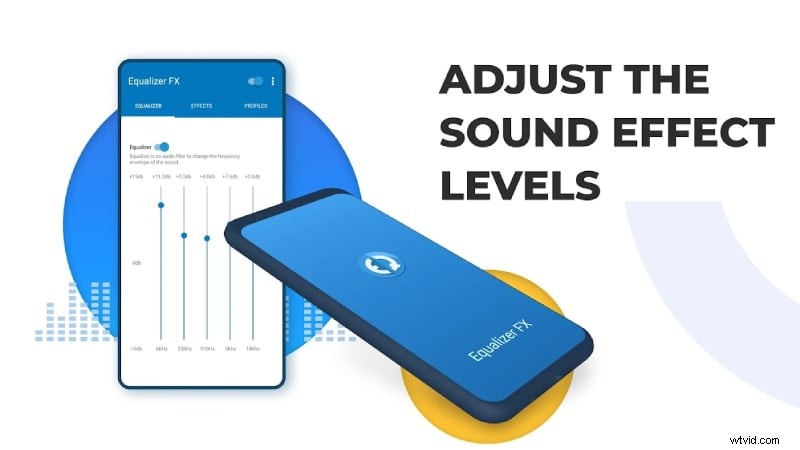
Equalizer FX is a free Android app providing 12 preset profiles, a loudness enhancer, bass booster, and stereo‑enrichment. A home‑screen widget lets you toggle the EQ automatically when music starts or stops.
Note: It does not affect radio streams.
4. Desktop Equalizer – Boom 3D
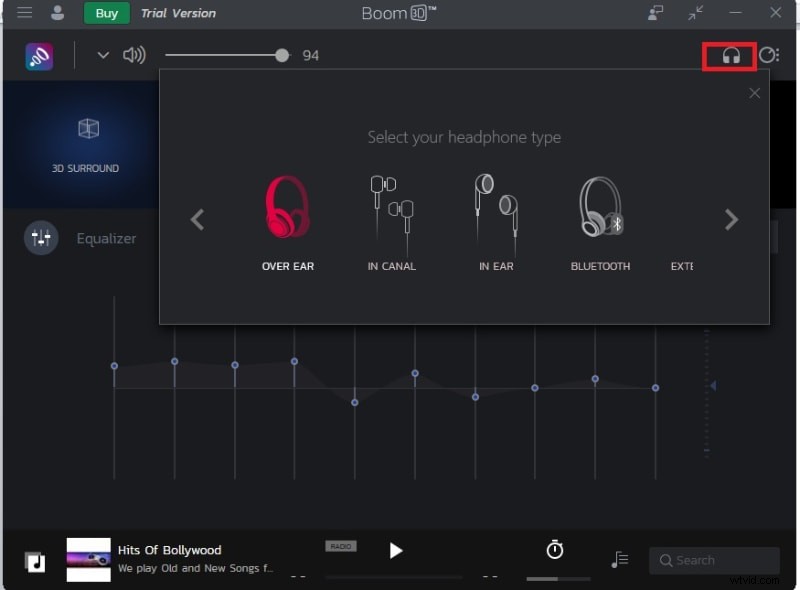
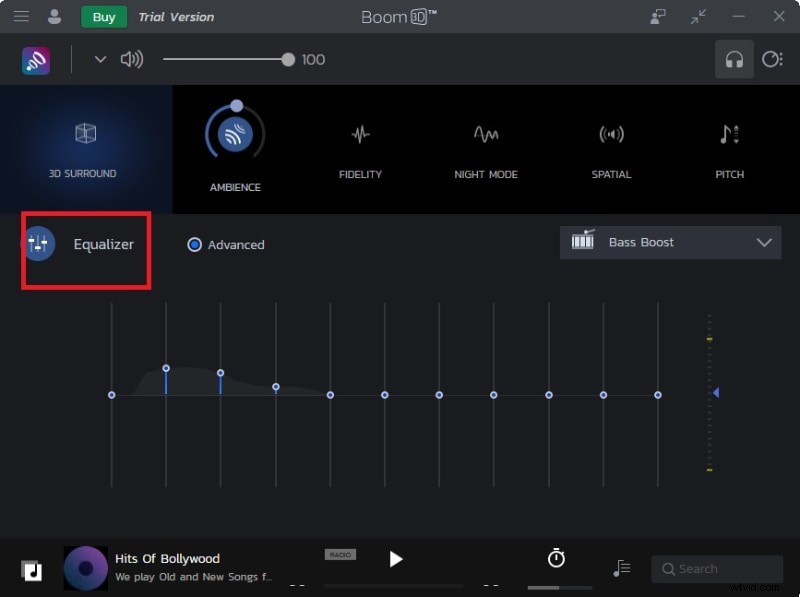
Boom 3D is a cross‑platform (Windows & macOS) equalizer that creates immersive 3D surround sound. It features 11 bands, adjustable pitch, ambience, and fidelity, plus genre‑specific presets for gaming, vocals, and classic tracks.
After a free trial, upgrade to unlock full functionality.
Installation steps:
- Download and install Boom 3D for your OS.
- Sign in to the app.
- In Settings, select your headphone type for optimal calibration.
- Navigate to the Equalizer tab and choose a preset.
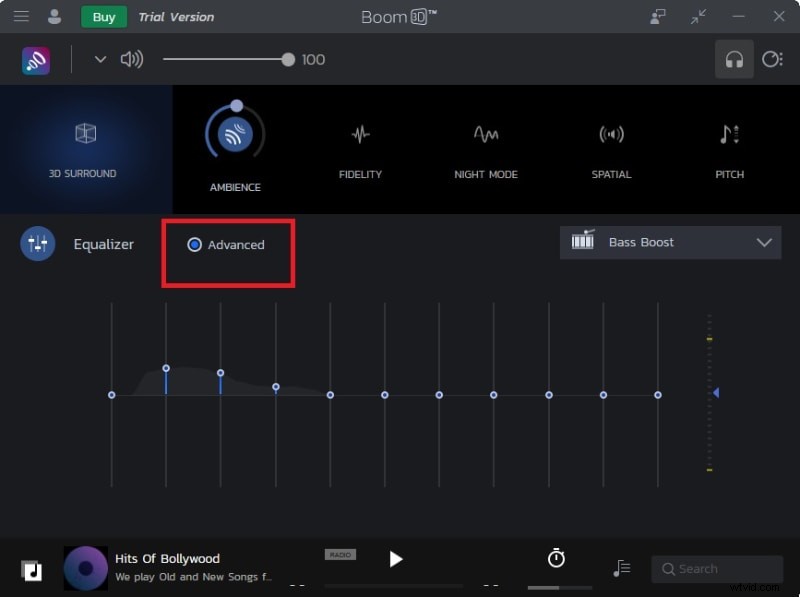
- Use the Advanced tab to fine‑tune individual bands.
Bonus: Adjusting EQ for Any Audio File
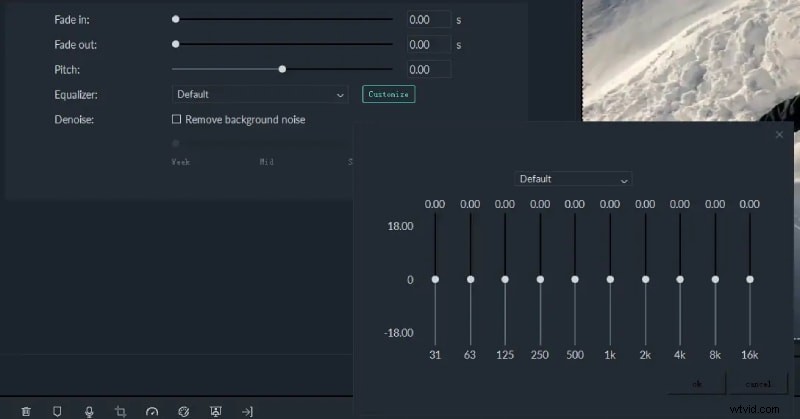
To permanently alter the EQ of a downloaded audio or video file, use a video editor that supports audio equalization. Wondershare Filmora offers a user‑friendly interface with preset EQs and custom adjustments.
How to apply an EQ in Filmora:
- Download and install Filmora on macOS or Windows.
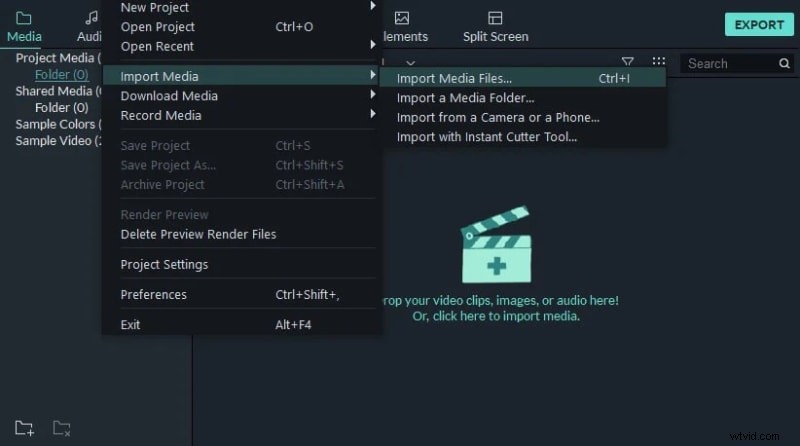
- Create a new project, then import your media via File > Import Media.
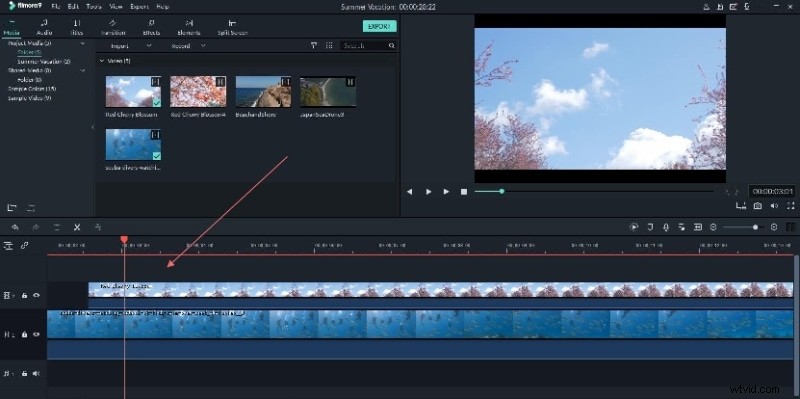
- Drag the file to the timeline.
- Double‑click the clip and open the Audio tab.
- Select a preset EQ or click Customize to tweak frequencies.
Conclusion
Choosing the right equalizer and preset can transform how you experience music across devices. For browser streaming, the Chrome extension offers instant tuning. For mobile and desktop, the highlighted apps provide powerful, user‑friendly options. If you need to edit files offline, Filmora delivers a comprehensive solution.