
Android phones offer a solid set of pre‑installed ringtones, yet many users crave a tone that truly reflects their style. By creating your own custom sounds, you can instantly make your device unique and instantly recognize incoming calls, even in a crowded setting.
This guide walks you through every step—from trimming an MP3 file to assigning a personalized tone to specific contacts—so you can enjoy a truly distinctive audio experience on your Android device.
In this article
- Trimming an MP3 file
- Setting an MP3 as a ringtone
- Using an MP3 as a notification sound
- Assigning MP3 ringtones to individual contacts
Trimming an MP3 File
If you want to use a particular track as your ringtone or notification sound, a full‑length file can quickly eat up storage space. Trimming the audio to a concise clip not only saves space but also preserves the quality you love.
Wondershare Filmora is a reliable, user‑friendly editor that can handle this task efficiently. Its intuitive interface allows you to import audio, cut unwanted sections, adjust volume, add transitions, and export the result as an MP3.
Key Features
- Import audio from video files and export the extracted MP3.
- Cut audio to any desired length.
- Detach audio tracks from video files.
- Adjust volume levels and add fade transitions.
- Merge multiple audio files into a single track.
For a visual walkthrough of Filmora’s new features, watch the tutorial video below.
How to Use Wondershare Filmora
Follow these simple steps to trim your MP3:
- Download and install Filmora on your PC, then launch the application.
- Click "Import" to add your MP3 file.
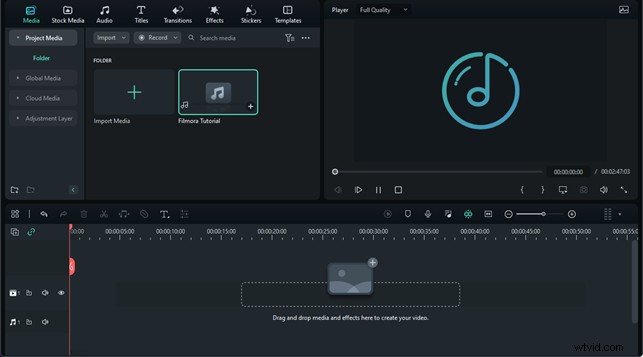
- Drag the file onto the Timeline Panel at the bottom.

- Select the portion to trim by dragging the double arrow on the waveform. Click "Split" to remove the unwanted section.
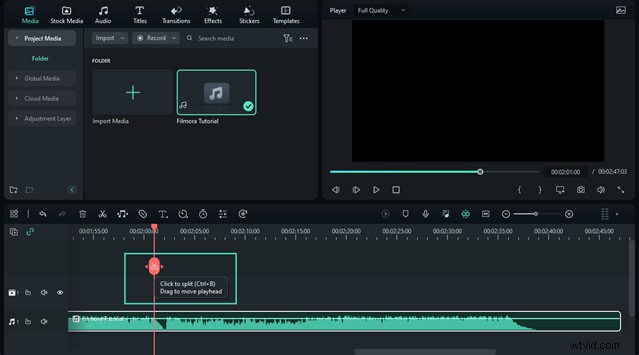
- Export the trimmed clip by clicking "Export" and choosing MP3 format.

Setting an MP3 as a Ringtone
Once you have a trimmed MP3, you can set it as your phone’s ringtone. Transfer the file to your device via USB, Google Drive, or any cloud service you prefer.
- Open Settings → Sound.
- Tap Phone Ringtone and then press the + icon to add your MP3.
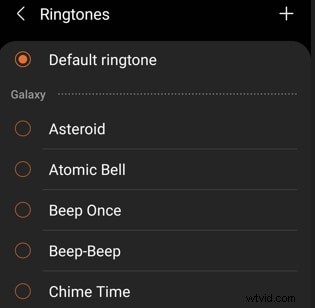
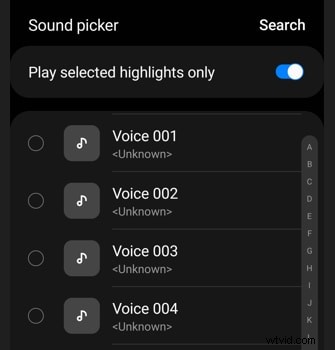
- Choose your custom tone from the Sound Picker and tap Done.

Using an MP3 as a Notification Sound
Custom notification sounds add a personal touch to alerts and messages. To set an MP3 as a notification tone, follow these steps:
- Open Settings → Sound.
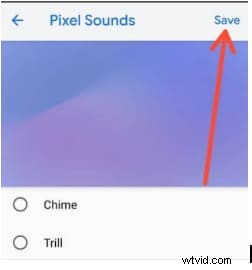
- Select Notification Sound and tap the + icon at the bottom.
- Choose your trimmed MP3 from the Sound Picker and tap Save.
Assigning MP3 Ringtones to Specific Contacts
Personalized ringtones for individual contacts help you identify callers at a glance. To set a custom tone for a contact, do the following:
- Open Contacts and select the desired contact.
- Tap Edit at the bottom.
- Choose Ringtone and then tap the + icon to add your MP3.
- Select the MP3 from the Sound Picker and confirm. Repeat for any other contacts as needed.
Conclusion
With these straightforward steps, you can transform your Android phone into a truly personalized device. Trim MP3s efficiently with Filmora, set custom ringtones and notification sounds, and even assign unique tones to individual contacts—all without compromising audio quality or storage space.
Start customizing today and enjoy a distinct audio identity on your Android phone.