
Professional video editing demands crystal‑clear audio. A few seconds of silence can break rhythm, confuse viewers, and undermine credibility. Adobe’s Premiere Pro now offers a built‑in silence‑detection feature that automatically locates and removes quiet gaps, streamlining the workflow for editors who value speed and precision. If you’re looking for an equally effective, budget‑friendly option, Filmora’s AI‑powered silence‑remover is worth a closer look.
What Is Silence Detection?
Silence detection is a feature that analyzes an audio track and identifies segments that fall below a user‑defined volume threshold. Once flagged, those sections can be deleted, faded, or otherwise adjusted, eliminating dead air without manual listening. The result is a smoother listening experience that keeps the audience engaged.
How to Remove Silence in Premiere Pro
Adobe has simplified the process so that editors can get rid of pauses in just a few clicks. Follow these steps:
- Launch Premiere Pro, import your video, and drag the clip to the timeline.
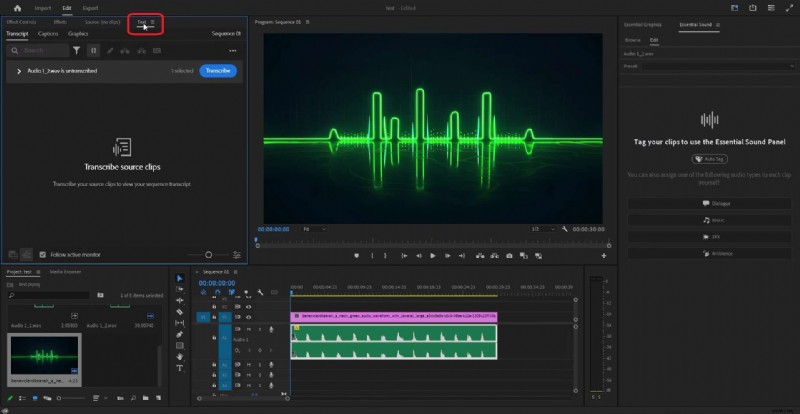
- Highlight the audio track and open the Text panel.
- Click Transcribe to generate a transcript of the clip.
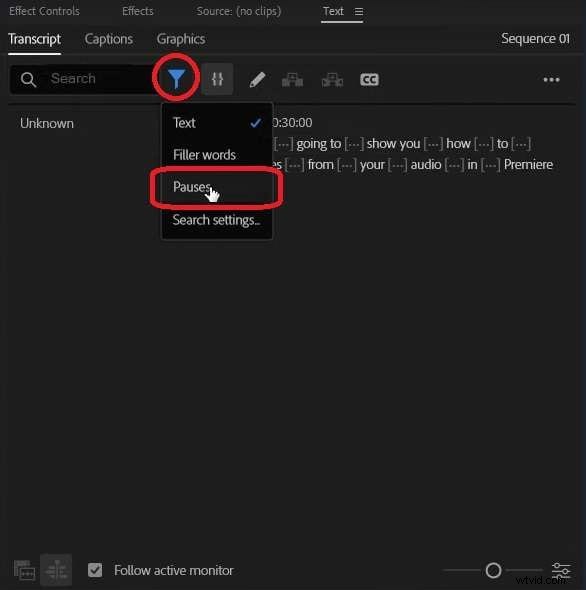
- Click the Filter icon and select Pauses. All silent segments will appear highlighted.
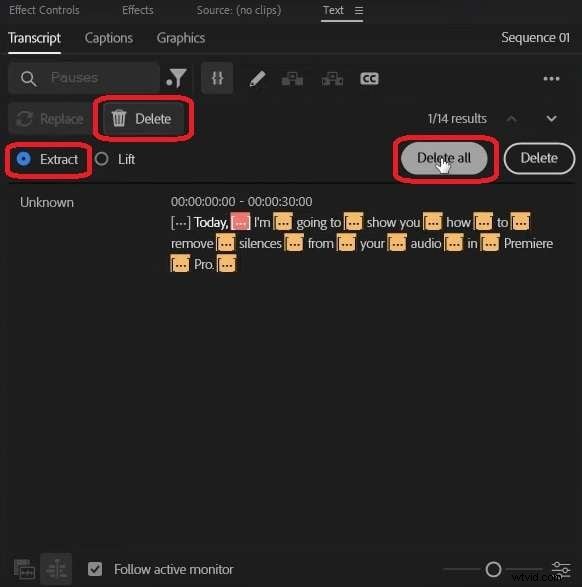
- Press the Delete button, choose Extract, then click Delete All. Premiere Pro will remove every identified pause automatically.
Key Advantages of Premiere Pro’s Silence Removal
- Integrated within the Adobe ecosystem, ensuring seamless workflow with After Effects, Audition, and more.
- Advanced settings for volume threshold, minimum duration, and softening buffer.
- Extensive manual controls, including keyframing and audio effects.
- Professional‑grade output suitable for broadcast and cinematic projects.
How to Remove Silence in Filmora
Filmora offers a user‑friendly alternative that delivers comparable results with fewer clicks. Here’s how to get started:
- Download and install Filmora from the official website. Import your video, drag it onto the timeline, then navigate to the Tools tab and select Audio – Silence Detection.

- Adjust the parameters: Volume Threshold, Minimum Duration, and Softening Buffer to suit your clip’s dynamics.
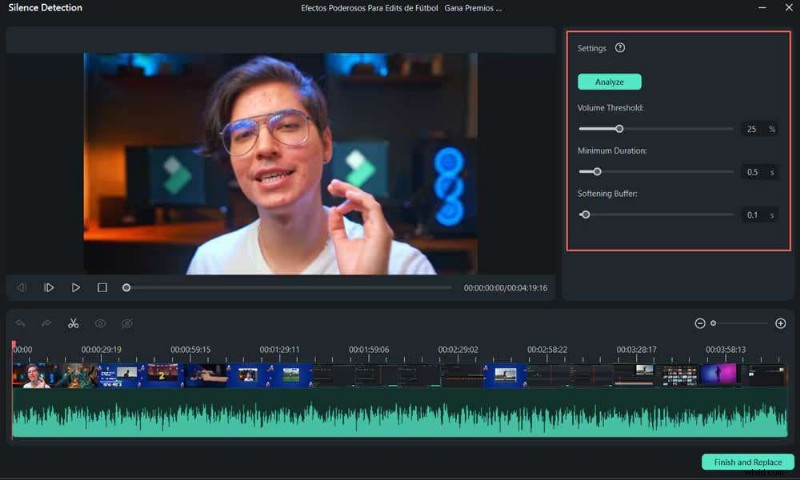
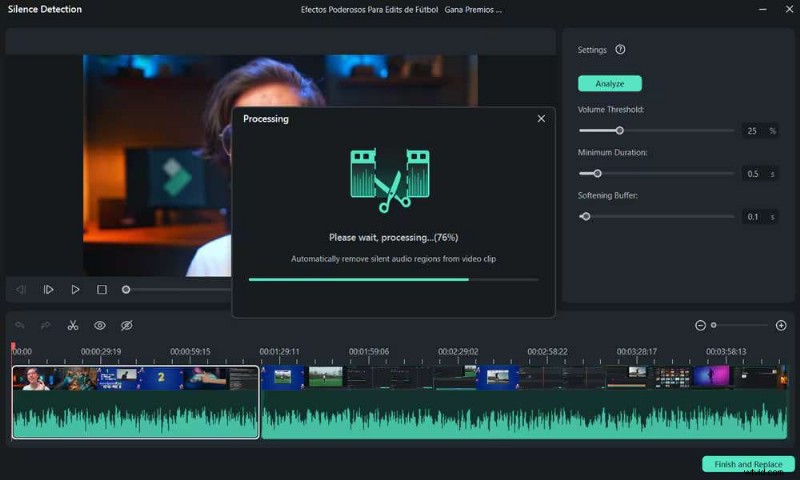
- Click Analyze to let Filmora scan the audio. The timeline will display black bars for silent segments and colored bars for audible parts.
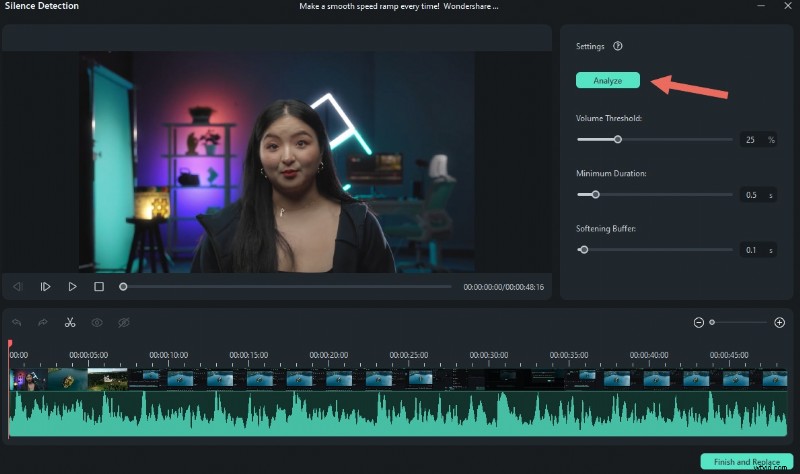
- If needed, tweak the settings and re‑analyze until the silent portions are accurately highlighted.
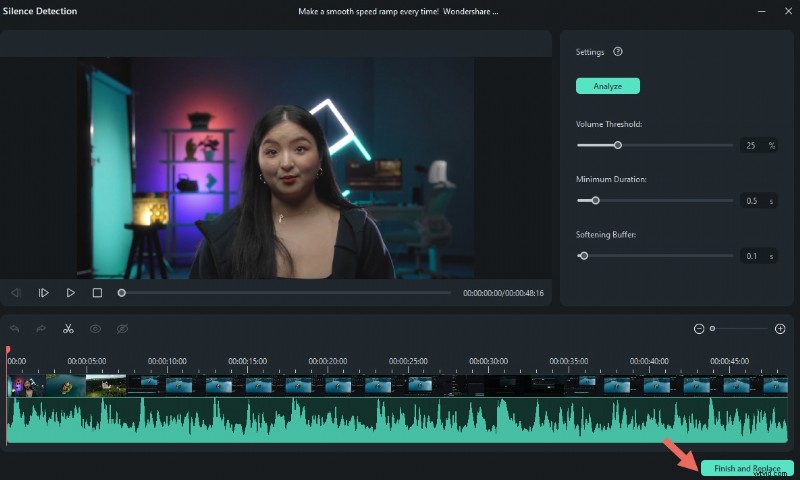
- When satisfied, click Finish to replace the original clip on the timeline with the cleaned version.
Why Filmora Is a Great Alternative
- Intuitive drag‑and‑drop interface, ideal for beginners and intermediate users.
- AI‑driven detection that requires minimal manual intervention.
- Flexible pricing: free version with basic features; paid plans start at $5.99/month.
- Cross‑platform support on Windows, macOS, iOS, and Android.
Premiere Pro vs. Filmora for Silence Removal
| Feature | Premiere Pro | Filmora |
| Ease of Use | Steeper learning curve; tailored for advanced editors | User‑friendly; excellent for beginners and hobbyists |
| Silence Removal Tool | Advanced, with customizable thresholds and softening buffers | Basic yet effective AI‑driven detection |
| Manual Adjustment | Extensive options, including keyframing and effect stacking | Drag‑and‑drop editing with intuitive controls |
| Audio Editing Tools | Comprehensive suite: EQ, dynamics, effects, keyframes | Solid core tools, sufficient for most projects |
| Cost | Subscription (Adobe Creative Cloud) – typically $20–30/month | Free tier; paid plans from $5.99/month |
| Customization | High level of precision and flexibility | Moderate customization suitable for quick edits |
| Target Audience | Professional editors, broadcast, and film post‑production | Amateurs, content creators, and small studios |
| Support & Tutorials | Extensive Adobe Academy resources, community forums, and dedicated support | Active community, online tutorials, and help center |
In short, Premiere Pro excels for users who need granular control and integration with the Adobe ecosystem, while Filmora delivers a cost‑effective, low‑friction solution for quick, clean edits.
Benefits of Using Silence Detection Tools
- Time Savings – Automation removes the need to sift through hours of audio manually.
- Enhanced Audio Quality – Eliminating dead air creates a smoother, more engaging listening experience.
- Content Focus – Clear audio brings the narrative to the forefront, reducing distractions.
- Professionalism – Consistent audio without awkward pauses signals polished production values.
- User‑Friendly – Even those with minimal editing experience can apply the tool effectively.
- Error Reduction – Automated detection minimizes the chance of overlooking subtle pauses.
Tips for Removing Silence in Premiere Pro & Filmora
- Use the Audio Editor in Filmora or the Audio Waveform view in Premiere Pro to zoom in and verify silent sections.
- Apply the built‑in silence‑remover for a quick pass, then fine‑tune manually with the Razor Tool if needed.
- Adjust surrounding audio levels to maintain consistent volume after cuts.
- Preview edits in real time to catch any unintended gaps or abrupt transitions.
- Export a short test segment to audit the final audio quality before the full render.
Main Uses of Silence Removal
- Podcast Editing – Remove filler pauses for a tighter dialogue.
- Interview & Talk Show Production – Keep conversations fluid and engaging.
- Social Media Clips – Short, punchy videos benefit from instant audio flow.
- Webinars & Presentations – Professional audio boosts credibility.
- Music Production – Clean tracks free of unwanted gaps enhance flow.
Unlock Premium Music: Filmora’s Collaboration with Universal Music
Filmora’s partnership with Universal Music offers creators access to a vast library of royalty‑free tracks, making it easier to pair high‑quality audio with flawless silence removal.
Conclusion
Silence removal is no longer a tedious chore. With Premiere Pro’s advanced features and Filmora’s approachable AI, editors can focus on storytelling rather than patching audio gaps. Choose Premiere Pro for detailed control and integration with professional workflows; opt for Filmora when speed, affordability, and ease of use are paramount. Try both and discover how a polished audio track can elevate your video content to the next level.