
Need to add voice‑overs or mute the sound in a Facebook video? Whether you’re saving a podcast clip, a favorite song, or an interview, the right tools make the process seamless.
Here’s a clear, step‑by‑step guide on how to extract audio from Facebook videos using Filmora on PC, mobile, or online.
Table of Contents
- Extract Audio on PC with Filmora
- Extract Audio on Mobile with Filmora
- Extract Audio Online with GetFVid
- Polish Your Audio with Filmora’s AI Features
1. Extract Audio on PC with Filmora
Wondershare Filmora is a versatile video editor that lets you pull audio from Facebook videos quickly and safely.
You have two primary options: directly detach the audio or record the video while capturing system sound.


Key Features
- Record and add new voice‑overs to replace the original audio.
- Auto‑sync to align audio and video automatically.
- Adjust voice clarity from 0% to 100% to suit your taste.
- Clone your voice, replicate tones, and generate text‑to‑speech in seconds.
- Use AI to isolate acapella vocals from music tracks.
- Apply voice effects for a more engaging sound.
Step‑by‑Step Extraction
- Method 1 – AI Vocal Remover
Use Filmora’s AI vocal remover to isolate vocals from the soundtrack. This is ideal when you need a clean vocal track for remixing or subtitling. - Method 2 – Direct Audio Detach
Drag the Facebook video onto the timeline, right‑click the clip, and select Detach Audio. Export the resulting audio file. - Method 3 – System Audio Recording
Play the Facebook video, then use Filmora’s screen‑record feature with system sound enabled to capture the audio directly.
Once extracted, you can edit the audio—trim, normalize, or add effects—before exporting.
2. Extract Audio on Mobile with Filmora
The Filmora mobile app (iOS & Android) offers a lightweight solution for on‑the‑go edits.
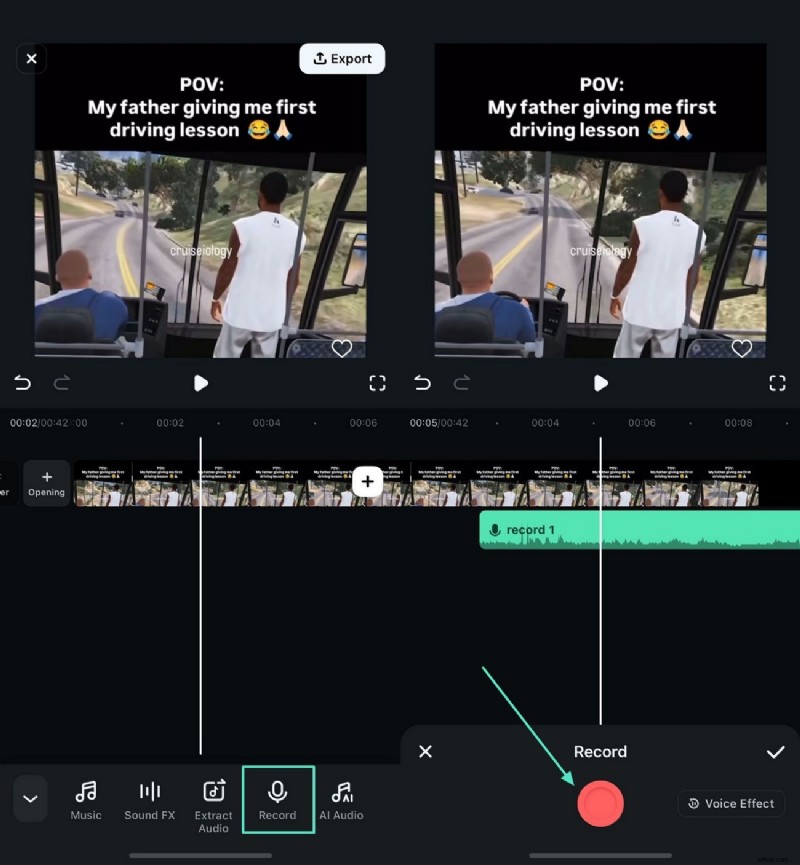
Method 1 – Direct Audio Extraction
Import the video, tap the timeline, then choose Extract Audio. You can also add local audio files or use the voice‑changer for creative twists.
Method 2 – Record a New Voice‑over
If the original video lacks audio, tap Record on the timeline to create a new track. After recording, use the one‑tap denoiser to remove background noise.
3. Extract Audio Online with GetFVid
For those who prefer not to install software, GetFVid offers a quick web‑based solution.
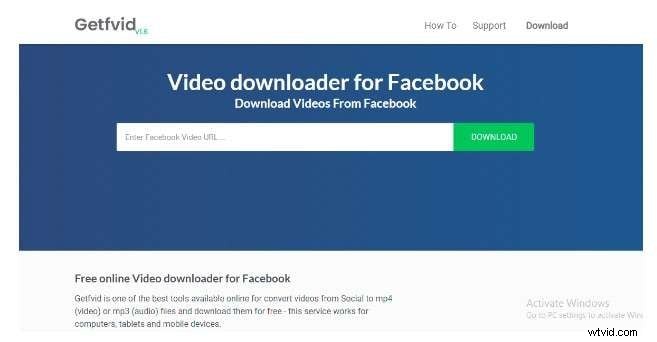
- Visit the GetFVid website.
- Copy the Facebook video URL, paste it into the textbox, and click Download.
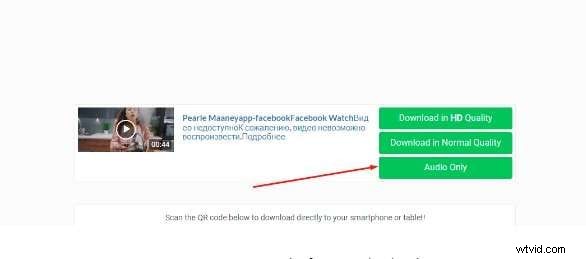
- Choose the Audio Only option, then click Download to save the MP3 to your device.

4. Polish Your Extracted Audio with Filmora’s AI Tools
After extraction, elevate your audio with Filmora’s advanced AI features.
- Audio Normalization – Balances volume levels across the track for a smooth listening experience.
- Silence Detection – Automatically removes unnecessary pauses to shorten the clip.
- Speech‑to‑Text – Converts spoken words into captions or subtitles for accessibility.
These tools are ideal for podcasts, video productions, or personal projects where crisp audio is essential.
Conclusion
Extracting audio from Facebook videos is straightforward with Filmora, whether on desktop, mobile, or via an online service. The built‑in AI features ensure the final audio is clean, professional, and ready for your next project.