
The process of changing speech to text from video uses speech recognition technology that transcribes a person's spoken words into text. In other words, the computer software listens to a person speak and then generates a transcribed text of what has been said. Nowadays speech-to-text technology has become a very important and versatile tool, especially for interacting with content, blogs, and social media via transcripts, subtitles, and even auto-generated captions.
Luckily, you do not need an overly complex platform or software to use the video speech-to-text converter feature. You can adopt a unique tool like Wondershare Filmora. This all-in-one video editing software helps you convert video speech to text with simplified ease, whether you are a beginner or an advanced user.
In this article, you will get to learn how to convert speech to text from video without having to break a sweat.

In this article
- What Types of Videos Can You Convert Speech to Text with?
- How to Convert Speech to Text from Video with a Mobile Phone
- The Advanced Way to Convert Speech to Text from Videos
Part 1: What Types of Videos Can You Convert Speech to Text with?
The video speech-to-text converter technology feature is widely used across industries and for different purposes. Some of the video content where you can enjoy the benefits of this feature are:
- Educational Videos: For tutors who create online lectures and even educational tutorials, you can convert video to speech textto help students—specifically those with auditory disabilities—understand and access the information in your video lectures.
- Advertisement Videos: When advertising a product online using video content, you can transcribe the speech to text to reach a wider audience, including those who, due to a disability, device errors, or other external factors, might not be able to hear the audio output from the video.
- Podcasts: Podcastsdon’t only have to rely on audio output alone. In fact, you can incorporate transcribed text from your audio into your podcast videos to make them more accessible to a wider audience. To take it a step further, after you convert video speech to text, you can add the transcription to a document and link it to the video, urging listeners to also check out the transcribed version if they can’t access the video.
- Corporate Videos: By converting speech to text from videos, you can extract information from pre-recorded corporate meetings, video announcements, and even presentations. This makes it much easier to access, analyze, and store your business’s corporate information. It can also help improve your training method for new employees since all they have to do is check out the transcribed notes from their recorded trainings.
- Social Media Content: Using technology to transcribe speech-to-text from videoincreases viewers’ engagement as more people, including those with auditory disabilities, can watch and interact with your content. This, in turn increases your video's visibility rank on search algorithms.
Part 2: How to Convert Speech to Text from Video On a Mobile Phone
Changing video speech to text manually can be time-consuming. Wondershare Filmora makes it easy and stress-free to do so, especially when transcribing long videos like movies or podcasts. Fortunately, all that is no longer necessary because you can do it with ease and without stress with Filmora.
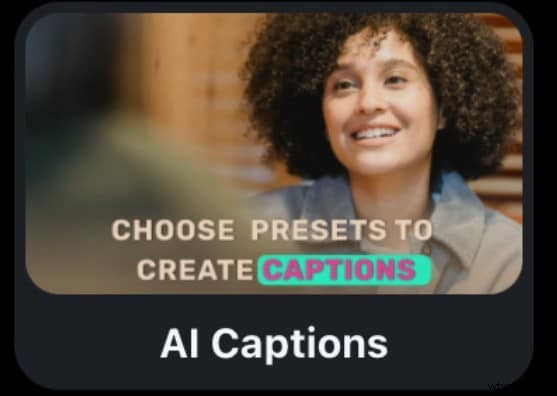
Beyond basic video editing, Filmora is taking accessibility features to the next level, incorporating tools like speaker detection and speech editing in the mobile version and speech-to-text in the desktop version. In this section, we will explore how to convert video speech to text captions on your mobile phone with the Filmora app. Remember that the speaker detection and edit speech features are accessible on both Android and iOS devices. Let’s begin:
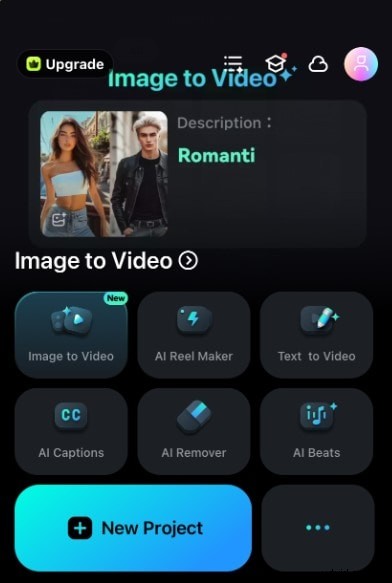
- Step 1: Download the Filmora app and launch it. Then, click on New Project from the home page.

- Step 2: From your video library, choose the video to convert onto your workspace and click Import to add it to your workspace.
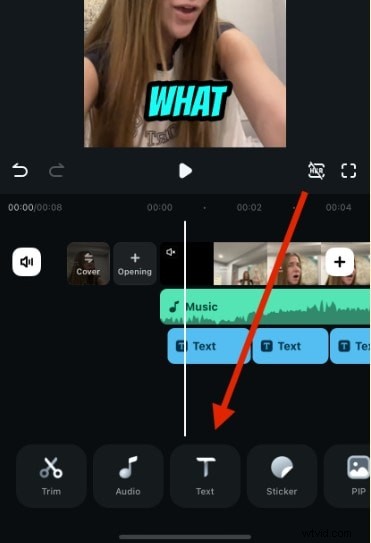
- Step 3: Fom the base of the screen, tap Text, marked by the T icon.
- Step 4: Select AI Captions.
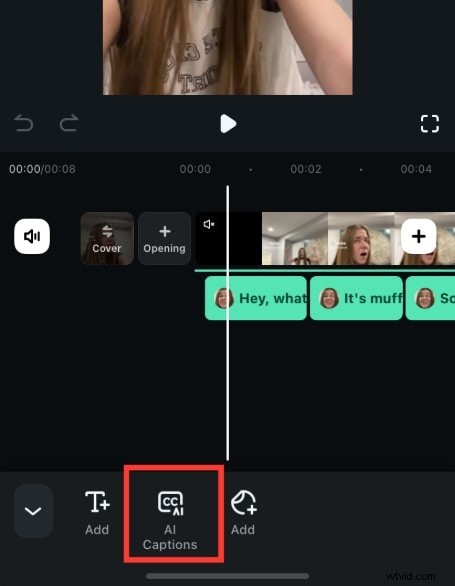
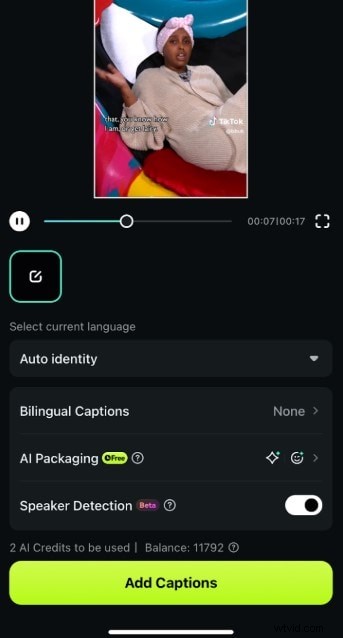
- Step 4: On the next page, toggle on Speaker Detection and click on Add Captions to generate text from your video’s speech.
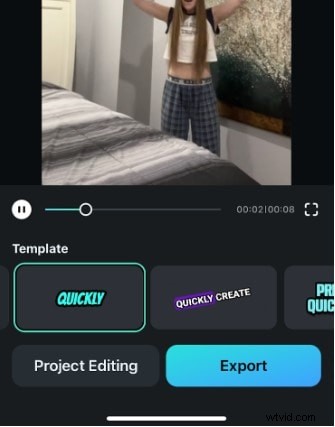
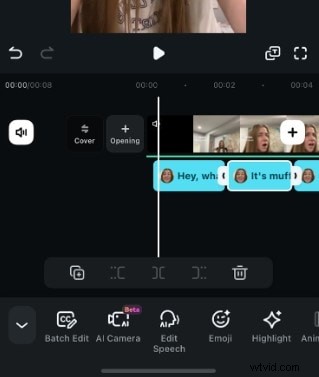
- Step 5: After the text is generated, you can edit it to make changes where necessary. To do so, simply tapthe text clip in the timeline first.
- Step 6: From the editing suite, click Edit Speech at the bottom of your screen. You may need to scroll sideways to see this button.
- Step 7: Edit your captions as you see fit and tap Update Speech to save the changes.
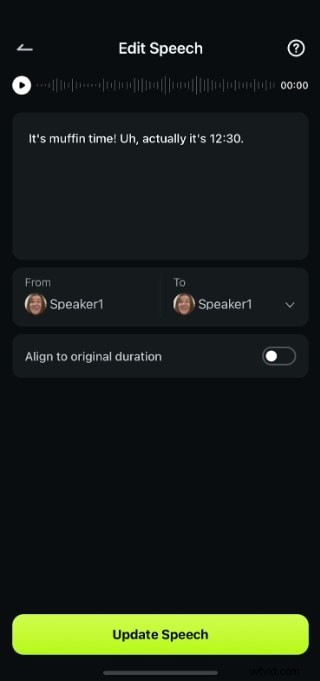
It is important to note that the Speaker Detection and Speech Editing features areonly available on the mobile versionof Filmora. As such, it is best for people who need this feature on the go or need a quick fix for their video content without needing a desktop setup. It is also readily available for both beginners and skilled users.
Part 3: Convert Speech to Text from Videos with AI on Desktop
If you’re in search of more advanced, rich-in features but simple, straightforward, and effective platforms to convert speech to text from videos, the Wondershare Filmora desktop version is the best and most versatile tool for video content. Its Speech-to-Text function converts even complex spoken words to accurate texts as captions or subtitles. This feature also comes with multi-lingual support, translation options to a variety of languages, such as Chinese, Spanish, and French.
Here’s how to use Filmora as a video speech-to-text converter:
- Step 1: Download the Filmora app from the official website to your desktop. Once you have successfully downloaded it, launch the app and click on New Project.

- Step 2: Tap Import to add the video file that you want to work on by clicking on the Import button and selecting the video file from your computer documents.
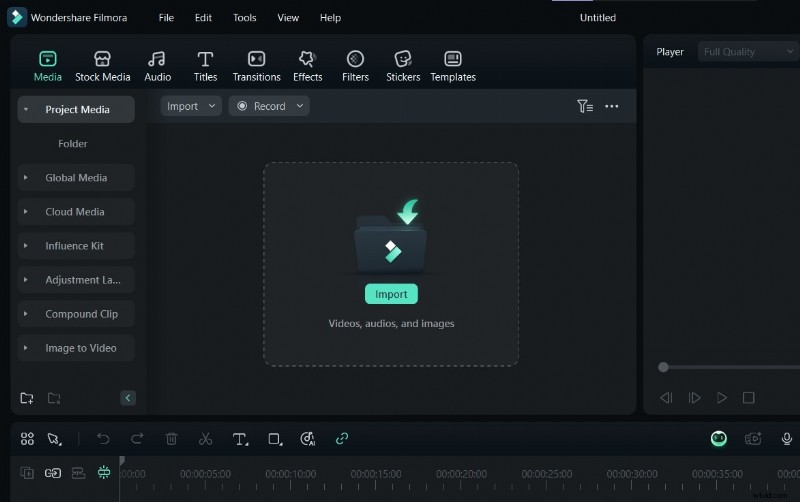
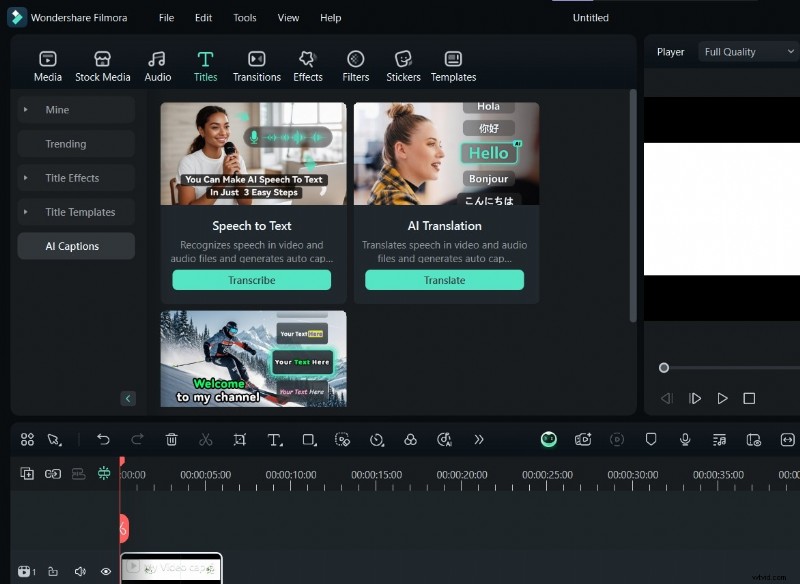
- Step 3: After the video has been successfully imported, click on your video clip in the timeline. From the toolbar, open the Titles tab and click AI Captions.
- Step 4: Select the Speech-to-Text feature, then allow Filmora to analyze your video and start the conversion using AI technology.
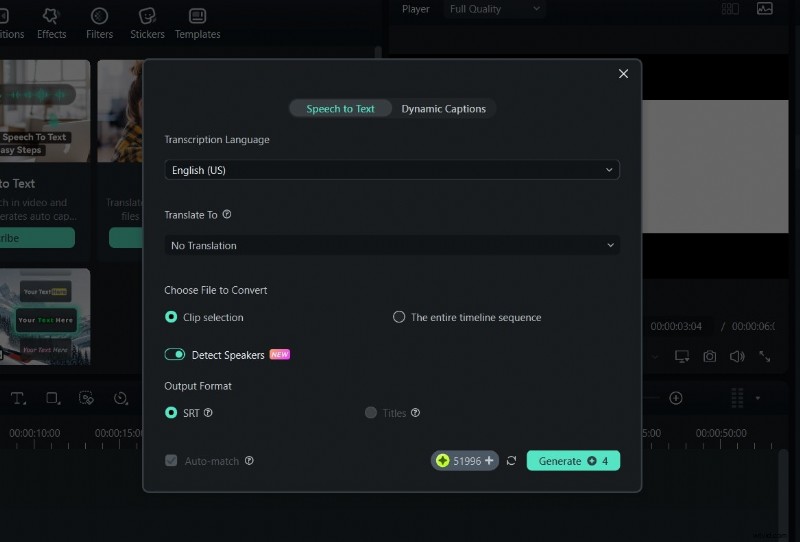
- Step 5: On the next panel, set the transcription language to No Transcription. To translate the captions to a different language, you can also set the field to the language of your choice.
- Step 6: Once the conversion has been completed and your converted video speech-to-text is displayed on your screen, you can preview the text to ensure that it aligns perfectly with the spoken words in the video. You can also edit the text to make minor adjustments where necessary.
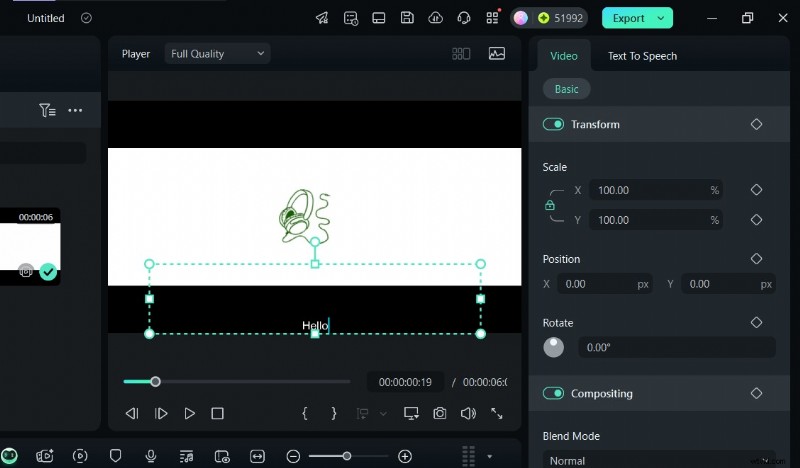
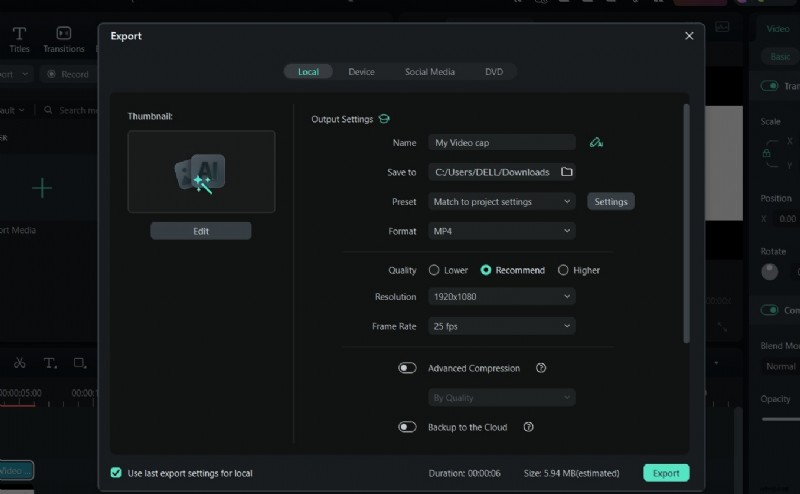
- Step 7: Once that’s done, you can complete your video edits and click on Export to save the video file to your PC. Before exporting, be sure to set the video format to MP4 for the best quality.
With this feature on Filmora for desktop, converting video speech to text is faster and more precise, thanks to assistance from AI-powered technology. This makes it perfect for more complex video projects where precision and accuracy are essential.
Conclusion
Whether you are working on your desktop or mobile phone, no matter the reason why you want to convertspeech to text from video, the process has never been easier. With Wondershare Filmora’s advanced but straightforward, efficient, and versatile features, such as the Voice/Speaker Detection and Speech Edit on the mobile version for mobile phones down to the advanced AI-powered technology Speech-to-Text feature on desktop, both skilled and beginner video editors can seamlessly convert video speech to text.
Do not pass on this amazing opportunity to get a great deal, visibility, engagement, and even sales out of Filmora for all your video content. Download Wondershare Filmora today on either your mobile phones or your desktops, and join the wagon of creativity with ease!

Filmora
⭐⭐⭐⭐⭐
The Best AI-powered Video Editing Software and App