
Converting a video to a separate audio track on an iPhone is invaluable when you need raw sound for podcasts, music production, or content remixing. With iOS’s built‑in tools and a handful of free or paid apps, you can quickly detach audio without a computer.
Why Separate Audio?
- Build podcasts or audio clips directly from video footage.
- Save background music from social media clips for other projects.
- Gain full control during editing or remixing.
- Enhance audio quality by removing noise or re‑recording.
- Use synthesized audio for educational or informational purposes.
Method Comparison
| Method | Effectiveness | Ease of Use | Features |
|---|---|---|---|
| Filmora | Very Effective | Super Easy | Basic to AI‑powered editing tools |
| iOS Shortcuts | Effective | Medium | No built‑in editing features |
| iMovie | Effective | Easy | Basic audio handling |
| Online Audio Extractor | Effective | Easy | Format conversion options |
Method 1: Filmora Mobile App
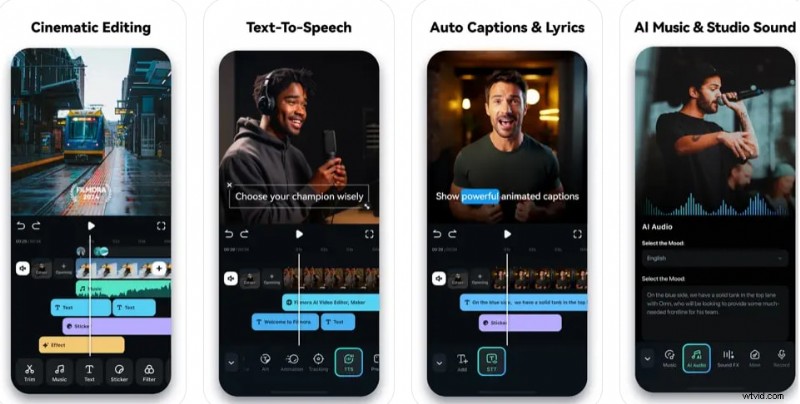
Filmora’s intuitive interface and advanced editing suite make it the quickest way to pull audio from video directly on your iPhone. The process takes just three steps, after which you can tweak volume, trim, or add effects.
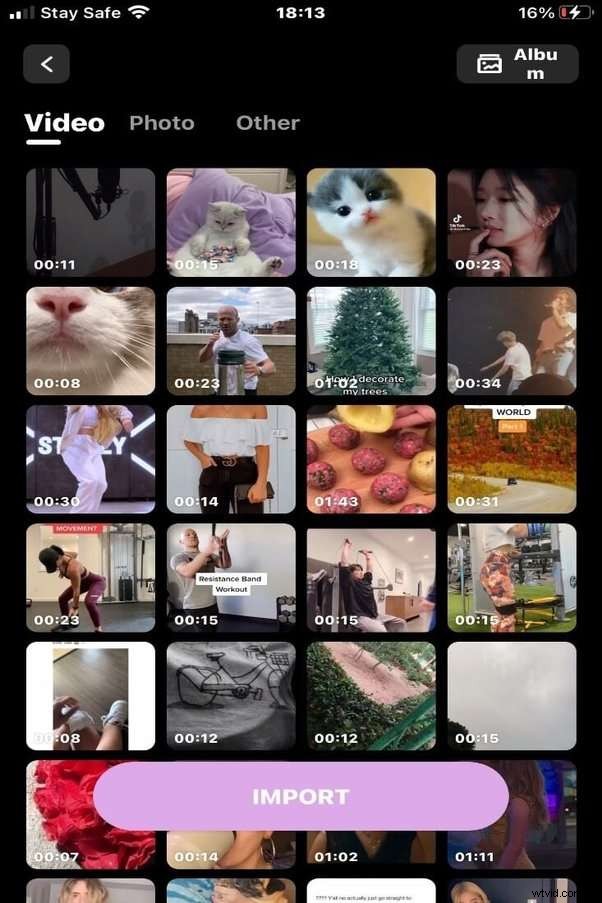
- Download the Filmora app from the App Store and launch it.
- Tap the + icon, select your video, and add it to the timeline.
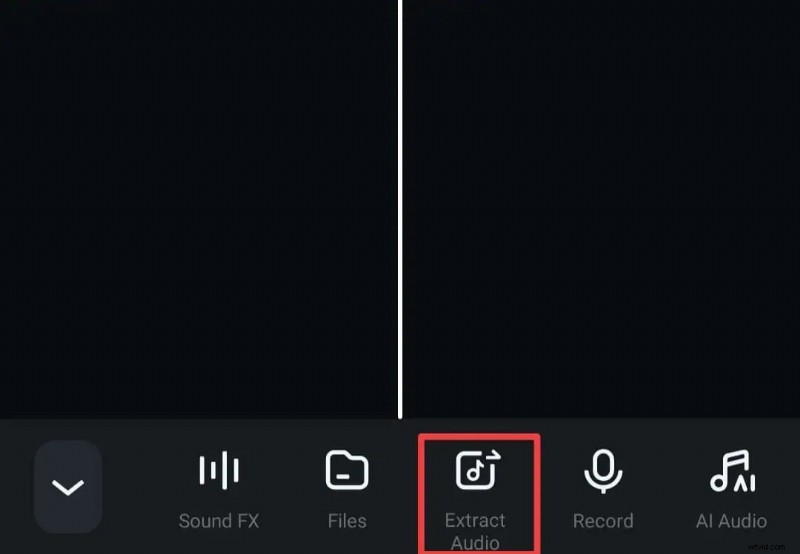
- With the clip selected, choose Extract Audio in the timeline. The audio is now on a separate track and ready for editing.
- Trim, split, adjust volume, or apply effects as needed, then export in your preferred format.
Method 2: Shortcuts App
For a completely free solution, the iOS Shortcuts app can detach audio. Two approaches are available: a pre‑built iDB shortcut and a custom shortcut you create yourself.
Way 1: iDB Video To Audio Shortcut
Before iOS 15, enable Allow Untrusted Shortcuts in Settings > Shortcuts. On iOS 15 and later, the shortcut is added directly.
- Open the iCloud link, tap iDB Video To Audio, then Add Shortcut.
- Choose a video from the Photos app.
- Share the video and select the iDB Video To Audio option from the share sheet.
- After a few seconds, the shortcut saves the audio to the Files app; open the file to play or share.
Way 2: Custom Shortcut
- Open the Shortcuts app and tap + to create a new shortcut. Rename it to Extract Audio.
- Tap Show in Share Sheet and set Receive to Media Only.
- Add the Encode Media action, enable Audio Only to strip the audio from the video.
- Add a Save File action to store the extracted track in your desired location.
- Save and use the shortcut from the share sheet whenever you need to isolate audio.
Method 3: iMovie
iMovie, Apple's free video editor, also provides an easy audio‑detach feature.
- Install iMovie from the App Store and open it.
- Create a new project and import your video.
- Tap the clip on the timeline, then select Detach from the actions menu.
- The audio appears on a separate track; export the project to keep only the audio layer.
Method 4: Online Audio Extractor
For those who prefer a web‑based solution, the Audio Extractor website supports numerous formats and is entirely free.
- Navigate to the Audio Extractor site and click Open files to upload your video.
- Select your desired output format.
- Click Extract Audio and wait for the conversion to finish.
- Download the resulting audio file; optional fade‑in/out editing is available.
Bonus: Extract Audio on Mac with Filmora
Filmora is available for macOS and offers even more powerful editing tools.
- Download and install Wondershare Filmora for Mac.
- Import the video into the media library.
- Drag the clip to the timeline, right‑click it, and choose Detach Audio.
- Delete the video track if you only need audio.
- Trim or adjust the audio track as needed.
- Export the project in your chosen format.
Conclusion
Whether you prefer a native iOS solution or a robust third‑party app, these four methods give you full control over audio extraction on your iPhone. For the most straightforward experience, Filmora’s mobile app is highly recommended, but the Shortcuts app offers a free alternative if you’re comfortable with a slightly more complex workflow.
FAQs
- How do I pull audio from an iPhone video? Use the Shortcuts app or Filmora; the latter only requires three simple steps.
- Is there a free way to convert video to audio? Yes—Shortcuts and iMovie provide free extraction, though format support may be limited.
- Can I isolate just the voice from a video? For precise vocal extraction, a dedicated vocal‑remover app is recommended.