
Are you planning to start a podcast or are you already creating one? So you should be aware of the importance of audio quality in podcasts. The listener always appreciates the clear audio, which allows them to connect with the content. However, many beginners try Adobe Audition for podcasts but are unable to achieve perfection in their audio quality.
Many newbie podcasters are not aware of the amazing features of Adobe Audition, and some overdo and lose clarity on podcasts. You don't need to worry; here you will get the best overview of the Adobe audition and learn how easy it is to edit and record in Adobe audition.
In this article
Part 1: Adobe Audition for Podcasts: Features & Benefits
Adobe Audition is professional digital audio workstation (DAW) software for editing high-quality audio and is perfect for podcast creation. Some of its main features and advantages to podcasters include:
1. Advanced Multitrack Editing
Adobe Audition enables one to edit more than one track at a time, making it simpler to mix interviews, incorporate background music, and work with audio layers.
2. Noise Reduction & Audio Cleanup
Background noise is one of the most daunting and constant challenges that podcasters face. Adobe Audition provides robust noise reduction tools such as adaptive noise reduction and spectral frequency display to remove background noise quickly and easily.
3. Essential Sound Panel
The pre-set configurations enhance voice clarity, remove background noise, and equalize volume in an automated process.
4. Adobe Podcast Effects & Voice Enhancement
Adobe Podcast improves voice quality with a parametric equalizer for balance, a compressor for steady volume, and reverb & echo reduction for a professional-sounding finish.
All these features make it the perfect choice for podcasters to utilize Adobe Audition. This is a professional audio editing tool that comes with lots of advanced features. It brings perfection to audio and adds professionalism to podcasts.
Part 2: How to Use Adobe Audition for Podcasts?
Now if you are new to Adobe Audition and do not know exactly how to use Adobe Audition for podcasts, here is a brief guide for you. Follow the below steps and achieve perfection in your podcast.
Steps to create and edit a podcast in Adobe Audition
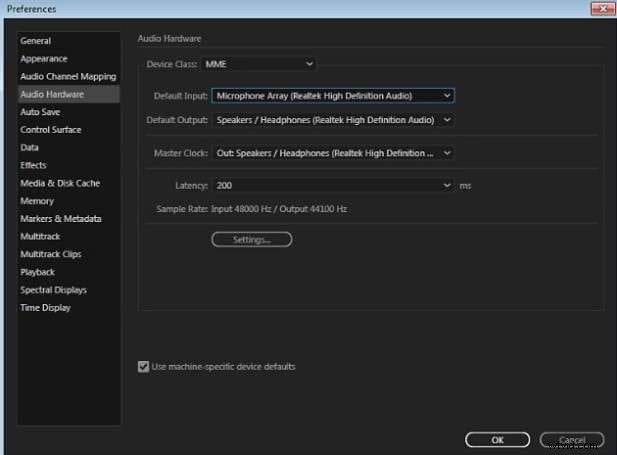
Step 1: First, set up your microphone to record audio.
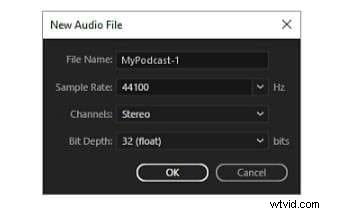
Step 2: Next, use Waveform Editor to record a podcast. Go to File > New > Audio File. Select your sample rate of 44100 Hz or higher, channels as stereo, and bit depth as 32 (float), and then press OK.
Step 3: When you are ready to record the audio, click the record button and pause and stop as needed while recording.

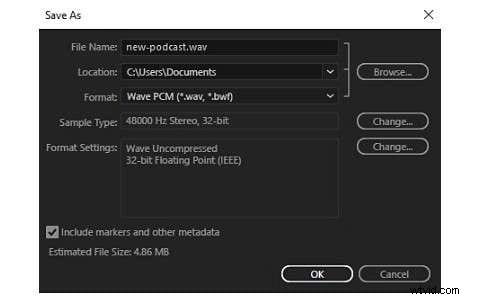
Step 4: After verifying the settings, click File > Save to save your file. You can keep the sample type and format from the source or change them by clicking the Change button.
That’s how easy it is to record podcasts in the Adobe audition. You are also allowed to edit and bring perfection to your audio quality. However, Adobe Audition has some limitations, which is why many beginners seek alternatives. Let’s learn about those drawbacks and how Filmora makes everything easy for you.
Part 3: Limitations of Adobe Audition
No doubt Adobe Audition is a powerful tool for achieving perfection in audio quality. However, it has some limitations that force beginners to resort to alternative methods. Here are some drawbacks of the Adobe audition.
- Steep Learning Curve: New users might be intimidated by the advanced features and sophisticated interface.
- Expensive Subscription Model: Adobe Audition is a monthly subscription-only program, which would be too costly for hobbyists or small podcasters.
- No Built-in Podcast Hosting & Publishing: Unlike certain podcast editing software, Adobe Audition does not have integrated publishing capabilities for podcasting platforms.
- High system requirements: It demands a strong computer to function efficiently, thus making it less accessible for users with standard setups.
How Wondershare Filmora Can Assist
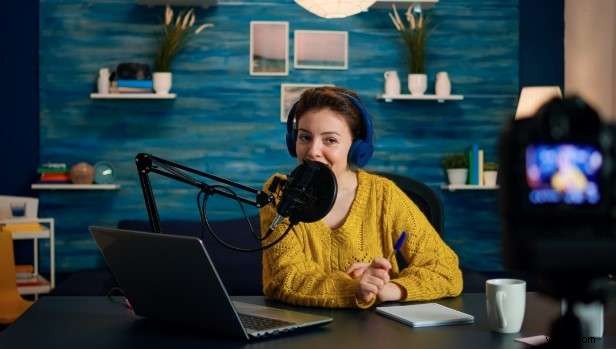
If you need a user-friendly, affordable, and feature-rich alternative to Adobe Audition, Wondershare Filmora is an excellent choice. Although Filmora is mostly used for video editing, its audio editing capabilities make it an excellent option for podcasters as well.
- User-friendly interface: Makes the best option for beginners.
- Advanced AI Editing Features: Makes it easy to automatically lower background noise.
- Offer Noise Reduction features: Eliminates background noise at the touch of a button.
- Equalizer & Voice Enhancer: Helps to enhance the podcast audio quality with ease.
- Affordable Pricing: Compared to Adobe Audition, Filmora offers a very convenient subscription plan.
The Filmora is a complete video and audio editor software that comes with advanced AI features. All of this makes it an excellent choice for those who are just starting with podcasting. The best thing is that Filmora also offers a mobile version to start recording and editing very easily for all. Let’s have a look at how easy it is to start podcasting and editing in Filmora with a step-by-step guide.
Step 1: Create a New Project
After launching Wondershare Filmora, choose Create New Project and import an image or free stock video file related to your podcast topic.
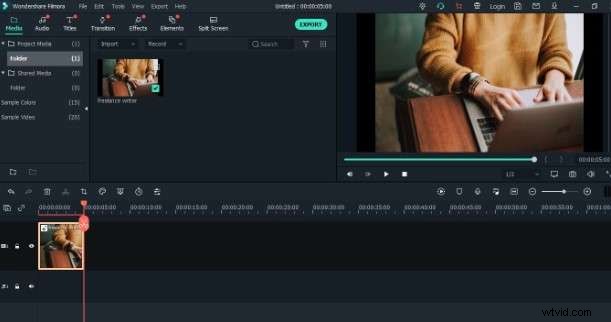
Step 2: Start Recording
Add the videos or images to the timeline. Then, press the Record button to begin recording. Choose Record voiceover from the options.

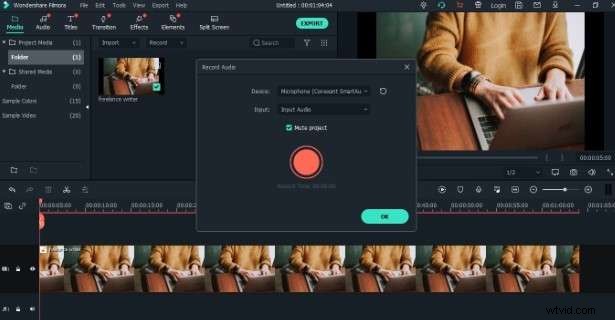
Step 3: Set Microphone
Set the microphone and confirm the voiceover recording by pressing the large red circle.
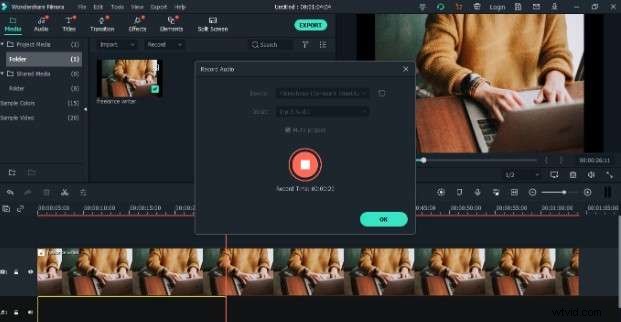
Step 4: Continue Recording
Continue recording until you reach the point where you want to create the podcast. To continue, press the OK button.
Step 5: Edit Podcast with AI
After recording your podcast on Filmora, you can also edit audio with AI features. The AI denoise and AI voice enhancer bring more clarity to your podcasts.
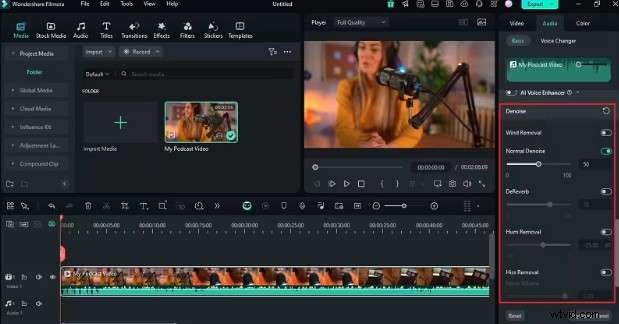
That’s all! See how easy it is to record and edit podcasts with Filmora. Whereas Adobe Audition appears to be complicated for newbie users, Filmora is extremely user-friendly. You can also use the Filmora mobile application to create high-quality podcasts from anywhere.
Here's how you can use it:
Step 1: Download Filmora on your mobile from the App Store or Play Store.
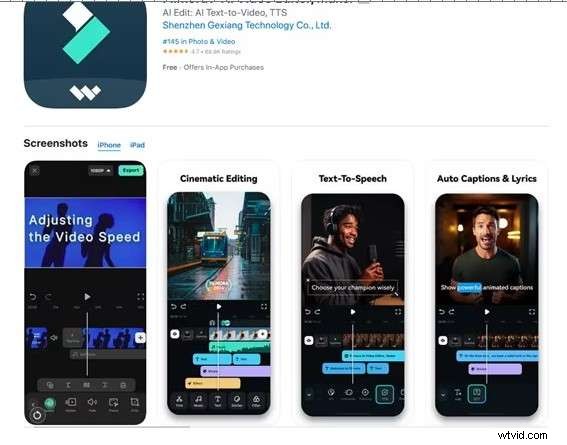
Step 2: Tap on New Project and start recording and editing your podcast.
Step 3: After satisfying the edits, you can share and export it anywhere.
That is how easy it is to use Filmora on mobile. The Filmora offers complete freedom to users to bring more professionalism into their podcast content. The AI audio clarity function makes your audio edits more enjoyable.
Conclusion
Adobe Audition is an extremely professional tool for recording and editing podcasts. It offers professional-level features for getting better audio clarity. The above brief guide shows you how to record podcasts in Adobe Audition. However, due to some limitations, it looks very complex for beginners. For those who are looking for user-friendly and budget-friendly options, Wondershare Filmora is a great option. You can try this amazing tool on your desktop and mobile and produce better podcasts.