
Anime has evolved from niche to mainstream, with countless fans sharing clips on TikTok and Reels. To stand out, your videos must be crisp, not pixelated.
Low‑resolution rips can ruin the viewing experience. By using a dedicated anime‑video enhancer, you can transform grainy footage into studio‑grade quality. In this guide, we’ll walk you through how to upscale anime videos quickly and reliably.
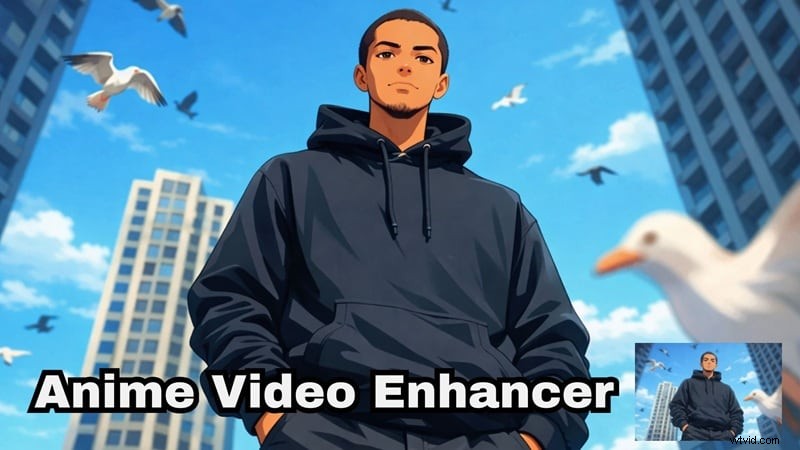
Part 1: The Power of Filmora for Anime Enhancement
Previously, improving blurry anime required juggling multiple tools and a deep knowledge of video editing. Today, AI‑powered editors simplify the process, letting you handle everything in one application. Filmora is one such editor that blends ease of use with industry‑grade AI capabilities.

Why Filmora Works So Well for Anime
AI Video Enhancer That Understands Animation
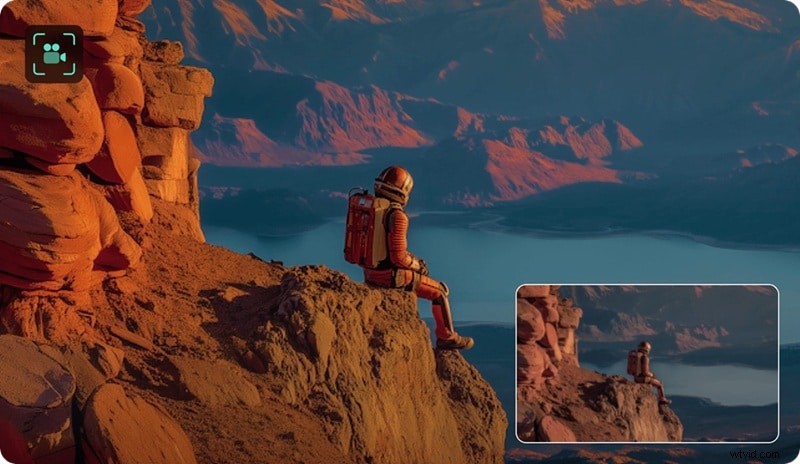
The Filmora AI enhancer goes beyond generic sharpening. It’s trained on animated footage, delivering:
- Sharp line art without jagged edges.
- Effective noise reduction for compressed clips.
- Restored color clarity in older series.
These strengths make Filmora a top choice for creators who need visual excellence on social platforms.
Topaz Starlight Integration (Next‑Level Upscaling)
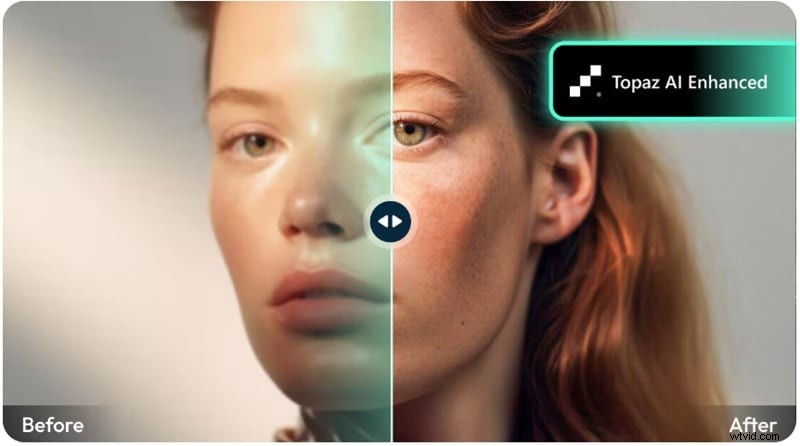
Filmora’s partnership with Topaz Starlight unlocks advanced upscaling. The model delivers:
- Cleaner edge detection tailored for animation.
- Full frame reconstruction rather than simple interpolation.
- 4K output that preserves texture and detail.
Generate Anime When You Don’t Have Footage
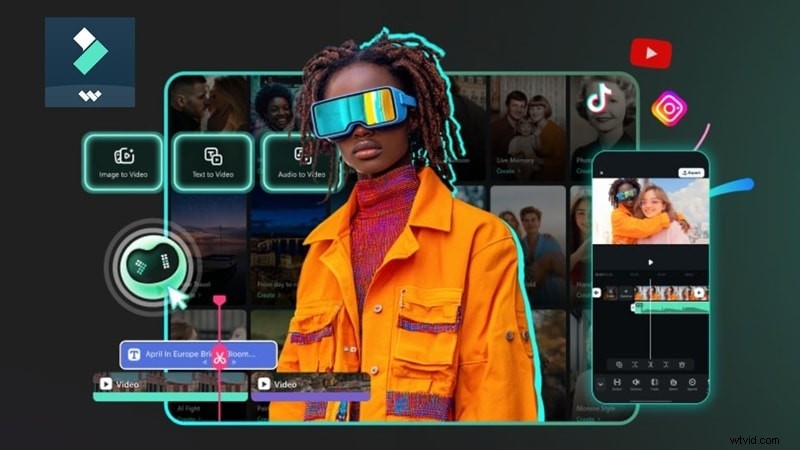
Filmora also offers AI Text‑to‑Video and Image‑to‑Video tools, enabling creators to produce fresh anime‑style visuals from scratch.
Edit Anywhere (Desktop + Mobile)
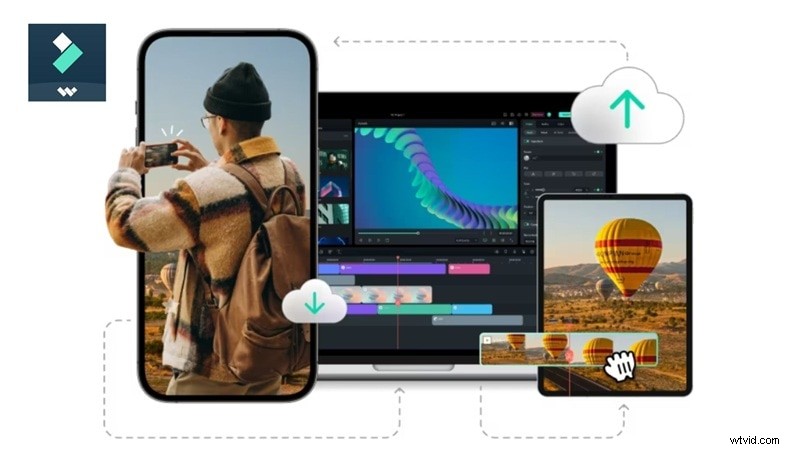
With cross‑platform support, you can start a project on a laptop and finish it on your phone:
- Windows & macOS for full desktop power.
- Android & iPhone for on‑the‑go edits.
This flexibility keeps your workflow fluid and your content ready for upload whenever inspiration strikes.
Beyond Enhancement
Filmora also includes:
- Auto‑subtitle and caption generation.
- Beat‑sync editing to match music.
- Pre‑set TikTok and Reels templates.
- One‑click export directly to social platforms.
All of these features reside in a single interface, eliminating the hassle of file‑converting between apps.
Part 2: Desktop Workflow – Achieve Studio‑Grade Quality
The desktop version of Filmora houses the Topaz Starlight model, delivering the highest fidelity results. Follow these steps for a polished finish:
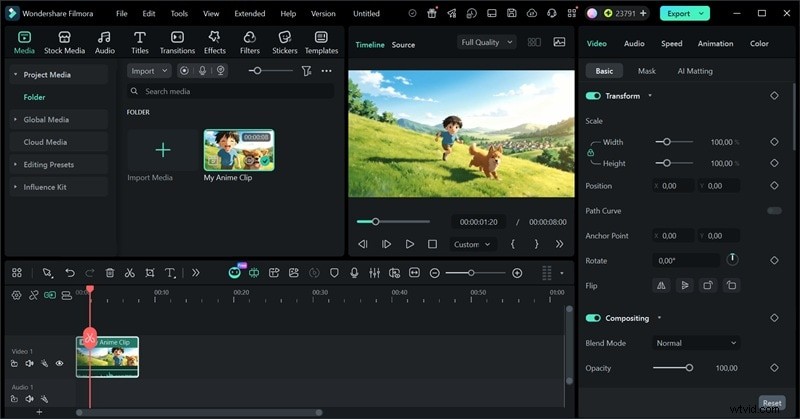
Step 1 – Import Your Clip
Launch Filmora and click “Import.” Drag the video into the media panel, then drop it onto the timeline.
Step 2 – Apply the AI Enhancer
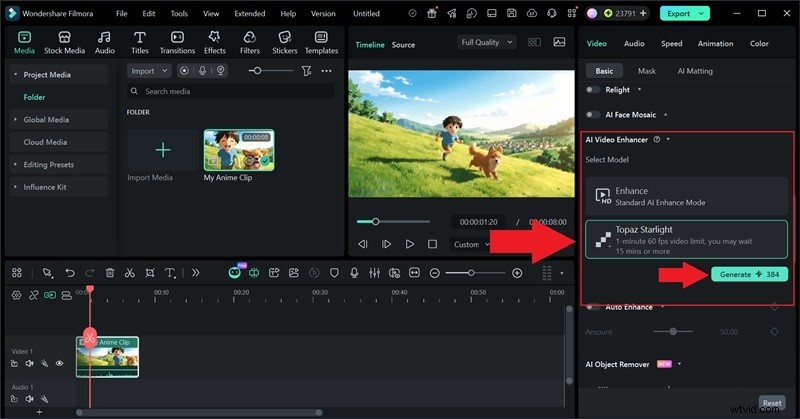
Select the clip on the timeline, then open the property panel. Choose “AI Video Enhancer” and pick the “Topaz Starlight” model. Click “Generate” and wait for processing.
Step 3 – Review and Export
After the enhancer finishes, preview the result. You’ll notice sharper lines, reduced noise, and a cleaner overall look. Export the video in your preferred resolution, ready for TikTok or Reels.
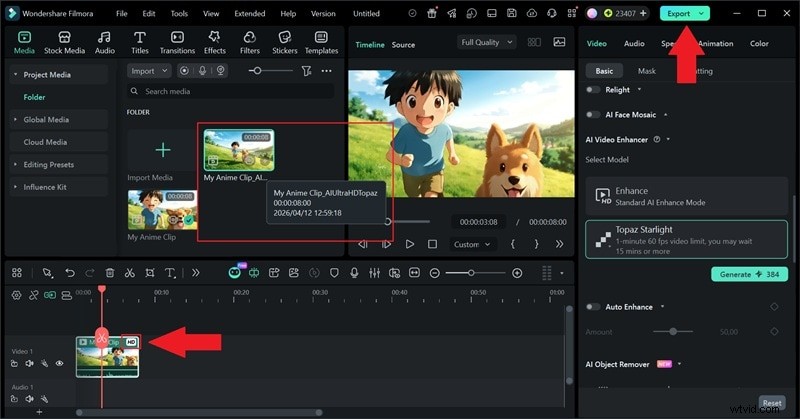
With just three steps, you can transform a low‑res clip into a 4K‑grade edit. The Topaz Starlight processing takes a few extra seconds, but the visual payoff is worth it.
Part 3: Quick Mobile Fix – Edit on the Go
Filmora’s mobile app provides a streamlined workflow for creators who need speed. While the Topaz model isn’t available on mobile, the AI Ultra HD feature still offers substantial improvement.
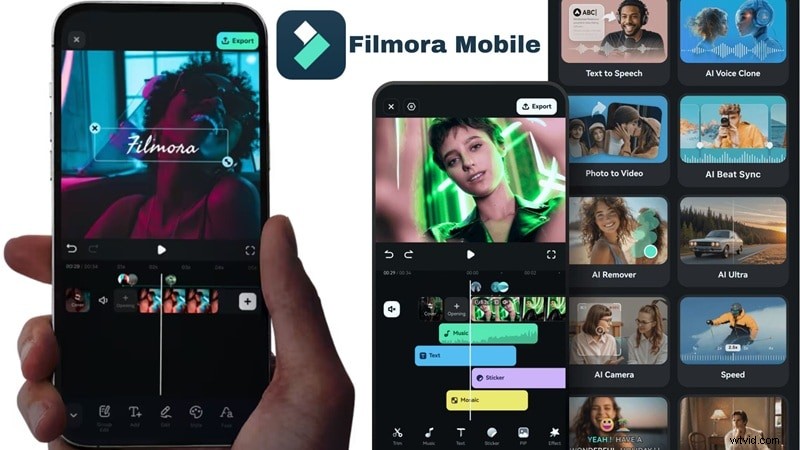
Step 1 – Launch Filmora Mobile
Open the app, tap “AI Ultra HD,” select your clip, and press “Generate.”
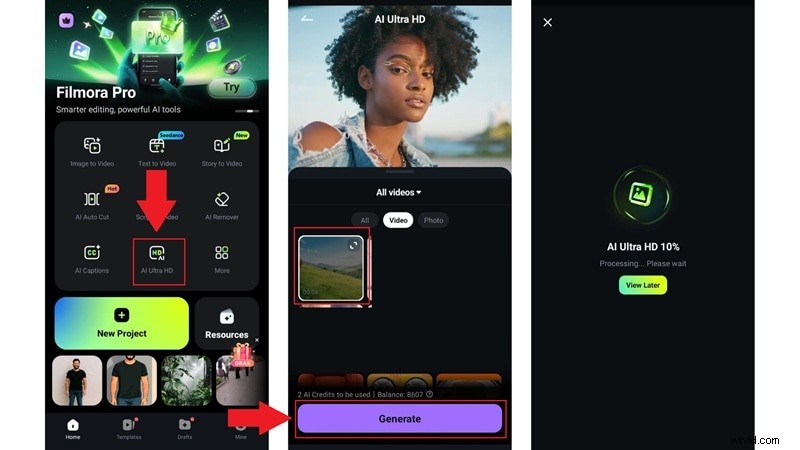
Step 2 – Export or Continue Editing
Choose “Save” to download the result, or “Project Editing” to add music, stickers, or transitions.
Step 3 – Adjust Output Settings
Tap the three dots beside “Export” to set resolution, frame rate, and aspect ratio before exporting.
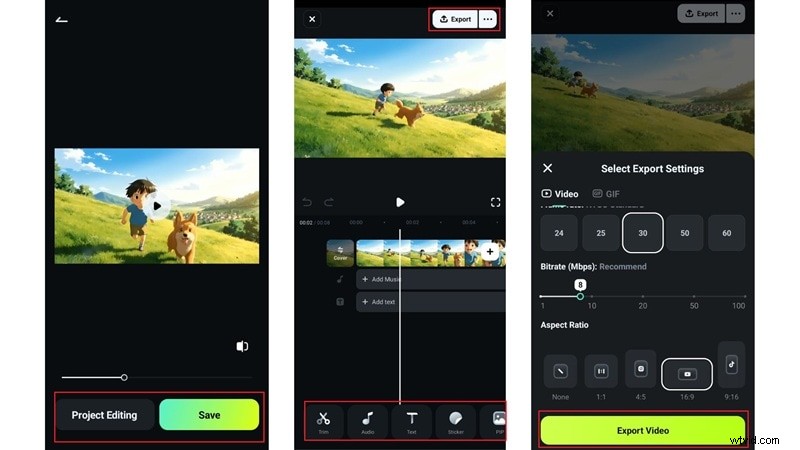
Mobile editing is ideal for:
- Rapid TikTok or Reels edits.
- Minor quality fixes.
- On‑the‑go projects.
Although it’s slightly less detailed than Topaz Starlight, the results are still highly polished.
Part 4: Standard AI vs Topaz Starlight – Side‑by‑Side Comparison
| Feature | AI Video Enhancer | Topaz Starlight |
| Best For | Quick social edits & TikToks | Cinema‑grade & archival quality |
| Processing Speed | Fast | Slower (worth the wait) |
| Max Output Resolution | Up to 4K | Up to 4K with superior texture |
| Edge Detection | Good | Excellent |
| Line Art Preservation | Standard | High |
| Noise Reduction | Solid for compressed clips | Advanced grain management |
| Available On | Desktop + Mobile | Desktop only |
| Skill Level Needed | Beginner‑friendly | Beginner‑friendly |
| Ideal Use Case | Daily TikTok/Reels uploads | Premium showcase edits |
🏆 The Verdict
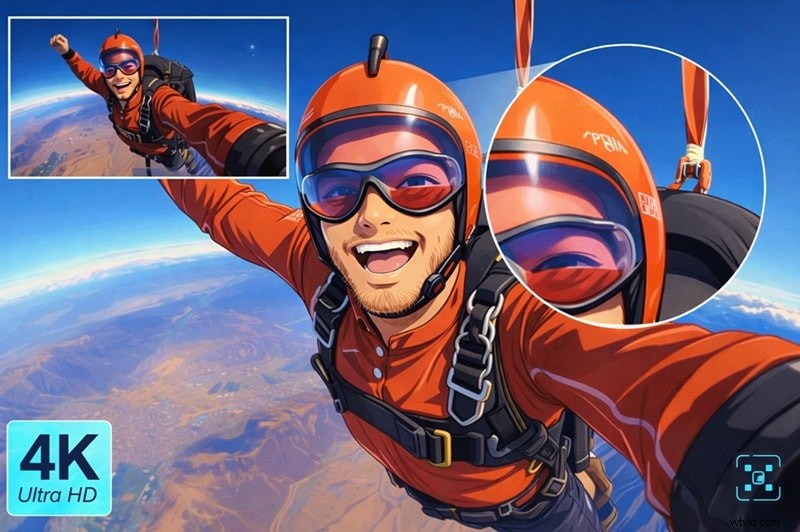
For everyday TikTok or Reels uploads, the standard AI enhancer delivers speed and quality. If you aim for a 2026‑style theatrical release look, Topaz Starlight is the clear winner.
Conclusion
Filmora’s integrated AI tools let you transform low‑quality anime clips into viral‑ready content. Whether you’re using the Topaz Starlight model on desktop or the AI Ultra HD pass on mobile, you’ll achieve near‑4K quality with minimal effort. The algorithm rewards crisp visuals, and with the right workflow, you can consistently deliver top‑tier content.
FAQs About Anime Video Enhancer
-
Does upscaling anime videos increase file size?
Yes, usually. Upscaling to 4K adds data, so expect a larger final file than the original.
-
Can AI fix heavily compressed anime clips?
Absolutely. Filmora’s Topaz integration predicts missing pixels, smoothing blocky artifacts for a cleaner look.
-
What’s the best resolution for TikTok anime edits?
While 4K is possible, TikTok typically caps playback quality. Exporting in 1080p with a high bitrate often yields the best on‑screen appearance. For vertical videos, use 1080×1920 (9:16).
-
Is 60fps necessary for anime edits?
Not always. Many creators prefer the cinematic feel of 24fps. Use 60fps only if you’re adding smooth motion via frame interpolation.