
Grasping the nuances between “aspect ratio” and “resolution” can be confusing if you’re new to video editing. Understanding these core concepts is the first step toward mastering the craft.
Many beginners feel overwhelmed by the plethora of technical terms. Fear not—this guide breaks down every essential word and phrase you’ll encounter, from A‑roll to Z‑level jargon.
Let’s dive in.
Film and Video Editing Terms You Must Know
Whether you’re a seasoned editor or just starting, a solid grasp of terminology will streamline your workflow and elevate your projects.
A‑Roll
The primary footage that drives the narrative—typically the main shots of a subject or scene. In interviews, this is the speaker directly addressing the camera.
Animation
Illustrated or CGI sequences that create the illusion of motion. Historically, animators drew successive frames on transparent celluloid; today, 2‑D, 3‑D, motion graphics, and stop‑motion are all common.
Aperture
The lens opening that controls light entry, expressed in f‑stops (e.g., f/4, f/5.6). A smaller f‑stop number means a larger aperture, resulting in a shallower depth of field that blurs the background while keeping the subject sharp.
Aspect Ratio
The proportional relationship between a video’s width and height. Common ratios include 4:3, 16:9, and 21:9, which guide how a frame is composed.
Bitrate
Data volume processed per second of video, measured in megabits per second (Mbps). Higher bitrates generally yield better quality; for example, streaming 4K typically requires 15–25 Mbps.
B‑Roll
Supplementary footage that supports the main narrative (A‑roll). In interviews, B‑roll may show related scenes while the voiceover continues.
Color Correction
Adjusting hue, saturation, and exposure to ensure footage appears natural and consistent.
Color Grading
Stylistic manipulation of color, contrast, and tone to achieve a desired aesthetic—often used to evoke mood or unify disparate shots.
Compression
Reducing file size for storage or online delivery. Lossy compression removes some data for greater reduction, while lossless compression trims only extraneous metadata.
Read more: How to Compress a Video | 5 Easy Ways Without Losing Quality
Cut‑In
An insert shot that zooms in on a detail, often used to highlight an object or action within a larger scene.
Dimension
Width and height in pixels—e.g., 4096 × 2160. Adjustments can be made during shooting or in post‑production via cropping.
Frame Rate
The number of still images displayed per second, expressed in frames per second (FPS). Standard video streaming often uses 24 FPS.
Grayscale
Conversion of footage to shades of gray, eliminating color while preserving luminance for a classic black‑and‑white look.
HDMI
High‑Definition Multimedia Interface cables that carry both audio and video signals, enabling high‑quality connections to monitors and TVs.
J‑Cut
A transition where audio from the next scene begins before the visual change, creating a smoother narrative flow.
Jump Cut
A rapid, often jarring cut that skips time or action, commonly used to indicate a shift in perspective or chronology.
Keying
Removing or replacing a specific color or brightness range—most commonly used with green screens to isolate subjects.
Keyframe
A reference point that defines the start or end of an animation or transition, allowing precise control over timing.
Layering
Stacking multiple media types—video, text, images, or audio—within a single frame to create composite shots like picture‑in‑picture or split screens.
L‑Cut
A transition where audio from the previous scene continues into the next, maintaining continuity while the visual changes.
Lip Sync
Aligning spoken words with corresponding lip movements, crucial for dubbing and animation.
Lower Third
Text overlay placed in the lower third of the screen to provide context such as a speaker’s name, title, or location.
Mashup
Combining disparate clips—often from unrelated sources—to create a new narrative, typical of movie trailers.
Mask
Selective editing within a defined area, allowing you to isolate and adjust specific portions of a frame.
Pacing
The rhythmic tempo of a video, shaped by editing cuts, music, and narration to guide viewer engagement.
Pixel Aspect Ratio
The shape of an individual pixel; while most pixels are square (1:1), some displays use stretched pixels (e.g., 16:9) to fit non‑standard formats.
Post‑Production
The entire process that occurs after filming, encompassing editing, visual effects, sound design, and final output.
Read more: Video Production Process: Easy Step‑by‑Step Guide
POV
Point‑of‑view shots that immerse the audience in the perspective of a character, famously used in shows like Peep Show.
Rendering
The process of combining all media elements into a finished video file, producing a final preview before export.
Resolution
The total pixel count per frame—common examples include 1280 × 720 (720p HD) and 3840 × 2160 (4K). Higher resolution generally yields sharper images.
Rough Edit
The initial cut that lays out the structure of a project; not final, but essential for subsequent refinement.
Separate Tracks
Capturing audio and video on distinct files allows independent manipulation—ideal for multi‑speaker projects.
Riverside automatically records separate audio and video tracks for all participants. Learn more, or sign up for seamless editing.
Split Screen
An effect that displays multiple clips within the same frame, often divided horizontally or vertically.
Stitching
Combining multiple footage segments to create panoramic or 360° views.
Storyboard
A visual script that outlines each shot and sequence, aiding planning and ensuring consistency during filming and editing.
Sync
Alignment of audio and video tracks so that they play in perfect temporal harmony.
Timelapse
A technique that accelerates time by increasing frame capture frequency, creating a rapid progression effect.
Transition
Tools that connect one clip to another—ranging from simple cuts to complex visual effects—enhancing narrative flow.
Video Editing Software
Applications that facilitate post‑production, such as Final Cut Pro, Lightworks, HitFilm Express, and Adobe Premiere Pro. Some recording platforms, like Riverside, offer integrated editing tools.
Voiceover
An additional audio track that narrates or explains visual content, often added during post‑production to enhance clarity.
Mastering these terms equips you to navigate video editing with confidence and precision.
Editing Videos Easily with Riverside
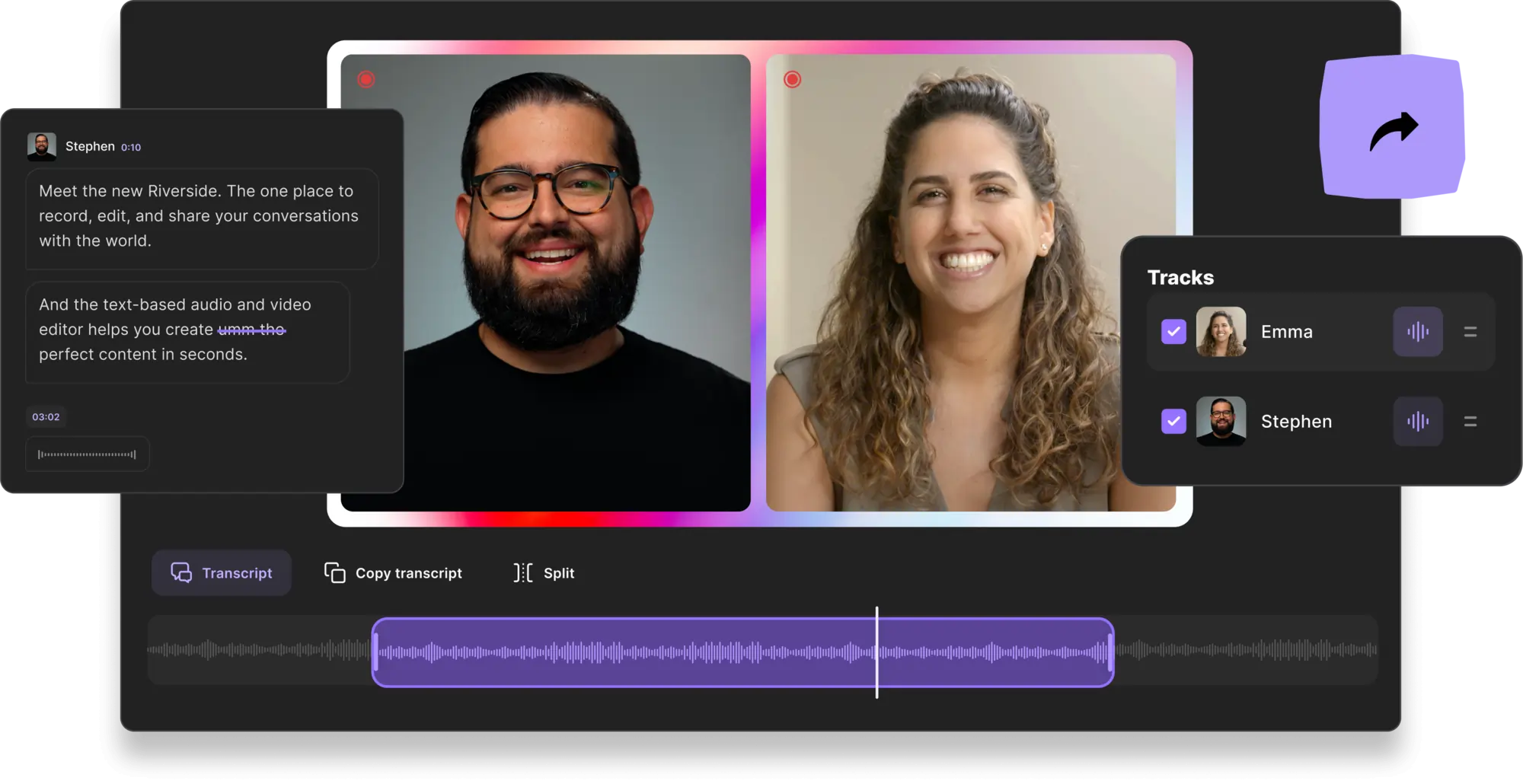
Riverside is a premier platform for professional video creation. Record high‑quality footage anywhere—via browser or dedicated app—then streamline editing with intuitive tools.
After recording, use Riverside’s text‑based editor to cut, trim, and refine your video simply by editing the automatically generated transcription. Deleting text removes the corresponding audio and video, making the process as familiar as editing a document.
Enhance your final product by adding background layers, logos, or customized captions. Repurpose your long‑form content into shareable short clips with the AI‑powered Magic Clips feature.
Once satisfied, download your video or upload directly to platforms like YouTube. Multi‑sync ensures all edits remain aligned across tracks.
Key Features:
- Text‑Based Editor – Edit video and audio with the simplicity of a text document.
- AI Transcriptions in 100+ Languages – Generate captions and navigate recordings effortlessly.
- Studio‑Quality Capture – Record up to 4K resolution and uncompressed 48kHz audio.
- Local Recording – Store files directly on your device, free from network hiccups.
- Magic Clip Creator – Transform long videos into short, shareable clips with a single click.
- Separate Audio & Video Tracks – Edit each element independently for maximum flexibility.
- AI Speaker View – Auto‑highlight the current speaker during editing.
- Live Media Board – Add sound effects in real time while recording.
Learn more or sign up for a seamless editing experience with Riverside.
FAQs on Video Editing Terms
What are the types of editing in video editing?
Video editing can be categorized into several workflows:
- Linear vs. Non‑Linear Editing – Choosing whether to edit in a chronological sequence or reorder freely.
- Offline vs. Online Editing – Offline refers to desktop software, while online uses web‑based editors like Riverside.
- Live Editing – Real‑time adjustments during live broadcasts, often managed via tools such as Riverside’s Media Board.
What are the elements of video editing?
Successful editing blends audio refinement, narrative structuring, visual effects, and stylistic choices. Each project demands a tailored mix of these components. For detailed guidance, consult our video editing guide.