
If you’re evaluating a new podcast editor, Reaper will likely appear on your radar. It’s a powerful desktop digital audio workstation (DAW) that delivers a full suite of recording, editing, mixing, and mastering capabilities at a competitive price. However, its website is minimalistic, making it hard to determine whether it’s the right fit for your specific workflow. In this guide, we’ll explore Reaper in depth and compare it to Riverside, a compelling alternative for remote recording and video editing.
TL;DR
- Reaper is a desktop DAW that handles multi‑track audio and MIDI production.
- It offers a free 60‑day trial, after which you must purchase a discounted ($60) or commercial ($225) license.
- Video editing is possible but limited; it’s primarily an audio editor.
- Riverside excels in remote recording, AI transcription, and intuitive text‑based video editing.
What Is Reaper?
Reaper is an all‑in‑one desktop application for audio production. Whether you’re a home‑studio hobbyist or a professional audio engineer, Reaper can record, edit, process, mix, and master both multi‑track audio and MIDI. It runs on Windows, macOS, and Linux.
Pricing Overview
- Discounted license – $60 (for individuals, non‑profits, or commercial users with <$20k annual revenue)
- Commercial license – $225
Both licenses are supported by a generous 60‑day free trial. After the trial, you simply activate your license key to continue using Reaper.
Video Editing Capabilities
While Reaper’s core focus is audio, it can import video files and let you manipulate the accompanying audio track. Importing a video file places it in the project like a regular audio clip, and any audio edits will affect the entire video file. A preview window allows you to watch the video while you work.
Key Features
- Efficient, fast‑loading interface suitable for portable or network‑driven workflows.
- Drag‑and‑drop editing and multi‑channel audio support.
- Export to multiple media formats with customizable bit depth and sample rate.
- Full MIDI hardware and software integration.
- Auto‑stretch timebase for complex tempo changes.
- Extensible with plugins, custom layouts, and skins.
- Built‑in effects for real‑time processing.
Getting Started
Installation
- Download the installer for your operating system.
- Accept the license terms.
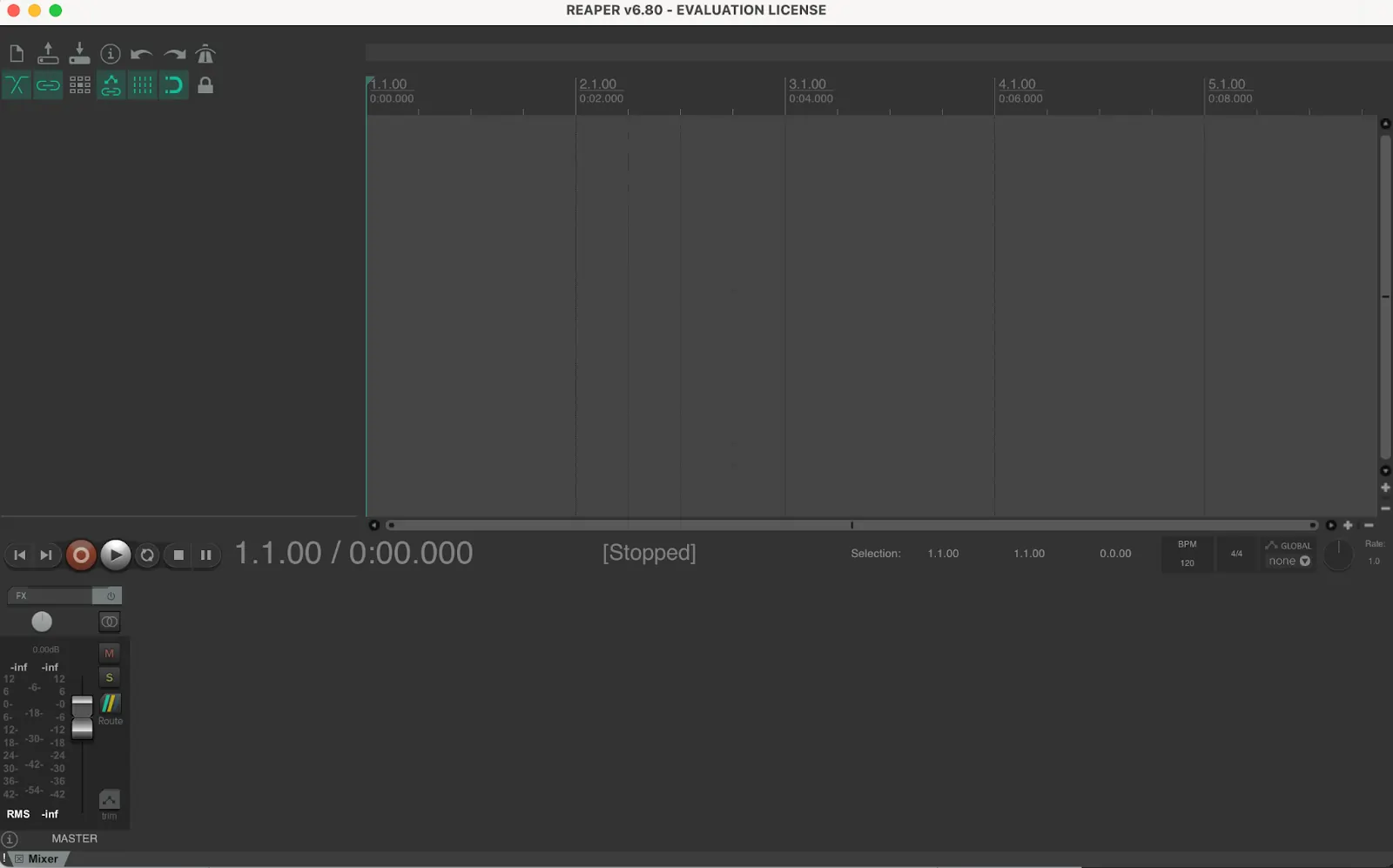
- Enter your license key, or select Still Evaluating to use the 60‑day trial.
- Launch Reaper and begin recording or importing media. Note that Reaper cannot record video, only edit pre‑existing video files.
Recording Audio
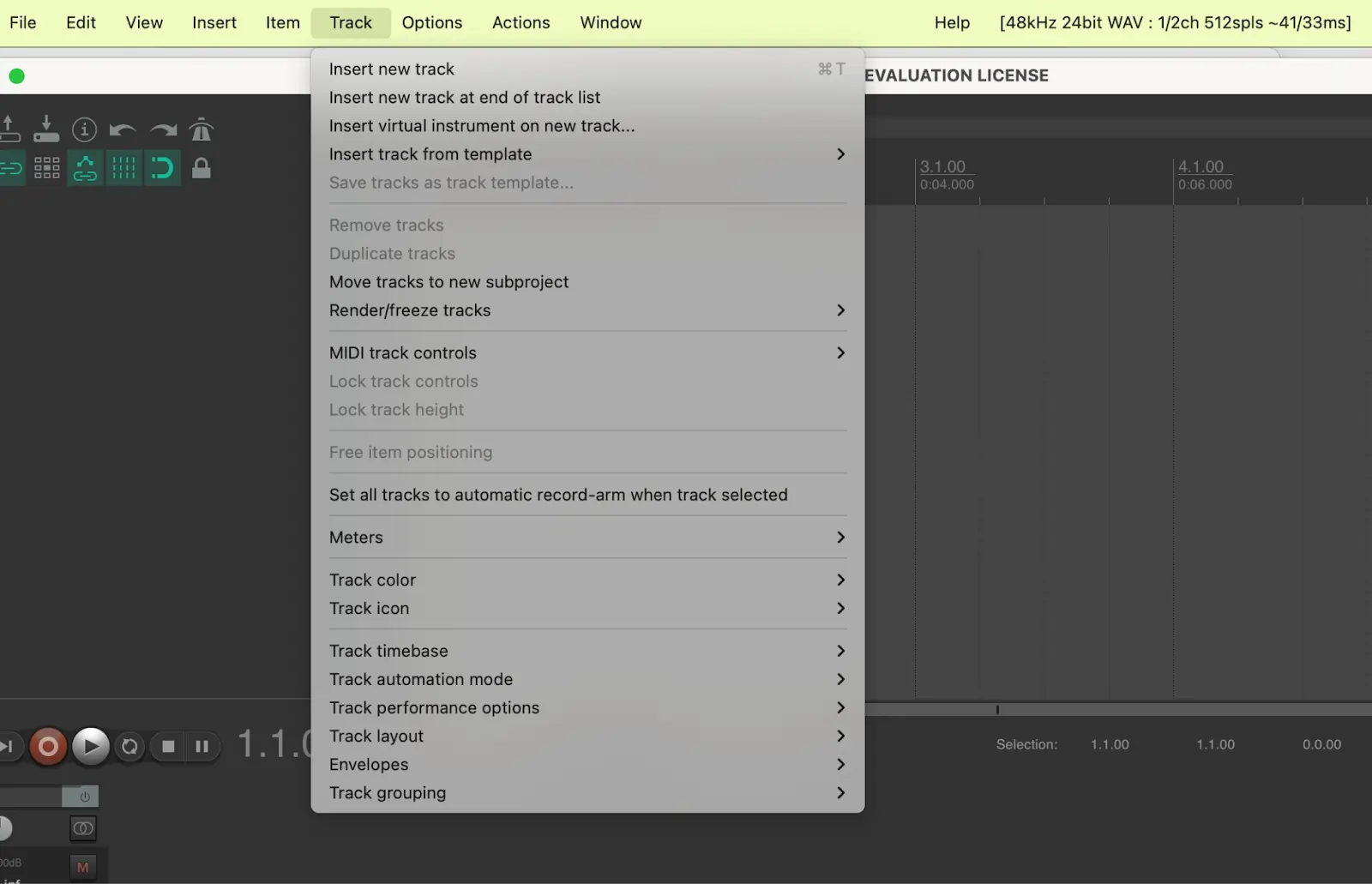
- Navigate to Track > Insert New Track.
- Arm the track by clicking the red record button.
- Press the record button to start, and press again to stop.
Editing Basics
Cutting and Splitting
Move the playhead to the desired point, press S to split, or use the backspace key to delete a segment.
Trimming
Select the portion to keep, click Item > Trim items to the selected area.
Adding Effects
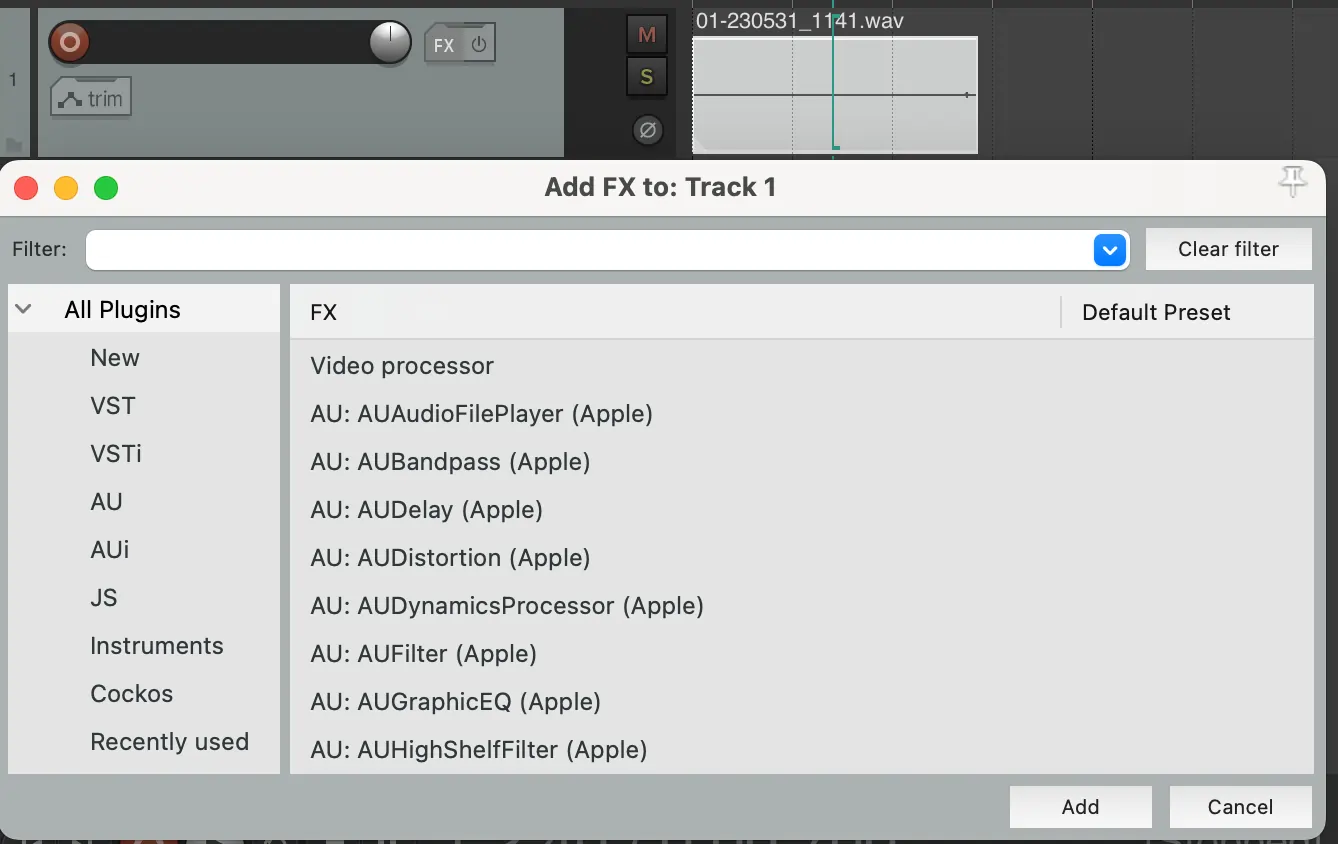
Click the FX button, choose an effect from the popup, and click Add.
Importing Media
Drag and drop files into Reaper or use Insert > Media File. If you’re adding to a new track, create that track first.
Tips & Tricks
- Explore Reaper’s extensive online resources and tutorial videos.
- Personalize the interface via Preferences – adjust colors, layout, and more.
- Define custom shortcuts by pressing ? to open the Actions window.
- Monitor CPU usage with the Performance Meter to keep your system responsive.
Is Reaper Suitable for Video Editing?
Reaper can handle video files, but it’s not designed for dedicated video editing. If your workflow relies heavily on visual editing, you’ll likely find Reaper’s capabilities restrictive. For robust video editing, consider platforms built for that purpose.
Reaper for Podcasting
Reaper excels at audio editing and can produce studio‑grade podcast masters. However, it lacks built‑in remote recording, automated transcription, and social media clip generation. Podcasters who need these features may find alternatives more convenient.
Alternatives: Riverside
Riverside offers a browser‑based solution for remote video and audio production. Its strengths include:
- High‑quality local recording for up to 10 participants, independent of internet bandwidth.
- Separate audio and video tracks for each participant and media share.
- Text‑based editing powered by AI transcription in over 100 languages.
- Auto‑captioning, downloadable SRT/TXT files, and Magic Clips for quick social media snippets.
- Live editing via the Media Board and livestreaming to major platforms.
- Mobile app support and multiple pricing tiers.
Riverside vs. Reaper
While Reaper offers a flexible audio production environment, Riverside provides a more integrated, user‑friendly experience for remote video creation and editing. Its text‑based editor simplifies the workflow, and its local recording ensures consistent quality regardless of internet speed.
FAQs
How do I get video working in Reaper?
Import the media file or install a Reaper extension that improves video handling. The file will appear as an audio clip with a video preview.
Can I use Reaper for free?
Yes – the software remains fully functional for 60 days before requiring a license.
Why choose Reaper over Audacity?
Audacity is free and open‑source, making it ideal for tight budgets. Reaper, however, offers a richer feature set, including MIDI support, advanced routing, and the ability to edit video, which Audacity cannot provide.