
Key takeaways:
- With the iPhone’s built‑in editor and iMovie, you can trim, crop, apply filters, and add captions.
- iMovie unlocks advanced customization—transitions, audio tweaks, and more—to elevate storytelling.
- Other iPhone editors such as Riverside, InShot, CapCut, and Splice offer unique features for deeper creativity.
The iPhone delivers a top‑tier camera, but editing transforms raw footage into polished content. Below you’ll find clear, step‑by‑step guidance for editing videos on iPhone, plus recommendations for the best editing apps.
Editing Basics on iPhone: Five Core Techniques
The native iPhone editor is ideal for quick tweaks—trim, crop, filter, and text overlay. Here are five essential steps:
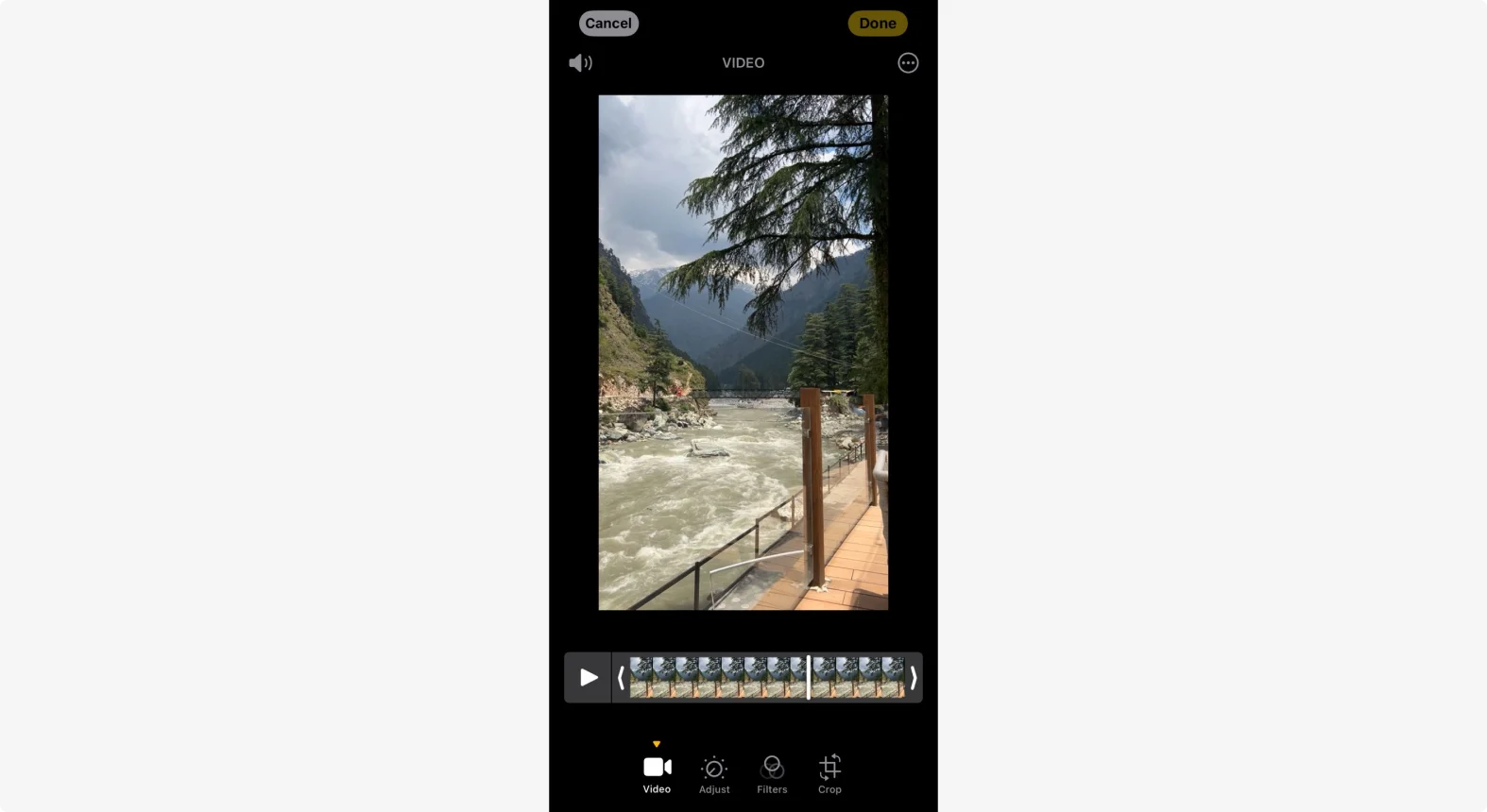
Trim Your Video
Remove unwanted sections from the start or end:
- Open the Photos app, tap the video, then tap Edit (top‑right).
- Use the timeline sliders to set the new start and end points.
- Press Done to save the trimmed clip.
Split a Clip Inside the Video
The native editor can’t cut mid‑clip, but iMovie handles this easily:
- Launch iMovie, tap Start New Project > Movie, and choose your footage.
- Tap the scissors icon on the bottom toolbar.
- Move the playhead to the split point and tap Split; repeat for the end point.
- Delete unwanted segments and tap Done to save.
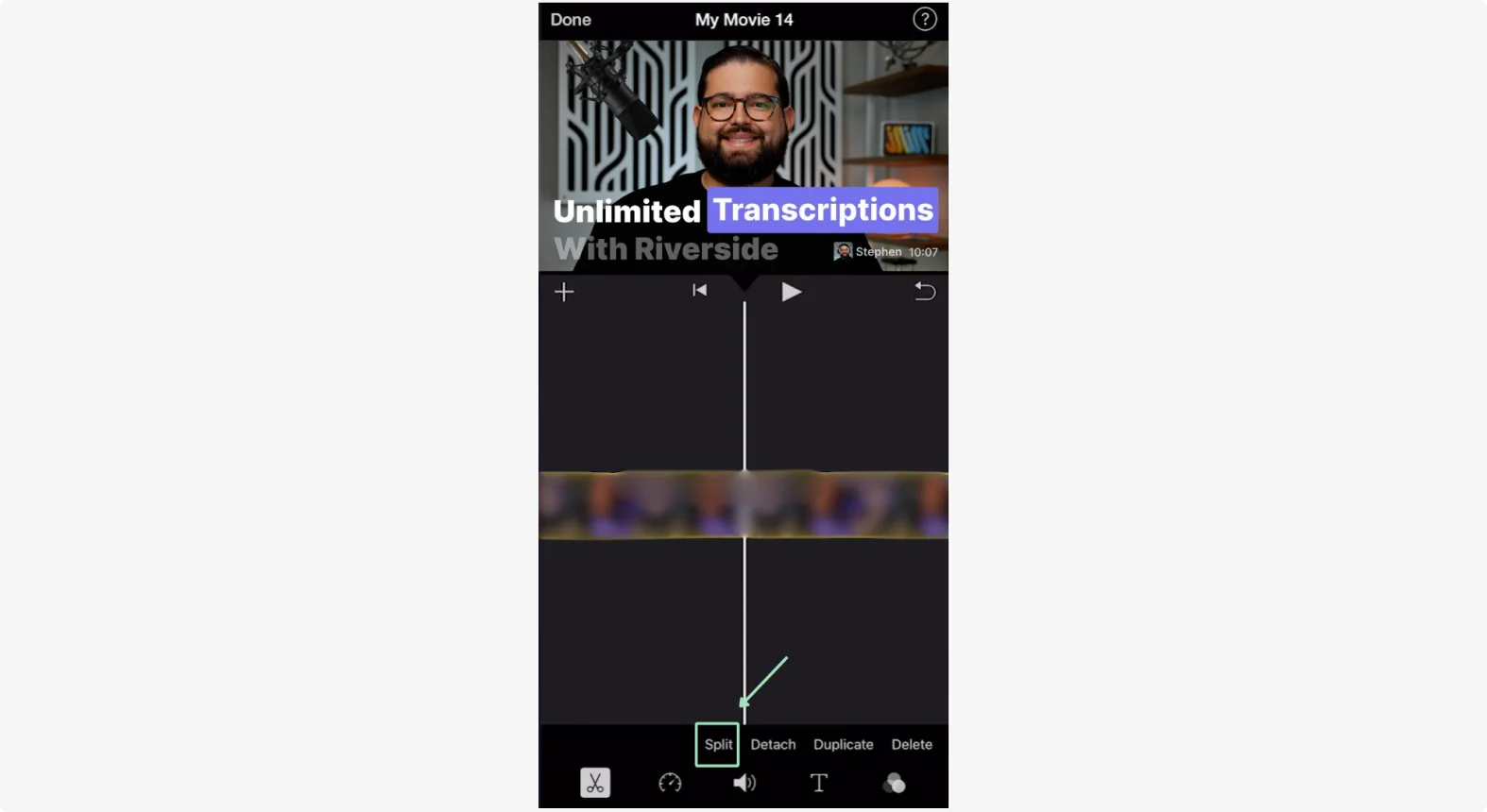
Riverside’s editor lets you edit by transcript—delete text to cut the corresponding video section.
Apply Filters
Enhance colors and mood:
- Open the video in Photos, tap Edit.
- Tap the filters icon (three rings) and preview options.
- Choose a filter (e.g., Vivid, Mono, Dramatic, Silvertone) and press Done.
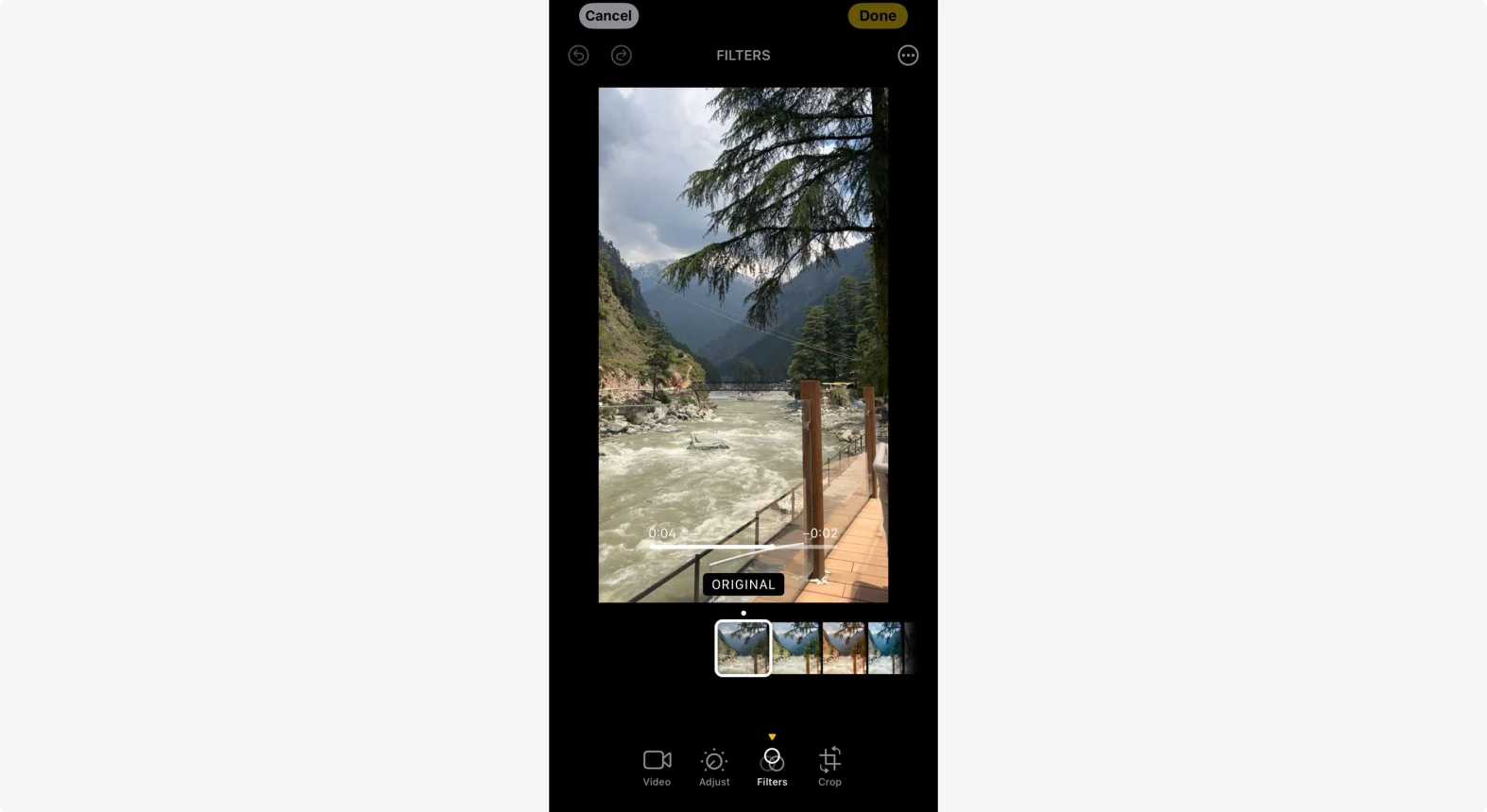
Use the adjust dial to fine‑tune brightness, contrast, and saturation.
Crop and Change Aspect Ratio
Resize or reframe your footage for different platforms:
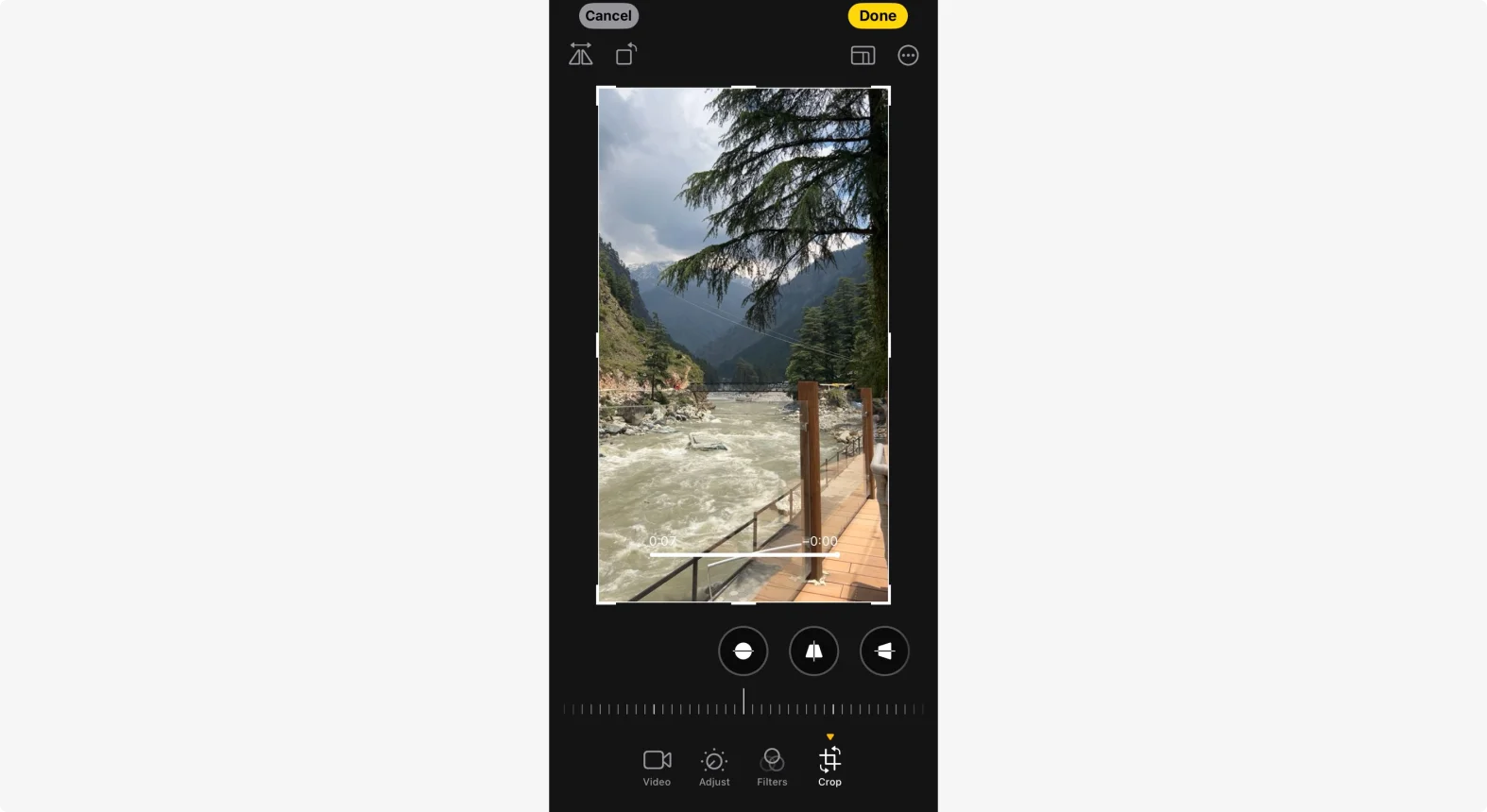
- Tap Edit on the video.
- Select the crop icon for a freeform frame.
- Use the Aspect Ratio button (rectangle icon) to switch between 1:1, 4:3, 16:9, 9:16.
- Rotate or flip using the rotate icon.
- Press Done to apply.
Add Text and Captions
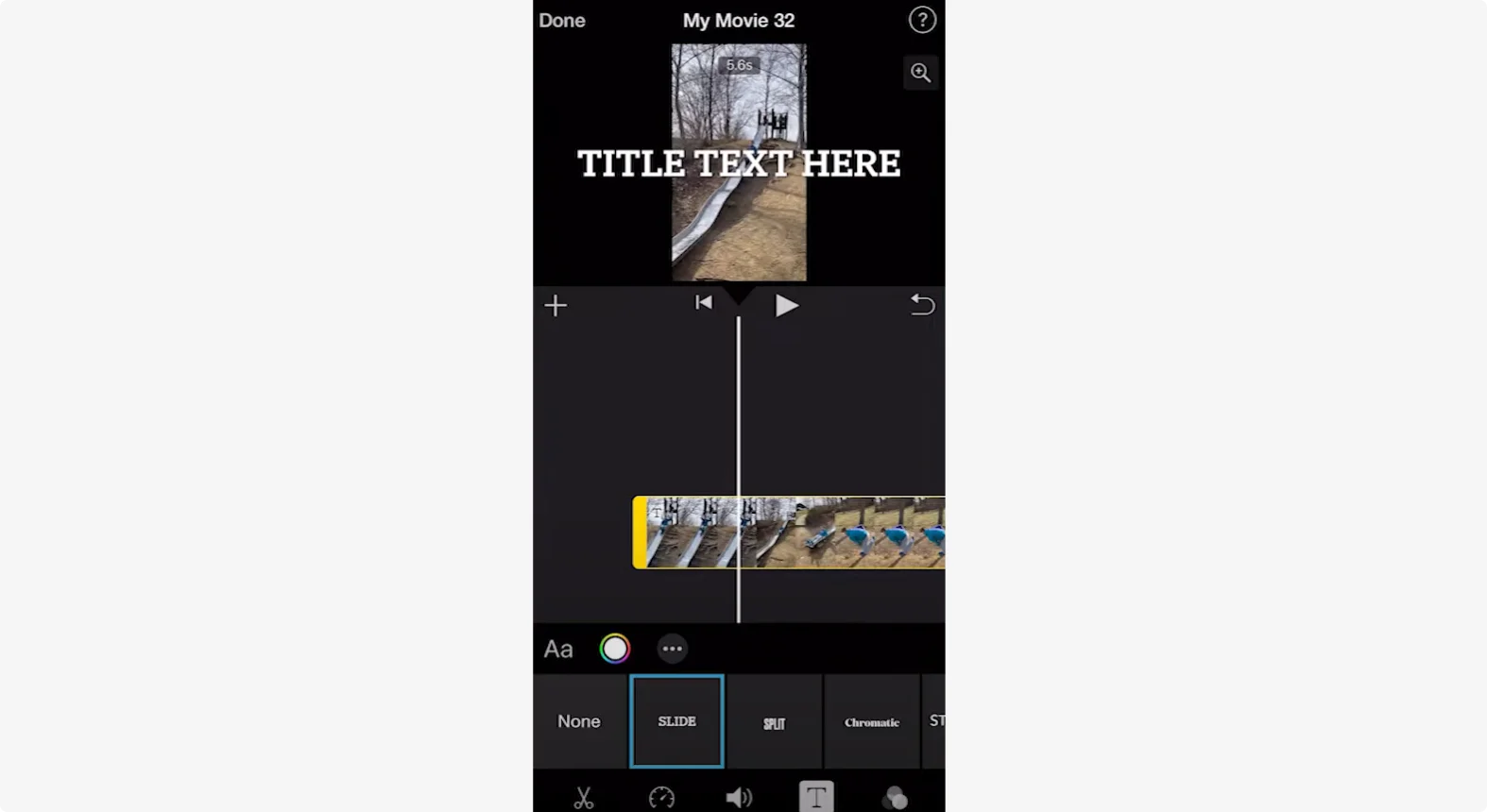
Overlay titles or subtitles with iMovie:
- Open iMovie and start a new project.
- Tap the T icon to insert text.
- Select a style (e.g., chromatic, 3D, outline) and edit font, color, size.
- Adjust the text’s duration and position on the timeline.
- Tap Done when satisfied.
Add Music
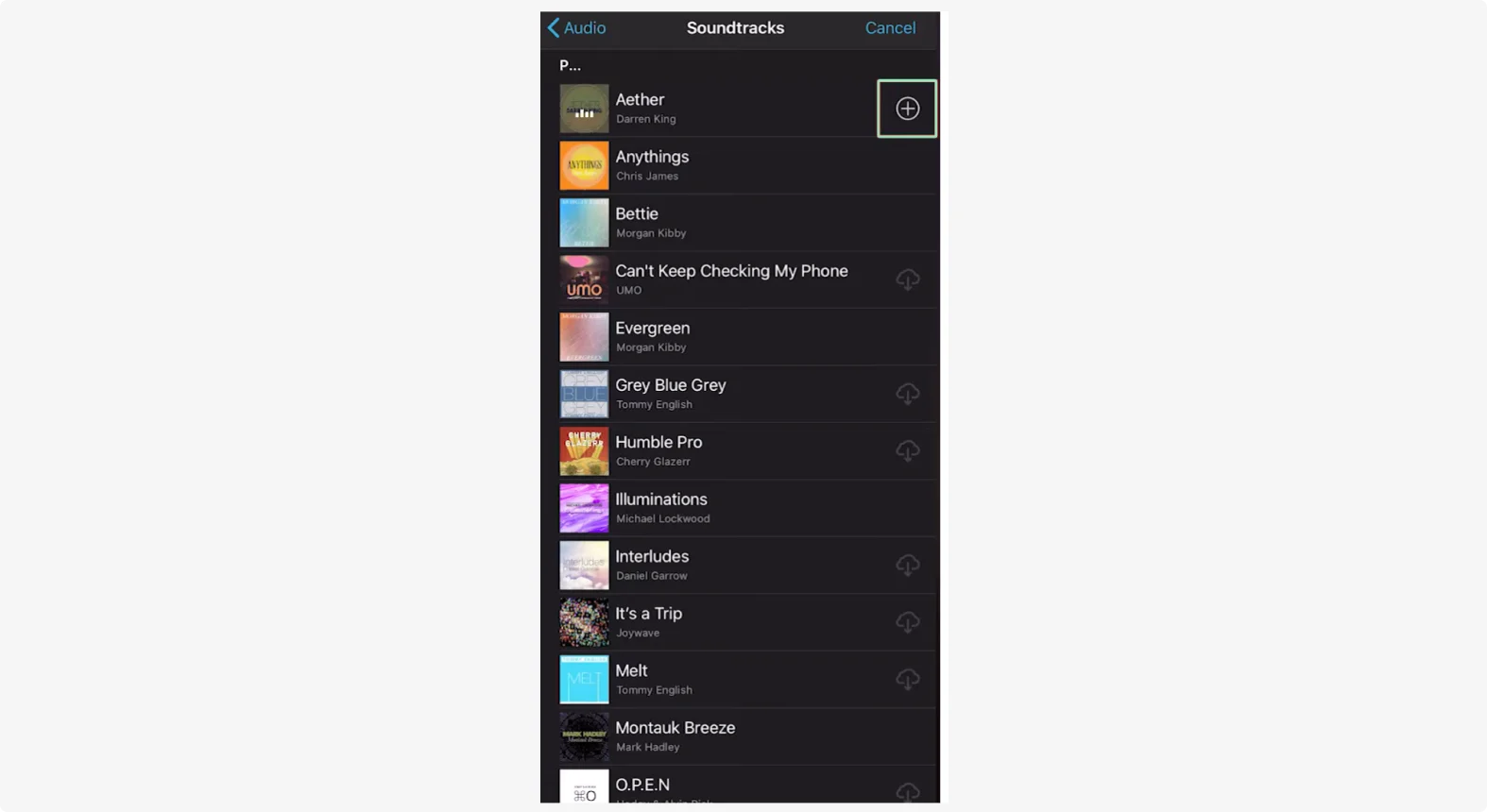
Enhance mood with background tracks:
- Open iMovie and select your video.
- Tap the + icon, then Audio.
- Choose from Soundtracks, My Music, or Sound Effects.
- Add a track by tapping + and then edit its placement.
- Use transitions (dissolve, slide, wipe) to blend audio segments.
- Tap Done to save.
Exporting Your Video
From Photos
- Save video: Overwrite the original.
- Save as a new clip: Create a separate file.
From iMovie
- Tap Share and choose AirDrop or Save to device.
- You can also export to specific folders or share via Mail/Messenger.
Top 5 Video Editing Apps for iPhone
For creators who need more than the basics, these apps offer advanced tools:
Riverside – Seamless Recording & Editing
Record in up to 4K, invite up to nine guests, and edit with AI features like automatic captions and background replacement. Everything syncs to the cloud, so you can jump straight into the desktop editor.
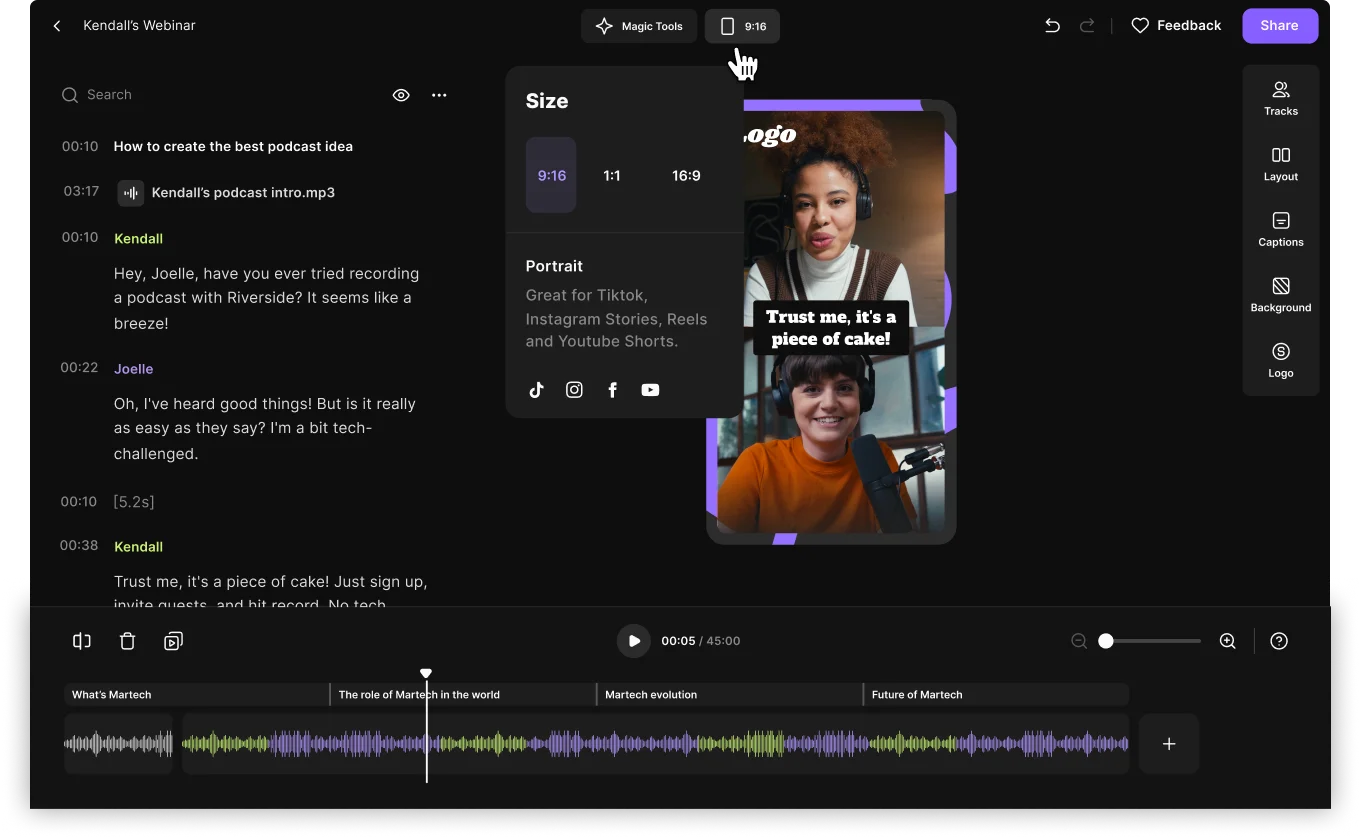
- Trim, clean audio, adjust aspect ratio.
- Change background, add overlays, and brand content.
- Export in native formats for YouTube, TikTok, Instagram.
InShot – AI‑Powered Effects
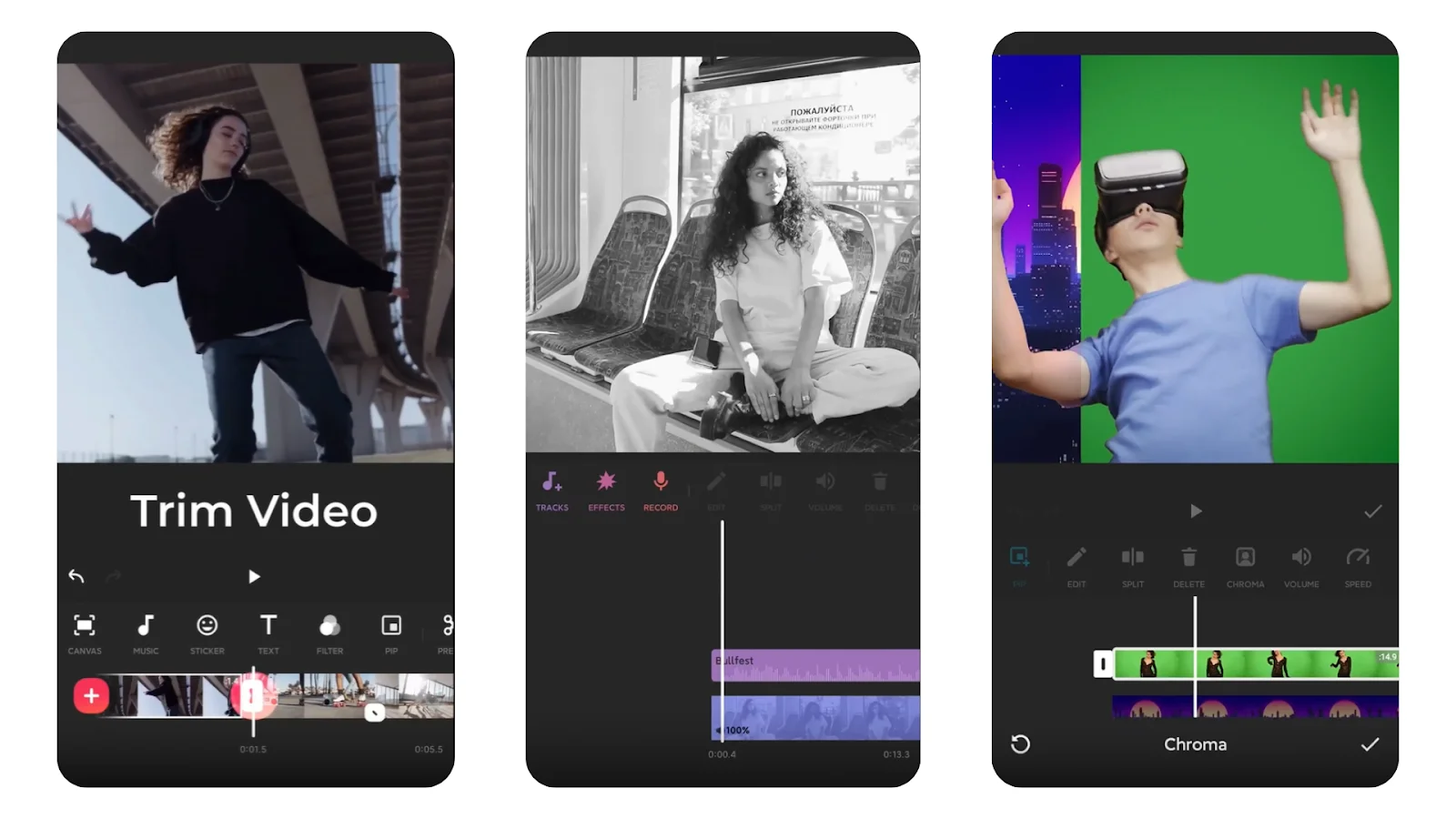
Ideal for beginners, InShot offers basic editing plus AI presets (Glitch, Retro DV, Noise) and object motion tracking.
CapCut – Stylized Text & Animation
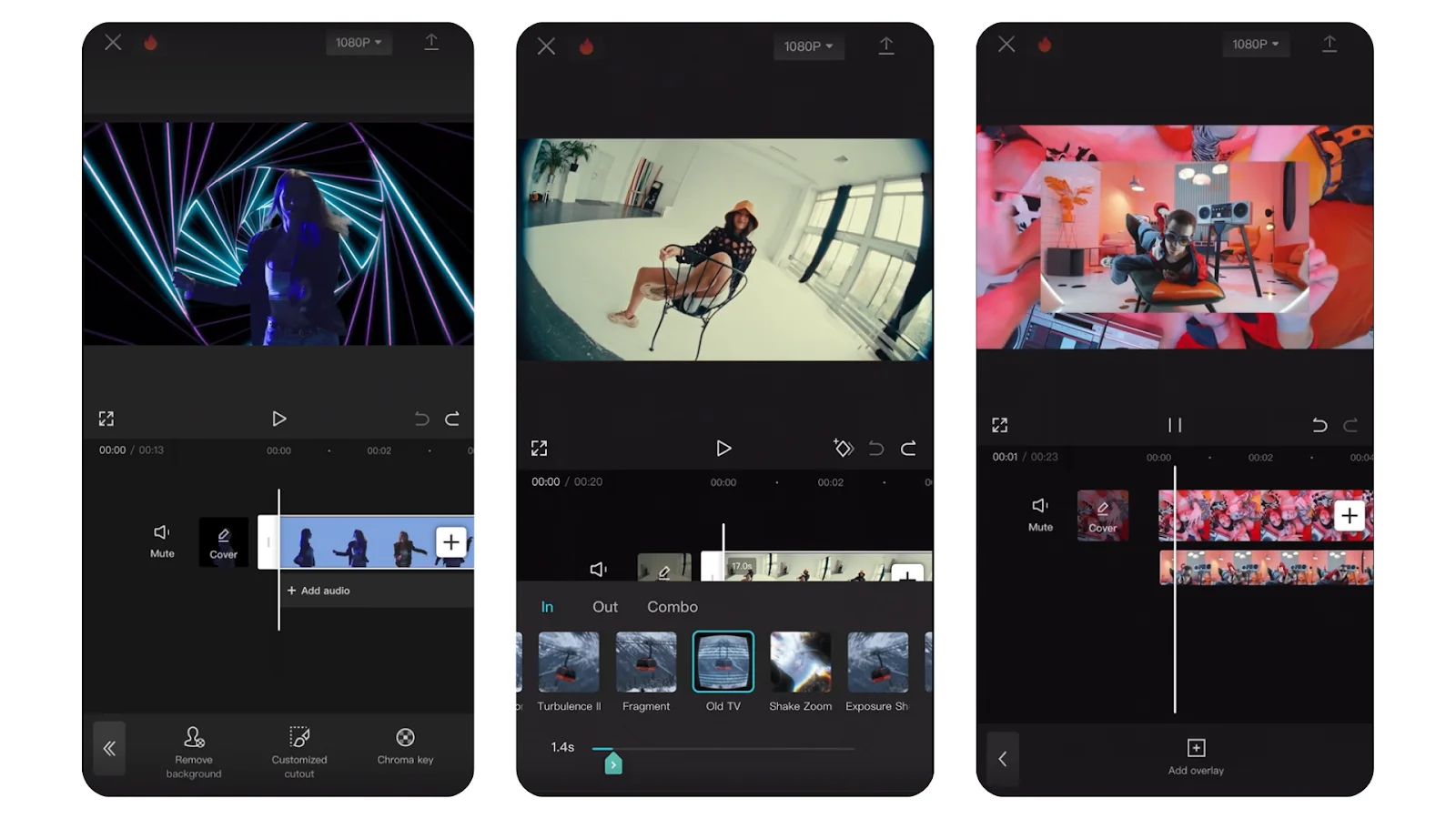
Generate animated subtitles, choose from 100+ fonts, and use auto‑captions. CapCut also supports video stabilization and cinematic slow‑motion.
Splice – Audio Mastery
Access 6,000+ royalty‑free tracks, record custom narration, and fine‑tune audio with a multitrack editor. Splice also offers speed controls and pan‑and‑zoom effects.

LumaFusion – Professional‑Grade Editing
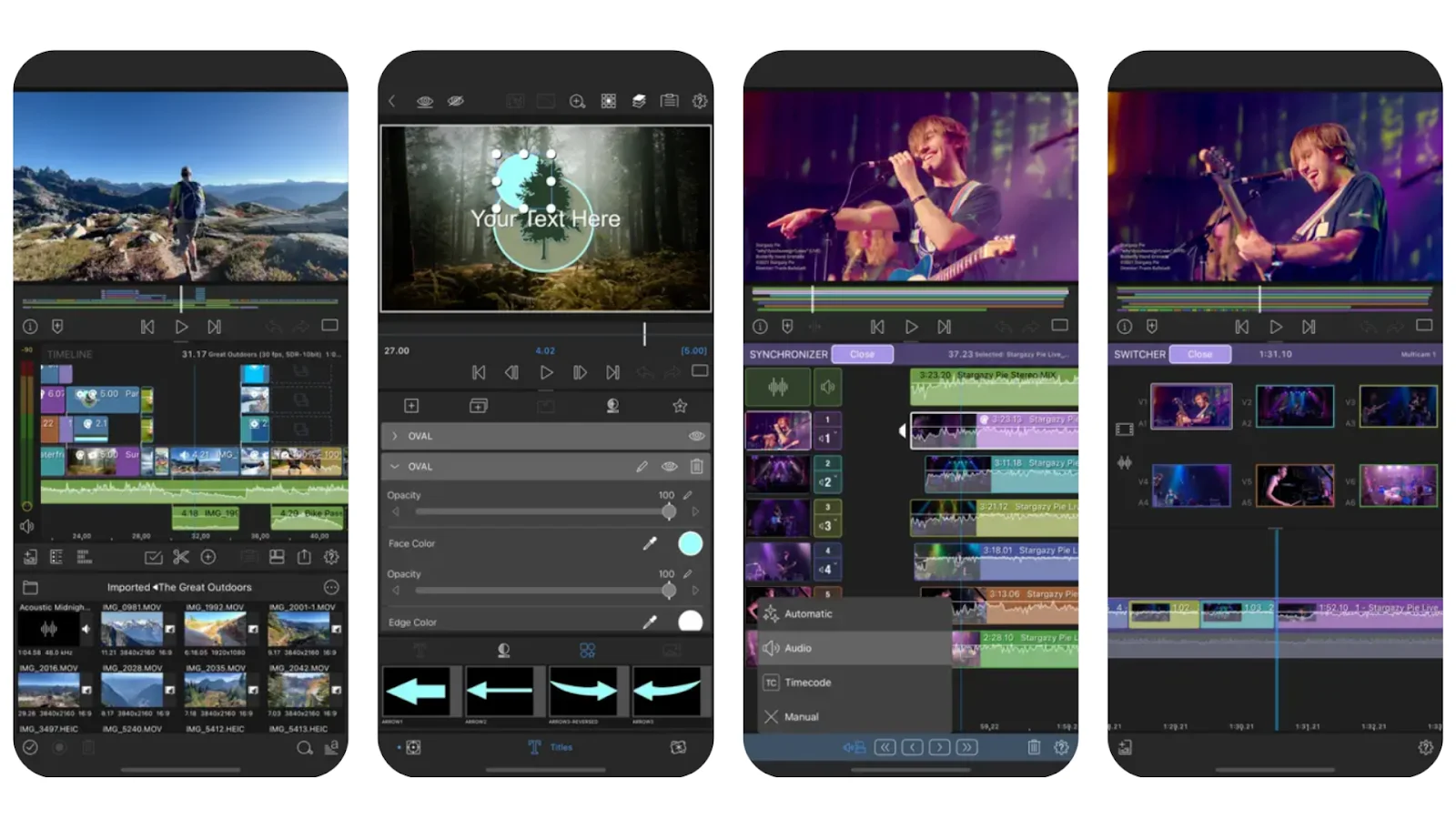
Multi‑cam sync, magnetic timeline, advanced color correction, keyframing, and up to six audio tracks make LumaFusion the go‑to for seasoned editors.
Editing Like a Pro on Your iPhone
With these tools, you can create social‑media clips, polished vlogs, or personal memories. For deeper AI assistance, Riverside remains a standout choice.
FAQs
Is the iPhone good for editing videos?
Yes—built‑in tools cover trimming, cropping, and basic filters. For AI‑powered editing, Riverside offers a superior experience.
How do I combine clips into a montage?
Use iMovie’s multi‑clip timeline or apps like Riverside and CapCut to merge and edit multiple segments.
What settings yield the best editing experience?
Record in 4K to preserve detail after applying effects.
Which app is easiest for beginners?
Riverside’s all‑in‑one recorder and editor provide a frictionless workflow.