
Choosing the right machine is critical for smooth, high‑quality video editing. Below is a concise, evidence‑based guide that covers the key hardware components, compatibility considerations, and a curated list of the best computers for 4K and beyond.
What Makes a Video‑Editing Computer Exceptional?
- CPU: Multi‑core processors (6–10 cores) deliver the parallelism needed for rendering, encoding, and effects. For 4K or higher, consider 10+ cores or Apple’s M2 Ultra.
- RAM: 16 GB is the minimum; 32 GB or more is recommended for 4K, 3‑D effects, or multi‑track audio.
- GPU: At least 6 GB VRAM for 4K footage; 4 GB suffices for 1080p. A high‑end GPU (e.g., NVIDIA RTX 3060 or Apple’s 76‑core GPU) dramatically improves playback and export speeds.
- Storage: SSDs are essential for fast file access. 512 GB is the baseline; 1 TB or larger keeps projects and media libraries streamlined.
- Display: High resolution (4K preferred) and wide color gamut (100 % sRGB or greater) ensure accurate color grading.
Hardware Breakdown
CPU – The Brain
Editing software relies heavily on the CPU for encoding and processing. Modern Intel Core i7/i9 or AMD Ryzen 7/9 CPUs, or Apple M1/M2 chips, offer the multi‑threaded performance required for complex timelines.
RAM – The Working Memory
RAM buffers video files, effects, and multiple tracks. 32 GB is a safe bet for 4K projects; 64 GB or more future‑proofs against increasingly demanding codecs.
GPU – The Accelerator
Graphics cards offload color correction, effects, and real‑time preview. NVIDIA’s RTX series and Apple’s integrated GPUs (M1/M2) provide the best acceleration. Ensure the GPU’s VRAM matches your resolution needs.
Storage – Speed Matters
Video files can exceed 50 GB. NVMe SSDs deliver the read/write speeds needed for smooth scrubbing and quick rendering. Consider external SSDs for additional workspace.
Display – Your Editing Canvas
Accurate color and sharp detail are non‑negotiable. Look for displays that cover at least 95 % DCI‑P3 or 100 % sRGB and maintain a Delta‑E < 2 for precise grading.
Software Compatibility & Peripherals
Popular editors such as Adobe Premiere Pro, Final Cut Pro, and DaVinci Resolve each have platform‑specific requirements. Verify that your chosen system meets or exceeds these prerequisites. Also ensure ports for audio interfaces, external monitors, and high‑bandwidth storage are available.
Portability vs. Power
- Laptops: Offer flexibility but may throttle under heavy loads and have limited upgrade paths.
- Desktops: Provide superior cooling, upgradability, and raw performance—ideal for long, intensive sessions.
Budgeting Wisely
Allocate the majority of your budget to CPU, RAM, and GPU. Storage and display can be scaled up as your workflow evolves.
Top 7 Video‑Editing Computers (2024)
| CPU | RAM | SSD | Display | Resolution | Price | |
|---|---|---|---|---|---|---|
| Microsoft Surface Studio 2 | 4 cores | 16/32 GB | 1 TB SSD | 28‑inch | up to 4K | $3,500–$4,200 |
| Apple Mac Studio | up to 20 cores (M2 Ultra) | 32/64/128 GB | up to 8 TB SSD | — | up to 6K | $2,000–$8,000 |
| Apple iMac (24‑inch, M1) | 8 cores | 8/16 GB | up to 1 TB SSD | 24‑inch | up to 6K | $1,300–$2,300 |
| Apple MacBook Pro | up to 10 cores | 16/32/64 GB | up to 8 TB SSD | 14.2/16.2‑inch | up to 6K | $2,000–$6,000 |
| Asus ROG Zephyrus G14 | 8 cores (Ryzen 9) | 16/32 GB | 1 TB SSD | 14‑inch | up to 4K | $1,400–$2,000 |
| HP Envy 34‑inch All‑In‑One | 9 cores (i9) | 16/32 GB | 2 TB SSD | 34‑inch | up to 5K | $2,500–$3,500 |
| Razer Book 14 | 4 cores (i7) | 16 GB | up to 1 TB SSD | 14‑inch | up to 4K | $1,400–$2,000 |
1. Microsoft Surface Studio 2
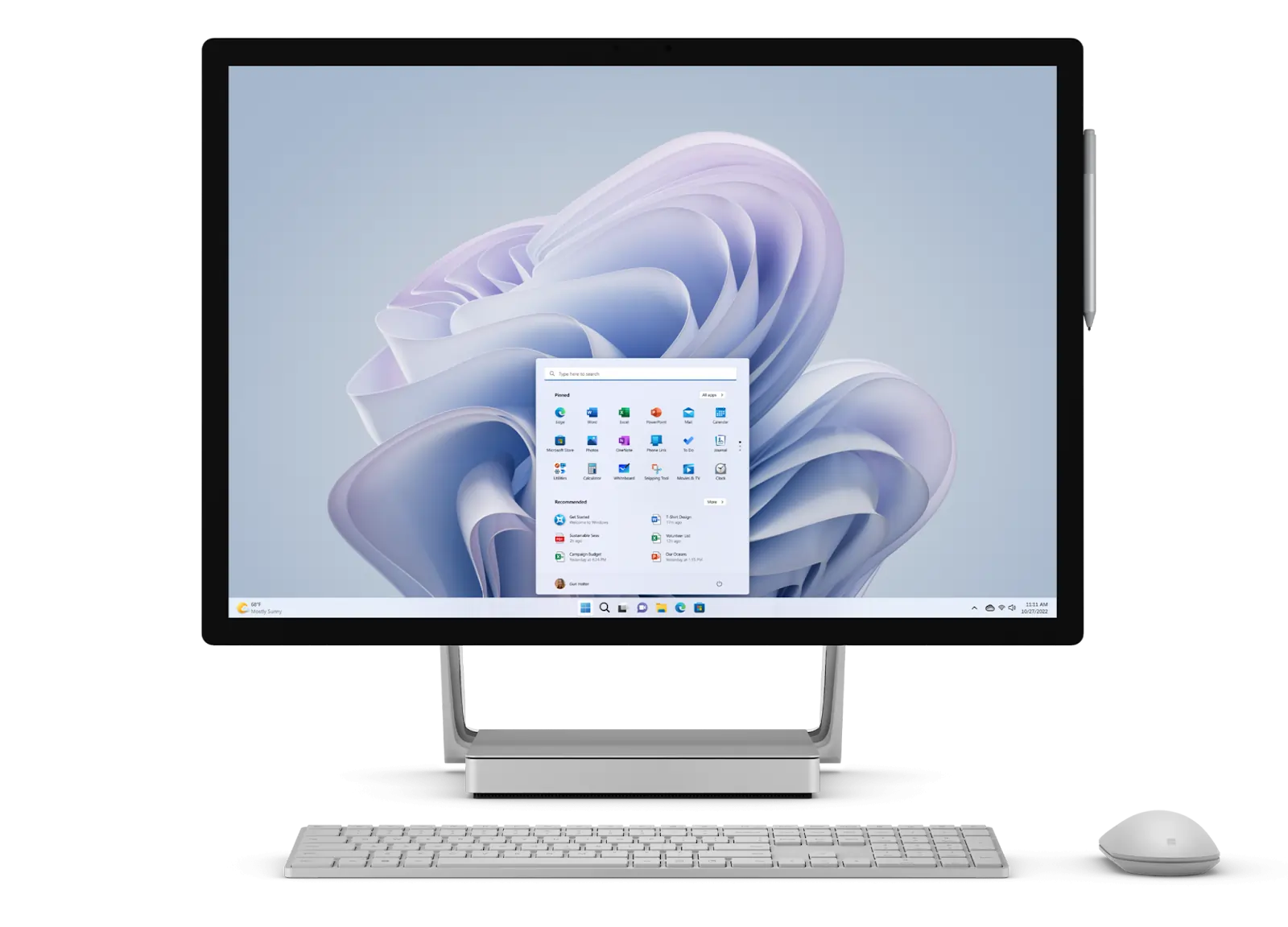
The 28‑inch PixelSense screen (4500×3000) offers unparalleled clarity for 4K projects. Paired with an Intel Core i7 and NVIDIA GTX 1070, it handles complex timelines, though the older GPU may struggle with 8K workloads.
2. Apple Mac Studio

Powered by the M2 Ultra, the Mac Studio delivers 76‑core GPU performance and up to 192 GB unified memory, making it the most future‑proof option for high‑resolution editing.
3. Apple iMac (24‑inch, M1)
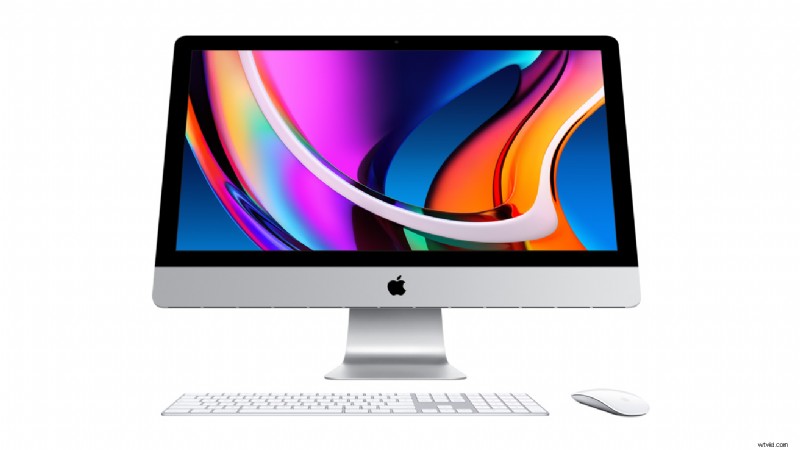
The 4.5K Retina display and M1 chip provide smooth 4K editing in a compact, all‑in‑one package suitable for mid‑level professionals.
4. Apple MacBook Pro
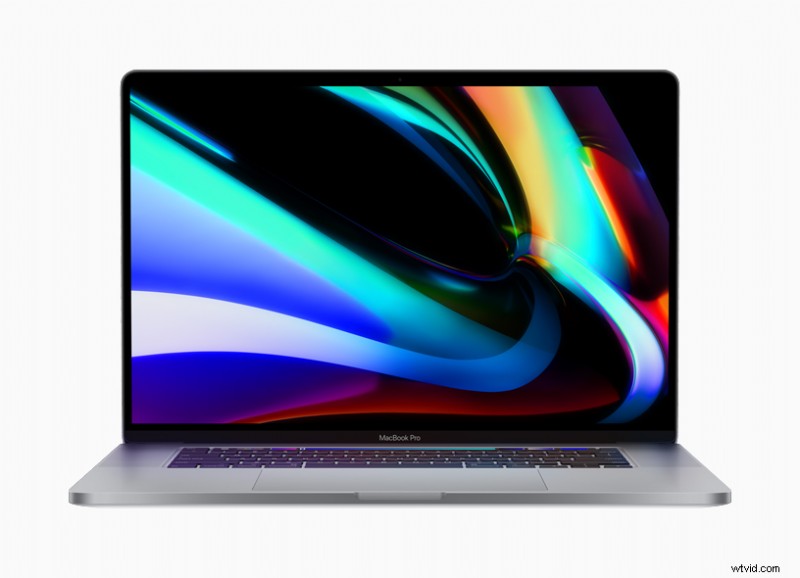
With a Liquid Retina XDR display and up to 96 GB RAM, the MacBook Pro delivers portability without sacrificing power—ideal for on‑the‑go editors.
5. Asus ROG Zephyrus G14
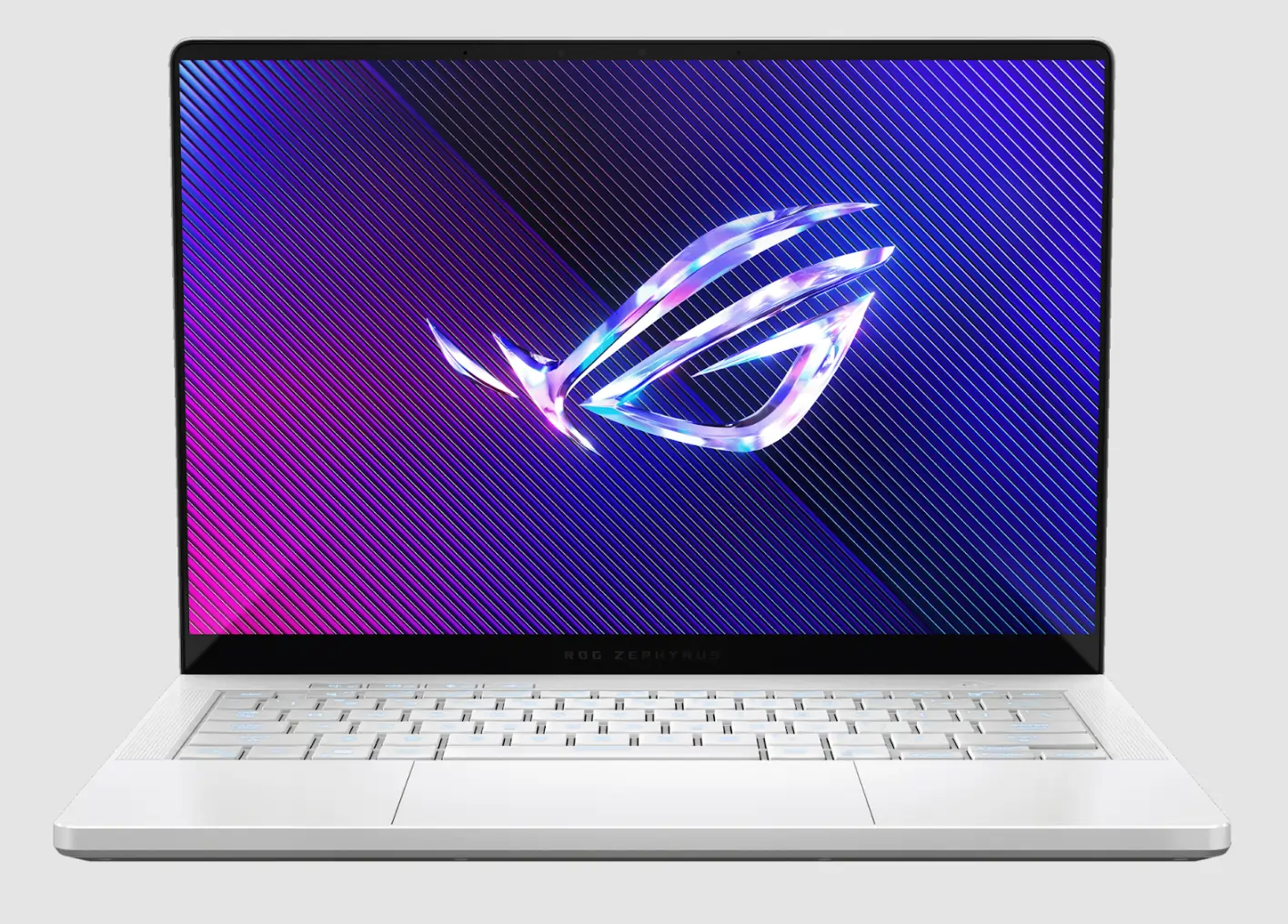
Gaming‑grade specs—AMD Ryzen 9, NVIDIA RTX 3060, 14‑inch QHD—provide a strong balance between performance and portability.
6. HP Envy 34‑inch All‑In‑One
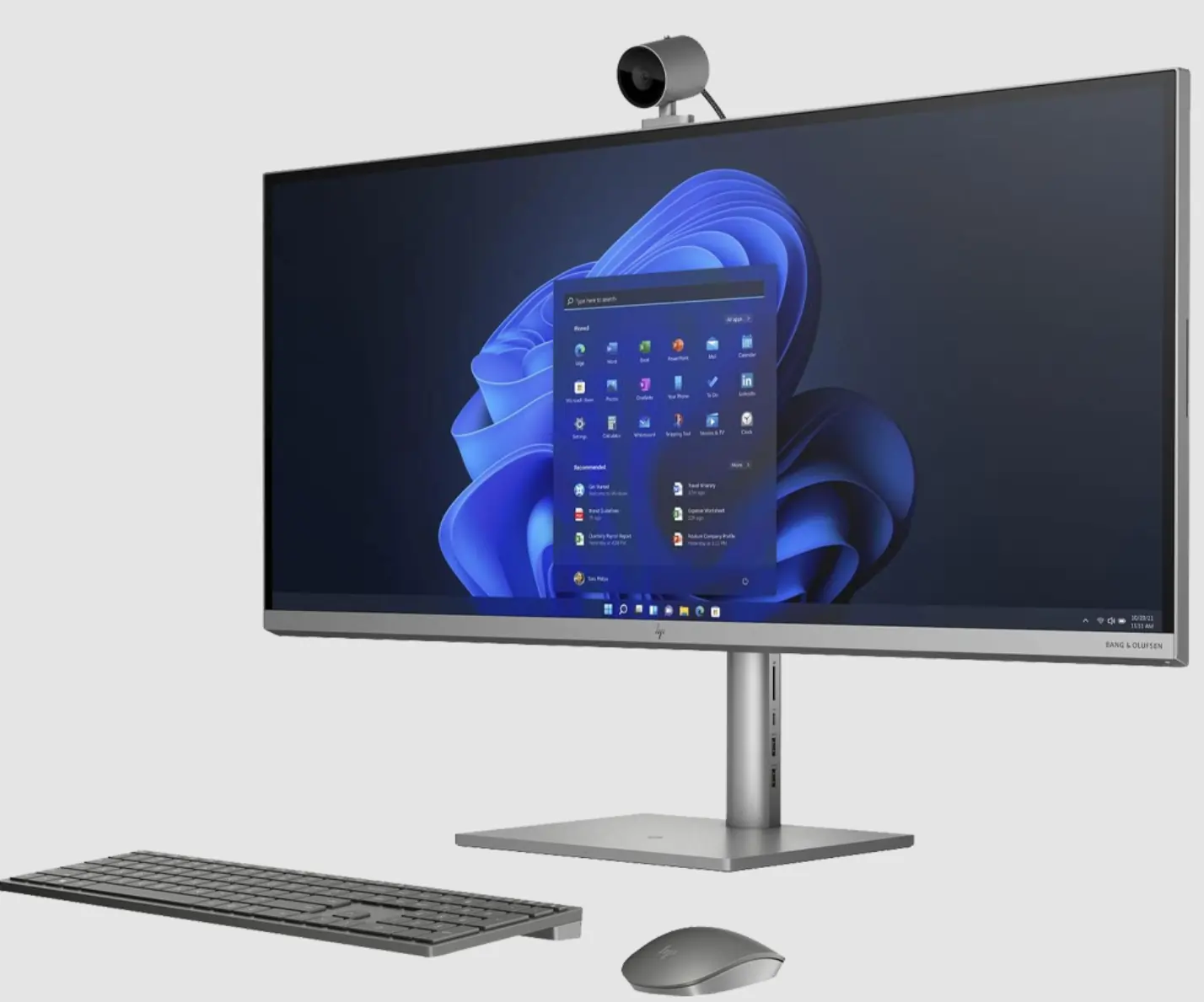
The 34‑inch, 5120×2160 screen plus Intel Core i9 and RTX 3080 delivers an immersive, high‑performance editing experience.
7. Razer Book 14
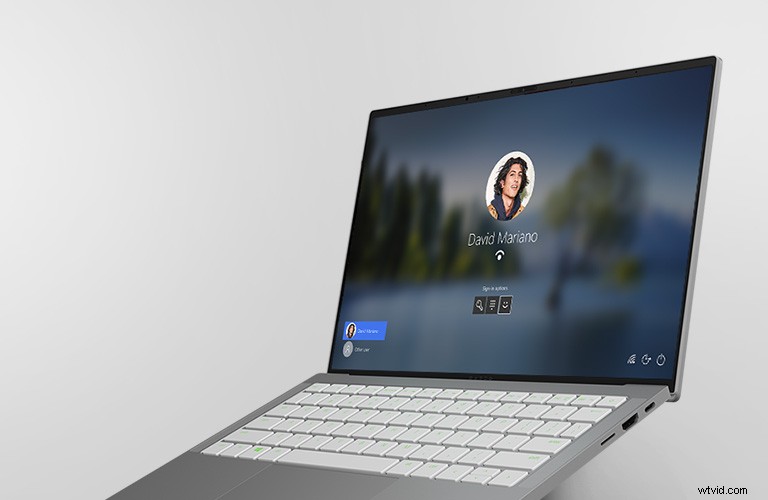
Intel Core i7 and Iris Xe graphics offer respectable mid‑tier performance for editors prioritizing mobility.
Choosing the Right Setup for Your Workflow
Match the machine’s capabilities to your project demands. For simple podcast editing, a lightweight laptop suffices. For feature‑length films, invest in a high‑core CPU, ample RAM, and a powerful GPU.
FAQs
Do I need a powerful GPU for editing?
Yes—especially for 4K or 8K rendering, effects, and real‑time preview. A high‑end GPU accelerates these tasks significantly.
Is a high‑resolution display necessary?
4K displays are highly recommended for detailed editing and accurate color grading.
Should I prioritize CPU or GPU?
Both matter, but a strong CPU is essential for encoding and timeline processing; a GPU boosts playback and effects.
Do I need special peripherals?
Color‑accurate monitors, external SSDs, and high‑quality audio gear improve workflow and output quality.
Mac or Windows?
Both platforms support top editors. Macs excel with Final Cut Pro; Windows offers broader software compatibility and upgrade options.
Which processor is best?
Intel i7/i9 or AMD Ryzen 7/9 for 1080p; i9/Ryzen 9 for 4K and beyond. More cores and higher clock speeds yield faster rendering.
How future‑proof should my system be?
Choose models with upgradable RAM, storage, and a GPU that can handle upcoming software demands.